How to Pause or Cancel a Scheduled Email Campaign
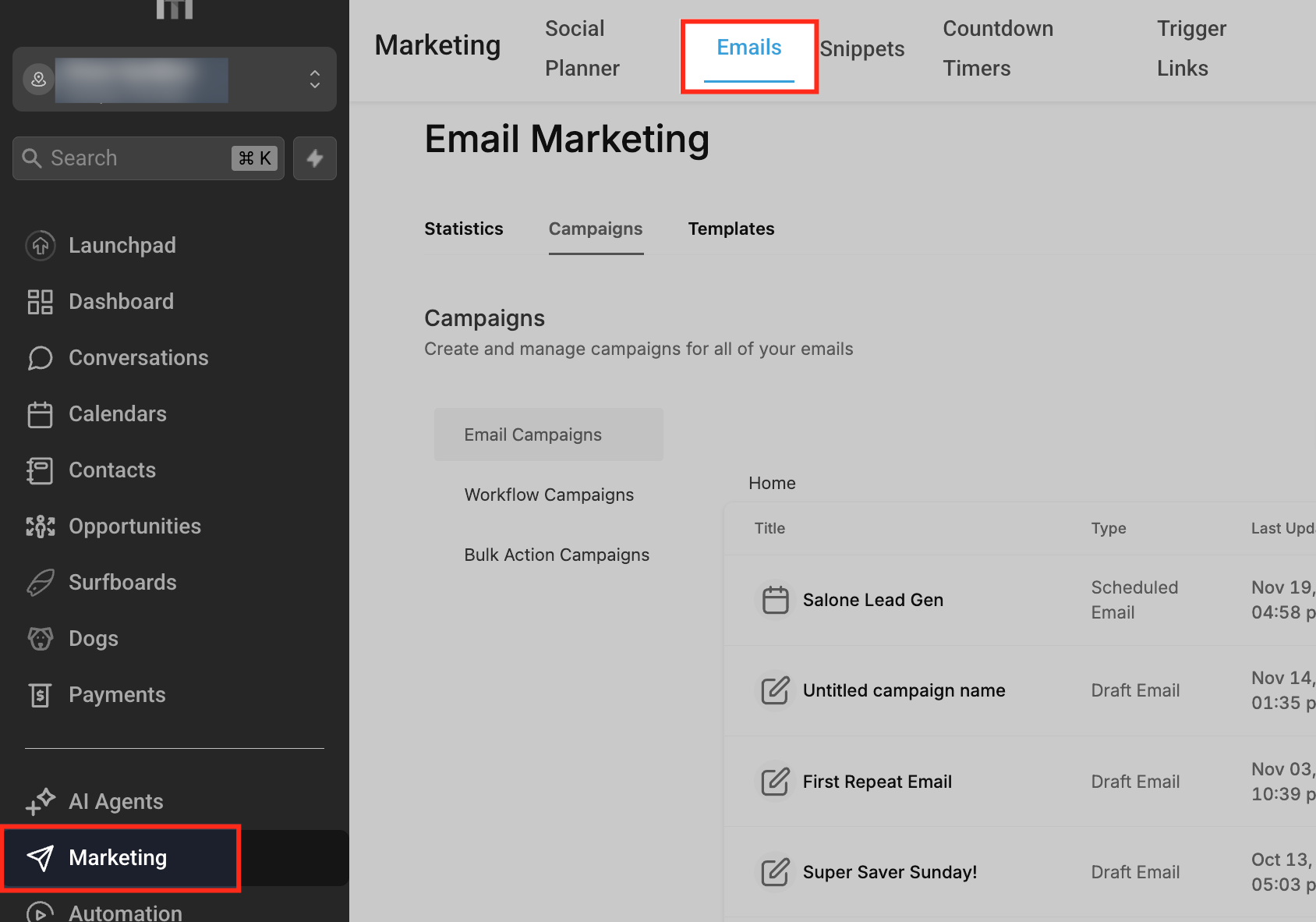
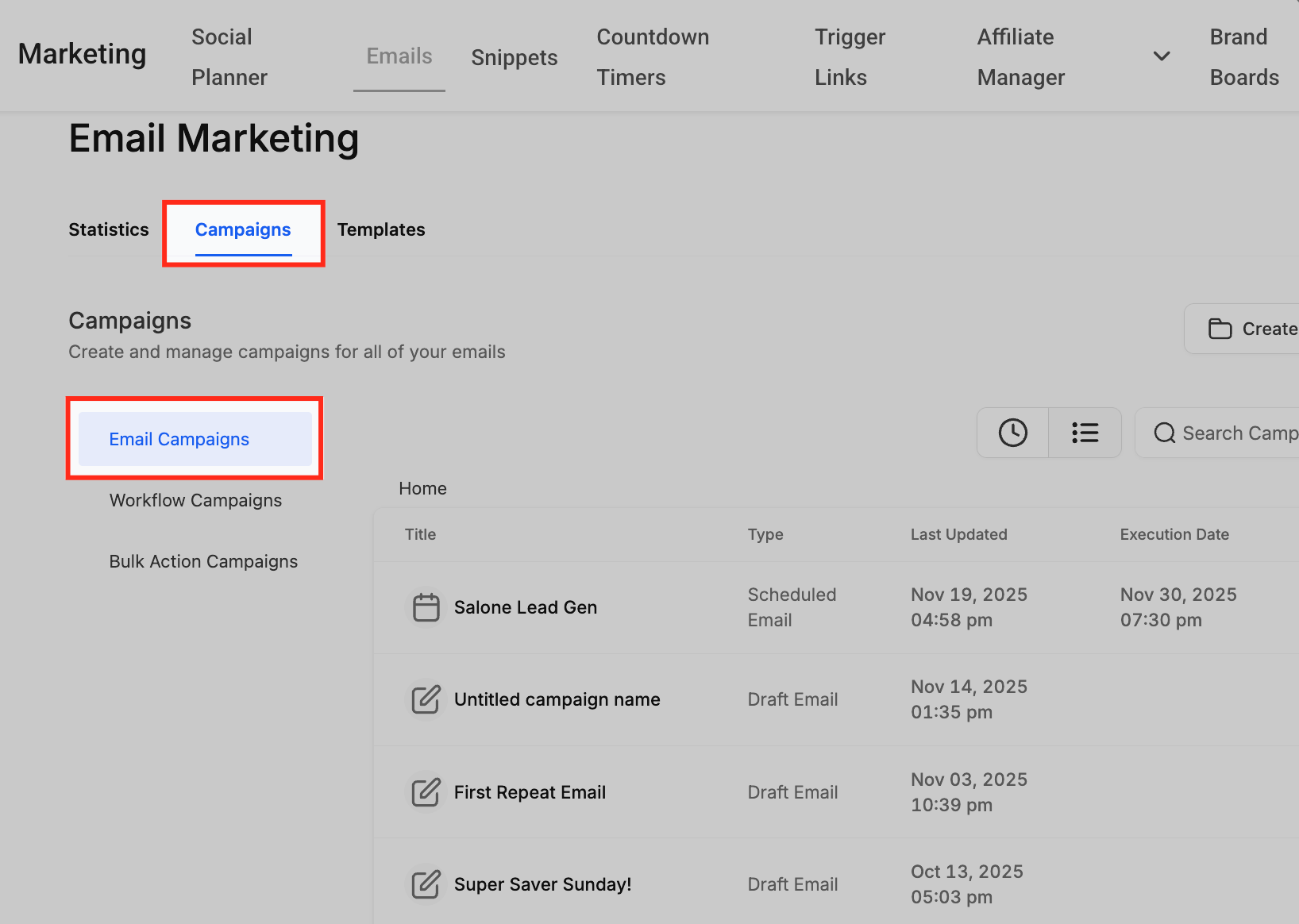
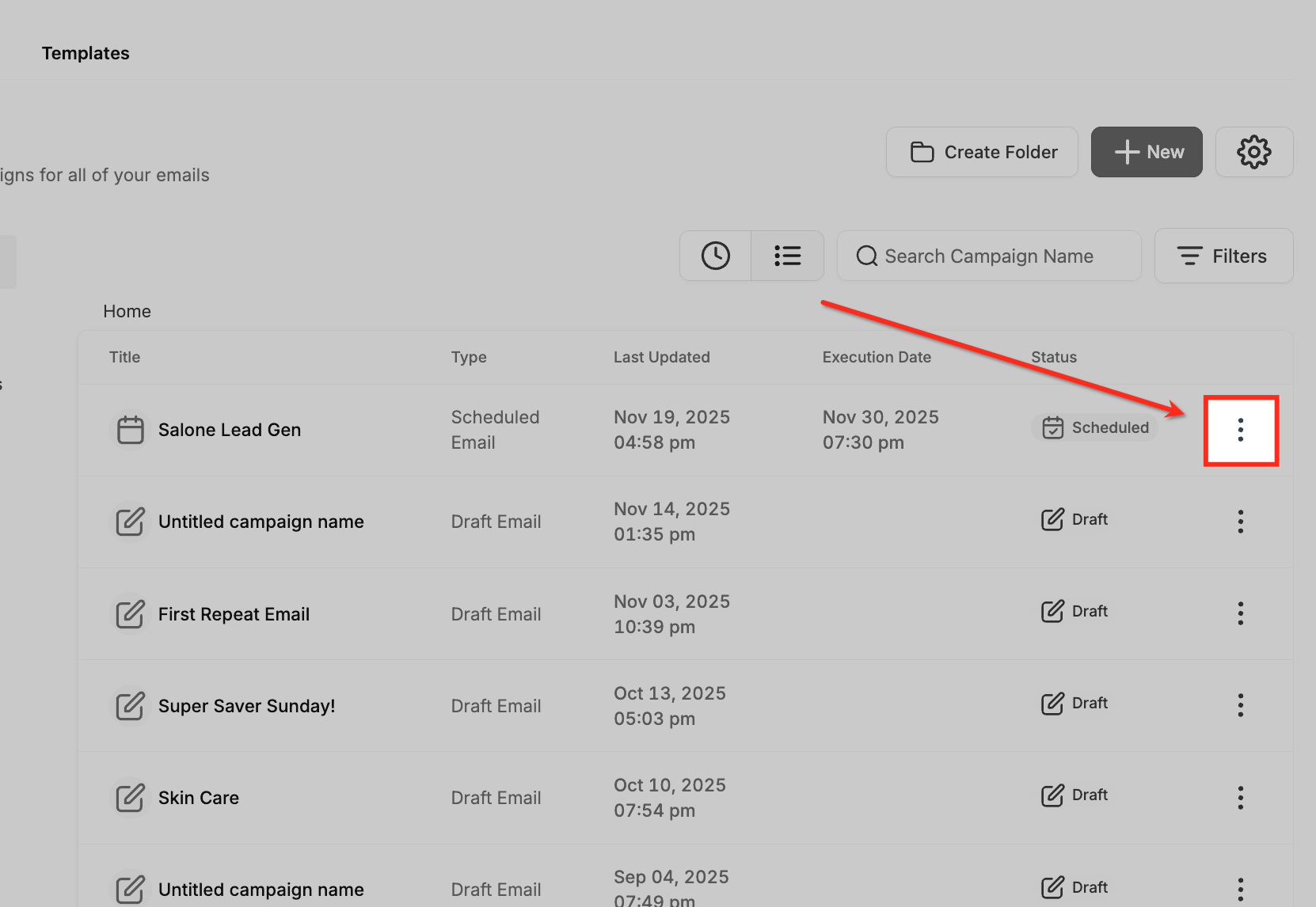
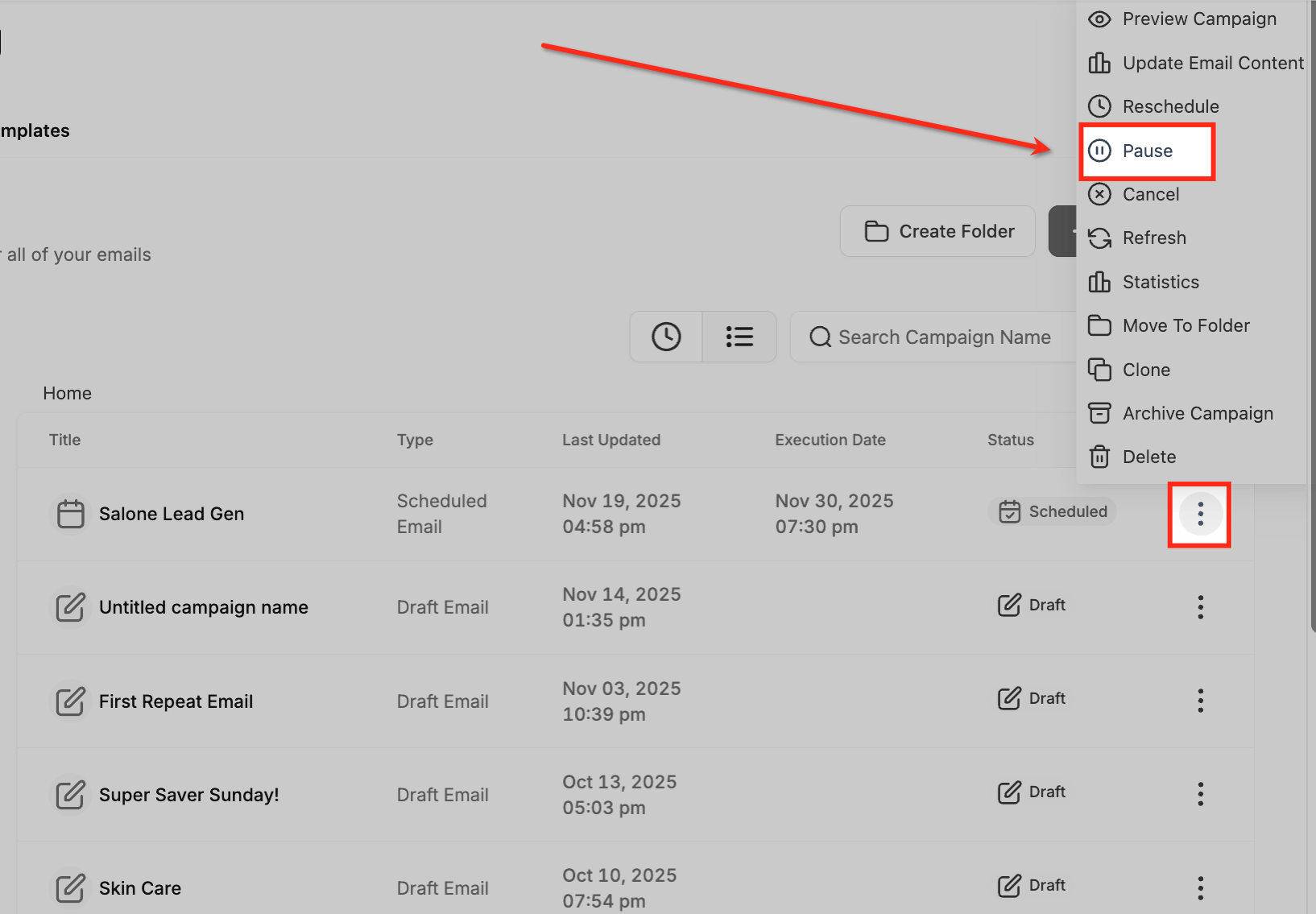
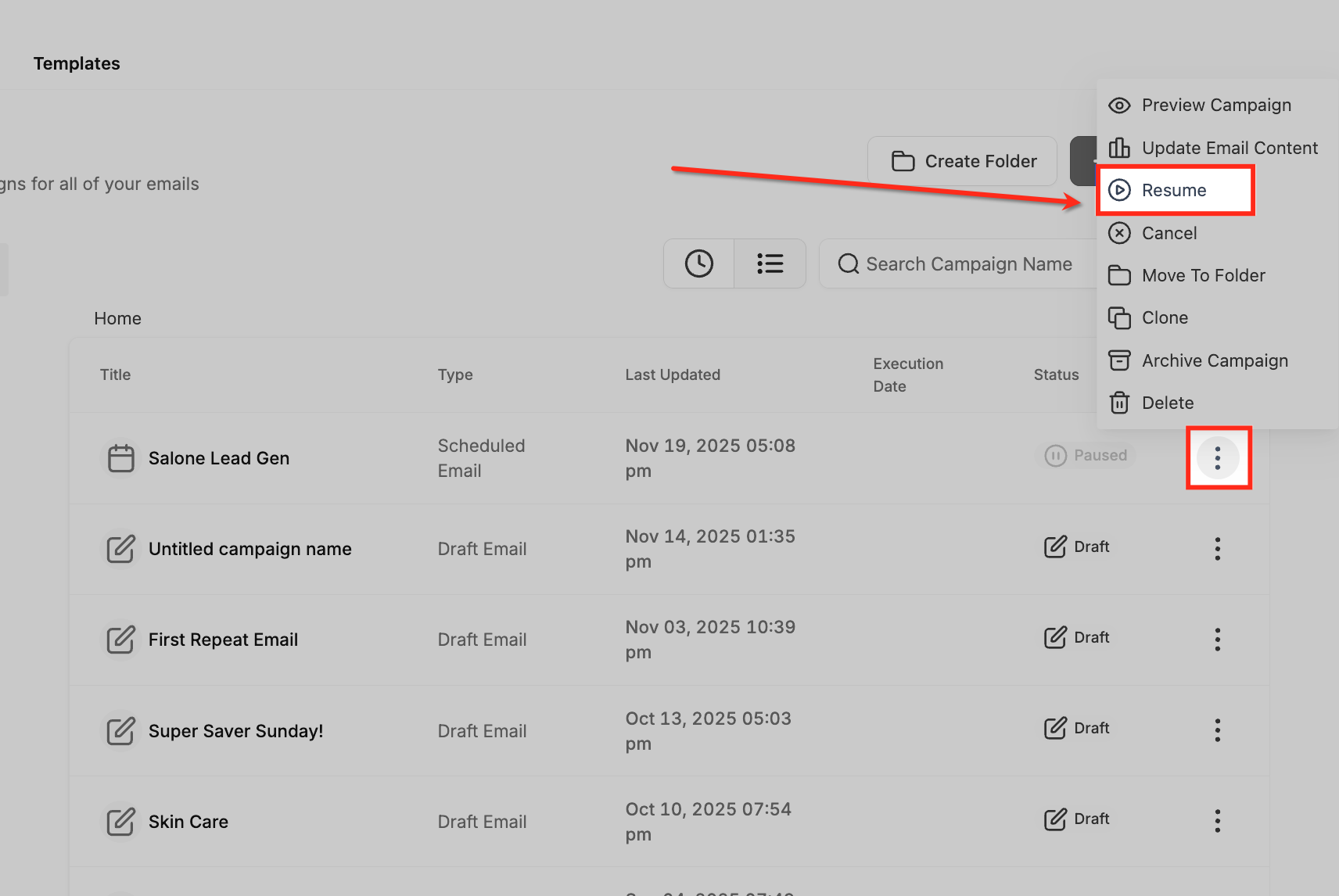
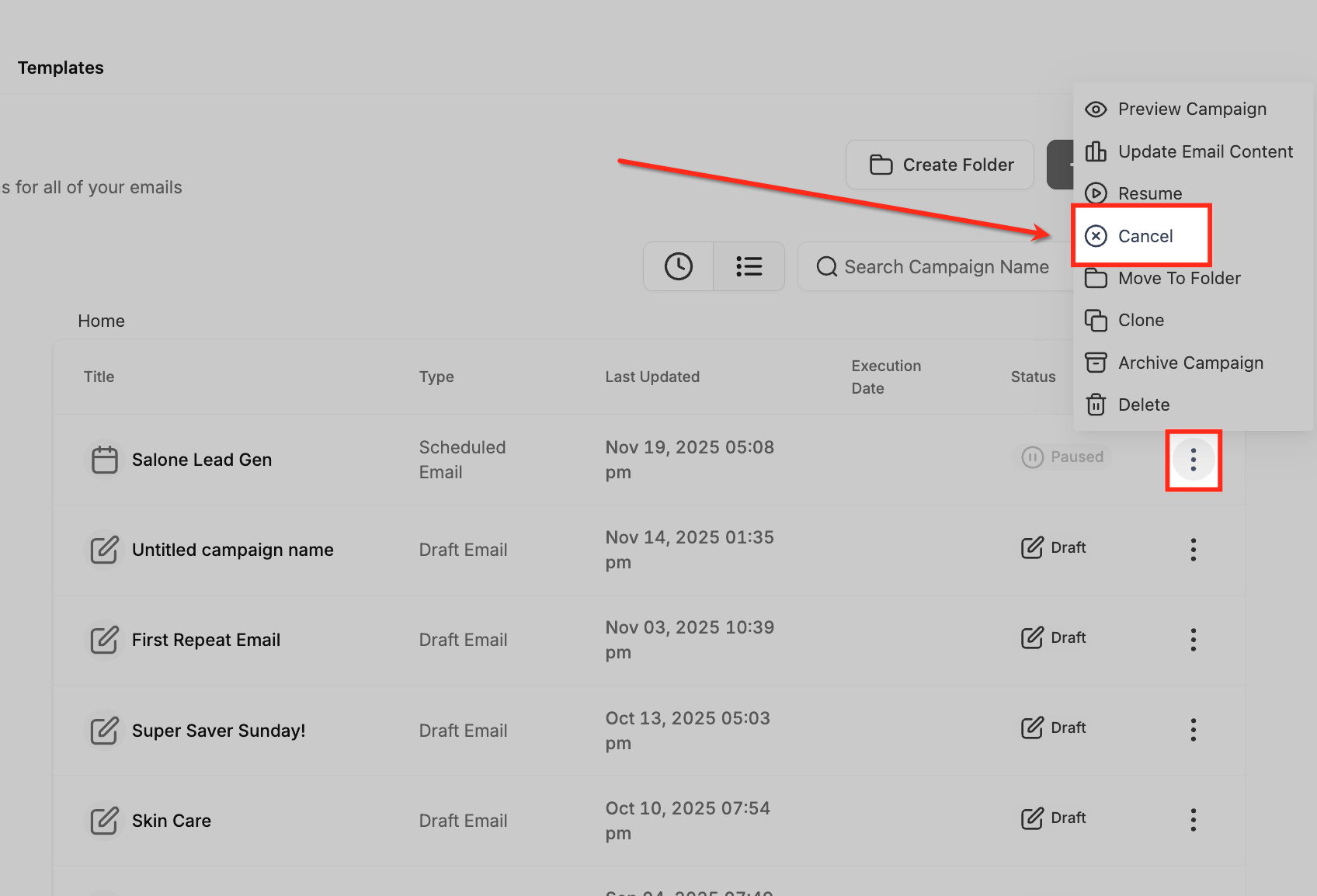
Easily manage your scheduled email campaigns in Patient Copilot by pausing, resuming, or canceling them directly from the Email Campaigns page. These options give you full control over campaign delivery, allowing you to make last-minute changes, fix errors, or stop sends entirely before they go live. * * * ## What is the Pause, Resume, or Cancel Feature? This functionality allows you to take control of scheduled email campaigns before they are sent. Whether you need to make quick edits, delay an email blast, or stop a campaign completely, you can now manage it effortlessly from the campaign actions menu. The Pause, Resume, and Cancel controls help maintain flexibility and precision in email marketing. Pausing lets you temporarily halt a campaign to review or adjust content. Resuming restores its schedule, while Cancel ensures emails won’t send at all. This prevents mistakes and helps marketers stay agile. * * * ## Key Benefits of This Feature Understanding these benefits allows you to use campaign controls strategically—keeping email sends accurate, timely, and relevant. - Flexibility: Temporarily pause campaigns to make quick adjustments. - Control: Cancel emails that are no longer needed before they go out. - Accuracy: Ensure only reviewed and approved content reaches your audience. - Time Efficiency: Instantly resume paused campaigns without rebuilding them. - Error Prevention: Avoid sending incorrect or outdated information to contacts. * * * ## How to Pause, Resume, or Cancel a Scheduled Campaign Learning to navigate and use the campaign control menu correctly ensures you can efficiently manage your email campaigns without disrupting your overall email strategy. ### Access Marketing Section From the left-hand sidebar, go to Marketing → Emails.!(https://assets.patientcopilot.ai/84913af424b2617c.png) ### Navigate to the Email Campaigns Page Select the Campaigns tab at the top of the page.!(https://assets.patientcopilot.ai/36d66c4a4914c7c5.png) ### Open the Campaign Options Find the campaign you wish to manage under the Scheduled status. Click the three-dot menu (⋮) next to the campaign name to open available actions.!(https://assets.patientcopilot.ai/bed938398295b0c2.png) ### Choose Your Desired Action #### Pause a Campaign - Select Pause from the dropdown menu. - This will temporarily halt the campaign’s send schedule. - When paused, the campaign’s status updates to Paused. Useful when you have to make quick edits, verify recipients, or check the schedule.!(https://assets.patientcopilot.ai/cb856f9fcba54db6.png) #### Resume a Campaign - Once a campaign is paused, open the three-dot menu (⋮) again. - Click Resume to re-activate the campaign. - If resumed before the scheduled time, it will send as planned. If resumed after, it will send immediately. ####!(https://assets.patientcopilot.ai/137cc1f7a7df5d1f.png) #### Cancel a Campaign - To permanently stop a scheduled campaign, click Cancel from the dropdown. - The campaign will not send, including any RSS or batch emails.!(https://assets.patientcopilot.ai/35c28c8a9b572670.png) * * * ## When to Use Each Option Understanding when to use Pause, Resume, or Cancel helps ensure you manage campaigns proactively, maintaining both accuracy and timing. - Pause: When you need more time to review or make last-minute edits before launch. - Resume: When your paused campaign is ready to continue sending. - Cancel: When the campaign is no longer relevant or contains unrecoverable errors. * * * ## Frequently Asked Questions Q: Can I resume a campaign after the original scheduled time? Yes. If resumed after the original send time, the campaign will send immediately. Q: What happens to paused campaigns if I don’t resume them? They will remain paused indefinitely until you manually resume or cancel them. Q: Does canceling a campaign delete it? No. Canceling only prevents it from sending. You can still clone or edit it later. Q: Can I pause A/B test campaigns? Yes. Pause, Resume, and Cancel options work for all scheduled campaign types, including A/B tests. Q: Will pausing affect analytics or performance tracking? No. Analytics are tracked from the moment the campaign is sent, so pausing beforehand has no effect. * * * ### Related Articles - (https://help.patientcopilot.ai/support/solutions/articles/48001215379-how-to-schedule-batch-email-campaign-s-)[How to Schedule Batch Email Campaigns](https://gohighlevelassist.freshdesk.com/a/solutions/articles/48001215379?portalId=48000045315) - (https://help.patientcopilot.ai/support/solutions/articles/48001215384-different-email-sending-delivery-method-s-send-now-schedule-batch-rss-schedule)[Different Email Sending and Delivery Methods](https://gohighlevelassist.freshdesk.com/a/solutions/articles/48001215384?portalId=48000045315) - (https://help.patientcopilot.ai/support/solutions/articles/48001215389-how-to-reschedule-an-email-campaign-email-builder-)[How to Reschedule an Email Campaign (Email Builder)](https://gohighlevelassist.freshdesk.com/a/solutions/articles/48001215389?portalId=48000045315) - (https://help.patientcopilot.ai/support/solutions/articles/155000004180-improved-email-campaign-flow-and-campaign-summary-page)[Improved Email Campaign Flow and Campaign Summary Page](https://gohighlevelassist.freshdesk.com/a/solutions/articles/155000004180?portalId=48000045315) - (https://help.patientcopilot.ai/support/solutions/articles/155000004384-using-add-tags-in-the-send-or-schedule-page-email-campaigns)[Using “Add Tags” in the Send or Schedule Page](https://gohighlevelassist.freshdesk.com/a/solutions/articles/155000004384?portalId=48000045315)