
WordPress LC Plugin - Reviews, Calendars, Surveys & Quizzes Support
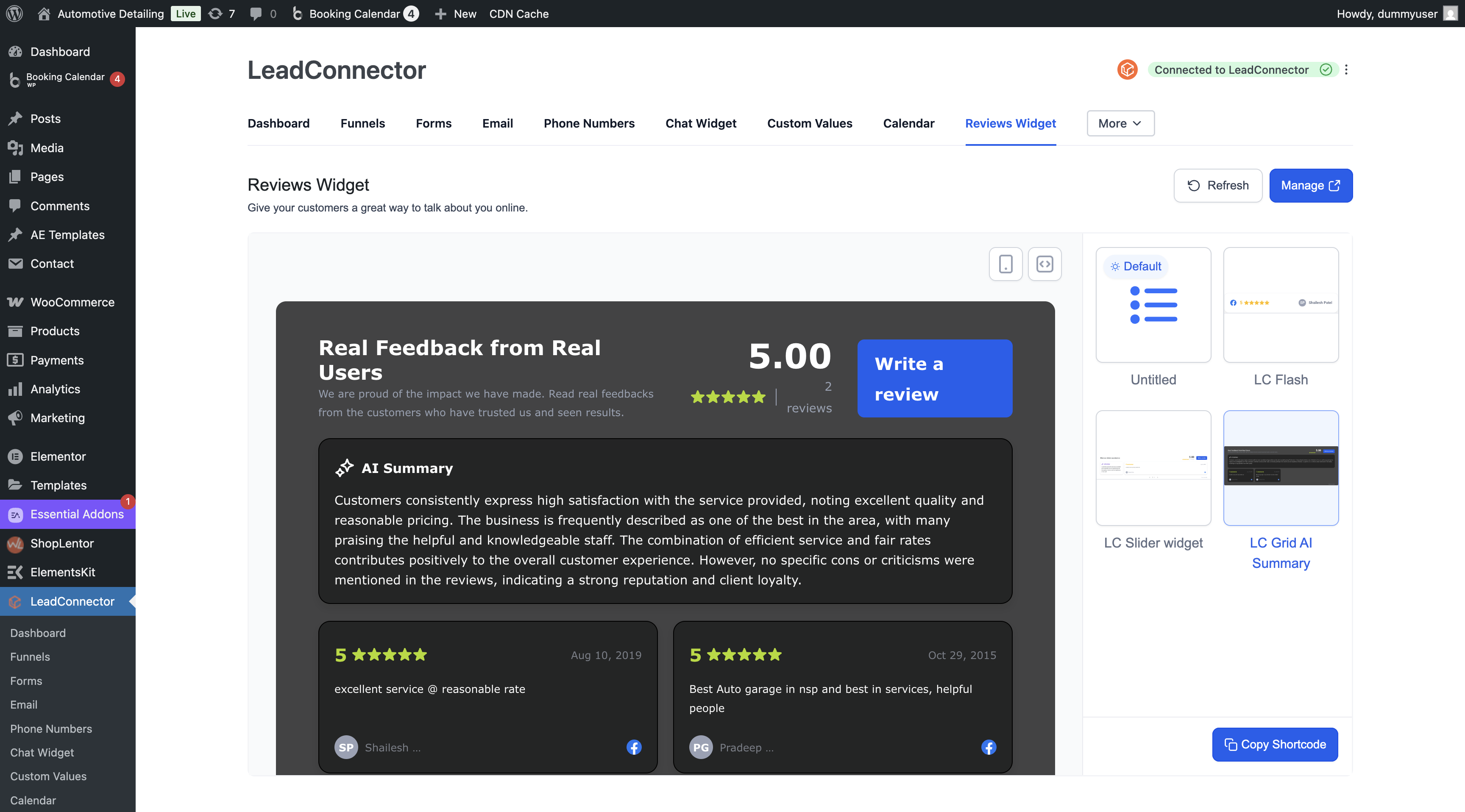
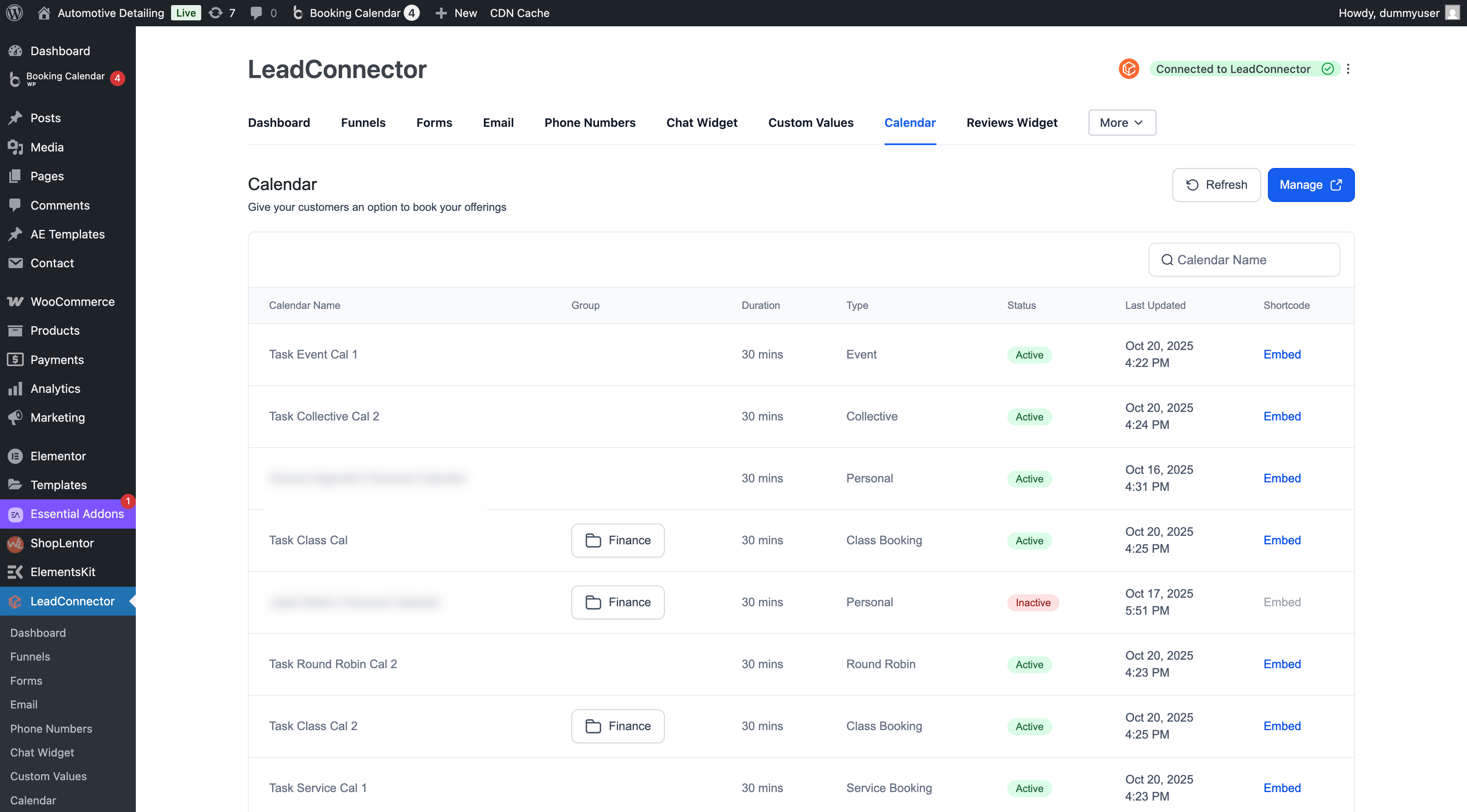
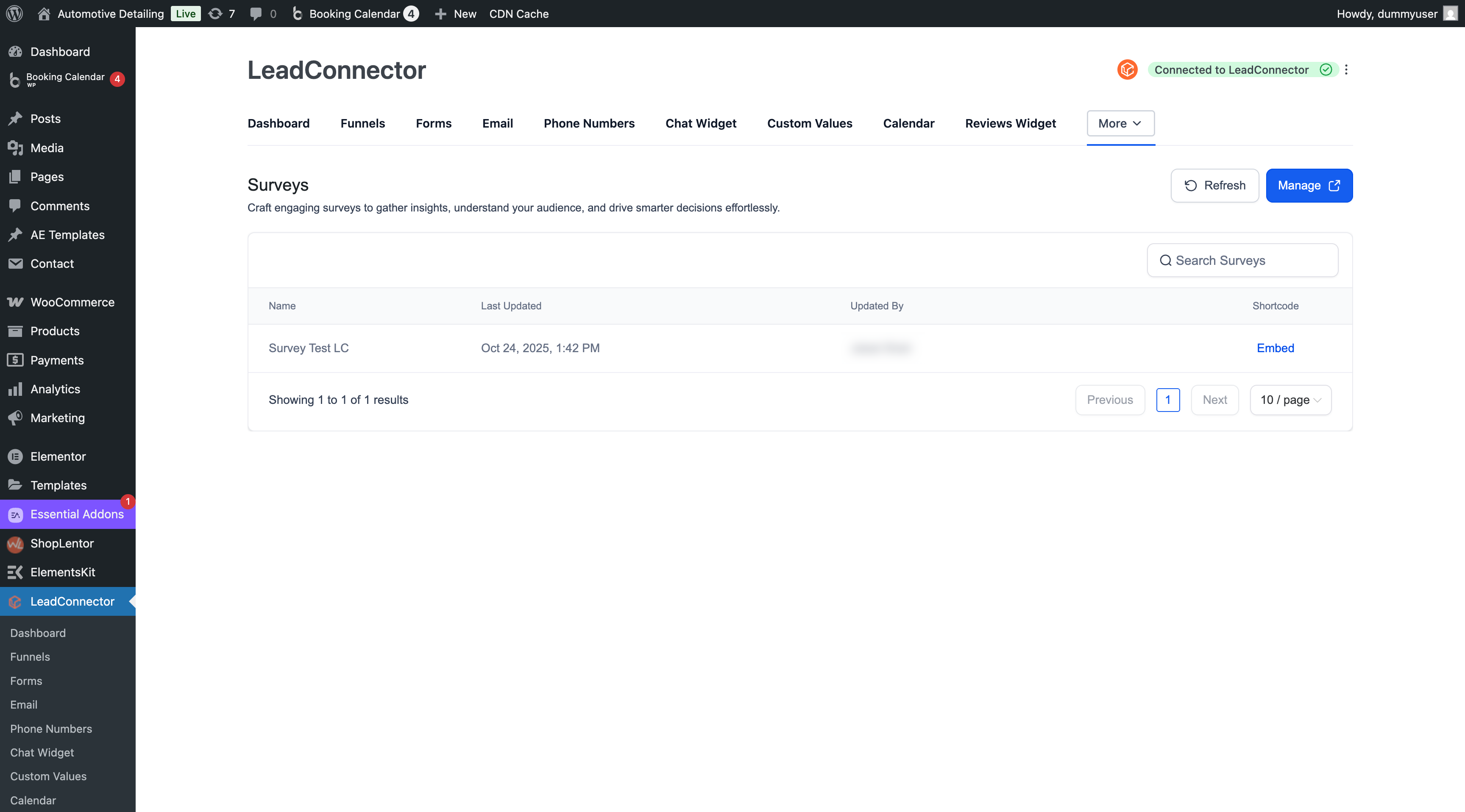
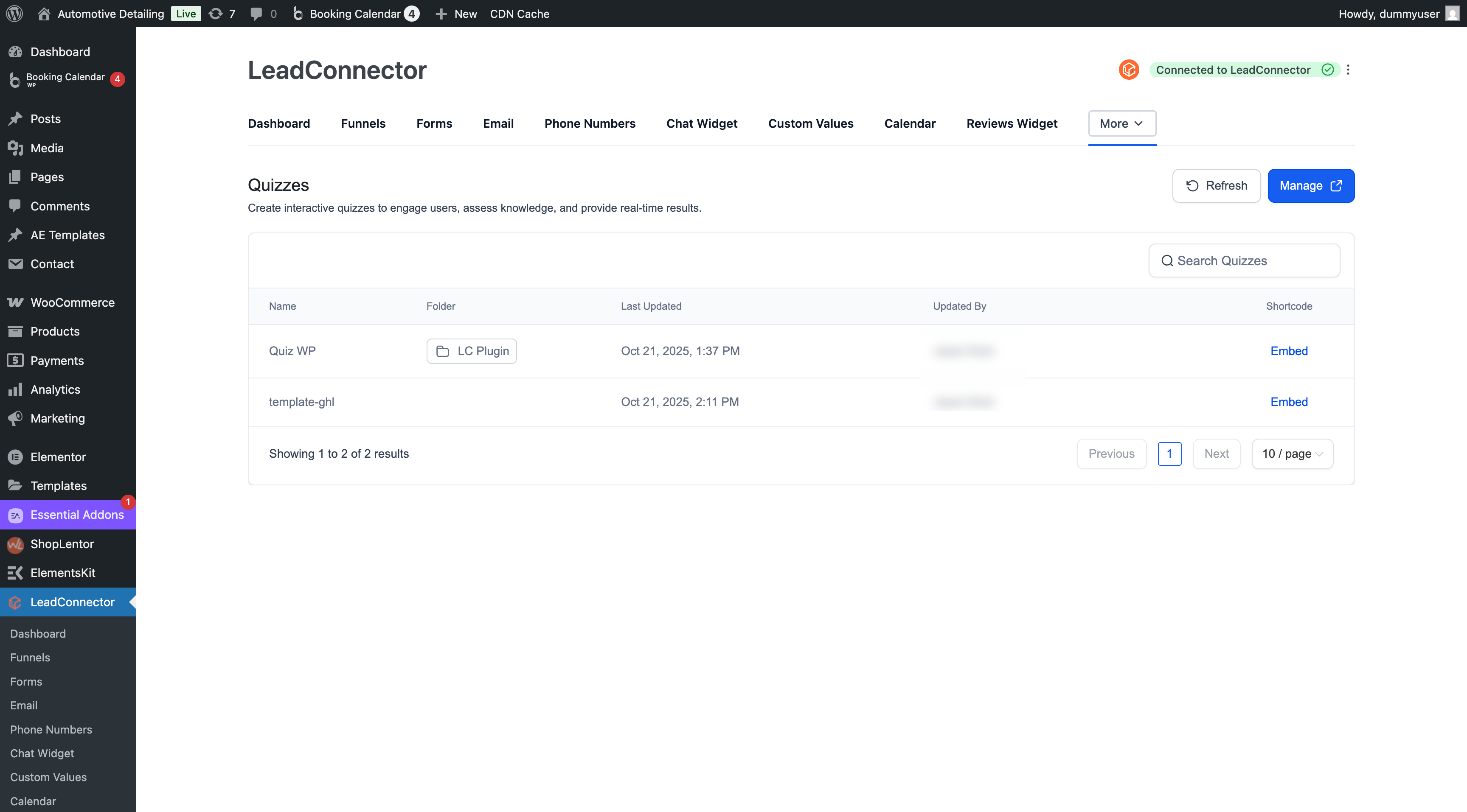
The LeadConnector (LC) WordPress Plugin now supports four additional Patient Copilot products—Review Widgets, Calendars, Surveys, and Quizzes—so you can build fully integrated, conversion‑focused sites without leaving WordPress. Use these instructions to create consistent branding, keep data in sync with Patient Copilot, and simplify deployment across page builders like Gutenberg, Elementor, and Divi. * * * ## What is the LC WordPress Plugin Support for Reviews, Calendars, Surveys & Quizzes? The LC Plugin bridges WordPress and Patient Copilot so teams can place Patient Copilot experiences directly on their sites. With v3.0.13, LC expands beyond prior widgets to include Review Widgets, Calendars, Surveys, and Quizzes. These components render using your Patient Copilot configuration while syncing to your connected sub‑account—no separate plugins or manual embed codes required. Note: For guidance on how to enable and connect the LC Plugin with WordPress, checkout this article on LeadConnector WordPress Plugin. * * * ## Key Benefits of Reviews, Calendars, Surveys & Quizzes Support - Unified workflow: Manage embeds from the LC Plugin while configuration and data remain in Patient Copilot. - Less setup friction: Connect your WordPress site to a Patient Copilot sub‑account once; supported products are ready to embed. - Consistency at scale: Preserve fonts, colors, and brand styles defined in Patient Copilot across multiple pages and sites. - Fewer plugins to maintain: Reduce code pastes and third‑party dependencies by using official LC blocks/shortcodes. - Better collaboration: Non‑technical users can add calendars, surveys, quizzes, and reviews without touching code. - Reliable syncing: Submissions, bookings, and reviews flow to Patient Copilot so analytics and follow‑ups stay centralized. * * * Review Widgets showcase social proof (e.g., customer feedback) on landing pages, pricing pages, and service pages to increase trust and conversion. - Build and customize Review Widgets inside Patient Copilot as usual. - In WordPress → LeadConnector → Reviews, pick the widget to embed and copy its shortcode. - Place the block/shortcode within any section or column in your editor. - Publish the page; reviews render with your configured filters and styles from Patient Copilot. Tips - Feature review carousels on the homepage; use static grids on service pages for scannability. - For multiple widgets on one page, place each via its own block/shortcode and arrange within your layout.!(https://assets.patientcopilot.ai/56d80b24580a553b.png) * * * ## Calendars Calendars remove booking friction by letting visitors schedule directly on your site. Use them on booking pages, footers, or contextually inside service flows. - Create or update calendars in Patient Copilot (availability, teams, routing, confirmations). - In WordPress → LeadConnector → Calendars, select the calendar to embed. - Insert the Calendar by pasting the copied shortcode where you want scheduling available. - Update and publish the page. Appointments route to the connected Patient Copilot sub‑account. Tips - Add calendars near CTAs; keep the surrounding content lightweight to focus attention on booking. - For pages with several calendars (e.g., different services), place each with its specific embed and add headings for clarity.!(https://assets.patientcopilot.ai/3c9f91a5a67b5d5f.png) * * * ## Surveys Surveys collect structured feedback and research insights. Use them to measure NPS, gather onboarding data, or qualify leads. - Build the survey in Patient Copilot (questions, logic, completion actions). - In WordPress → LeadConnector → Surveys, copy the survey embed. - Place it in your page, preview responsiveness, and publish. - Responses and analytics remain available in Patient Copilot for follow‑up and reporting. Tips - Keep surveys concise; use progress indicators and completion messages configured in Patient Copilot. - Position surveys on thank‑you pages or inside blog posts for contextual insights.!(https://assets.patientcopilot.ai/eed54d1b7146f860.png) * * * ## Quizzes Quizzes drive engagement and lead capture through interactive experiences. Use result mapping to segment contacts and trigger tailored automations in Patient Copilot. - Create your quiz in Patient Copilot (questions, scoring, outcomes, result pages). - In WordPress → LeadConnector → Quizzes, and embed it with a shortcode. - Publish; completions sync to Patient Copilot, where you can use outcomes for automation. Tips - Place quizzes on top‑of‑funnel pages; pair with a clear incentive. - Use outcome‑based CTAs that route to the most relevant next step.!(https://assets.patientcopilot.ai/cec35981f6849c89.png) * * * ## Frequently Asked Questions Q: Where are submissions, bookings, and results stored? In Patient Copilot. WordPress displays the embed; data and analytics remain in your connected sub‑account. Q: Can I add multiple calendars or review widgets to one page? Yes. Place each instance via its own block/shortcode. Keep layouts simple for the best performance. Q: Does it work with Elementor and Divi? Yes. Use the shortcode element/widget in your page builder or embed via Gutenberg blocks when applicable. * * * ## Related Articles - **(https://help.patientcopilot.ai/en/support/solutions/articles/155000005560)**(https://help.patientcopilot.ai/en/support/solutions/articles/155000005560)[WordPress- LC (LeadConnector) Plugin Overview](https://help.patientcopilot.ai/en/support/solutions/articles/155000005560)
- How to Use the WordPress Plugin Troubleshooter
- How to Install Popular WordPress Plugins During Site Creation
- List of blocked WordPress plugins Was this article helpful? That’s Great! Thank you for your feedback Sorry! We couldn’t be helpful Thank you for your feedback Feedback sent We appreciate your effort and will try to fix the article