New Sub-Accounts List UI Agency Plans
The Sub-Accounts List in Patient Copilot has been updated with a new, modern interface. Agencies on the plans can now access advanced filtering, bulk actions, and improved performance—offering the same streamlined experience available Pro users. * * * ## What is the Sub-Accounts List Revamp? The Sub-Accounts List Revamp is a major update to the Sub-Accounts management page for agencies on Patient Copilot’s plans. This update introduces a visually refreshed interface, enhanced performance, and new management tools by migrating the module to Patient Copilot’s micro-app framework. The result is a more efficient, scalable, and user-friendly way to manage all your client accounts from one place. * * * ## Key Benefits of the Sub-Accounts List Revamp The redesigned Sub-Accounts List delivers several improvements to help agencies manage their client accounts more efficiently: - Modern, Unified UI: Enjoy a visually consistent experience across all plan tiers, with updated typography, spacing, icons, and layout.
- Faster Performance: Experience quicker page loads and smoother interactions, reducing time spent on routine management tasks.
- Advanced Filtering: Quickly locate specific sub-accounts using intuitive filter controls.
- Bulk Actions: Perform actions on multiple sub-accounts at once, streamlining repetitive tasks.
- Responsive Design: Seamlessly manage accounts on any device, with layouts optimized for desktops, tablets, and mobile screens.
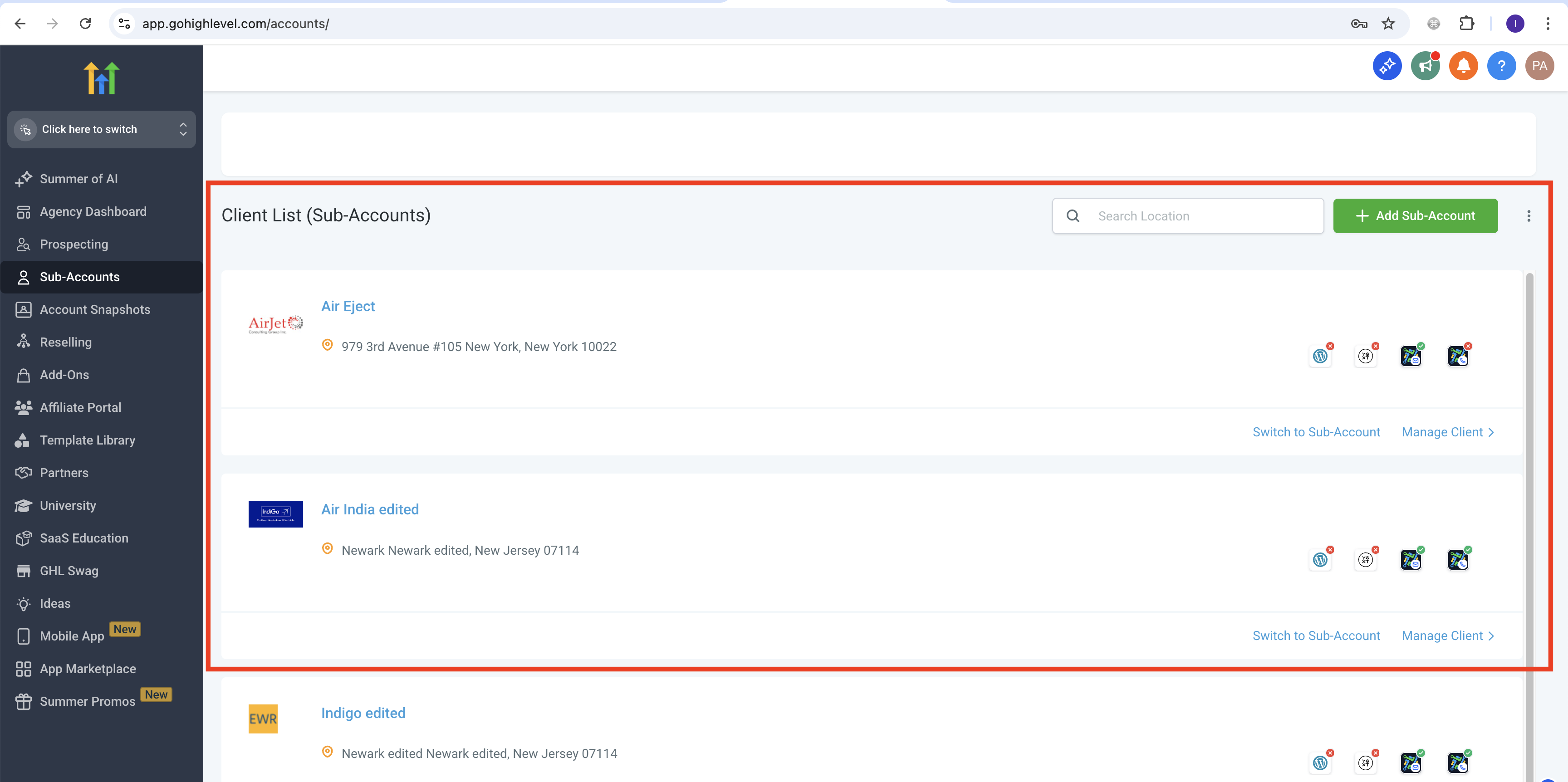
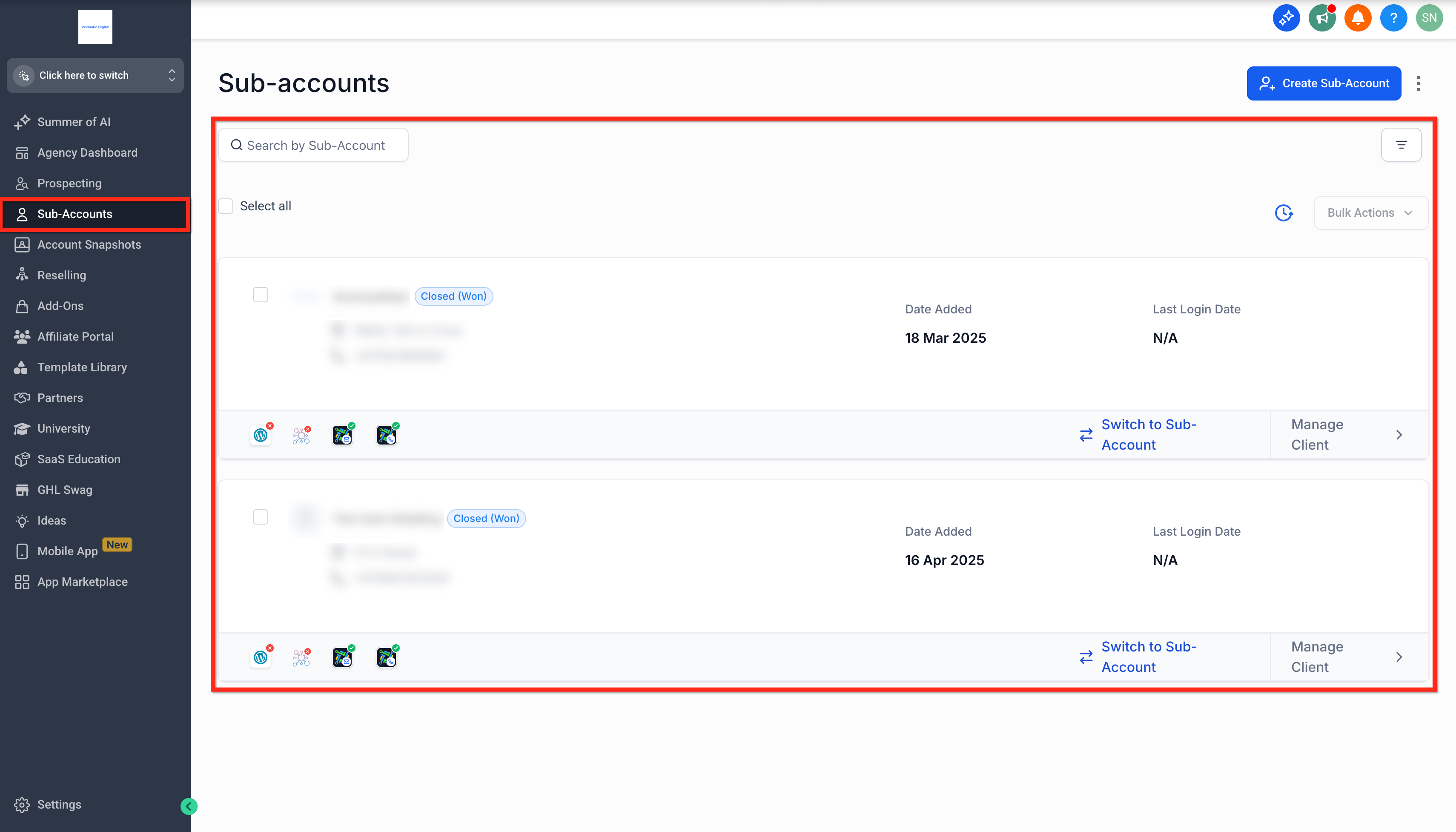
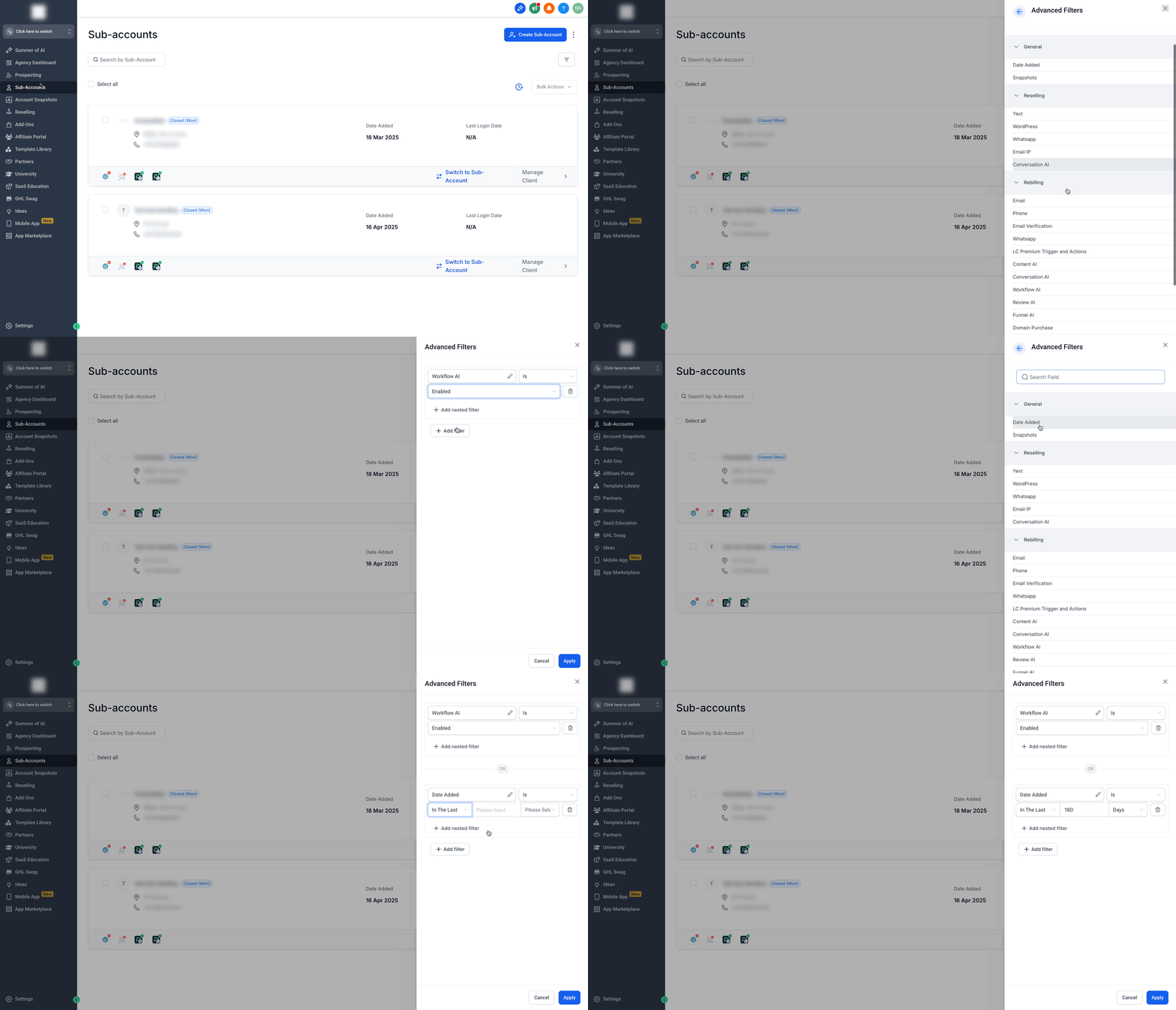
- Future-Ready Infrastructure: Benefit from the micro-app architecture, enabling faster rollout of upcoming features like sub-account tagging and column customization. * * * ## Old View VS New View Sub-Account List View ### Old View**!(https://assets.patientcopilot.ai/525b251f06703af9.png)** New View !(https://assets.patientcopilot.ai/a05acebbd7e3ff6d.png) * * * ## Advanced Filtering in the Sub-Accounts List The new Sub-Accounts List UI in Patient Copilot now includes an Advanced Filter option, available to agency users on the ** plans**. These filters help you quickly find sub-accounts based on specific platform features, configurations, or status. ### Step 1: Add a Basic Filter 1. Click on the Filter(Funnel) button at the top of the Sub-Accounts List.
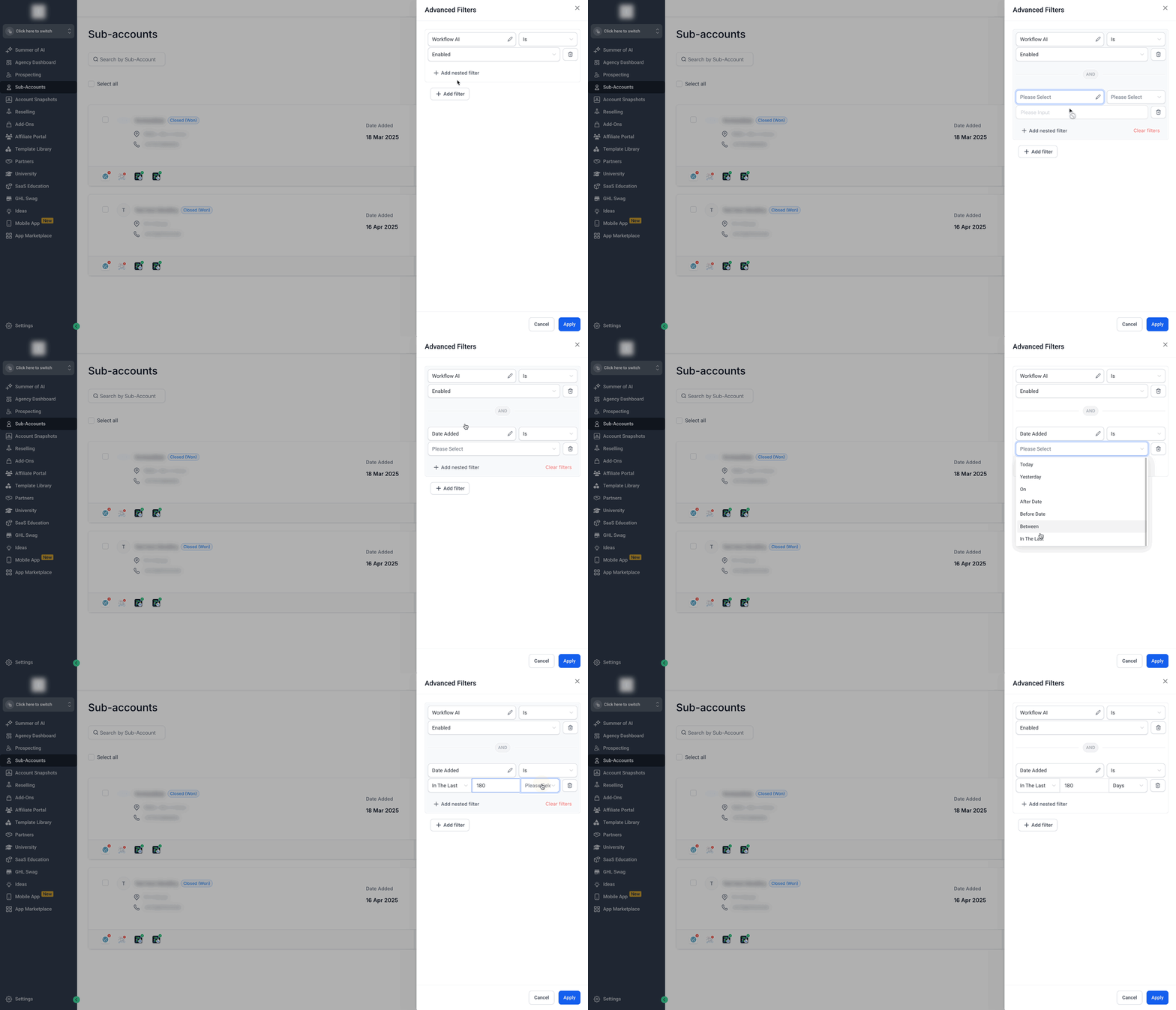
- The Advanced Filters panel will slide open, displaying four filter categories: - General (e.g., Date Added, Snapshots) - Reselling (e.g., Listings, WhatsApp, Email, AI tools) - Rebilling (e.g., Email/Phone Verification, LC Premium) - LeadConnector (e.g., LC Email, LC Phone)
- Click on any Search Filed of your choice under any of the above four categories.
- Select the Conditions you want to filter by for the particular search filed.
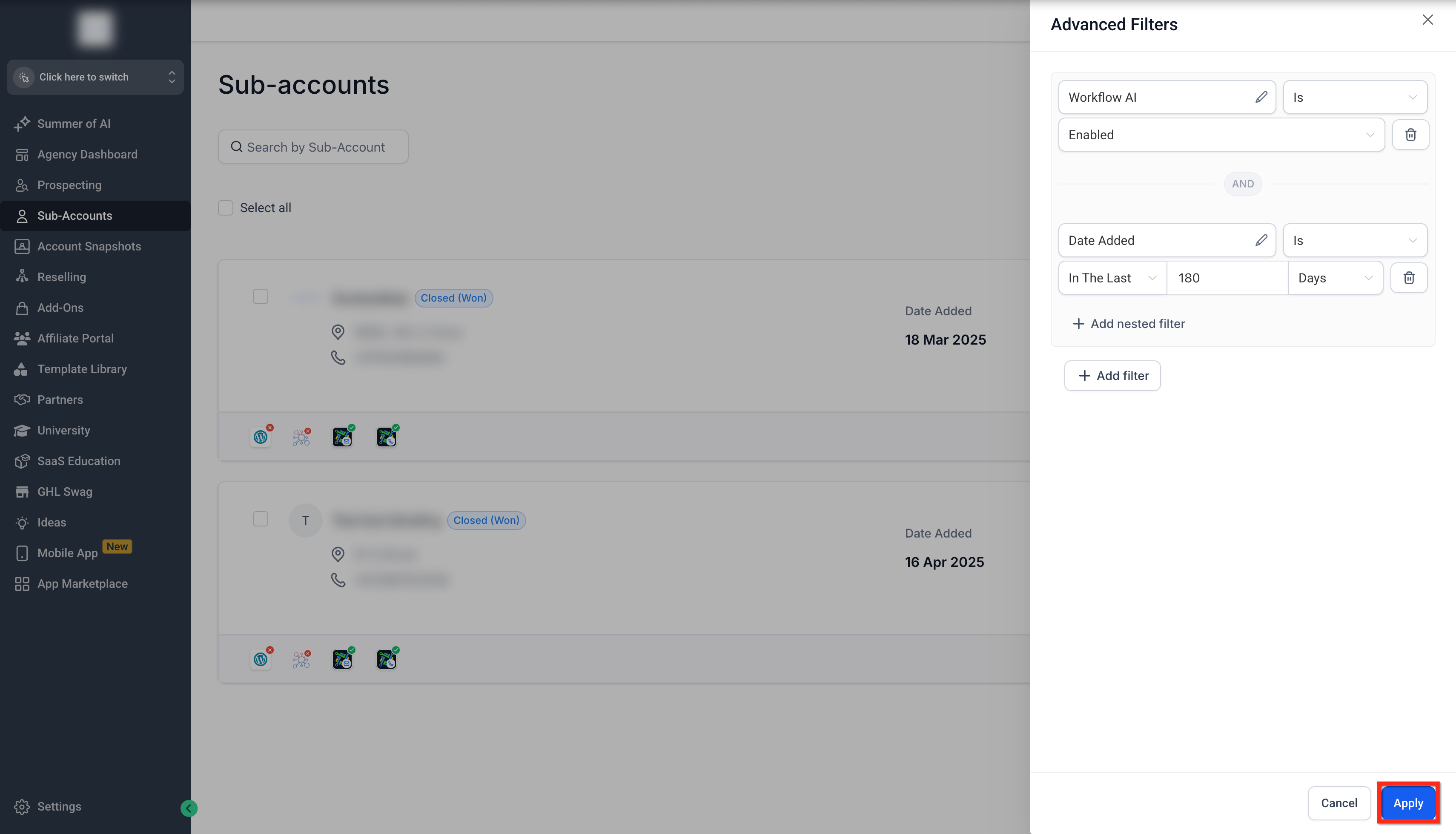
- Add an OR Logic filter by clicking the + Add Filter button. OR Logic: At least one condition must be true for a result to be shown. Filters are applied so that data matching any one of the conditions is included. Example: If you filter by ( LC Email is Enabled or LC Phone is Enabled), this will return sub-accounts that have either LC Email or LC Phone enabled (or both).!(https://assets.patientcopilot.ai/6e33086eff3e600d.gif) ### Step 2: Add Nested Filters (Optional) 1. Click on the + Add Nested Filter button. 2. This filter works on the AND Logic. And Logic: All conditions must be true for a result to be shown. Filters are combined so that the data must match every specified condition. Example: If you filter by (Date Added after Jan 1 and LC Email is Enabled), this will only show sub-accounts that were added after Jan 1 and also have LC Email enabled.!(https://assets.patientcopilot.ai/a6ac4d9635ea34f0.gif) ### Step 3: Apply and Review Filter Results 1. Click Apply to run the selected filters.
- Review the returned Sub-Accounts that match your criteria.
- If no results match, Patient Copilot displays a message indicating that no locations were found.
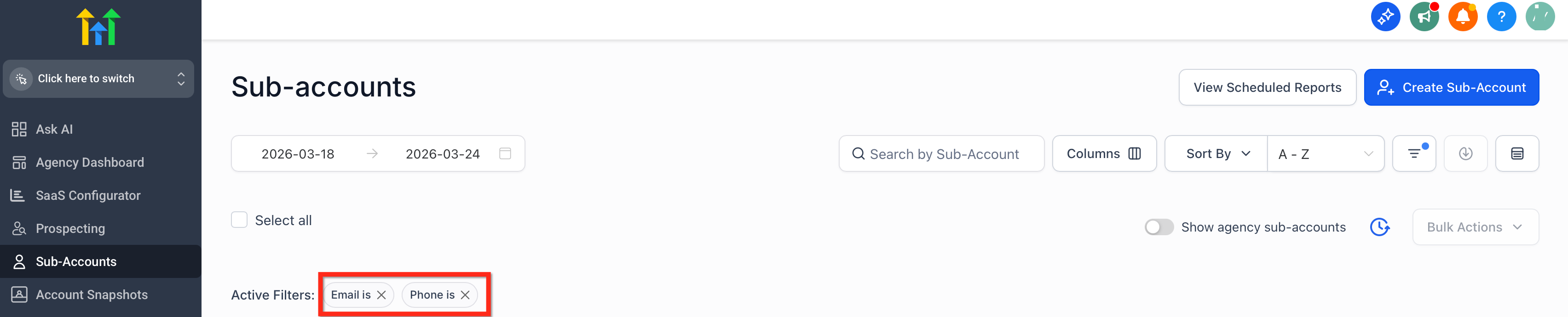
- After filters are applied, Patient Copilot keeps the active filter state visible on the listing page so you can quickly confirm which criteria are in use.!(https://assets.patientcopilot.ai/90f5d05a2e117e88.png) ### Step 4: Review and Manage Applied Filters Visible filter controls make it easier to understand why specific Sub-Accounts appear in your list. This helps you refine results faster without reopening the full filter workflow every time. 1. Patient Copilot shows a clear visual indicator for filters that are currently active.
- The applied-filter area gives you a quick preview of the filter criteria shaping the list.
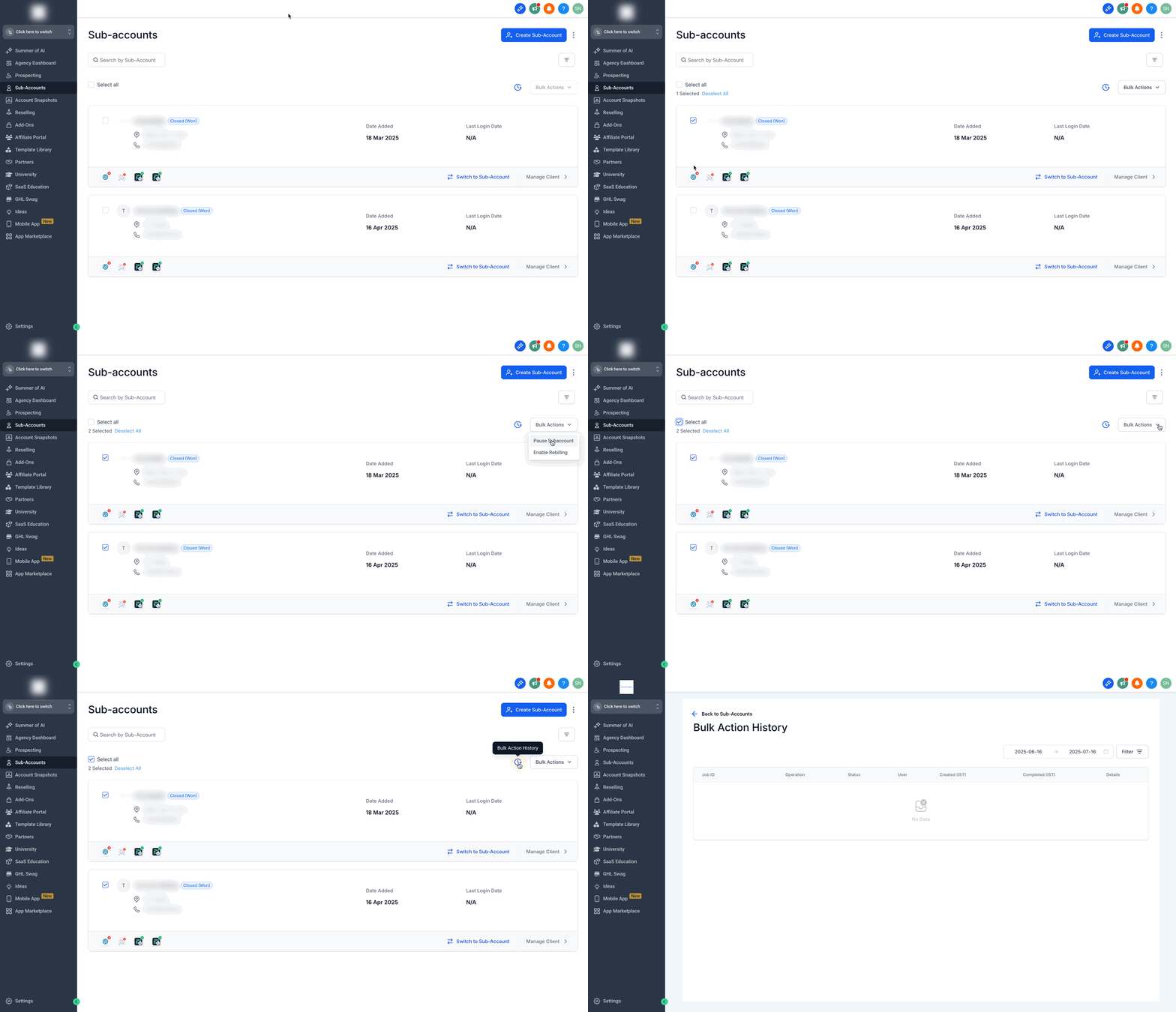
- You can remove or adjust filters with a single action to refine results more efficiently.!(https://assets.patientcopilot.ai/e60922f0ade3350c.png) * * * ## Bulk Actions for Sub-Account Management Bulk actions allow agencies to efficiently manage multiple sub-accounts at once, reducing repetitive manual work. - Use checkboxes to select individual sub-accounts or click on the Select all check box.
- Once you have selected desired sub-accounts, click on the Bulk Actions dropdown.
- You have two bulk actions available: Pause Sub-Account and Enable Rebilling.
- Click on the Bulk Action History (Clock) icon to see previous bulk action logs.!(https://assets.patientcopilot.ai/12db56e5359af14d.gif) * * * ## Frequently Asked Questions Q: Is the new Sub-Accounts List available to all Patient Copilot users? The revamped Sub-Accounts List is available to agencies on the plans, and is already standard Pro users. Q: Will enabling the new UI affect my existing sub-accounts or data? No, the update only changes the interface and management tools. Your sub-account data remains unchanged. Q: Is the new Sub-Accounts List mobile-friendly? Yes, the updated UI is fully responsive and optimized for all screen sizes. Q: Do I need to pay extra to access the new Sub-Accounts List? No, the feature is included in your existing plan. * * * ## Related Articles - Getting Started - Agency Launchpad Overview
- Agency | Managing user roles & permissions
- Agency Dashboard for Rebilling
- Understanding the Agency Owner Role in Your Agency Account: What You Need to Know (https://help.patientcopilot.ai/en/support/solutions/articles/155000002543) (https://help.patientcopilot.ai/support/solutions/articles/48001224532-responsive-design-overview)