
How to import WhatsApp templates using Snapshots into sub accounts
-
-
- Prerequisites Before using Snapshots for WhatsApp templates, please ensure the following: • You have an active Patient Copilot subscription, as Snapshots are only available to active accounts. • The sub-account has WhatsApp properly integrated. Templates cannot be loaded or used unless WhatsApp is already connected. Once both requirements are met, you can use Snapshots to load and transfer WhatsApp templates into your sub-accounts successfully. * * * ** ## How to Import WhatsApp Templates Using Snapshots into Sub-Accounts ## Step 1: Access the Agency Dashboard - Log in to your Agency Dashboard.
-
- Navigate to Account Snapshots.
- Click on Create New Snapshot.
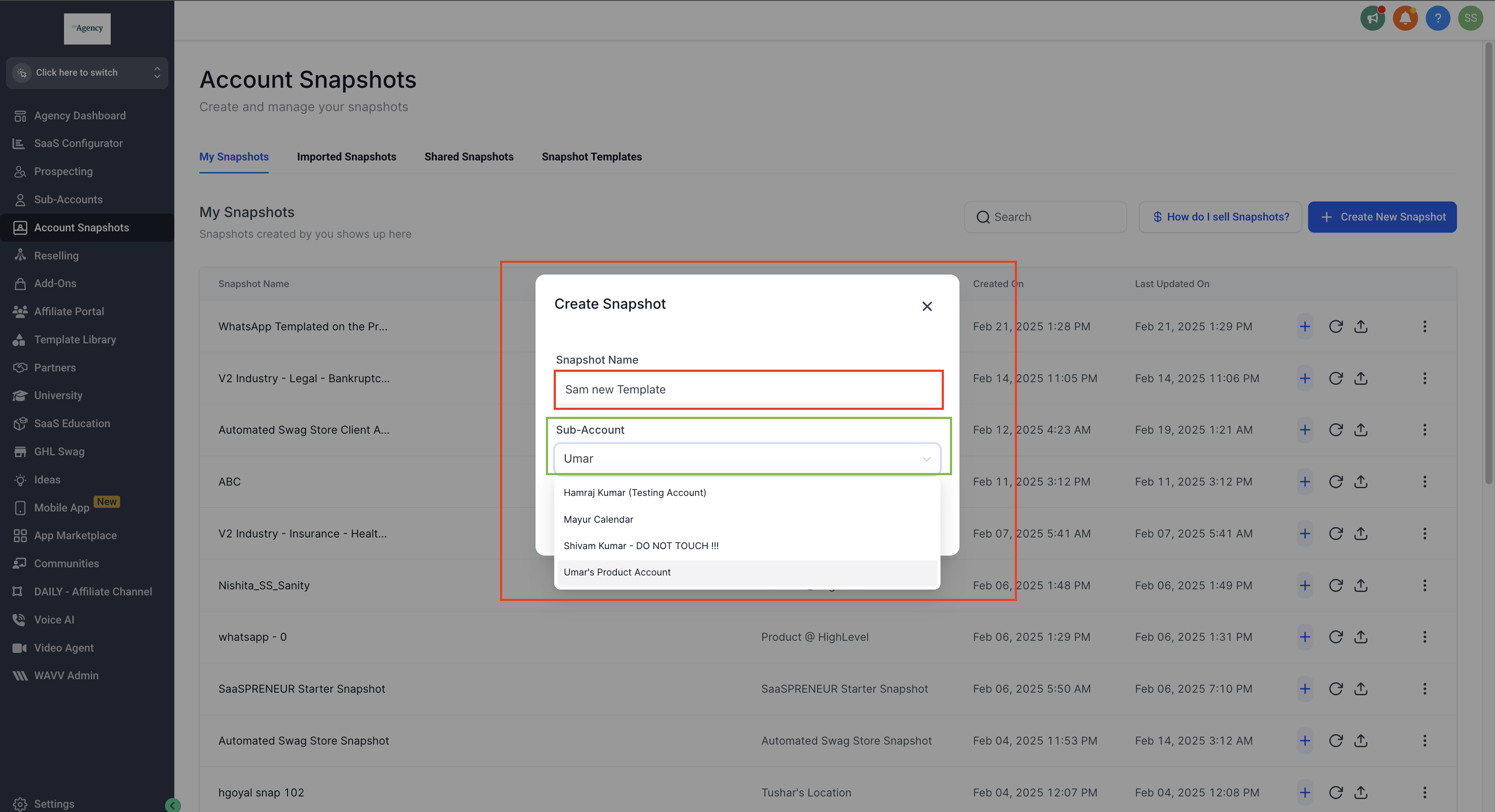
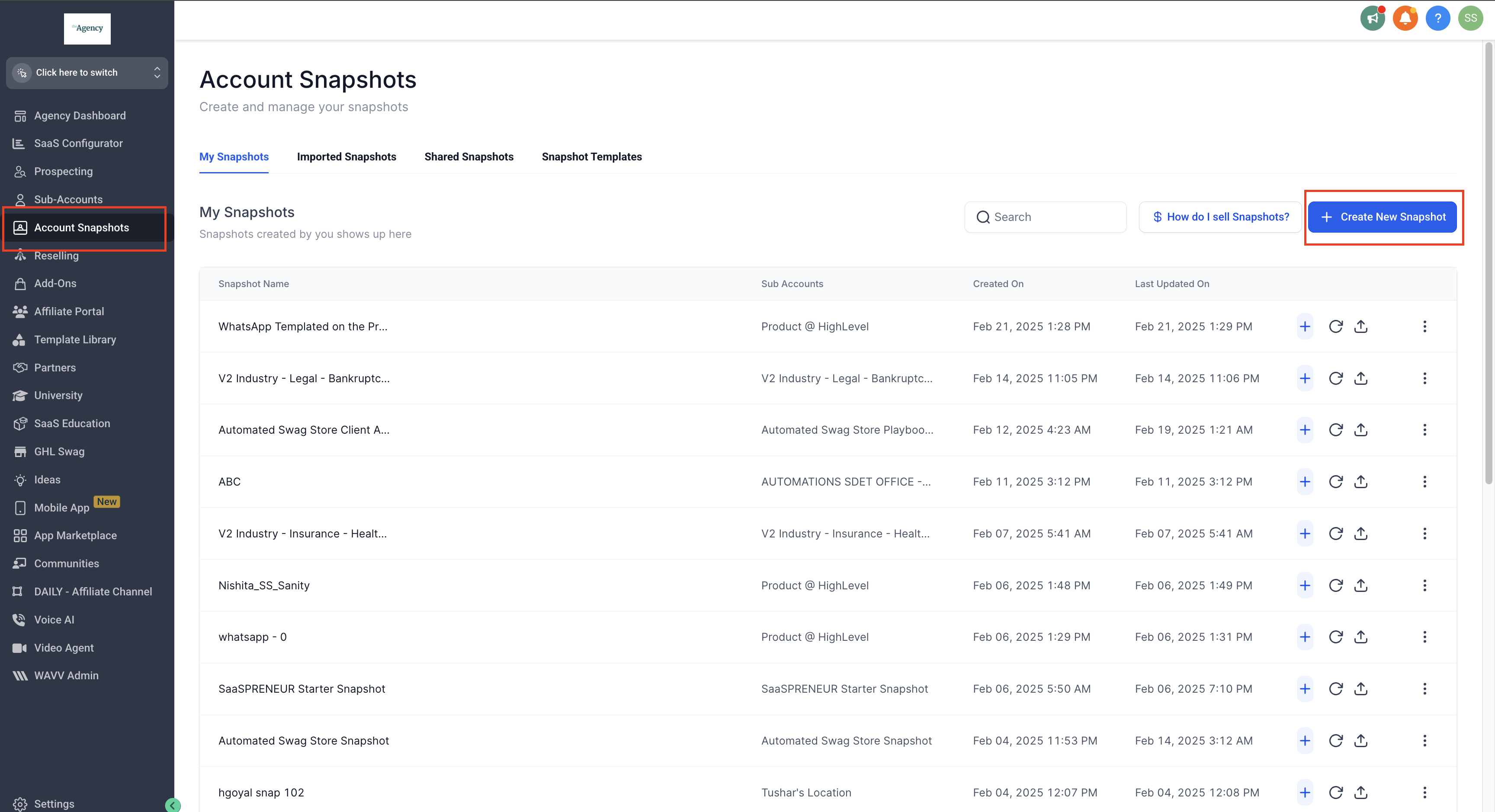 * * * ## Step 2: Create a Snapshot - Enter the Snapshot Name.
 - Select the Sub-Account you want to copy templates from.
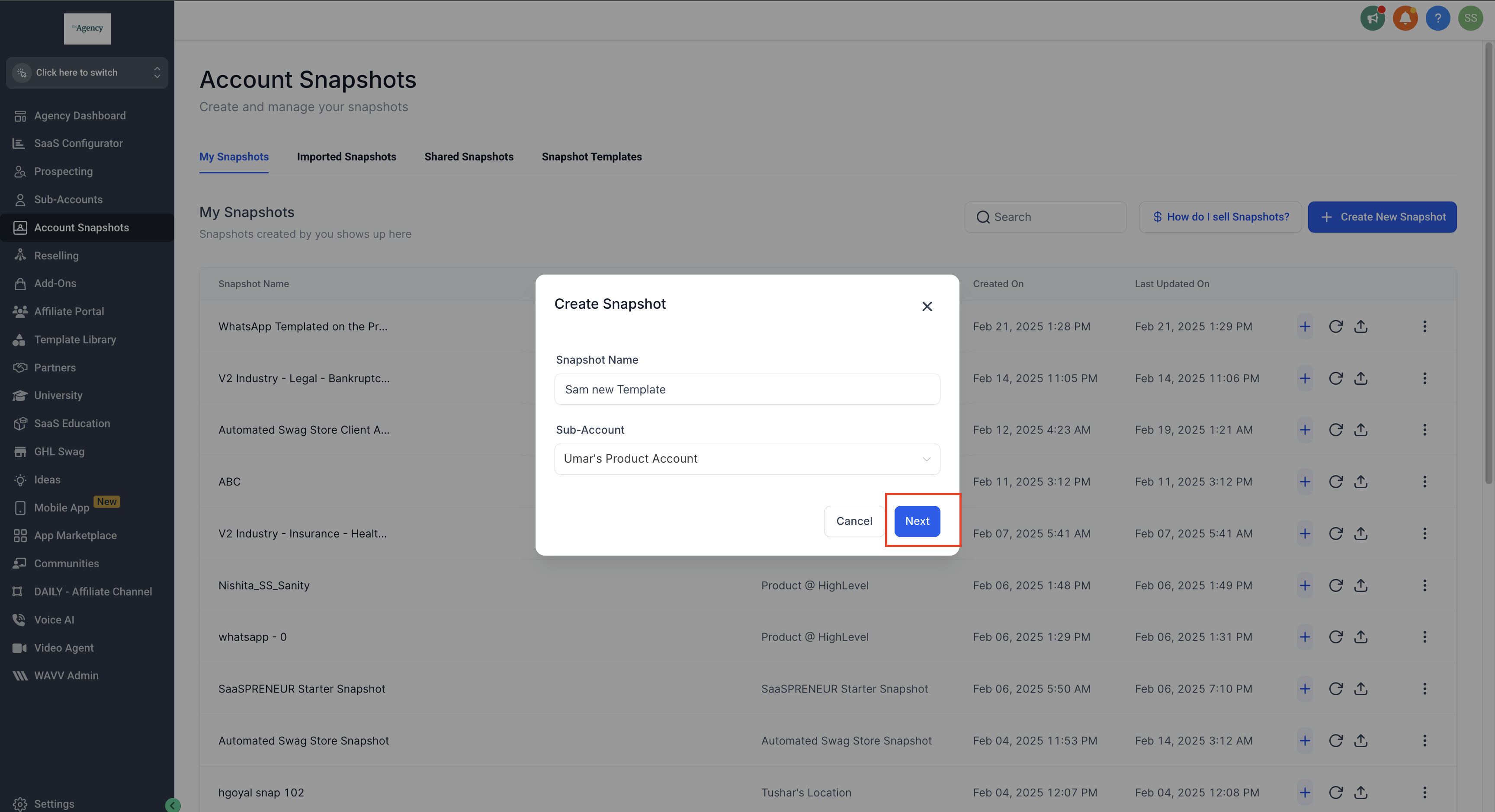
 * * * ## Step 3: Proceed to the Next Step - Click Next to continue.
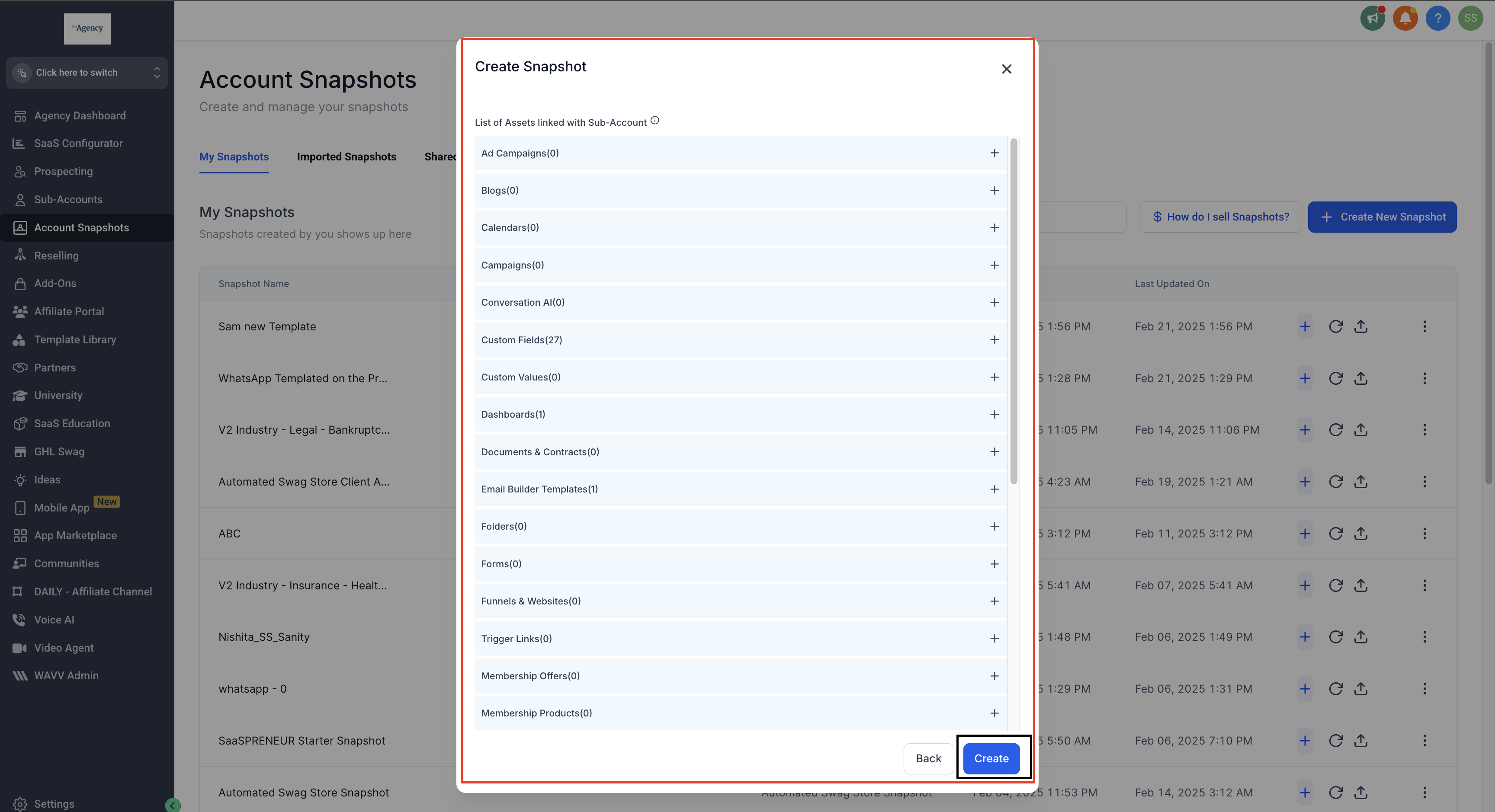
  * * * ## Step 4: Select Assets & Create Snapshot - A list of assets linked to the Sub-Account will appear.
 - Click on Create to finalize the Snapshot. The Snapshot is now created.
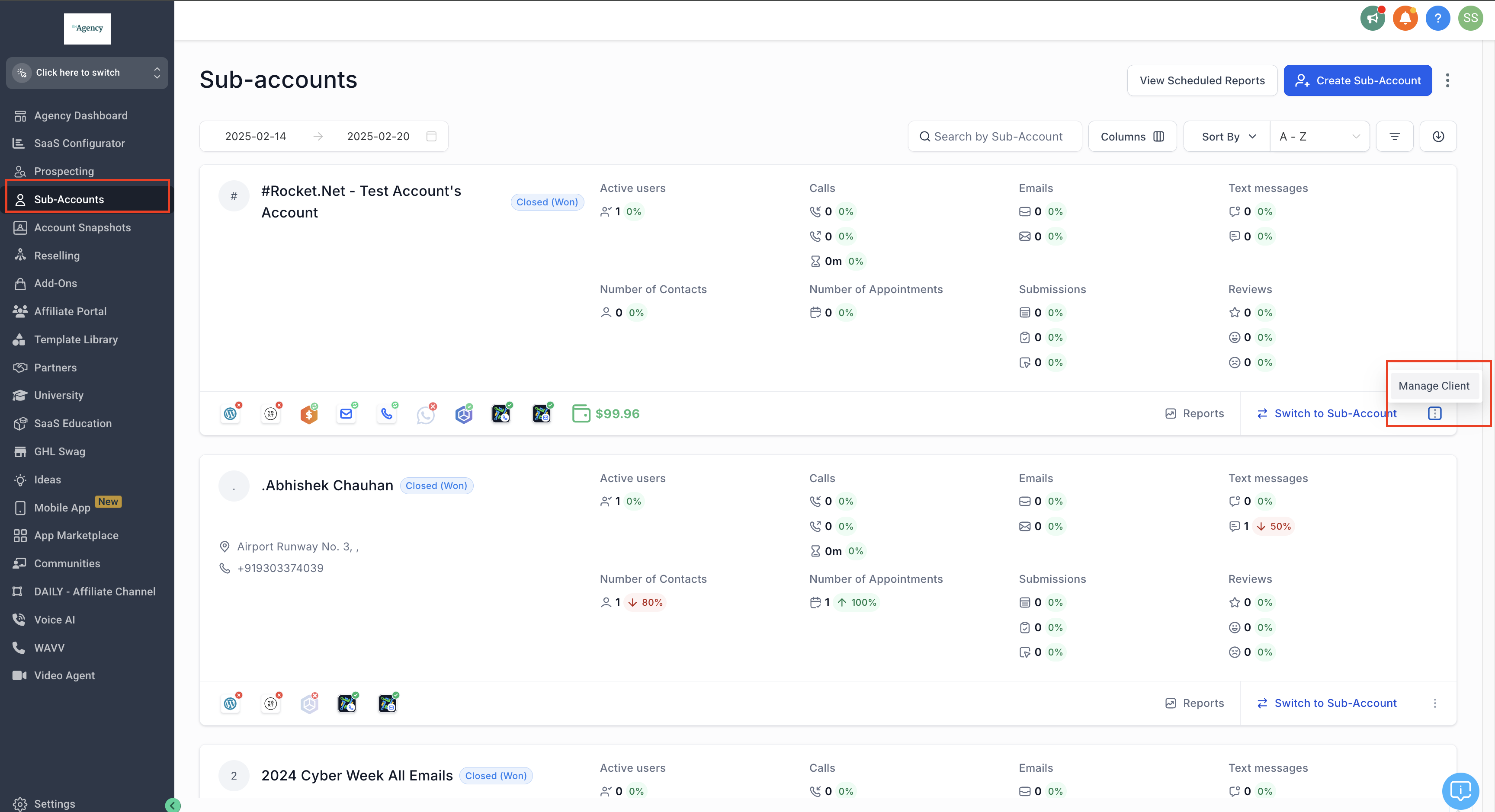
 * * * ## Step 5: Access the Sub-Account - Navigate to Sub-Accounts.
 - Select the Sub-Account where you want to copy the Snapshot.
- Click on the three dots and select Manage Client.
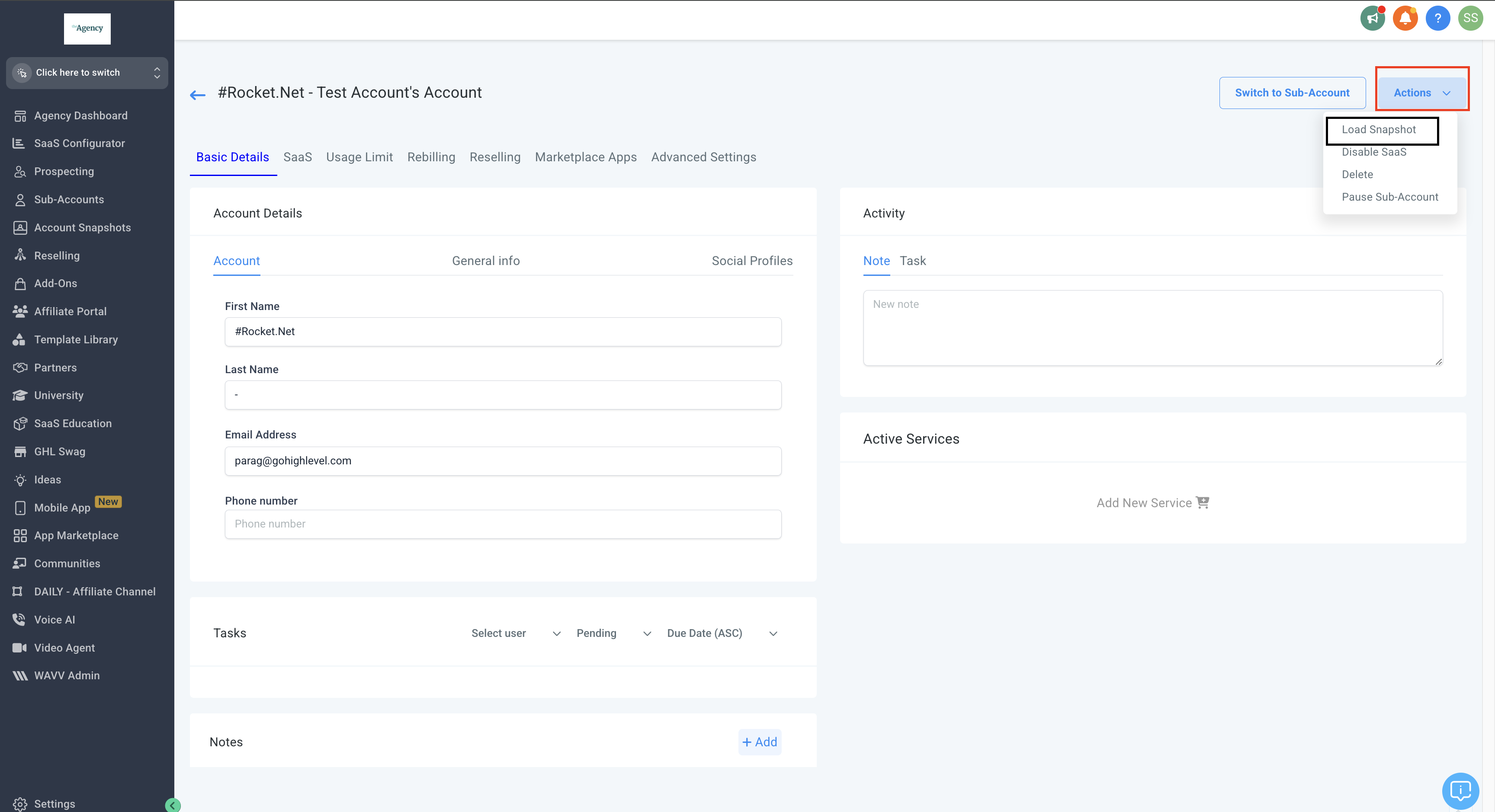
 * * * ## Step 6: Load the Snapshot - Click on Actions.
 - Select Load Snapshot.
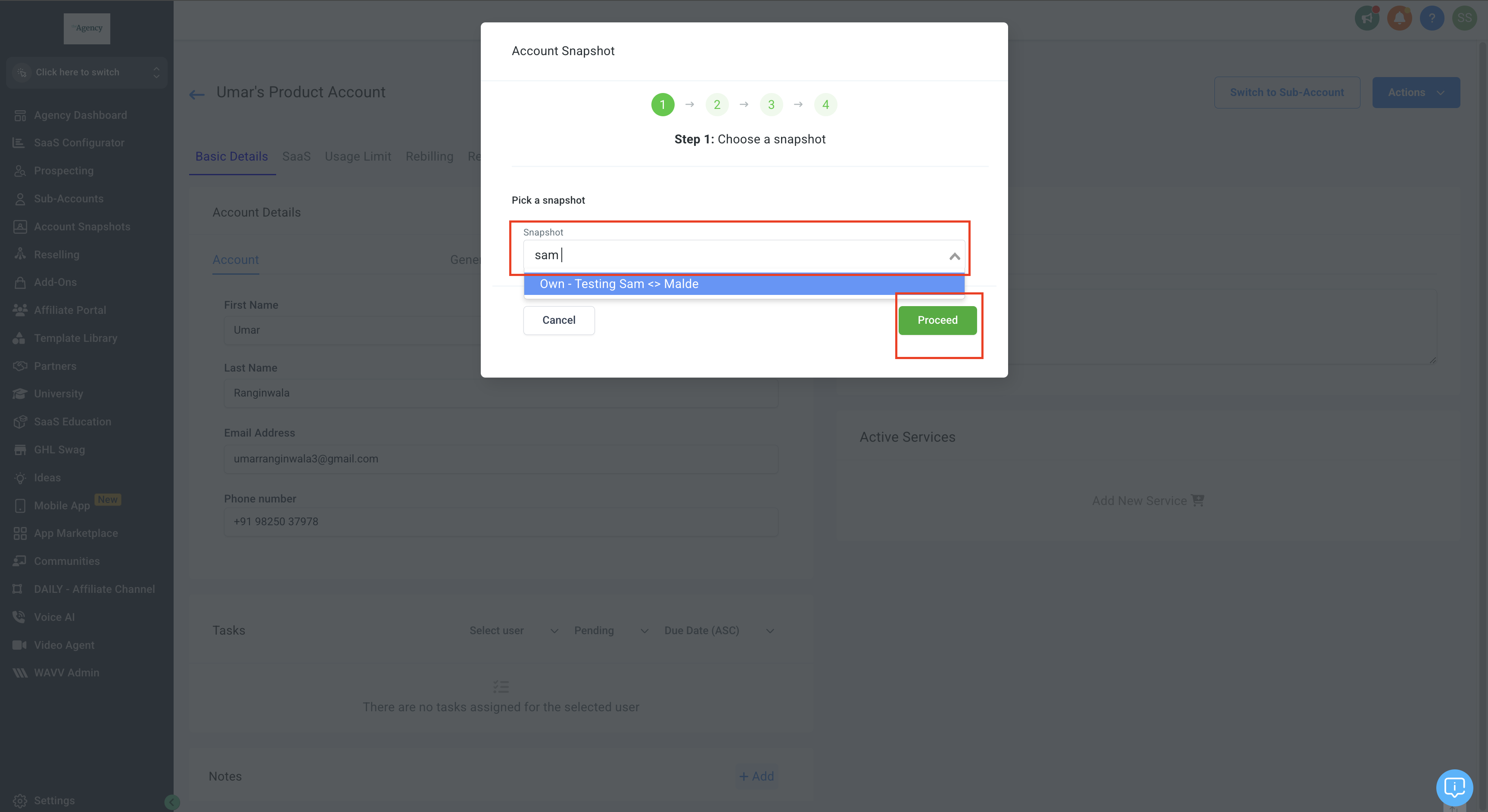
 * * * ## Step 7: Select the Snapshot & Proceed - Choose the Snapshot Name from the list.
 - Click Proceed.
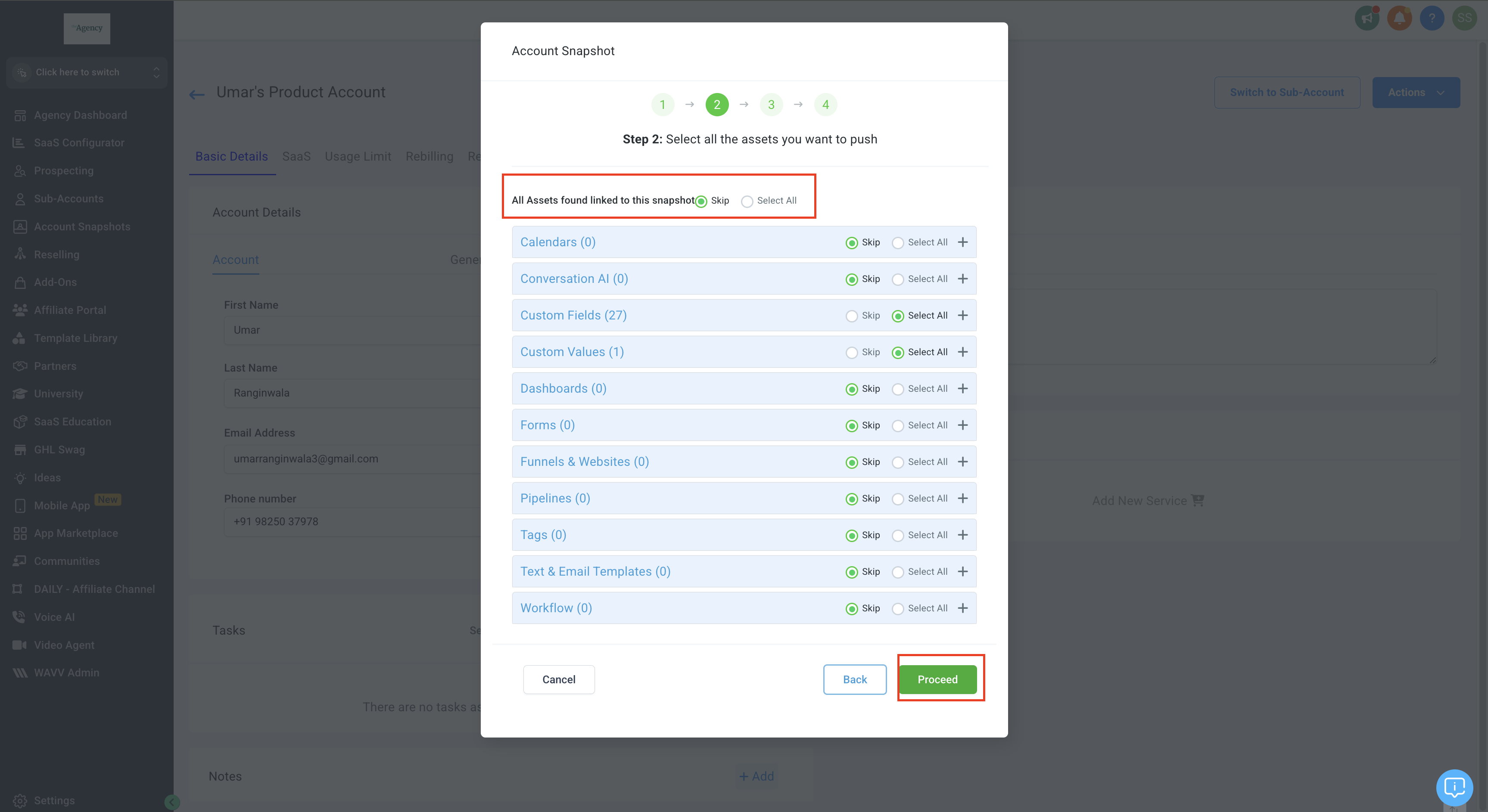
 * * * ## Step 8: Select Assets to Transfer - Choose all the assets (templates, workflows, etc.) that you want to push.
 - Click Proceed to continue.
 * * * ## Step 9: Proceed to the Next Step - Click Proceed to continue.
 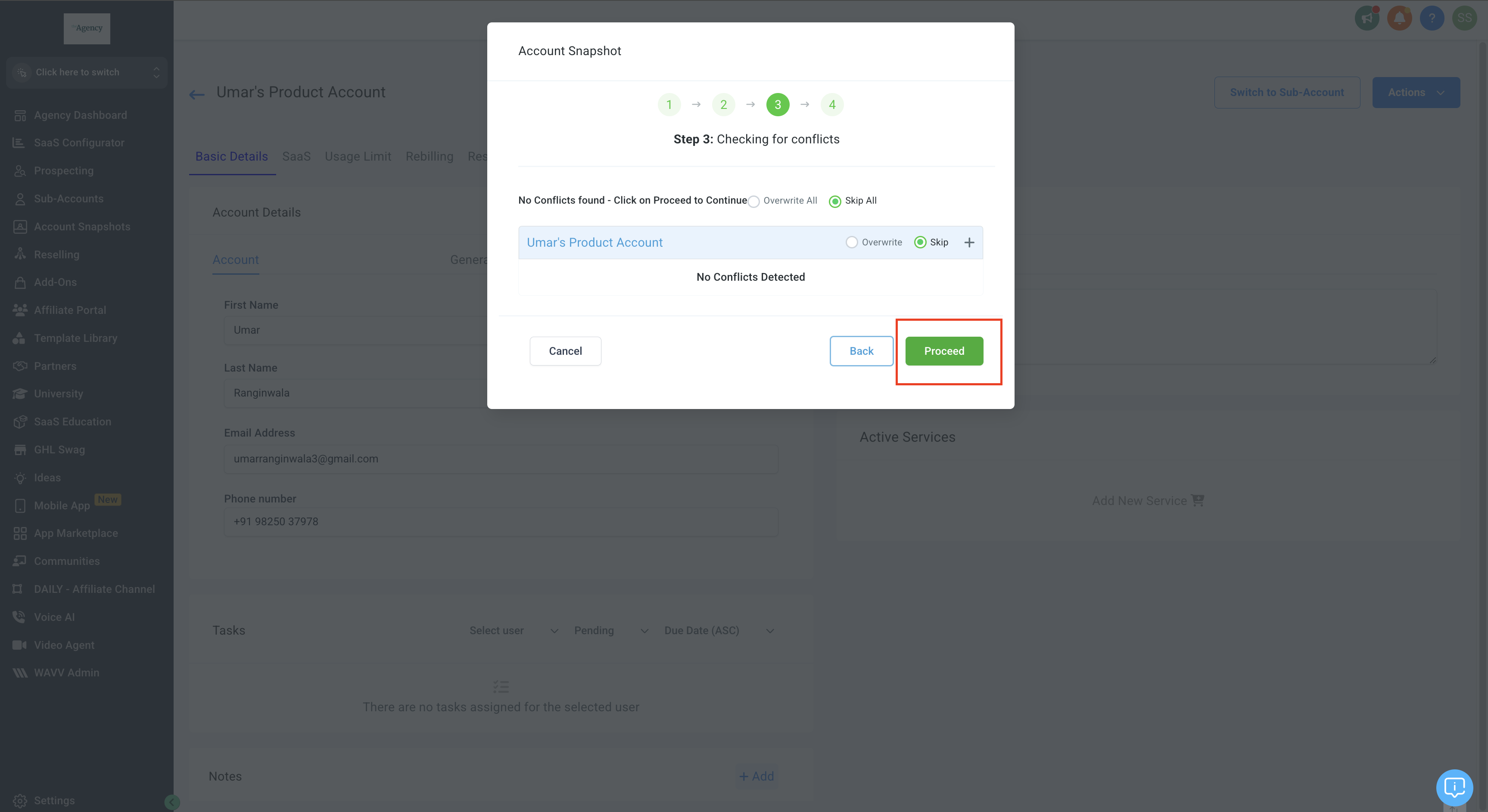 * * * ## Step 10: Complete the Process - Once the process is complete, click OK.
 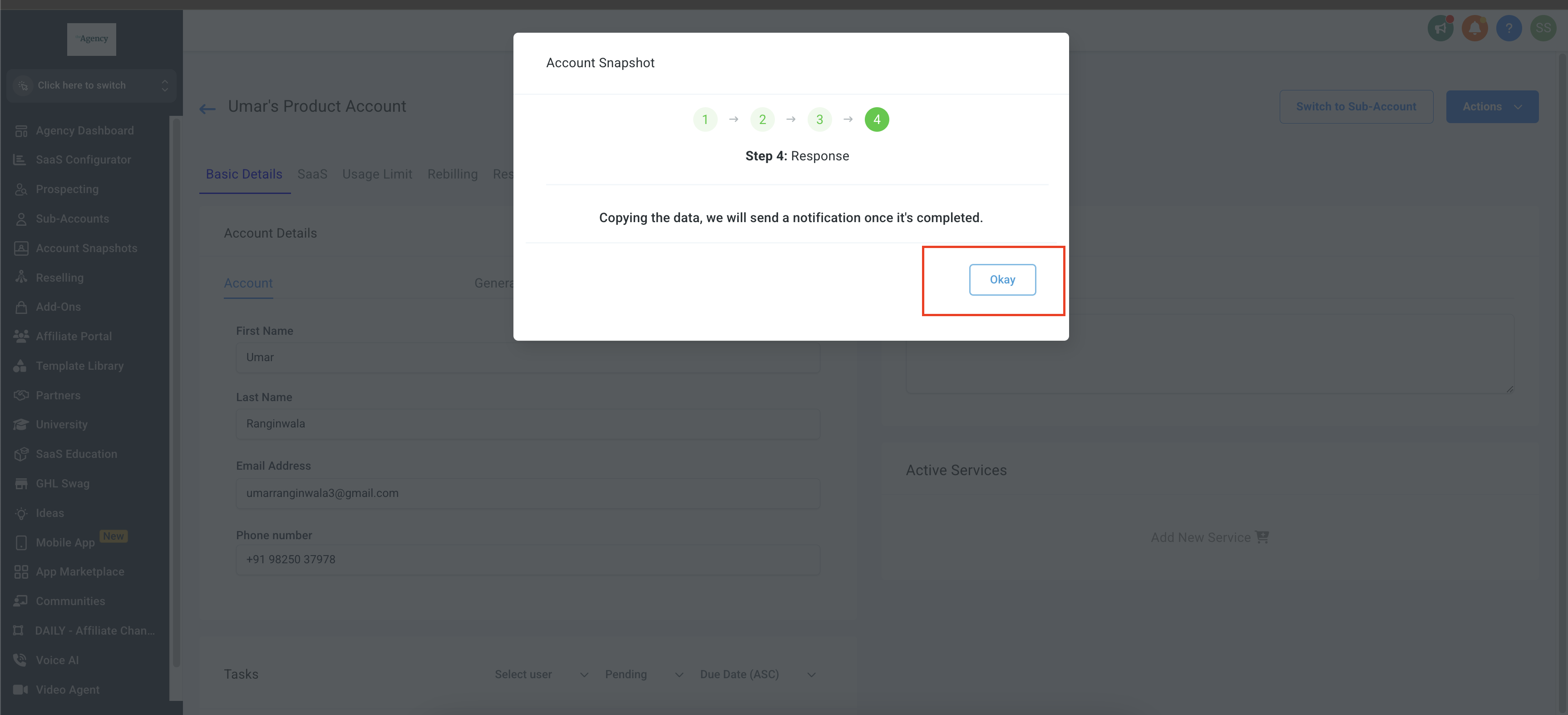 Note: After the import process is complete, all templates will be submitted for Meta approval before they can be used. * * * ## FAQs ## 1. What are the prerequisites before using Snapshots? Before using Snapshots to load WhatsApp templates, make sure: - You have an active Patient Copilot subscription.
 - The target sub-account has WhatsApp integrated. Once both are in place, you can create and apply Snapshots to transfer WhatsApp templates into sub-accounts. * * * ## 2. What is a Snapshot in Patient Copilot? A Snapshot is a saved template that allows agencies to copy workflows, templates, settings, and automations from one Sub-Account to another. * * * ## 3. Why should I use Snapshots to import WhatsApp templates? Using Snapshots helps save time and ensure consistency across multiple Sub-Accounts by transferring pre-configured WhatsApp templates and other assets. * * * ## 4. How do I create a Snapshot for WhatsApp templates? - Log in to Agency Dashboard > Go to Account Snapshots > Click Create New Snapshot.
- Enter a Snapshot Name and select the Sub-Account to copy templates from.
- Click Next and select the assets you want to include.
- Click Create to finalize the Snapshot. * * * ## 5. How do I apply a Snapshot to a Sub-Account? - Navigate to Sub-Accounts in the Agency Dashboard.
- Select the Sub-Account where you want to import the Snapshot.
- Click the three dots and select Manage Client.
- Click Actions > Select Load Snapshot. * * * ## 6. How do I import WhatsApp templates using the Snapshot? - Select the Snapshot Name from the list and click Proceed.
- Choose the assets (templates, workflows, etc.) that need to be transferred.
- Click Proceed to continue the import process. * * * ## 7. What happens after the import is completed? - The system will automatically transfer all selected assets into the Sub-Account.
- Once the process is completed, click OK to confirm.
- All imported templates will be submitted to Meta for approval before they can be used. * * * ## 8. What should I do if the WhatsApp templates are not appearing in the Sub-Account? - Double-check that the correct Snapshot was selected during the import process.
- Ensure that all necessary assets were selected before proceeding.
- Refresh the Sub-Account and check under Automations > Templates. * * * ## 9. Can I edit a Snapshot after it has been created? No, Snapshots cannot be edited after creation. If changes are needed, you must create a new Snapshot and apply it again. * * * ## 10. Can I apply the same Snapshot to multiple Sub-Accounts? Yes, you can reuse the same Snapshot and apply it to multiple Sub-Accounts for easy replication.