Automatic Tax Calculation with Stripe for SaaS Subscriptions
Automatically calculating and applying taxes is essential for running a compliant and scalable SaaS business. Patient Copilot now supports Stripe Tax, enabling agencies to handle global tax requirements without manual calculations. This feature ensures accurate tax handling based on customer location, improves billing transparency, and simplifies international expansion. * * * ## What is Automatic Tax Calculation with Stripe? Automatic Tax Calculation with Stripe allows Patient Copilot to dynamically calculate and apply taxes to SaaS subscriptions using Stripe Tax. This ensures that taxes such as VAT, GST, and sales tax are applied correctly based on the customer’s geographic location and local tax regulations. By integrating directly with Stripe, Patient Copilot removes the need for manual tax configuration and reduces the risk of compliance errors. * * * ## Key Benefits of Automatic Tax Calculation with Stripe Automatically managing taxes reduces operational complexity and ensures your SaaS business remains compliant across different regions while maintaining pricing flexibility. - Global Compliance: Automatically applies correct tax rates based on jurisdiction (VAT, GST, Sales Tax)
- Dynamic Tax Calculation: Calculates taxes in real-time during checkout and recurring billing
- Flexible Pricing Models: Supports both tax-inclusive and tax-exclusive pricing strategies
- Reduced Manual Work: Eliminates the need for manual tax calculations and updates
- Improved Transparency: Clearly displays tax amounts to customers during checkout
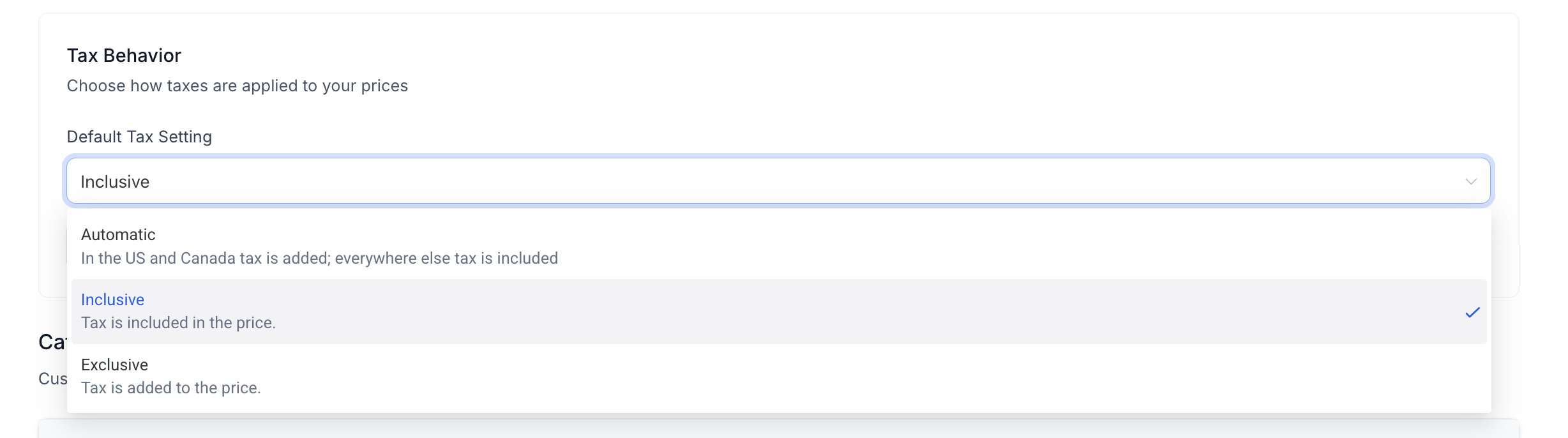
- Scalable Growth: Enables expansion into international markets with confidence * * * ## Inclusive vs Exclusive Tax Behavior Understanding how taxes are presented in your pricing helps align your SaaS offerings with regional expectations and customer preferences. - **Inclusive Tax: ** - Tax is included in the displayed price - Common in regions like Europe where VAT-inclusive pricing is expected - Customers see a single final price
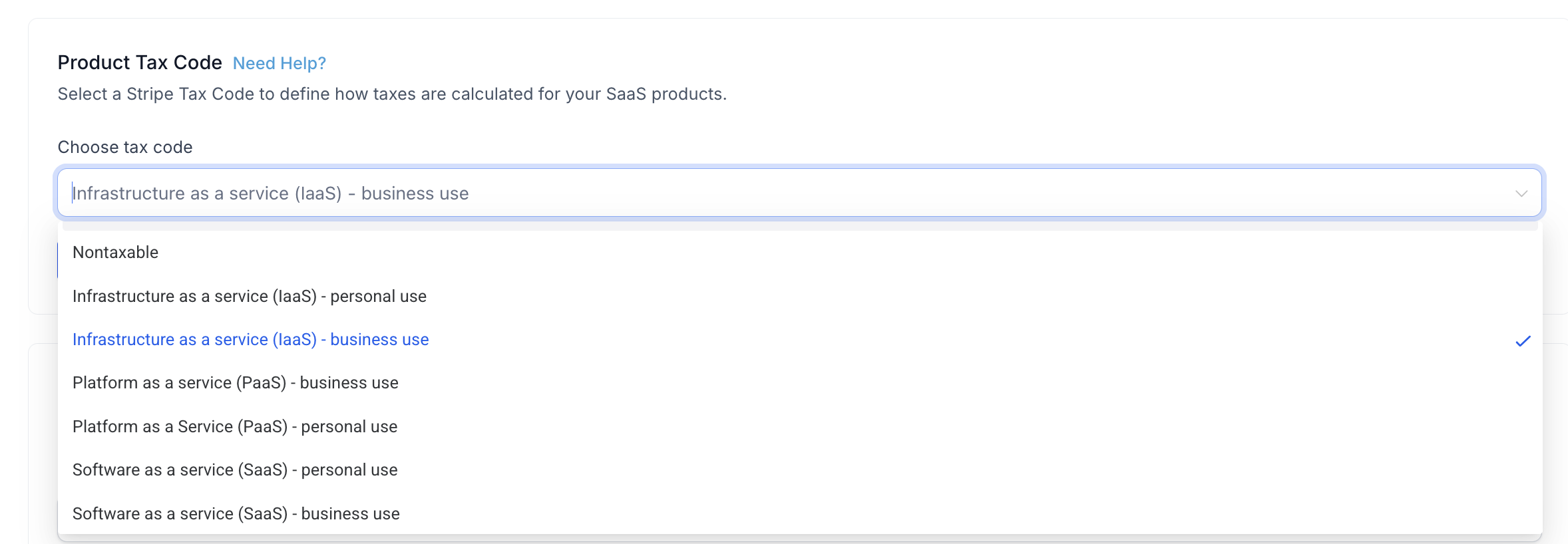
- Exclusive Tax: - Tax is added on top of the base price at checkout - Common in regions like the United States - Customers see tax as a separate line item * * * ## Tax Codes for SaaS Plans Assigning the correct tax codes ensures that your products are taxed appropriately based on their type and the regulations in different regions. - Tax codes define how a product is taxed in different jurisdictions
- Each SaaS plan can be mapped to a specific tax code
- Ensures accurate tax treatment for digital products, services, or hybrid offerings
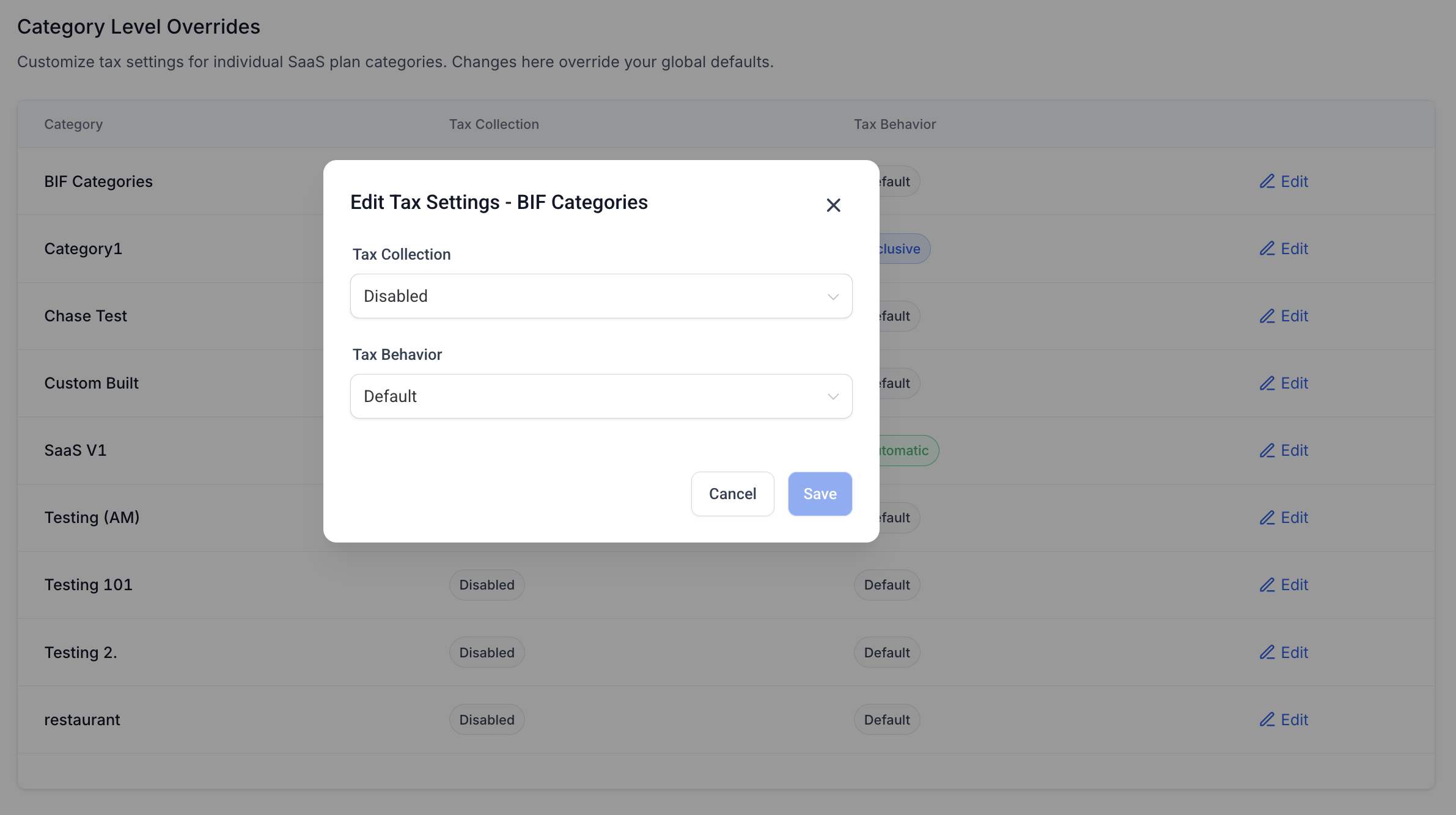
- Configured within Stripe and applied during billing * * * ## Category-Level Tax Overrides Category-level overrides provide greater flexibility by allowing different tax behaviors across various groups of products. - Enable or disable tax collection for specific categories
- Override default tax behavior (inclusive or exclusive)
- Customize tax handling for different product types
- Useful for agencies offering a mix of taxable and non-taxable services * * * ## How To Setup Automatic Tax Calculation with Stripe Proper configuration ensures accurate tax calculation and prevents billing issues. Follow these steps to enable and configure the feature: Step 1: Connect Your Stripe Account - Navigate to your Patient Copilot settings
- Ensure Stripe is connected **Step 2: Enable Stripe Tax in Stripe Dashboard ** - Log in to your Stripe account
- Go to Tax settings
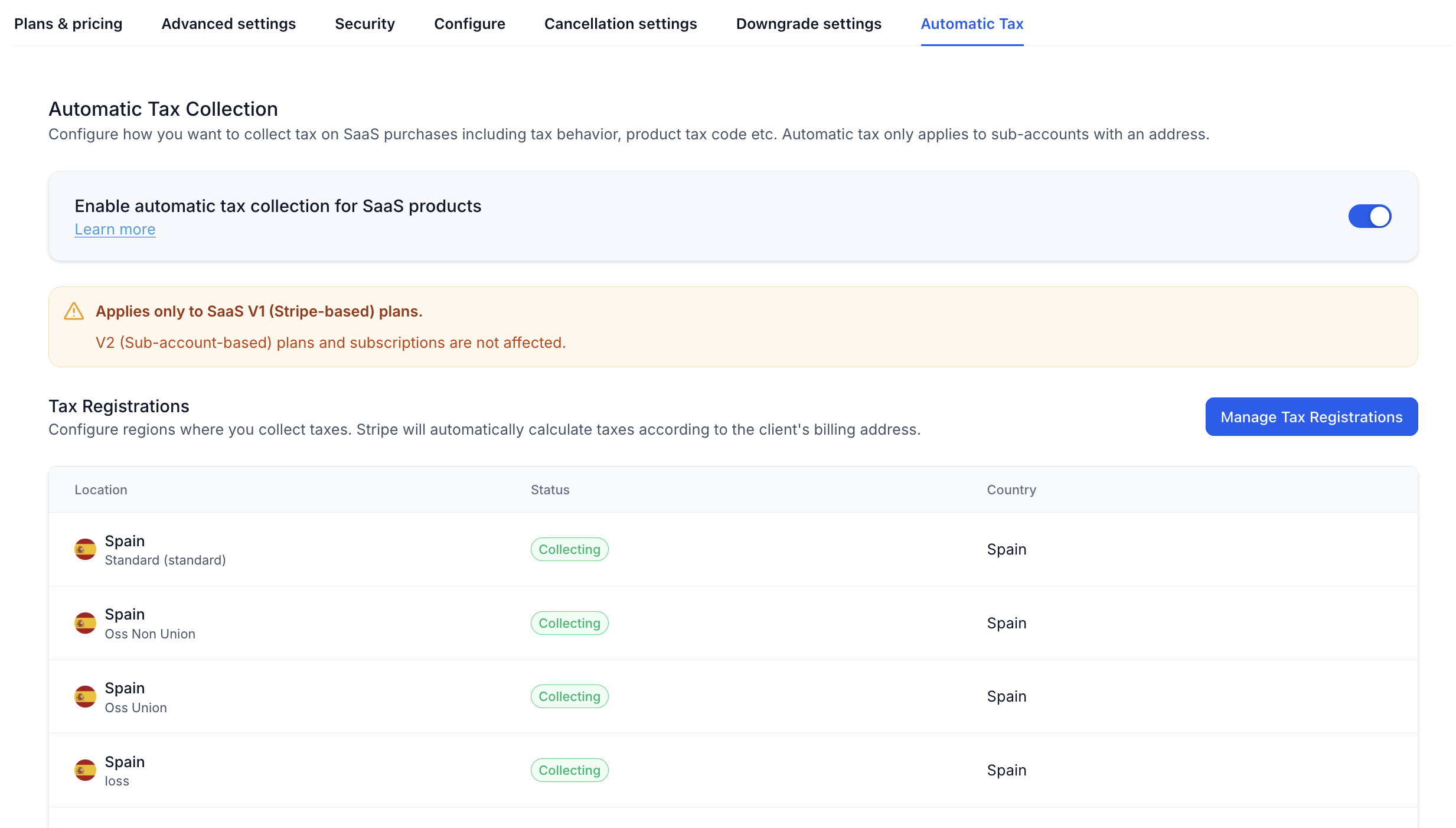
- Enable Stripe Tax for your account **Step 3: Configure Tax Settings in Stripe ** - Set your business location
- Define where you collect taxes
- Configure automatic tax collection!(https://assets.patientcopilot.ai/31d8598c5cebd2f0.png) **Step 4: Assign Tax Codes to SaaS Plans ** - Go to SaaS Plans in Patient Copilot
- Select or create a plan
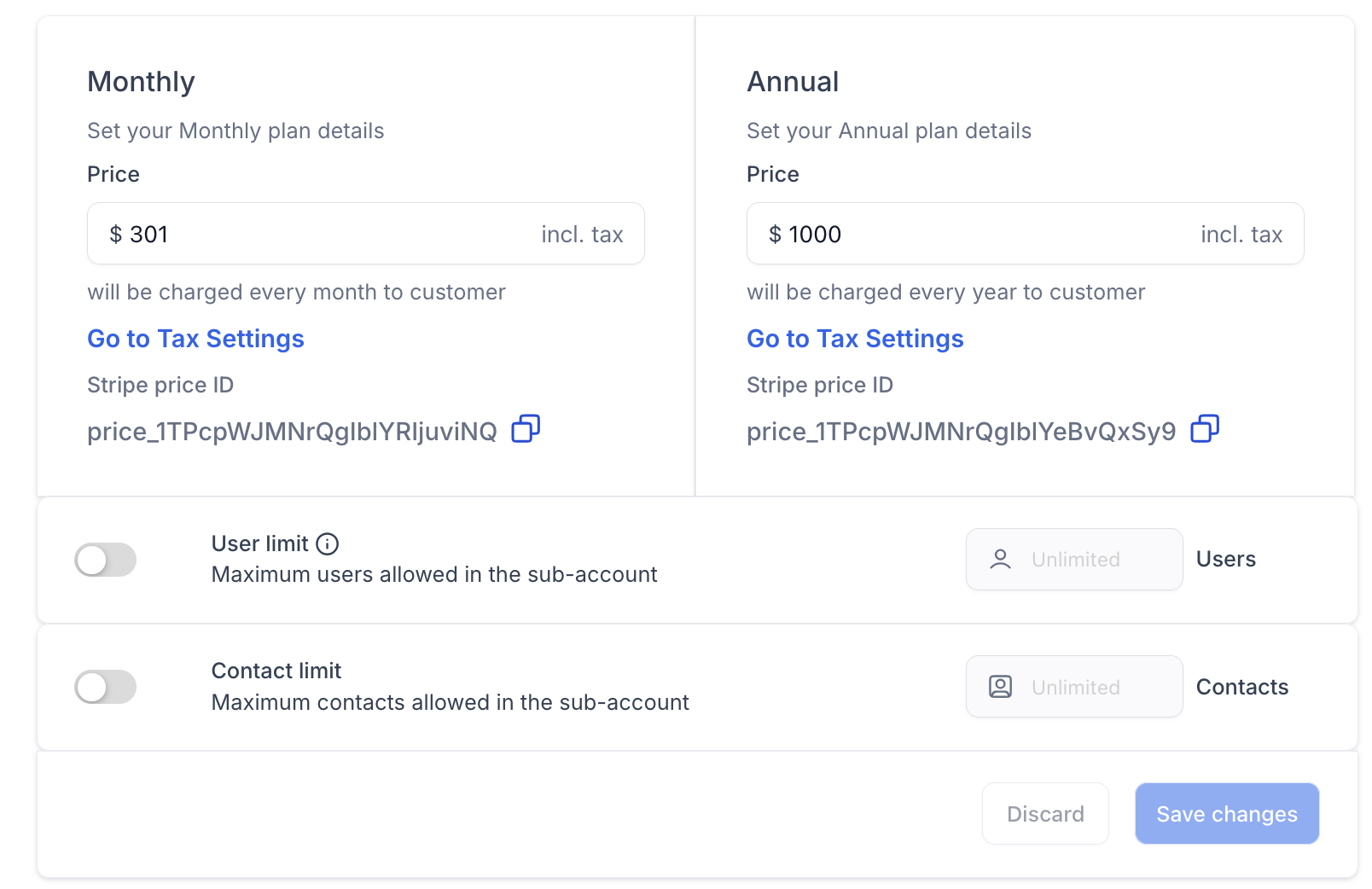
- Assign the appropriate tax code!(https://assets.patientcopilot.ai/c15639eb54598f42.png) **Step 5: Set Tax Behavior (Inclusive or Exclusive) ** - Choose how taxes should be applied to pricing
- Align with your target region’s expectations!(https://assets.patientcopilot.ai/020d29bfa8f776b6.png) **Step 6: Configure Category-Level Overrides (Optional) ** - Navigate to Product Categories
- Enable or customize tax settings per category!(https://assets.patientcopilot.ai/6e9d4baf7aa780b0.png) Step 7: Test Checkout Experience - Create a test subscription
- Verify tax calculation at checkout
- Confirm correct totals and tax breakdown!(https://assets.patientcopilot.ai/b719dddcb4d6a4fd.png) * * * ## Frequently Asked Questions **Q1: Do I need Stripe Tax to use this feature? **Yes, Stripe Tax must be enabled in your Stripe account for automatic tax calculation to work. **Q2: Are taxes applied to existing subscriptions? **No, automatic tax calculation applies to new subscriptions only. **Q3: Can I control whether taxes are included in my pricing? **Yes, you can choose between inclusive and exclusive tax behavior based on your pricing strategy. **Q4: What happens if I don’t assign a tax code? **Taxes may not be calculated correctly, leading to compliance risks or incorrect billing. **Q5: Can I disable taxes for certain products? **Yes, category-level overrides allow you to disable tax collection for specific product groups. **Q6: How are tax rates determined? **Tax rates are automatically calculated by Stripe based on the customer’s location and applicable laws. **Q7: Will customers see the tax amount during checkout? **Yes, taxes are displayed clearly during checkout, improving transparency. * * * ## Related Articles - How to Manage Stripe Payment Methods inside Patient Copilot
- SaaS Mode - Full Setup Guide + FAQ
- Guide to SaaS Plan Creation, Sales, and Customer Onboarding
- SaaS Configurator - Modify Plan Category and Plan Level
- Using Stripe Checkout Pages For SaaS Mode Plans
- International Pricing & Currency Settings