
How to Create and Send Estimates Using in Patient Copilot
What’s New? - We are thrilled to announce the launch of our new Estimates feature!
- This addition allows you to create estimates and share them with clients before sending the final invoice. - The clients can simply accept/reject this estimate
- You can directly convert this estimate into an invoice and then send it with ease. ## How to Use? ### Access Estimates - Go to a Sub-account -> Select Payments
- Click on Invoices and Estimates -> Select Estimates
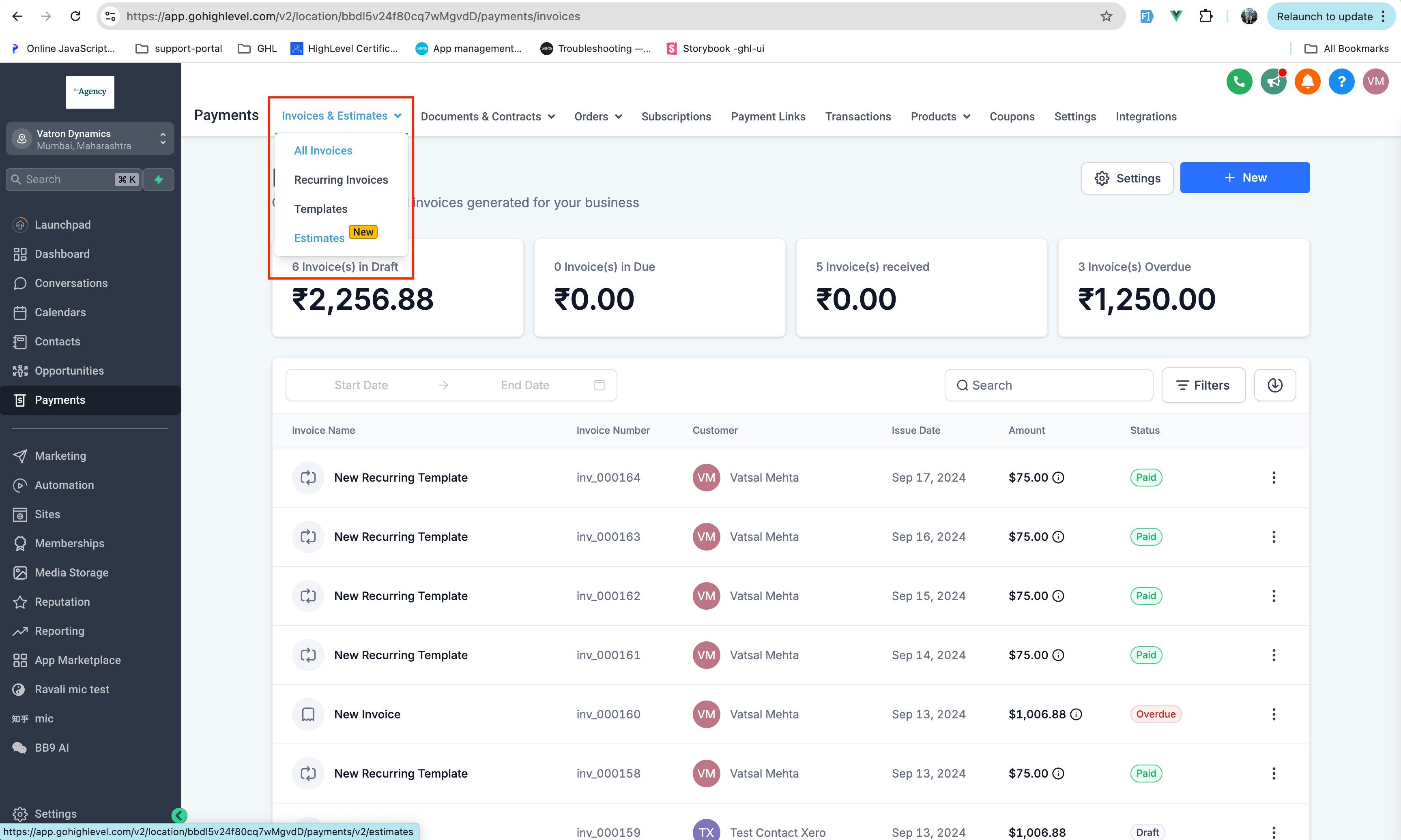 ### Create an Estimate: - To create an Estimate: Click on ‘New’ button and enter the details such as business information, customer information, Estimate number, Expiry
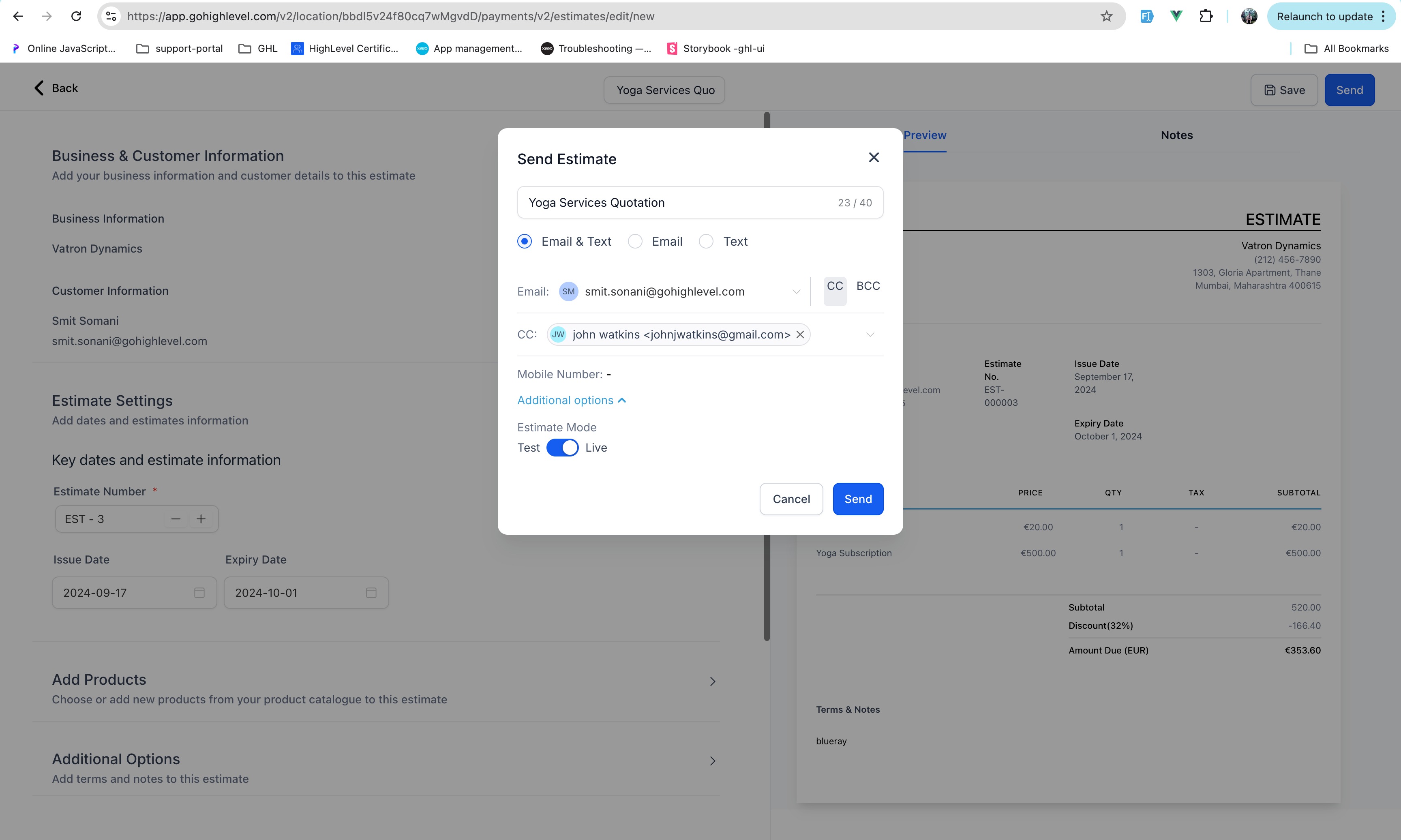
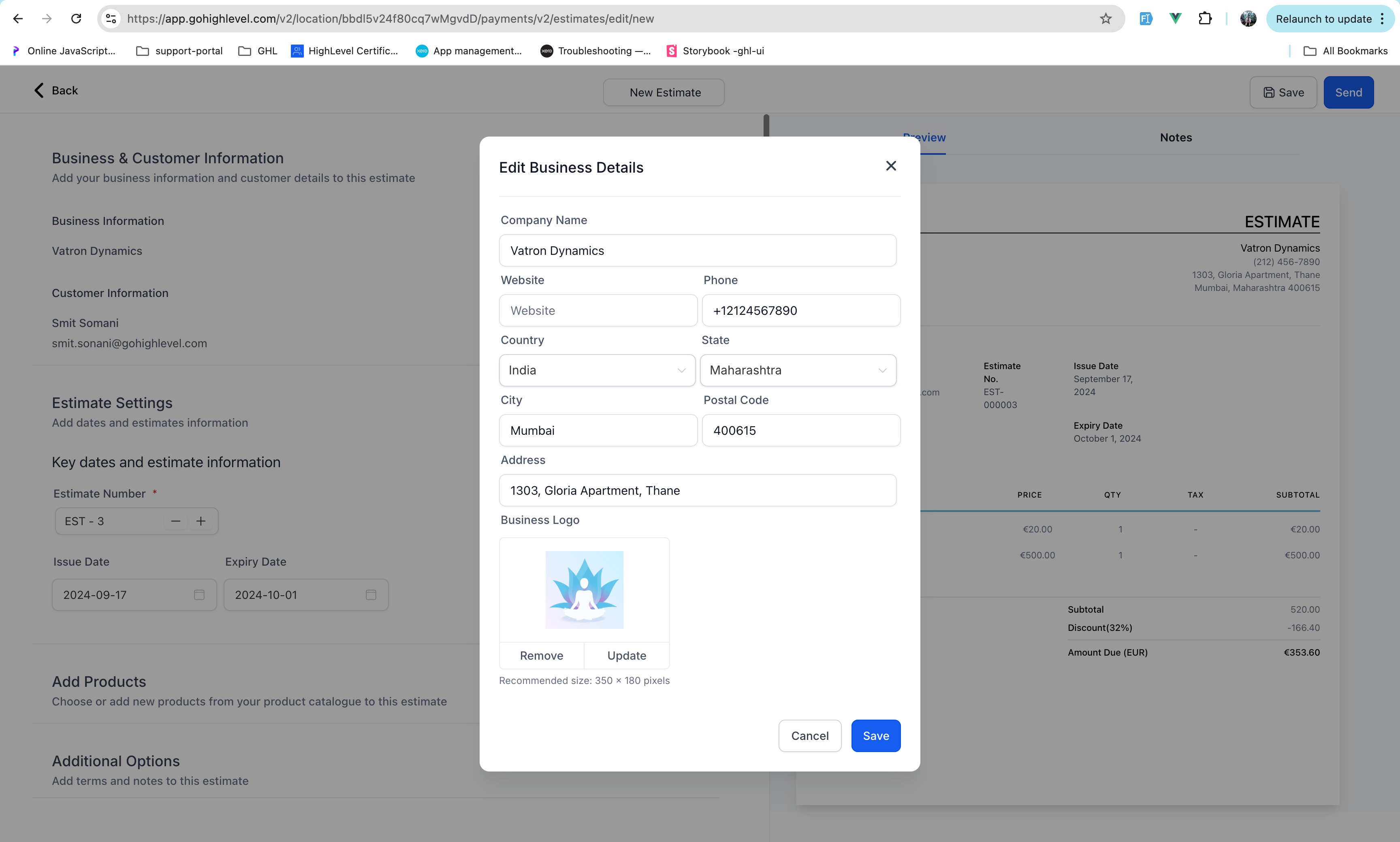 - Add products to the estimate and click on send
 - Send to Client: Review the estimate and send it directly to your client via email or SMS.
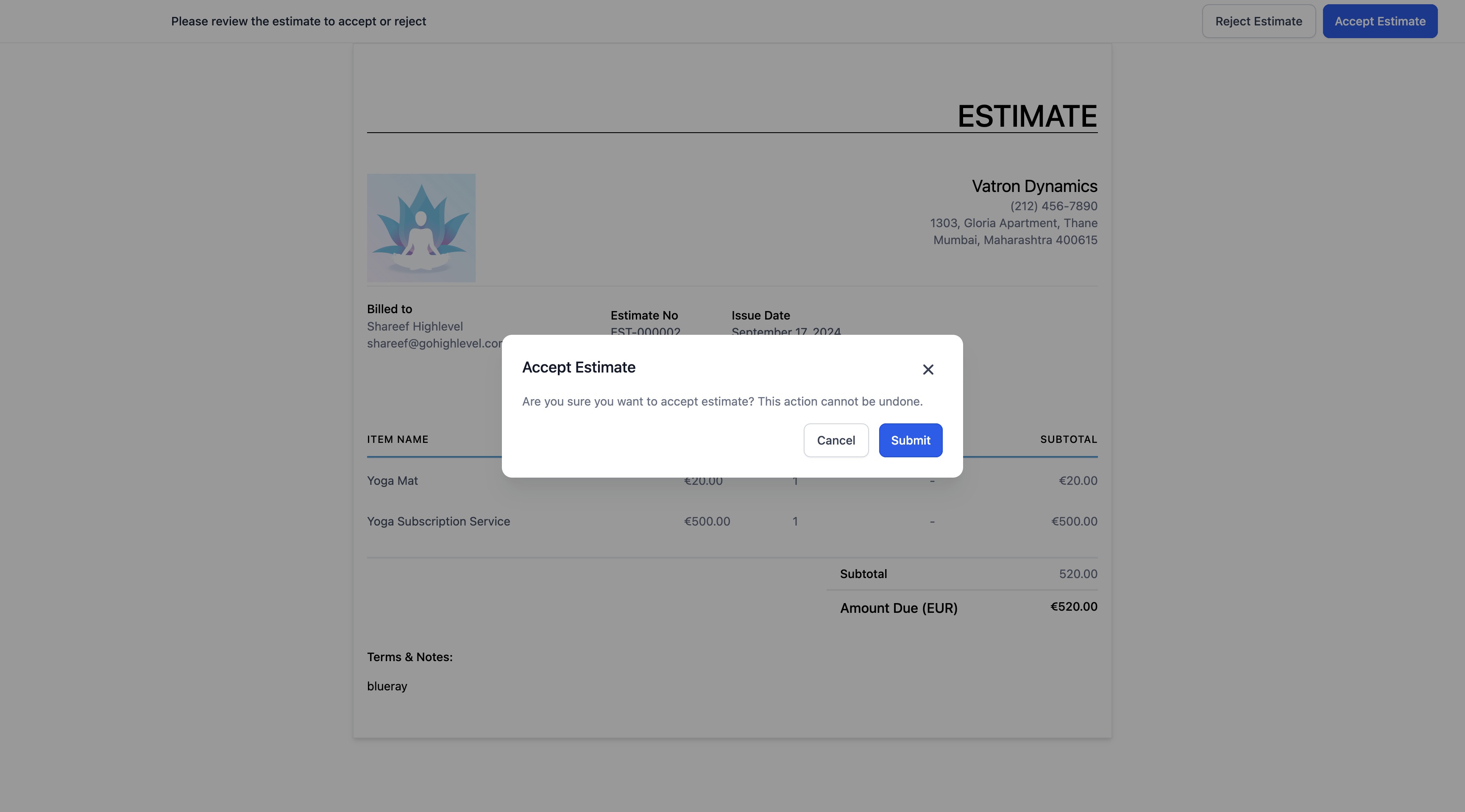
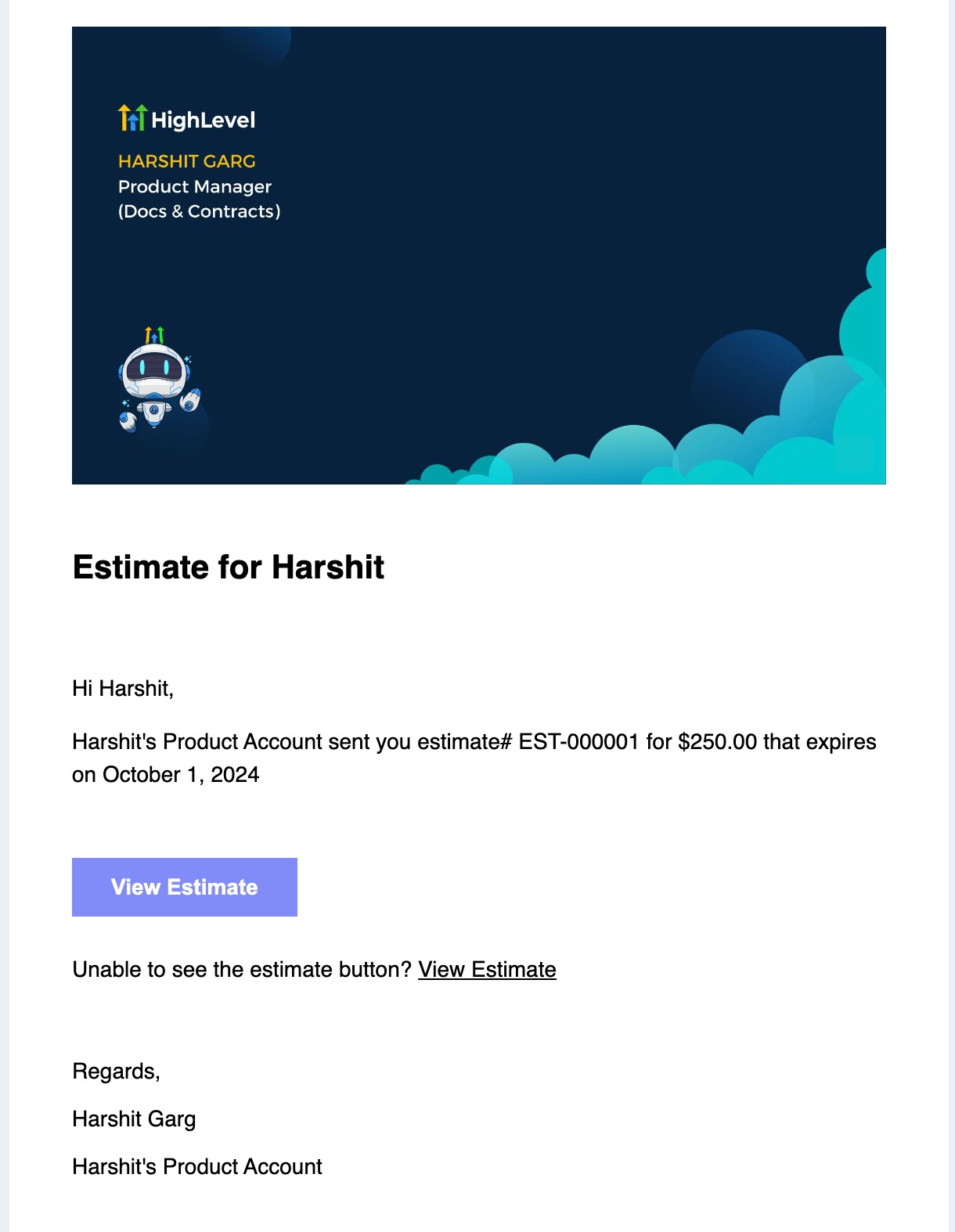 ### Users/sender can accept/reject this estimate - Users can click on accept and this estimate will be marked as accepted
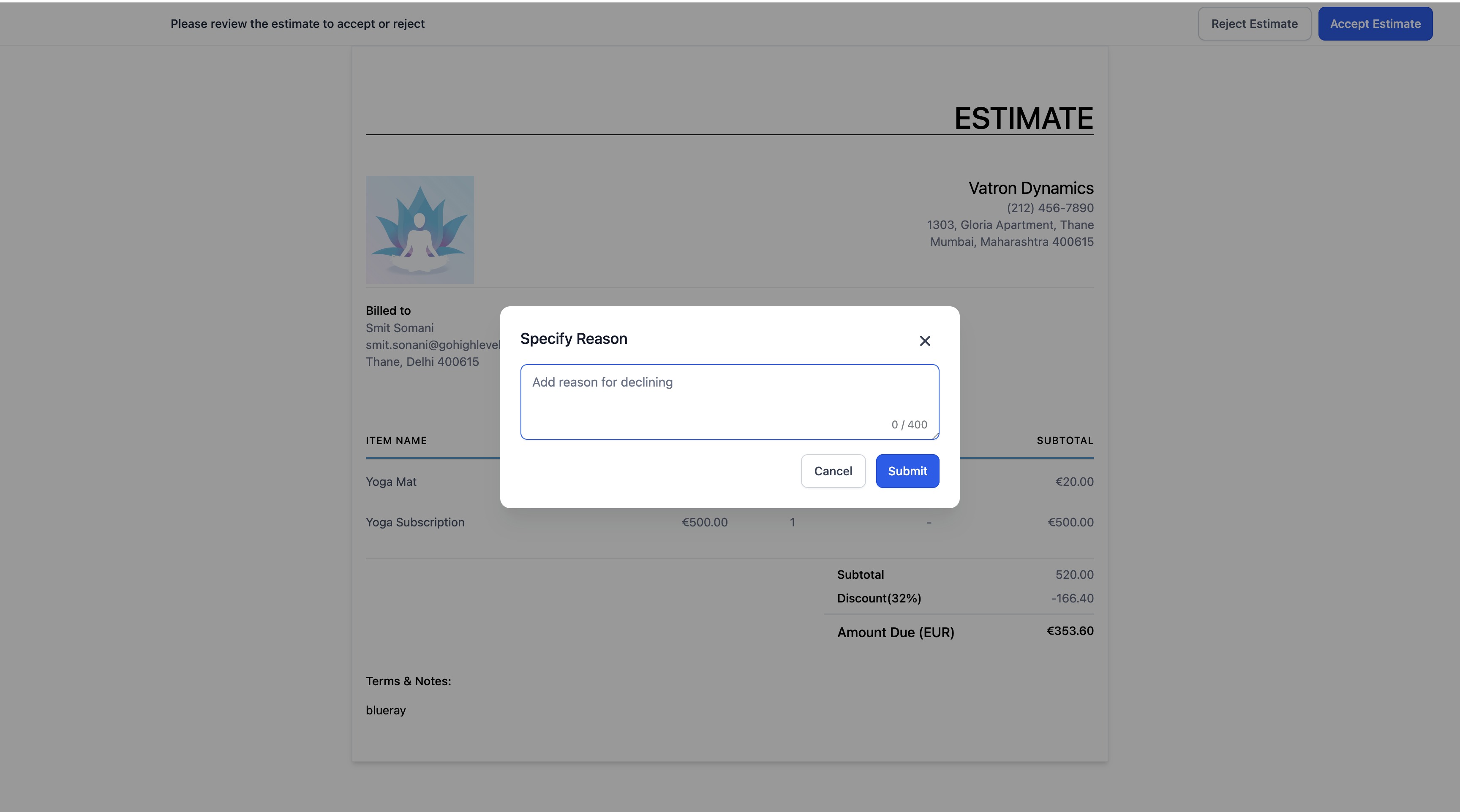
 - Users can click on reject, add notes and this estimate will be marked as rejected
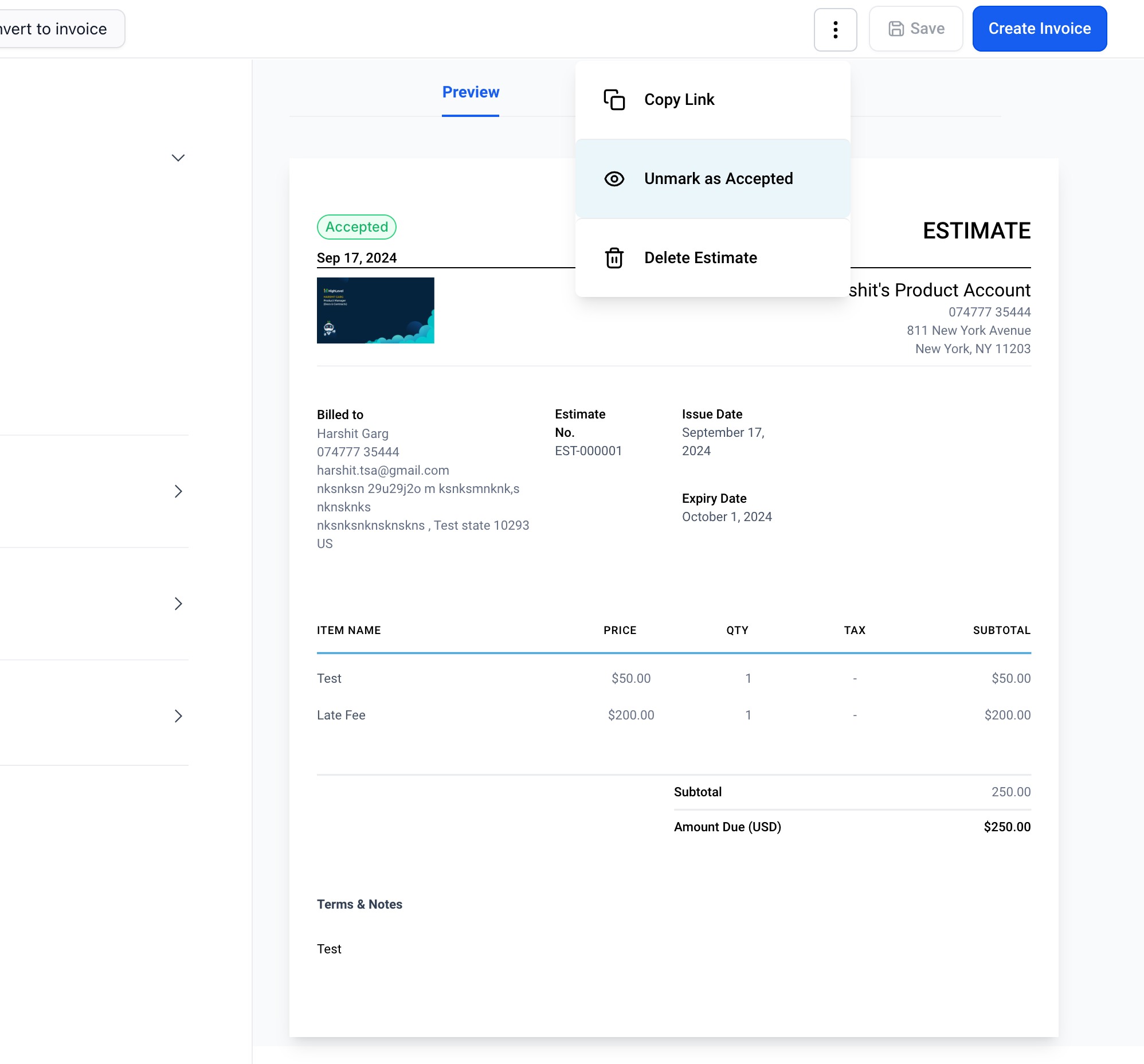
 - Users can click on Mark as accepted/rejected if user has already confirmed on phone
 ### Convert to Invoice - Click on sent invoice item
 - Convert to Invoice: Once your client approves the estimate, you can easily convert it into an invoice by selecting create an invoice from the dashboard or opening the accepted estimate and then clicking on create an invoice.
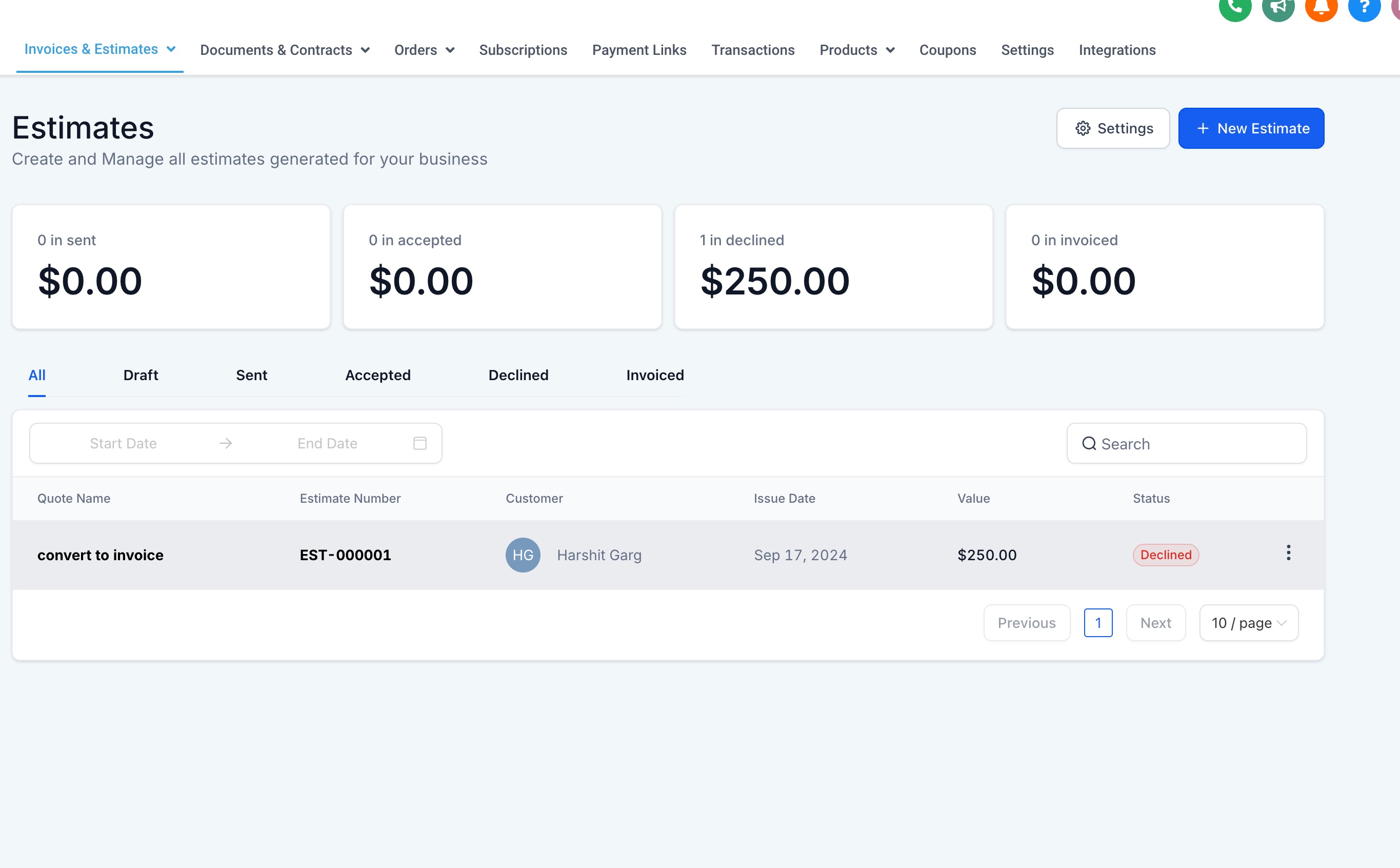
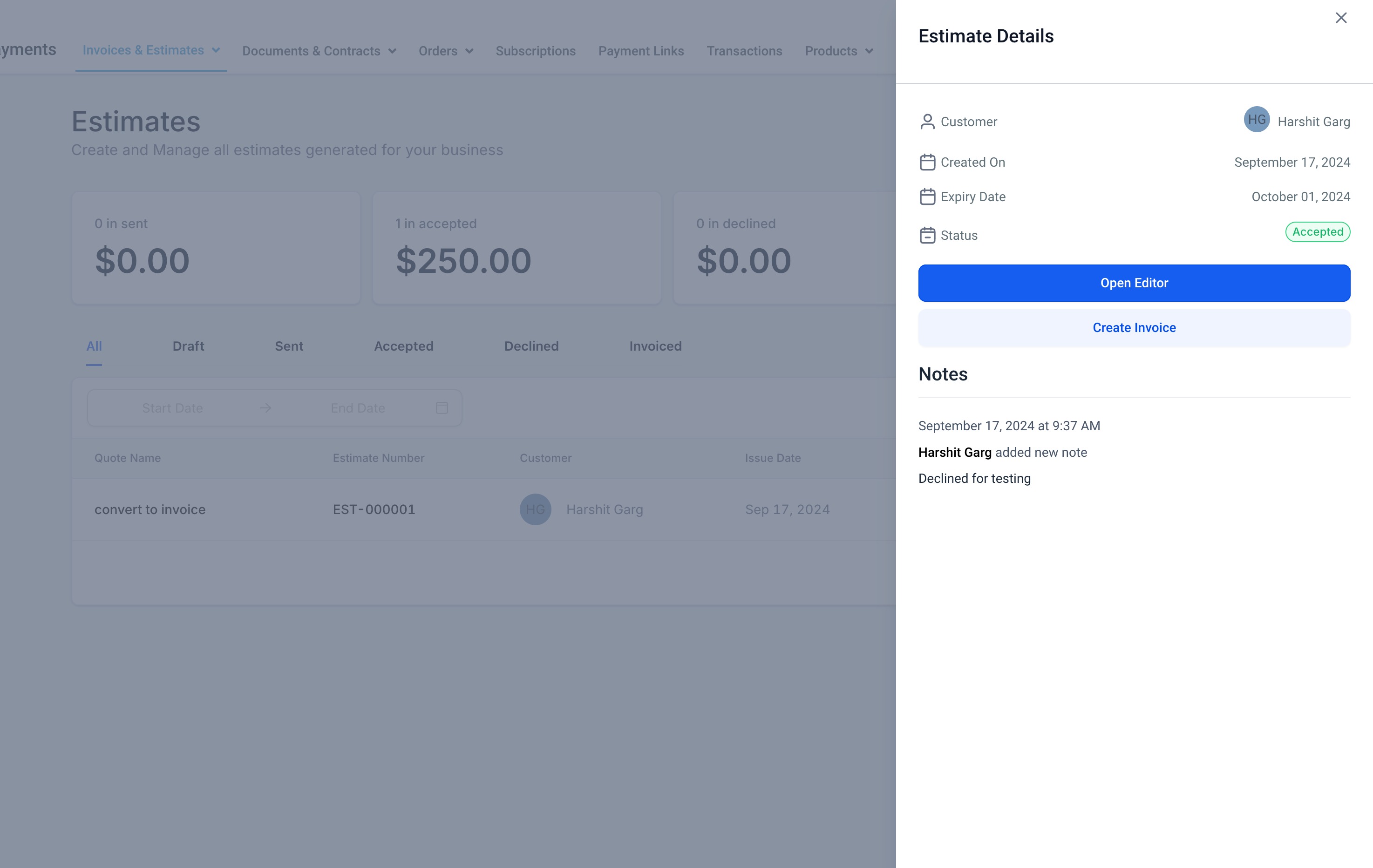 ### Track - Keep a track of all the estimates that are in different stages: Draft, Sent, Accepted, Declined, Invoiced
 - Keep a track of value of estimates that are in pipeline from the cards on top of the dashboard
- Keeptrack of notes added by users on the dashboard and within the estimate builder
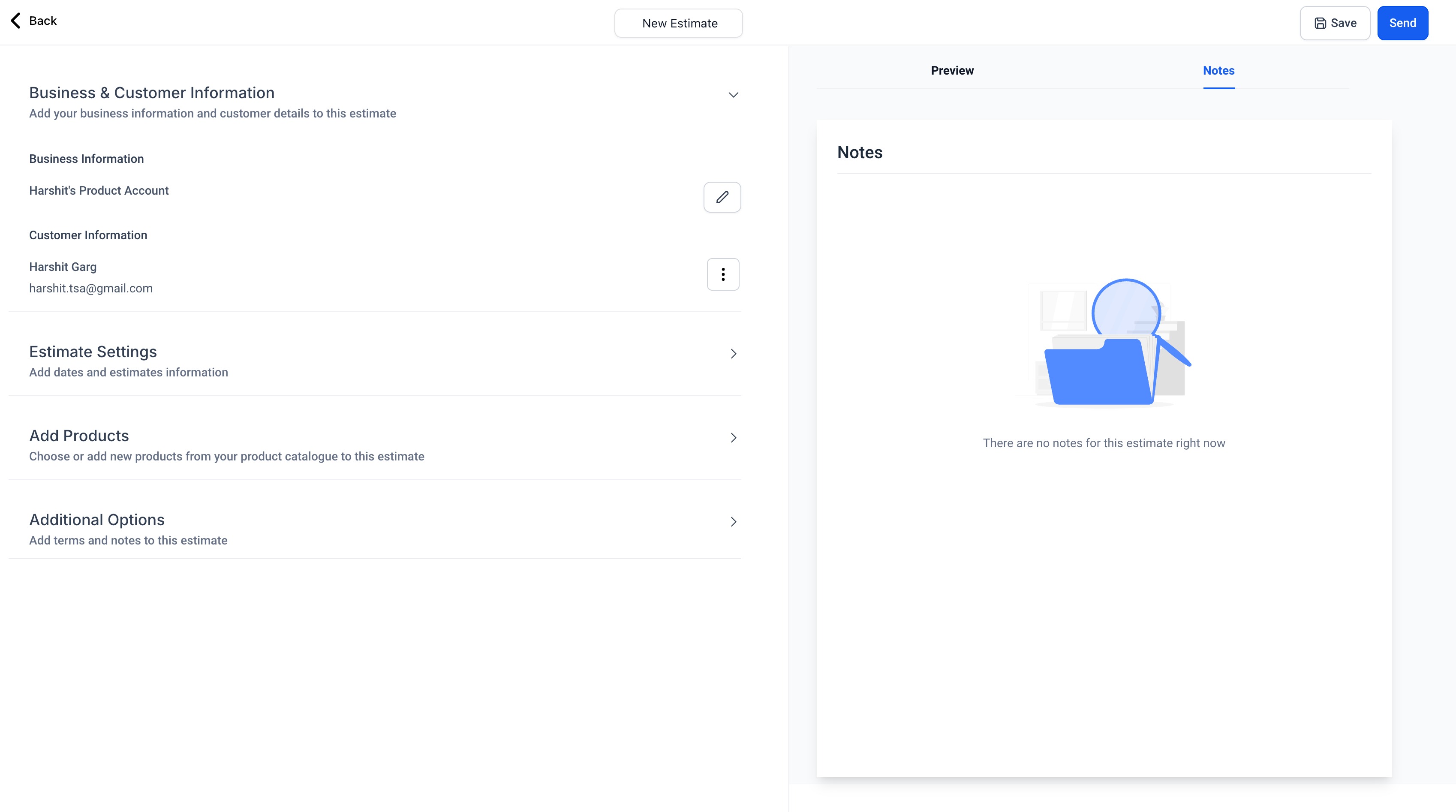 ### Others - Customize: Customize the estimate by adding your company’s branding, terms and adjusting in settings. ## Why We Built It? The Estimates feature was built to complete the payment suite for all your business needs! 1. Create an estimate
- Get a Document Signed
- Send an invoice Was this article helpful? That’s Great! Thank you for your feedback Sorry! We couldn’t be helpful Thank you for your feedback Feedback sent We appreciate your effort and will try to fix the article