
WhatsApp Template Statuses and Best Practice
Feature Guide WhatsApp Message Templates Everything you need to know about creating, submitting, and managing WhatsApp message templates in Patient Copilot. What you’ll learn
✓ Template approval process | ✓ Common rejection reasons | ✓ Sending templates | ✓ Template statuses explained |
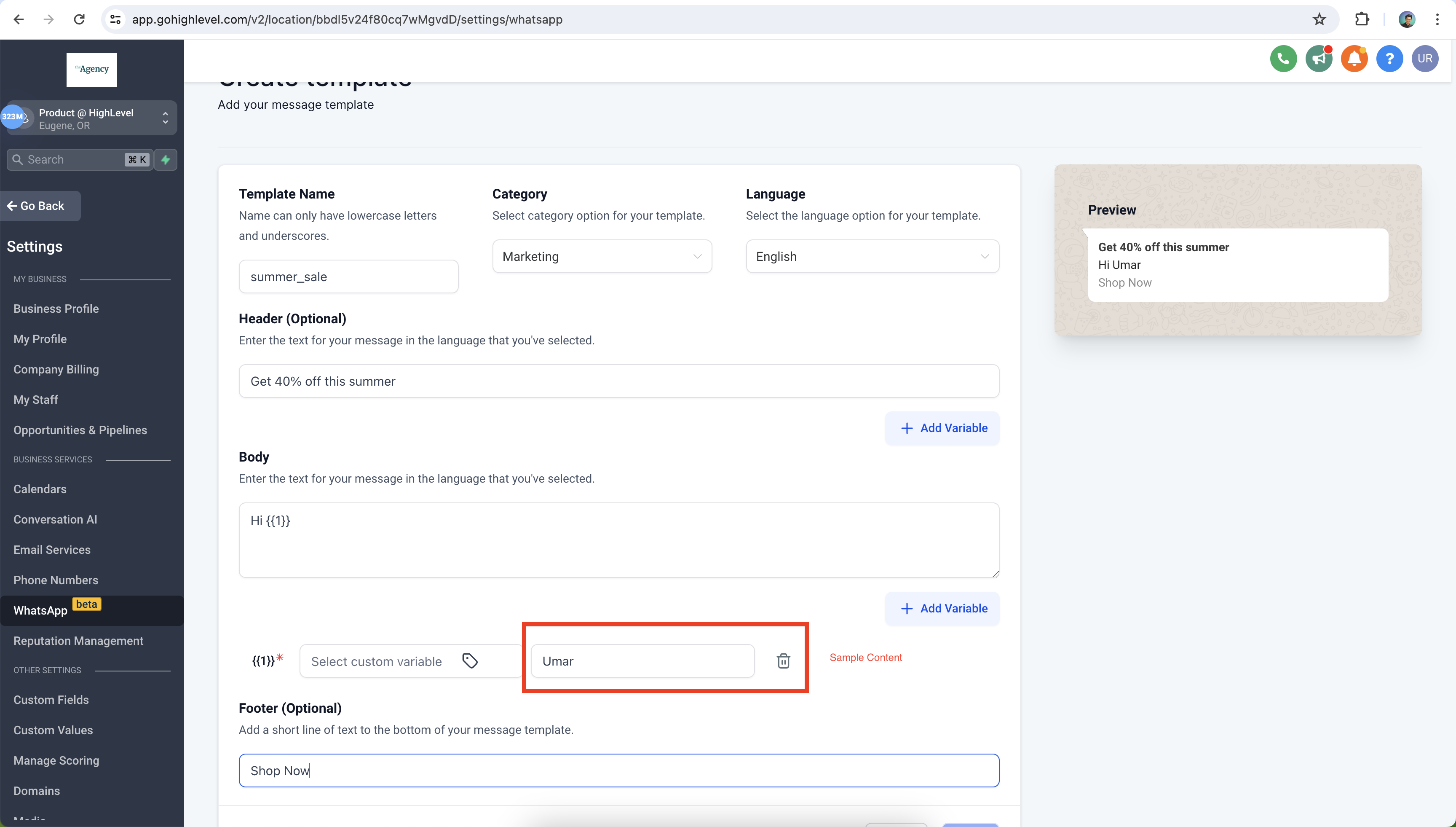 * * * Common Template Rejection Reasons Avoid these mistakes to get your template approved faster Templates are most commonly rejected for the following reasons:
 ✘ Variable parameters are missing or have mismatched curly braces. The correct format is |
✘ Variable parameters contain special characters such as |
✘ Variable parameters are not sequential — e.g. |
✘ Template requests sensitive information such as full payment card numbers or national ID numbers |
✘ Template contains threatening or abusive content — e.g. threatening legal action or public shaming |
✘ Template is a duplicate of an existing one — same body and footer wording will be automatically rejected |
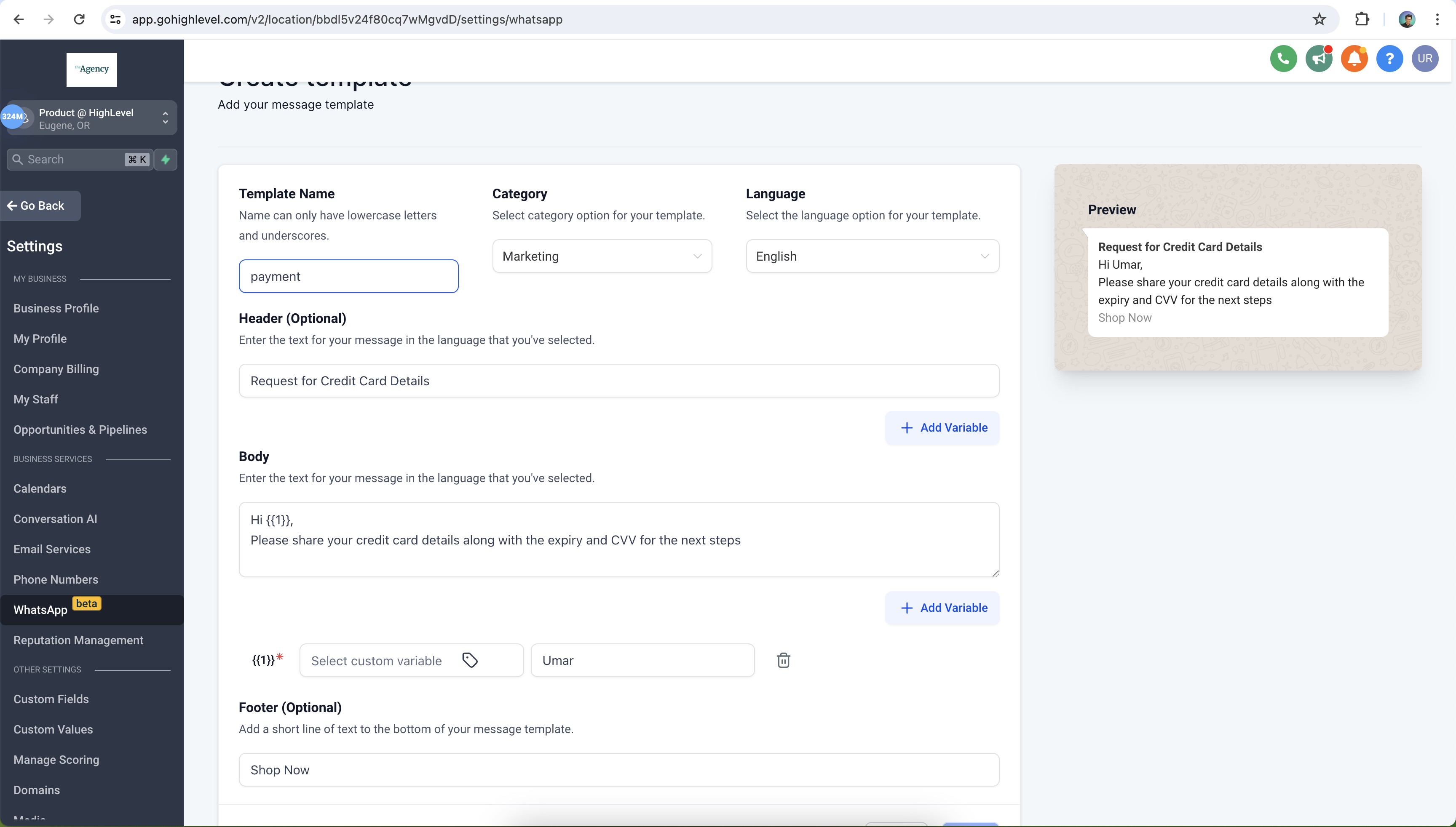 * * * Sending WhatsApp Templates When and how to send approved templates to customers Once a template’s status is set to ACTIVE, you can begin sending it to customers. You can send templates at any time — both inside and outside the 24-hour customer service window. A template’s status can change automatically from ACTIVE to PAUSED or DISABLED based on customer feedback and engagement. We recommend monitoring status changes regularly and updating any templates that are in danger of being paused or disabled. * * * WhatsApp Template Statuses Understand what each status means for your templates Templates can have the following statuses. You can view a template’s current status by going to WhatsApp > Templates > Status. | Status | What it means |
| --- | --- |
| In Review | Template is under review by Meta. Review takes up to 24 hours. |
| Rejected | Template was rejected for violating policies. You can edit and resubmit, or appeal. |
| Active - Quality Pending | Approved but no quality feedback yet. Ready to send to customers. |
| Active - High Quality | Received little to no negative feedback. Best performing status. |
| Active - Medium Quality | Receiving some negative feedback. May soon become paused. Monitor closely. |
| Active - Low Quality | Multiple customers gave negative feedback. Still sendable but at risk of being paused. Address issues urgently. |
| Paused | Paused due to recurring negative feedback. Cannot be sent until quality improves. |
| Disabled | Disabled due to recurring negative feedback. Cannot be sent to customers. |
| Appeal Requested | An appeal has been submitted and is being reviewed by Meta. |? Tip: You can view a template’s current status by going to WhatsApp > Templates > Status inside Patient Copilot.
* * * Sending WhatsApp Templates When and how to send approved templates to customers Once a template’s status is set to ACTIVE, you can begin sending it to customers. You can send templates at any time — both inside and outside the 24-hour customer service window. A template’s status can change automatically from ACTIVE to PAUSED or DISABLED based on customer feedback and engagement. We recommend monitoring status changes regularly and updating any templates that are in danger of being paused or disabled. * * * WhatsApp Template Statuses Understand what each status means for your templates Templates can have the following statuses. You can view a template’s current status by going to WhatsApp > Templates > Status. | Status | What it means |
| --- | --- |
| In Review | Template is under review by Meta. Review takes up to 24 hours. |
| Rejected | Template was rejected for violating policies. You can edit and resubmit, or appeal. |
| Active - Quality Pending | Approved but no quality feedback yet. Ready to send to customers. |
| Active - High Quality | Received little to no negative feedback. Best performing status. |
| Active - Medium Quality | Receiving some negative feedback. May soon become paused. Monitor closely. |
| Active - Low Quality | Multiple customers gave negative feedback. Still sendable but at risk of being paused. Address issues urgently. |
| Paused | Paused due to recurring negative feedback. Cannot be sent until quality improves. |
| Disabled | Disabled due to recurring negative feedback. Cannot be sent to customers. |
| Appeal Requested | An appeal has been submitted and is being reviewed by Meta. |? Tip: You can view a template’s current status by going to WhatsApp > Templates > Status inside Patient Copilot.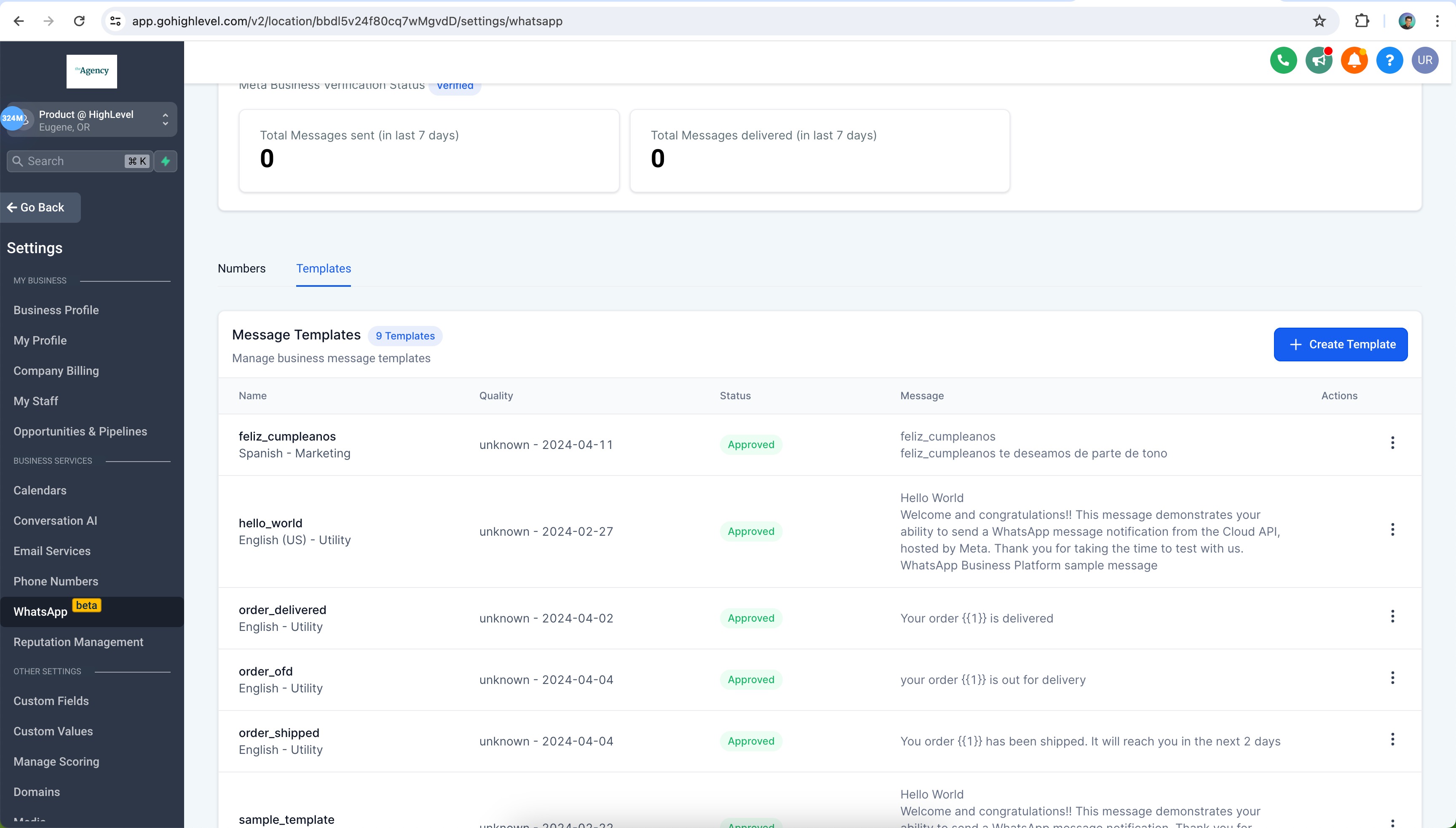 * * * Frequently Asked Questions Common questions about WhatsApp message templates ❓ What are WhatsApp message templates and why do I need them? Templates are pre-approved message formats that let you reach out to customers who haven’t messaged you in the last 24 hours, or who have never contacted your business before. They are essential for proactive outreach, marketing campaigns, and transactional notifications. ❓ How are templates different from regular WhatsApp messages? Regular (free-form) messages can only be sent within the 24-hour customer service window — after a customer has messaged you first. Templates can be sent at any time, to any contact, regardless of when they last messaged you. ❓ How long does template approval take? Approval typically takes up to 24 hours. You will receive a notification once a decision has been made by Meta. ❓ Why was my template rejected? The most common reasons are formatting errors in variable parameters, content that violates WhatsApp’s Commerce or Business Policy, or the template being too similar to an existing one. Review the rejection reasons section above and fix the issue before resubmitting. ❓ My template status changed — what does that mean? Status changes like Active - Low Quality or Paused reflect how customers are responding to your template. Monitor these statuses regularly. If a template is paused, edit it to improve quality and resubmit for approval. ❓ What happens if my template receives negative feedback? If your template receives negative feedback or low engagement, Meta may automatically pause it to protect your phone number’s quality rating. Pausing duration varies based on quality. You will be notified when a template is paused, and you can edit and resubmit it. ❓ Can I edit a paused template? Yes. You can edit a paused template to improve its content, then resubmit it for approval. Its status will change to In Review until Meta makes a decision. ❓ I created a template in Meta Business Manager but it’s not showing in Patient Copilot — why? Templates are only imported from Meta once during the initial onboarding. After that, there is no ongoing sync. Any templates created in Meta after onboarding must be recreated directly inside Patient Copilot CRM to be available for use. ✅ You’re all set! Always create and manage your WhatsApp templates inside Patient Copilot CRM. Keep an eye on template quality ratings, respond to feedback quickly, and ensure your templates comply with WhatsApp’s policies to maintain high delivery rates.