WordPress - Custom HTML Pages
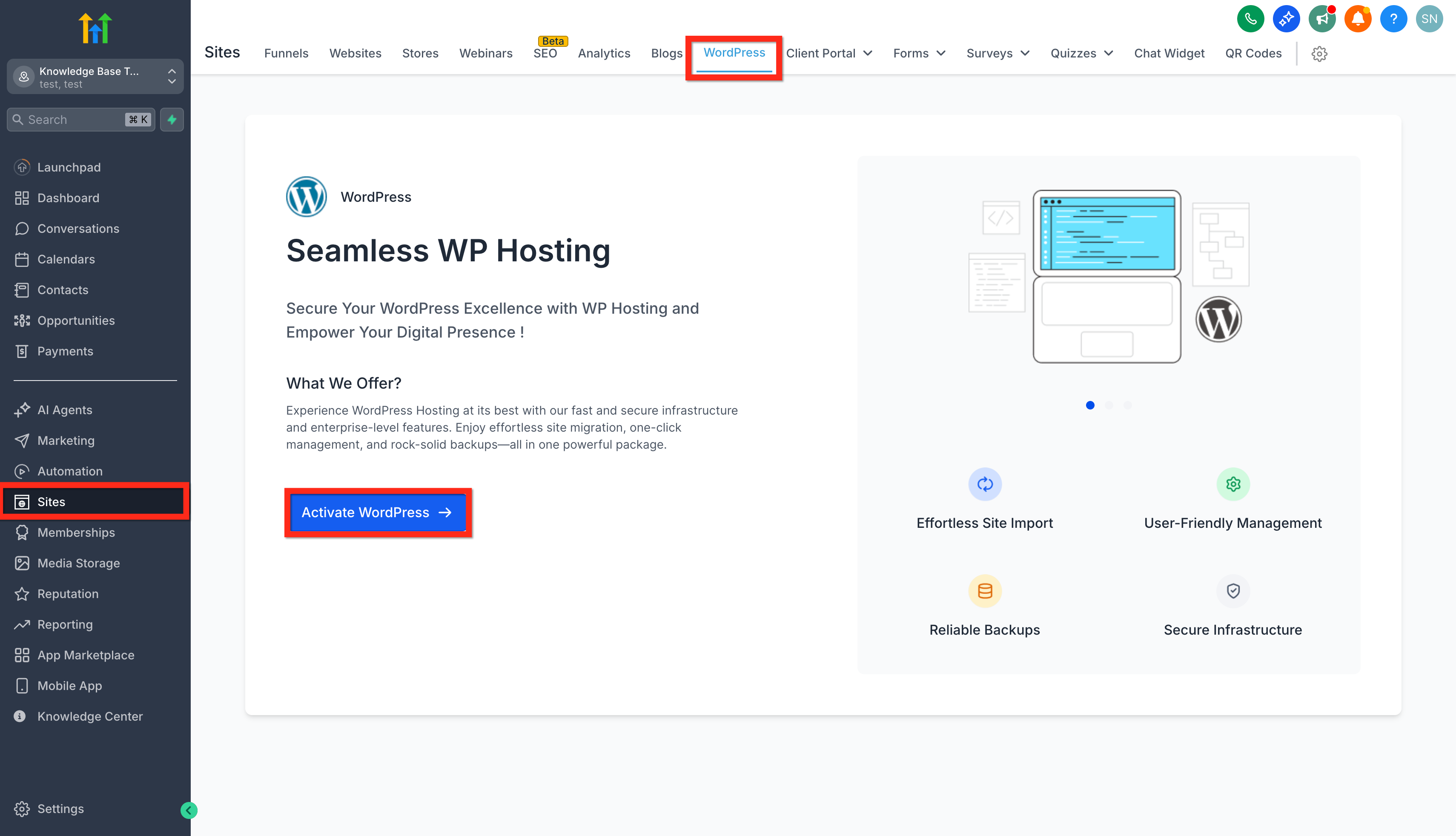
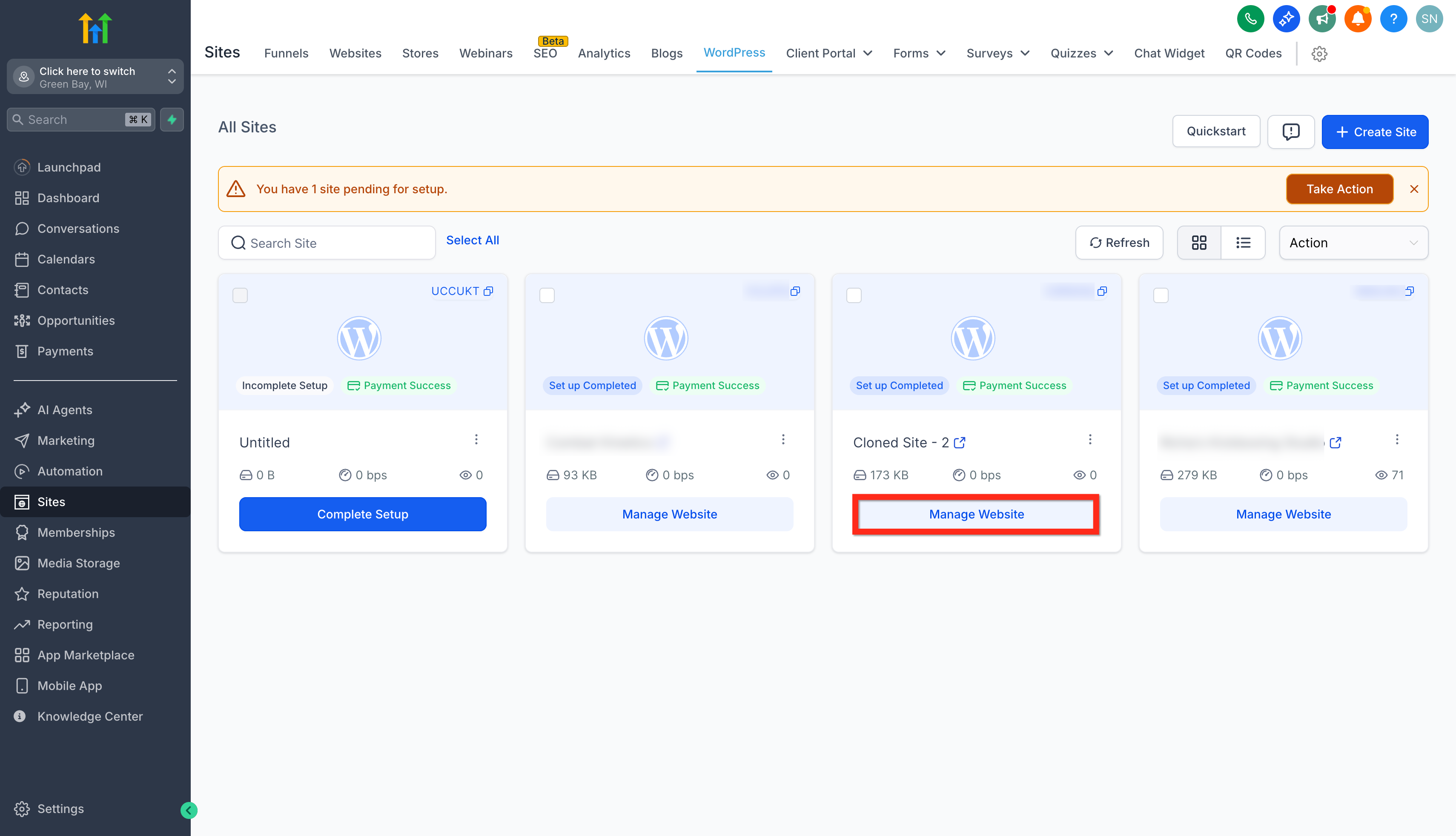
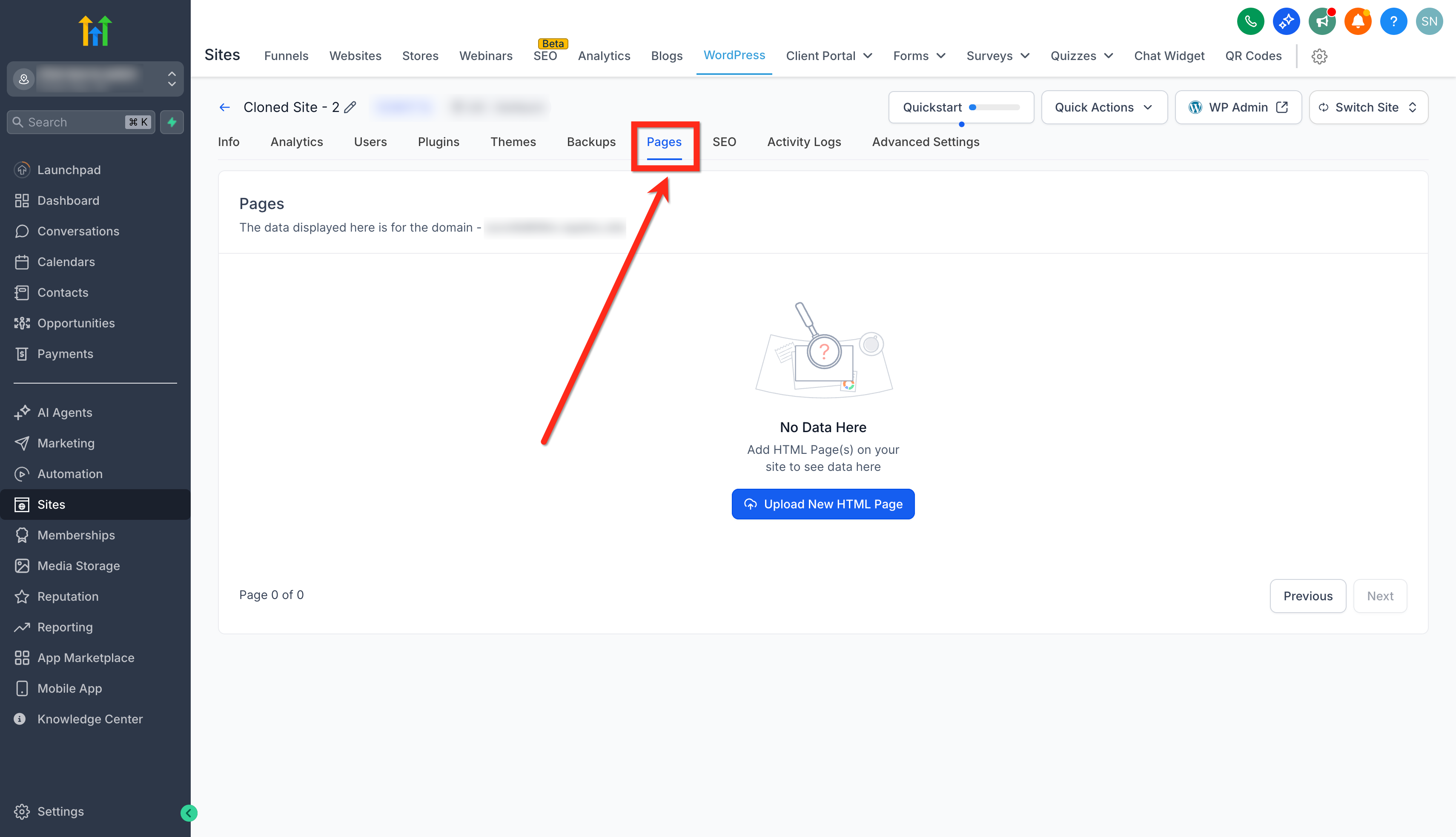
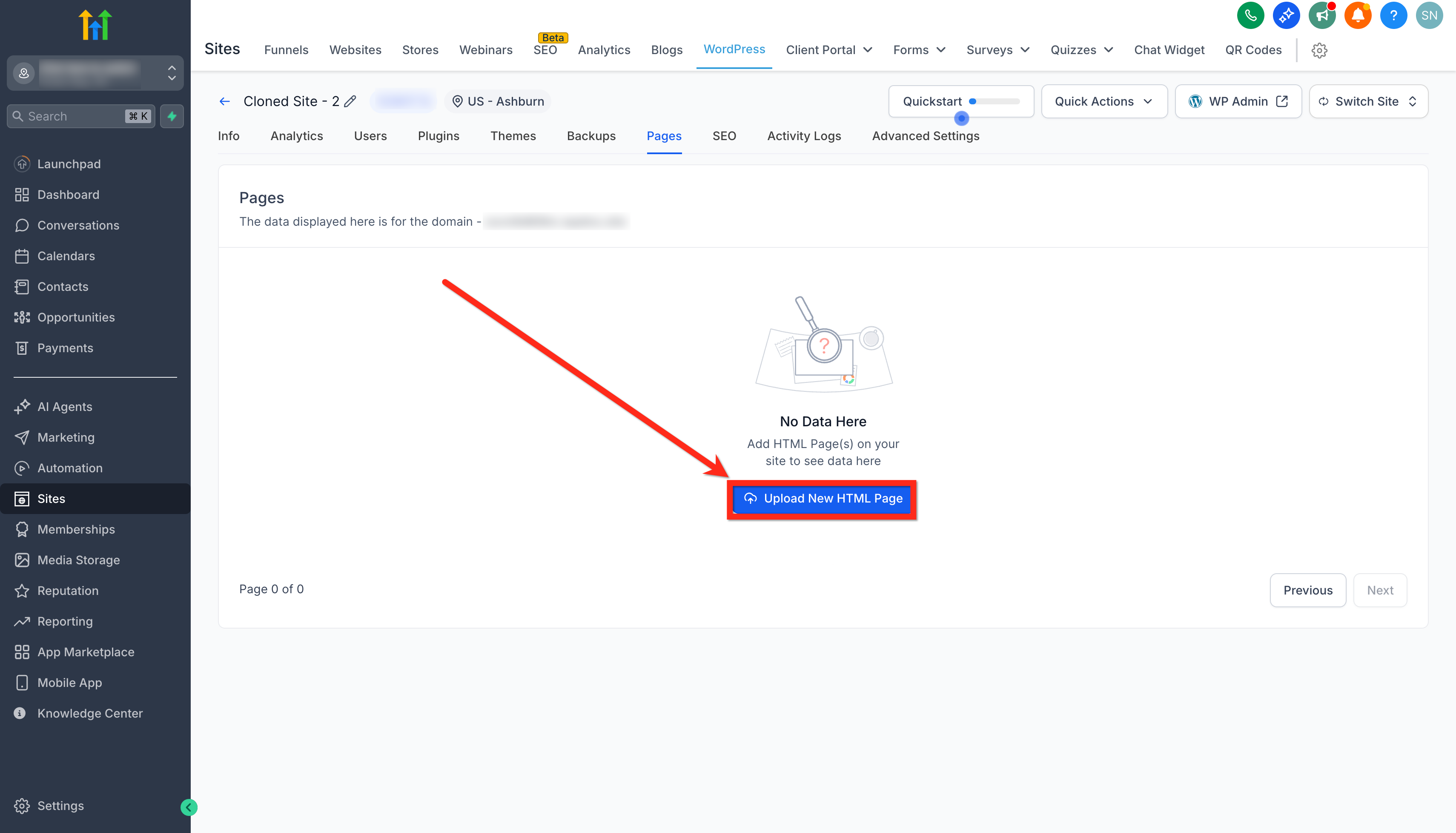
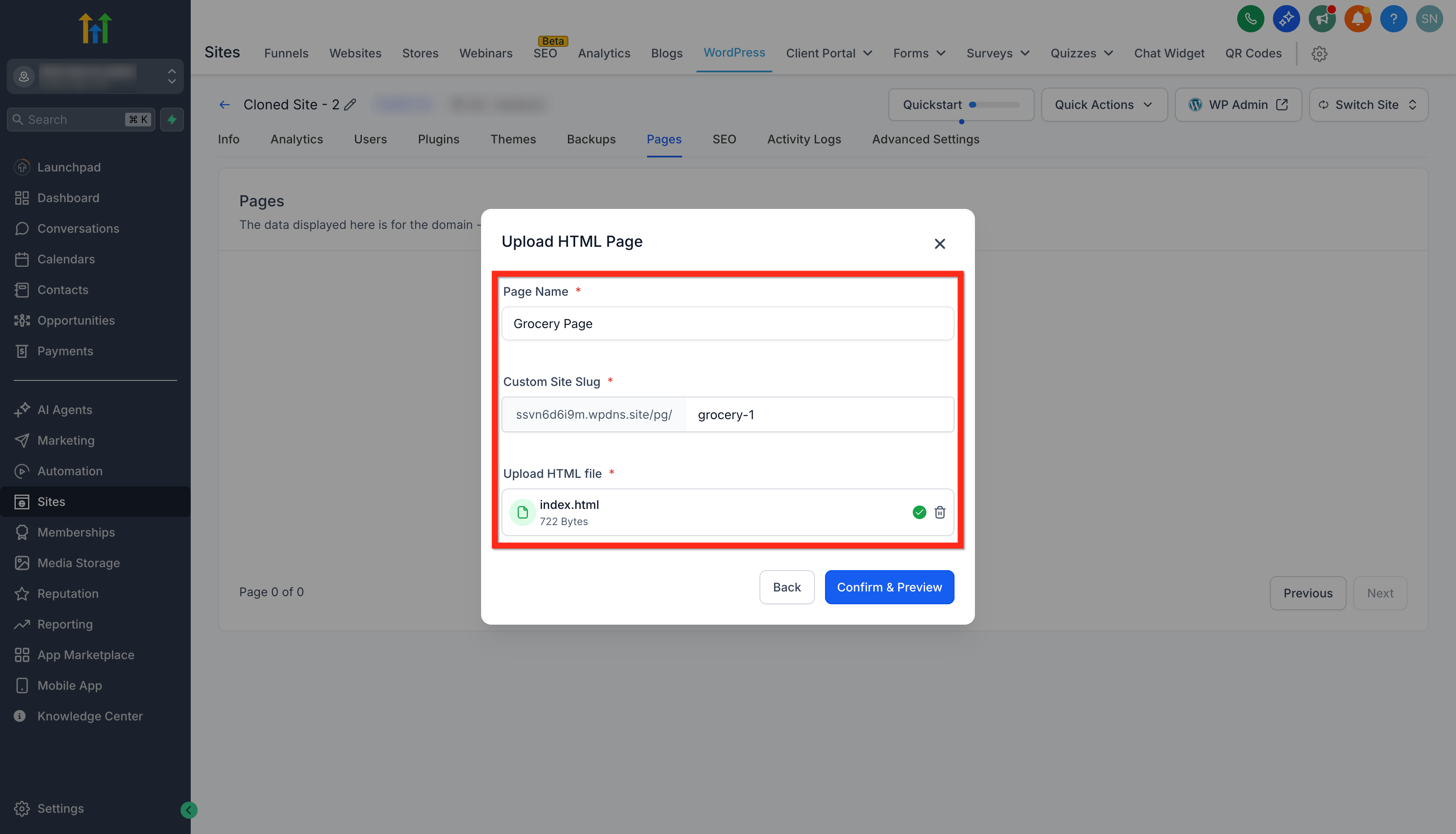
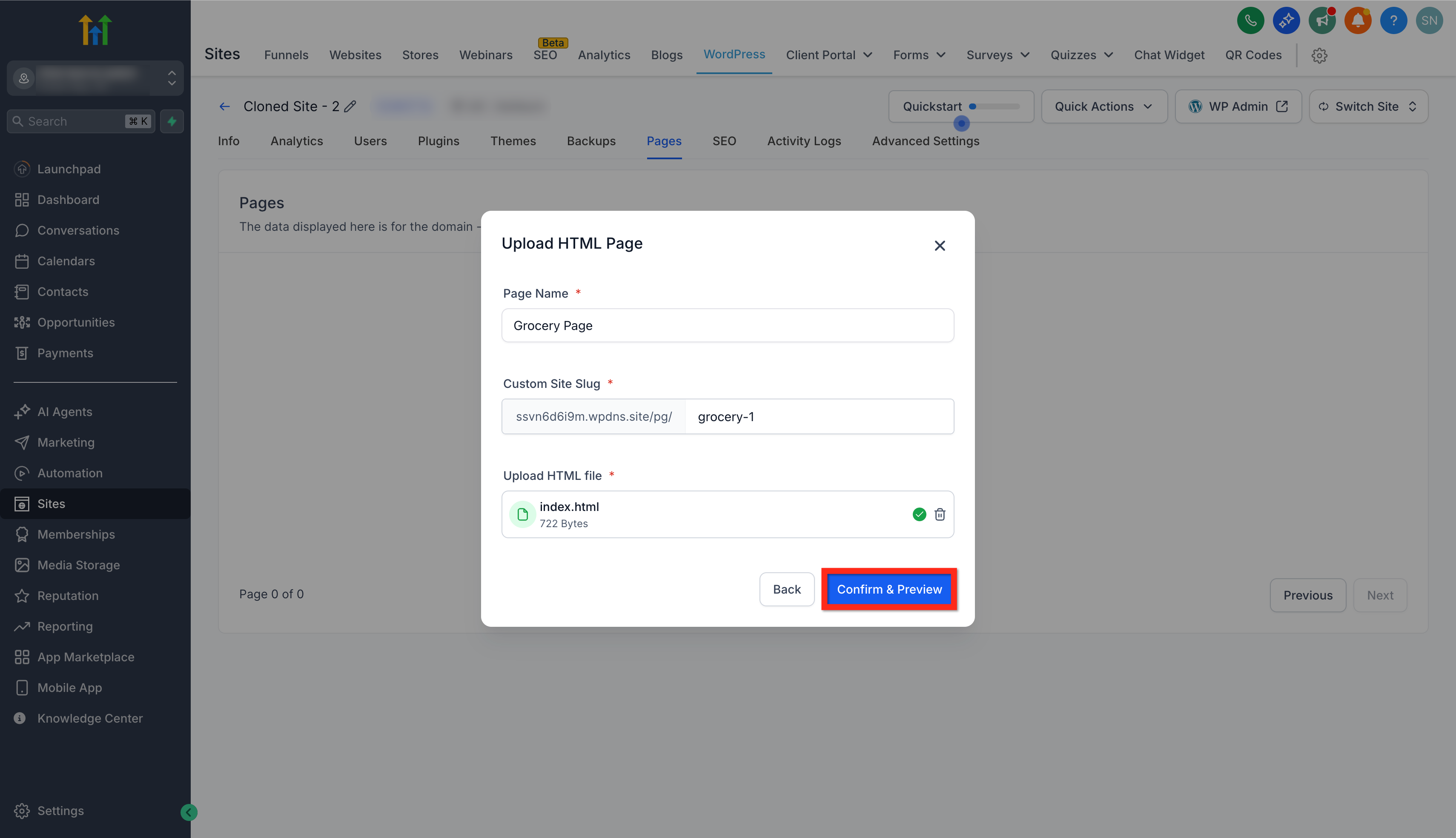
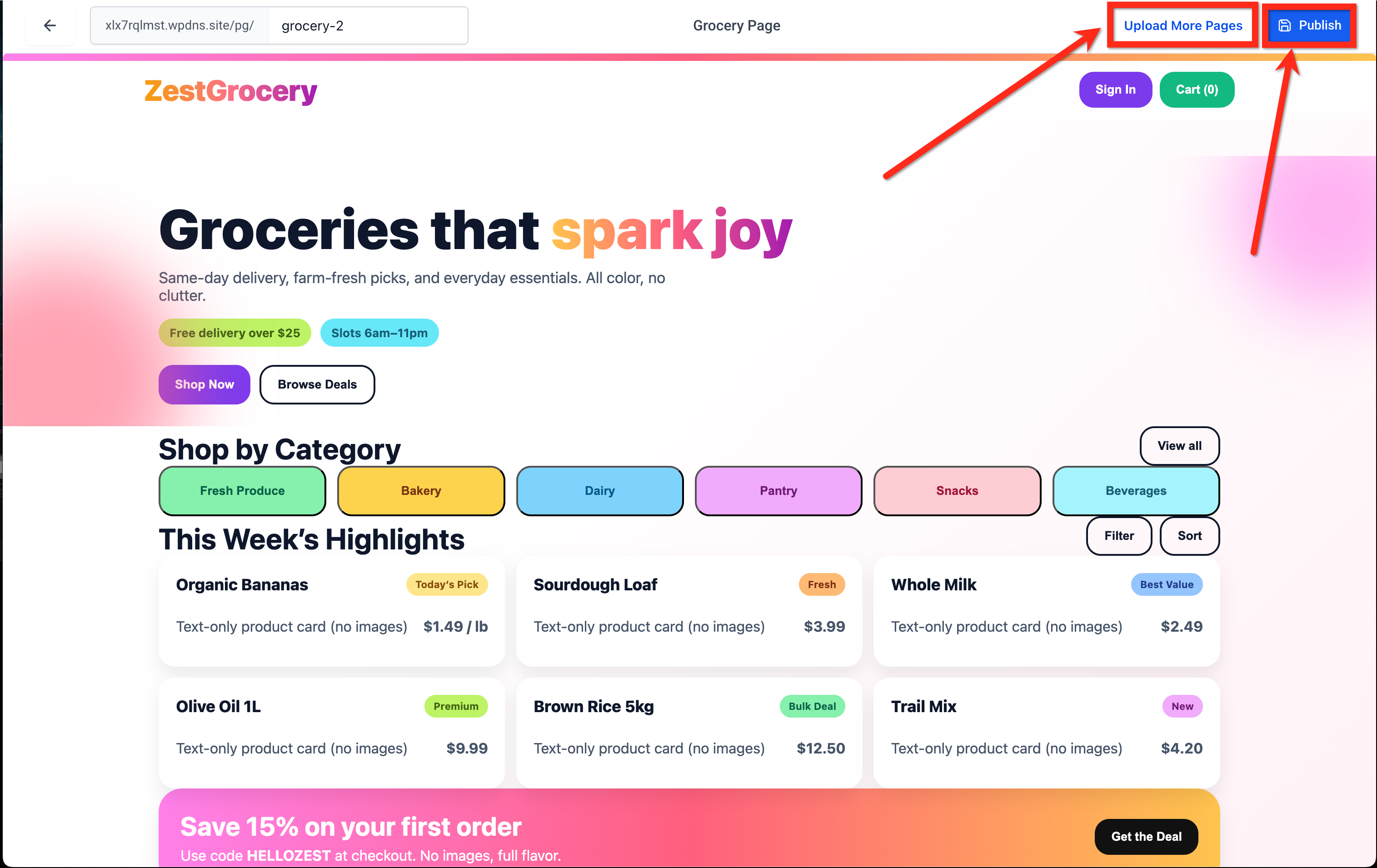
Create, preview, and publish fully custom HTML pages—no builder required—directly inside your Patient Copilot WordPress environment. Whether you export code from a static-site generator, an AI page builder, or hand-write HTML, the Custom HTML Pages feature keeps all of your hosting under one roof for faster performance and simpler workflows. * * * ## What are Custom HTML Pages? Custom HTML Pages let you upload a single.html file to your Patient Copilot-hosted WordPress site and publish it as a live page on your mapped domain. Instead of relying on a drag-and-drop editor, you can upload prebuilt code from any tool—giving developers and agencies full control while maintaining the convenience and security of Patient Copilot hosting. * * * ## Key Benefits of Custom HTML Pages Using Custom HTML Pages empowers you to expand your website-building workflow without giving up the reliability and performance of Patient Copilot’s hosting infrastructure. - All-in-one hosting: Manage builder-based and code-based pages within the same WordPress site. - Performance optimized: Static HTML files load instantly for faster site speeds. - Flexible integration: Works seamlessly with AI tools, SSGs, and manual HTML code. - Simplified SSL & domain setup: Uses your existing Patient Copilot SSL certificates and domain connections. - Future-ready design: Perfect for microsites, custom landing pages, or one-off campaign pages. * * * ## File Requirements & Limitations Understanding file requirements ensures your upload process is smooth and prevents publishing errors. - Only a single.html file can be uploaded at a time. - Maximum file size: 5 MB. - Images, CSS, and JavaScript files must be referenced via absolute URLs (e.g., from a CDN or media library). - Relative paths and multi-folder uploads are not yet supported. - Each upload represents one unique page. (Multiple pages require separate uploads.) * * * ## How to Upload a Custom HTML Page in WordPress Uploading a Custom HTML Page in Patient Copilot takes only a few clicks and requires no external hosting configuration. Follow the steps below to get your page live in minutes. ### Step 1: Navigate to WordPress Hosting 1. Go to Sites → WordPress in your Patient Copilot dashboard. 2. Then, click Activate WordPress (if not already enabled).!(https://assets.patientcopilot.ai/f6aefdcb530cdb01.png) ### Step 2: Go to the Pages Tab 1. Click on the Manage Website button for the WordPress site where you want to upload your HTML file.!(https://assets.patientcopilot.ai/951534463041aef3.png) 2. Click on the Pages tab at the top of the screen.!(https://assets.patientcopilot.ai/cbc4be691059f0c4.png) ### Step 3: Upload a New HTML Page 1. Click Upload New HTML Page button.!(https://assets.patientcopilot.ai/2abe820083cd1da1.png) 2. Enter a Page Name (e.g., “Grocery Page”) and a Custom Site Slug (e.g., /grocery-3). 3. Click the upload area to select your.html file.!(https://assets.patientcopilot.ai/e67a30b431fae654.png) ### Step 4: Confirm, Preview, and Publish 1. Click Confirm & Preview to verify the page layout and content.!(https://assets.patientcopilot.ai/cb5de7e3dd4c8ab3.png) 2. To upload more pages, click on the Upload More Pages button. 3. Once ready, click Publish to make your HTML page live.!(https://assets.patientcopilot.ai/69be910ca96cdb61.png) * * * ## Frequently Asked Questions Q: Can I upload multiple pages at once? No. Each upload supports one.html file. Multi-page ZIP uploads are planned for a future release. Q: How do I add CSS, images, or scripts? Host assets externally (like a CDN or your WordPress media library) and reference them with absolute URLs. Client-side scripts such as analytics or tracking pixels are supported. Q: Can I edit an uploaded page? You can’t edit HTML directly in Patient Copilot. To make changes, update your HTML file locally and upload a new version to replace the existing one. Q: How do I replace a page I’ve already uploaded? Open the Pages tab in your WordPress site, click the Action Menu (⋮) beside the page name, and select Upload New Version.This replaces the old file while keeping your original URL and settings intact. Q: Does this feature require extra hosting fees? No. It’s included with your existing Patient Copilot WordPress hosting plan. * * * ## Related Articles - (https://help.patientcopilot.ai/)[Getting Started – Migrate a WordPress Site](https://help.patientcopilot.ai/en/support/solutions/articles/155000005070) - (https://help.patientcopilot.ai/)[WordPress Hosting: Step-by-Step Migration Guide](https://help.patientcopilot.ai/en/support/solutions/articles/155000005010) - (https://help.patientcopilot.ai/)[WordPress: Domain Connect Integration](https://help.patientcopilot.ai/en/support/solutions/articles/155000004155) - (https://help.patientcopilot.ai/)[How to Set Up SFTP for Your WordPress Site](https://help.patientcopilot.ai/en/support/solutions/articles/48001229821) - (https://help.patientcopilot.ai/)(https://help.patientcopilot.ai/en/support/solutions/articles/155000004189)[Cloning WordPress Websites in Patient Copilot](https://help.patientcopilot.ai/en/support/solutions/articles/155000004189)(https://help.patientcopilot.ai/en/support/solutions/articles/155000004186)