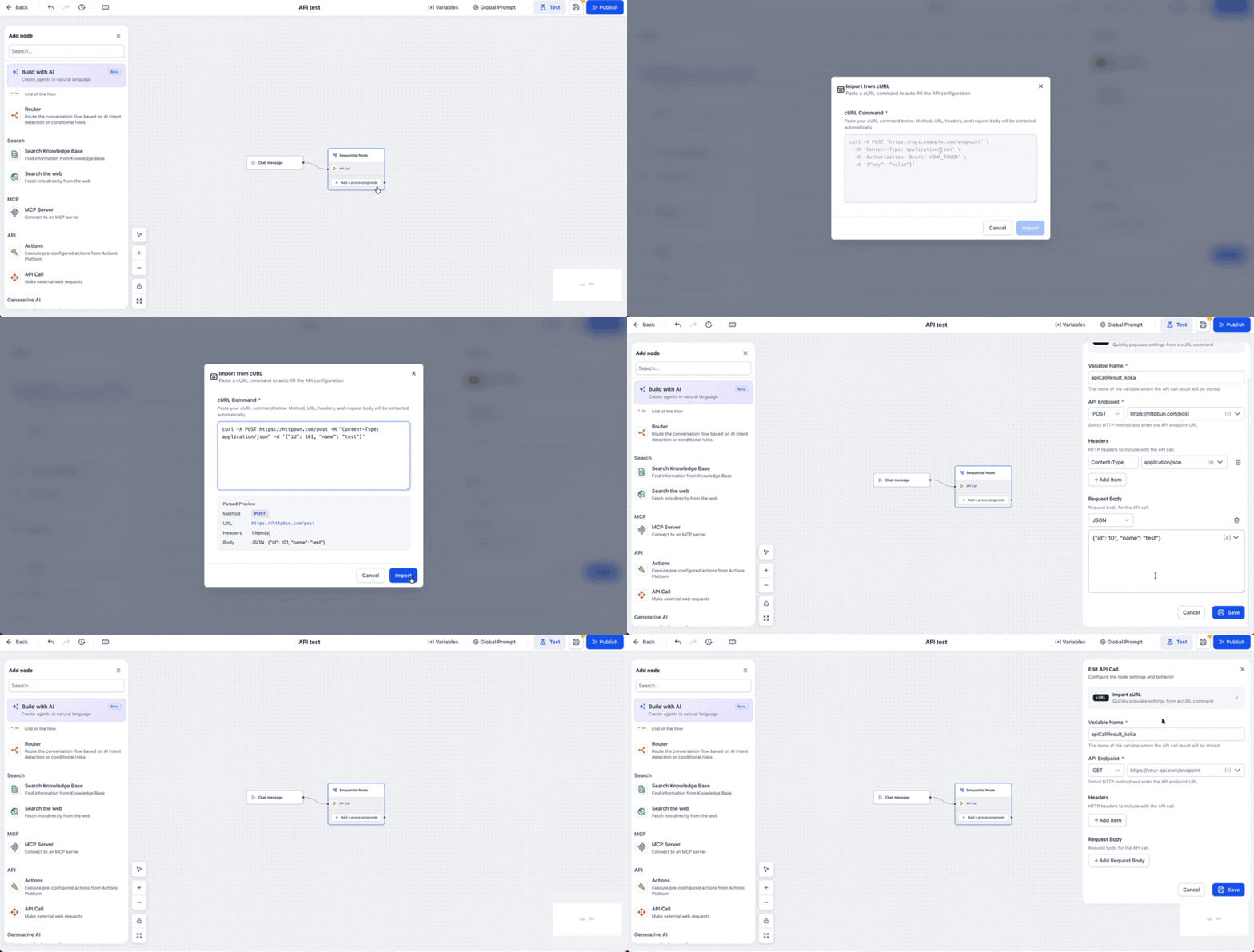
Import cURL in Agent Studio API Call Tool
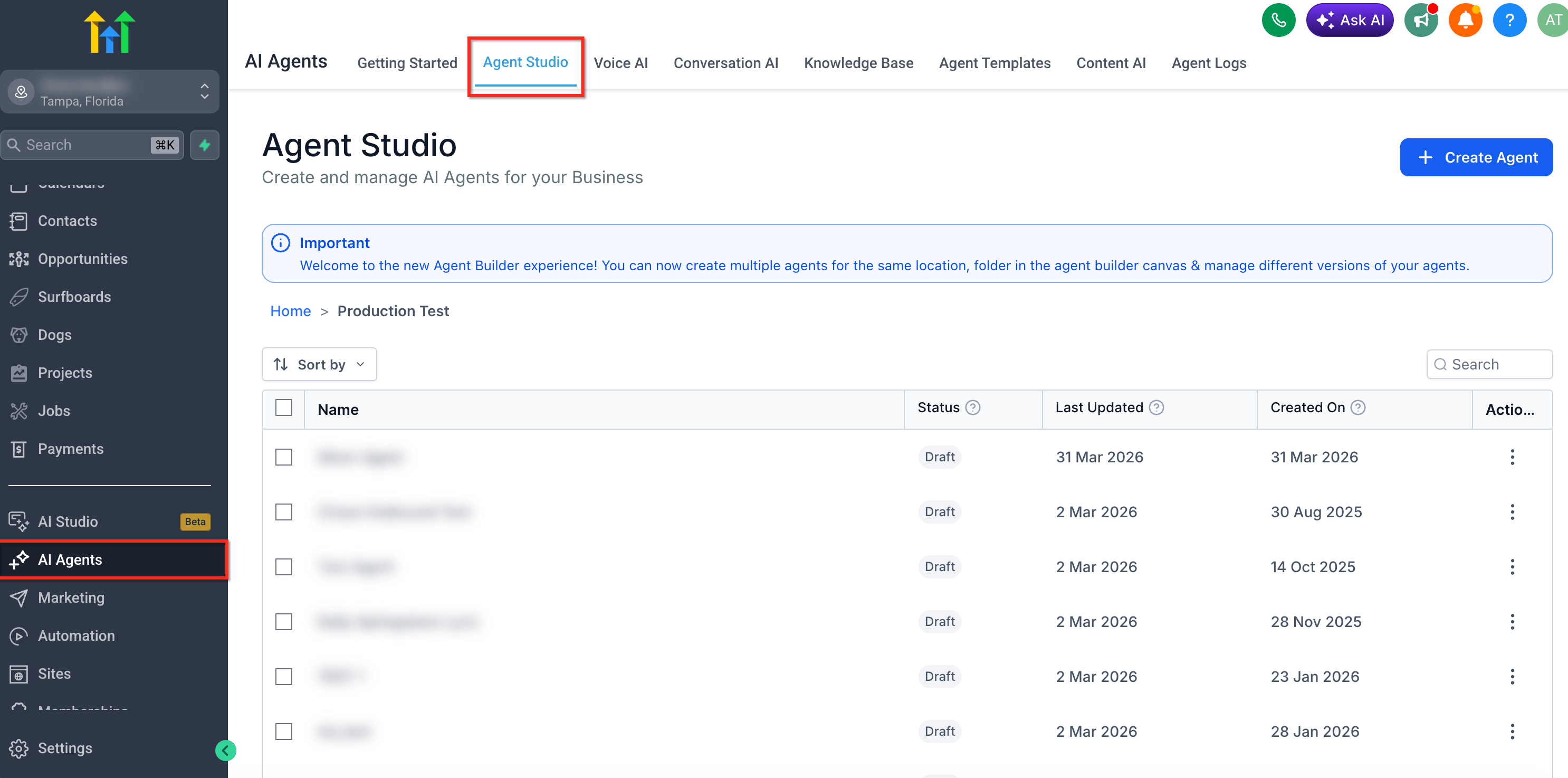
Learn how to use the Import cURL option in the Agent Studio API Call Tool to quickly turn a cURL command into a configured API request. This article explains where to find Import cURL, what request details are populated automatically, how to review imported settings, and how to test the API Call before publishing your agent. * * * ## Where Import cURL Works in Agent Studio Import cURL is available inside the API Call tool configuration panel. The API Call tool can be used when an agent needs to make an external web request as part of an Agent Studio flow. You can access Agent Studio from AI Agents > Agent Studio, then create a new agent or open an existing one. Agent Studio supports real-time triggers such as form submissions, lead tags, chat messages, and workflow-based starts, which determine when the agent begins running.!(https://assets.patientcopilot.ai/96121b4607962958.png) Import cURL may be used when configuring an API Call in areas such as: - An AI Agent node, where the API Call is added as a tool the agent can use.
- A Sequential node, where the API Call runs as a defined processing step in a structured sequence. * * * ## What Import cURL Automatically Populates Import cURL extracts request details from the pasted cURL command and uses them to populate the API Call fields. This makes it easier to transfer an existing API request into Agent Studio while still allowing you to review and edit the configuration afterward. Import cURL can populate: - HTTP method
- API endpoint URL
- Headers
- Request body Import cURL can also detect common request body types, including: - JSON
- HTML
- XML
- Text
- Form Data The tool also supports common cURL patterns, including: -
--locationredirects -ubasic authentication- Multiline request bodies
- Backslash
\line continuations * * * ## Reviewing Imported API Call Settings Imported API settings should always be reviewed before saving, testing, or publishing the agent. This helps ensure the request is accurate, secure, and ready to run in the agent flow. After importing a cURL command, review the following fields: - Instructions: Describe what the API Call does and when the AI Agent should use it. - Variable Name: Confirm where the API call result will be stored.
- API Endpoint: Verify the HTTP method and endpoint URL.
- Headers: Confirm required headers, such as content type or authorization.
- Request Body: Review the imported payload and body format.
- Authentication values: Check whether tokens, credentials, or keys should be replaced, removed, or secured.
- Variables: Add dynamic Agent Studio variables if the request should use contact, conversation, or runtime data. Agent Studio variables can be used to personalize agent behavior and reuse values across prompts, tool inputs, message cards, and logic fields. Screenshot Placeholder: Add screenshot showing the API Call tool inside an AI Agent node and the Import cURL option in the configuration panel. * * * ## Two-Way Sync With cURL Two-way sync allows the Import cURL modal to reflect the current API Call configuration as a cURL command. This makes it easier to review, edit, or troubleshoot the request in a familiar cURL format. When you reopen the Import cURL modal after configuring an API Call, Patient Copilot reconstructs the current configuration as a cURL command. You can use this to review the request, make changes, and re-import the updated version into the API Call configuration. This is especially helpful when: - You want to verify the request format.
- You need to compare the Patient Copilot configuration with external API documentation.
- You want to quickly edit headers or request body content.
- You are troubleshooting an API request before publishing the agent. * * * The API Call Tool and Agent Studio Public APIs serve different purposes. Understanding the difference helps you choose the right option for your setup. The API Call Tool lets a Patient Copilot agent make an external web request while the agent is running. For example, an agent can call an external system to retrieve data, send information, or trigger an external process. Agent Studio Public APIs allow external applications to list, retrieve, and execute production-ready Patient Copilot agents programmatically without logging into the Patient Copilot dashboard. Use the API Call Tool when the agent needs to call an external API during its flow. Use Agent Studio Public APIs when an external system needs to interact with Patient Copilot Agent Studio agents. * * * A proper setup ensures the imported request runs at the right point in the agent flow and stores the result where the agent can use it later. Review each imported field carefully before publishing so the API Call works as expected during live conversations or automations. 1. Navigate to AI Agents in Patient Copilot.
- Click the Agent Studio tab.
- Click Create Agent or open an existing agent.
- Add or select a start trigger, such as Chat message, Form submitted, Lead tag, or Workflow.
- Add an AI Agent node or Sequential node to the canvas.
- Add the API Call tool or processing node.
- Open the API Call configuration panel.
- Click Import cURL.
- Paste the cURL command into the cURL Command field.
- Click Import.
- Review the populated API Call fields: - HTTP method - API endpoint URL - Headers - Request body - Body type - Variable name - Instructions, when used inside an AI Agent node
- Make any needed edits.
- Click Save.
- Use Test to verify the API Call before publishing the agent.
- Click Publish when the agent is ready.!(https://assets.patientcopilot.ai/074cbbb879f02031.gif) Agent Studio includes testing and debugging tools such as the Chat Emulator and Message Execution Timeline, which help inspect agent behavior before deployment. * * * ## Frequently Asked Questions Q: What does Import cURL do? Import cURL converts a pasted cURL command into API Call configuration fields, such as the method, endpoint URL, headers, and request body. Q: Can I edit the API Call after importing a cURL command? Yes. After importing, review and update the populated fields before saving or testing the API Call. Q: Does Import cURL support multiline commands? Yes. Import cURL supports multiline request bodies and backslash line continuations. Q: What body types can Import cURL detect? Import cURL can detect JSON, HTML, XML, Text, and Form Data body types. Q: Can I use variables after importing a cURL command? Yes. After the cURL command is imported, you can review the populated fields and add supported Agent Studio variables where dynamic values are needed. Q: Should I test the API Call before publishing? Yes. Always test the agent before publishing, especially when the API Call includes authentication, variables, headers, or a request body. Q: Is Import cURL the same as Agent Studio Public APIs? No. Import cURL helps configure an API Call inside an agent. Agent Studio Public APIs are used by external applications to interact with Patient Copilot agents programmatically. Q: What should I check if the imported request does not work? Review the endpoint URL, HTTP method, headers, authorization values, request body, body type, and any variables used in the request. Then test the agent again.