
How to add GIFs to your email?
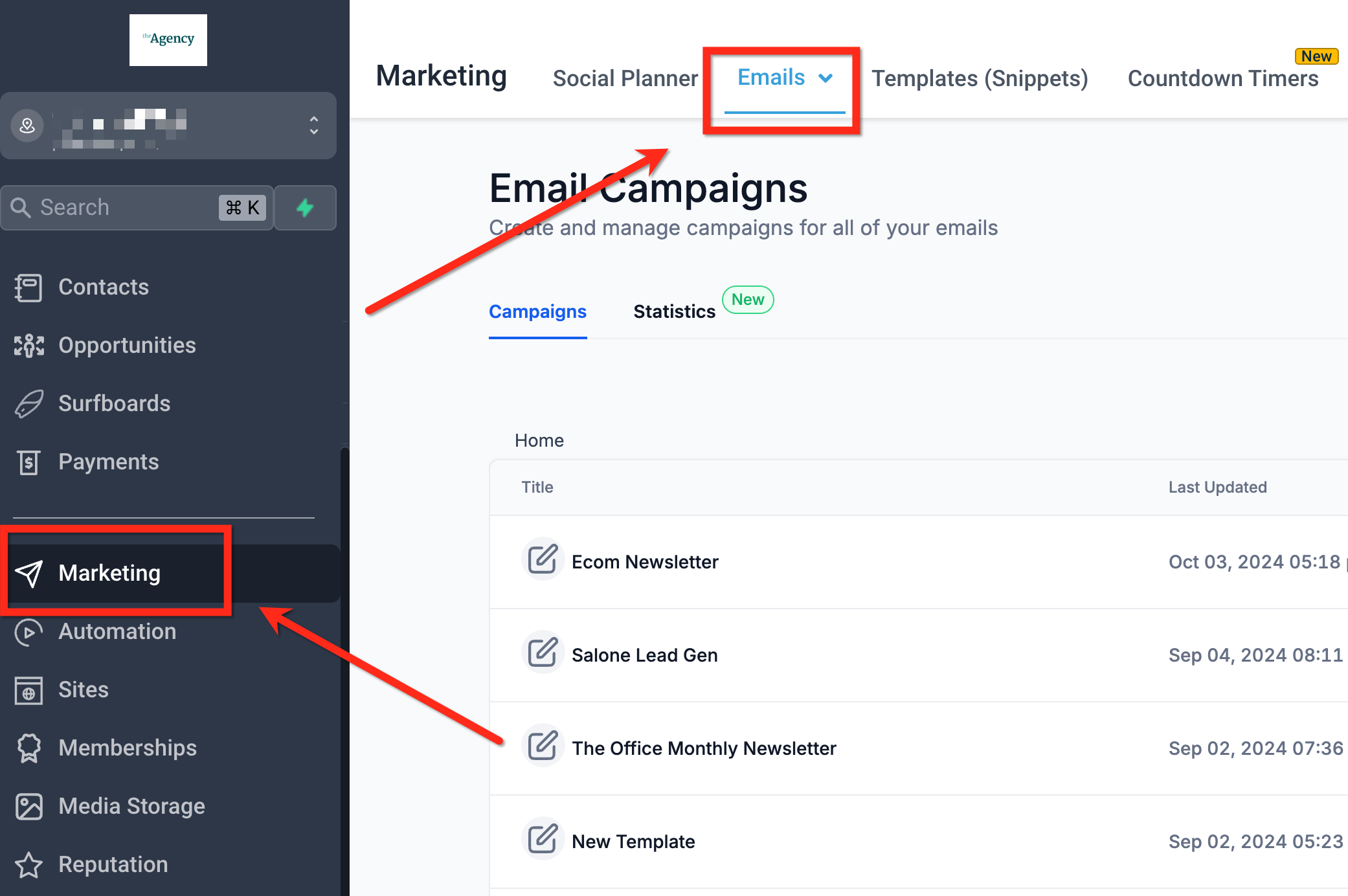
Adding GIFs to your emails can make them more engaging and fun. Here’s a simple guide to help you easily insert GIFs into your emails, making your messages stand out and grab attention. Where can you add GIFs? 1. Video Thumbnails can have a GIF 2. You can also directly use an GIF similar to images Steps to add GIFsto your email Step 1| Navigate to Marketing -> Email Marketing and open any campaign or template.!(https://assets.patientcopilot.ai/0e03c2eefaf0086e.png) Step 2| Drag and drop the image element. !(https://assets.patientcopilot.ai/0696a41d715cde09.png) Step 3| Edit the Image and add a GIF file upto 10MB!(https://assets.patientcopilot.ai/c462582c7b2c6a27.png)!(https://assets.patientcopilot.ai/af3c7504252a643e.png)!(https://assets.patientcopilot.ai/6ea7391f9ffeef3f.png)!(https://assets.patientcopilot.ai/672f5d772f5e099d.png) Step 2| Drag and drop the video element!(https://assets.patientcopilot.ai/5c0f3798b3b97835.png) Step 3| Edit the video thumbnail to add a GIF file upto 10MB!(https://assets.patientcopilot.ai/71dae27ee93509bb.jpg)!(https://assets.patientcopilot.ai/d28c8651e6a281db.png)!(https://assets.patientcopilot.ai/432c9189cee877ec.png)!(https://assets.patientcopilot.ai/689dc878fe19caf1.png) Was this article helpful? That’s Great! Thank you for your feedback Sorry! We couldn’t be helpful Thank you for your feedback Feedback sent We appreciate your effort and will try to fix the article
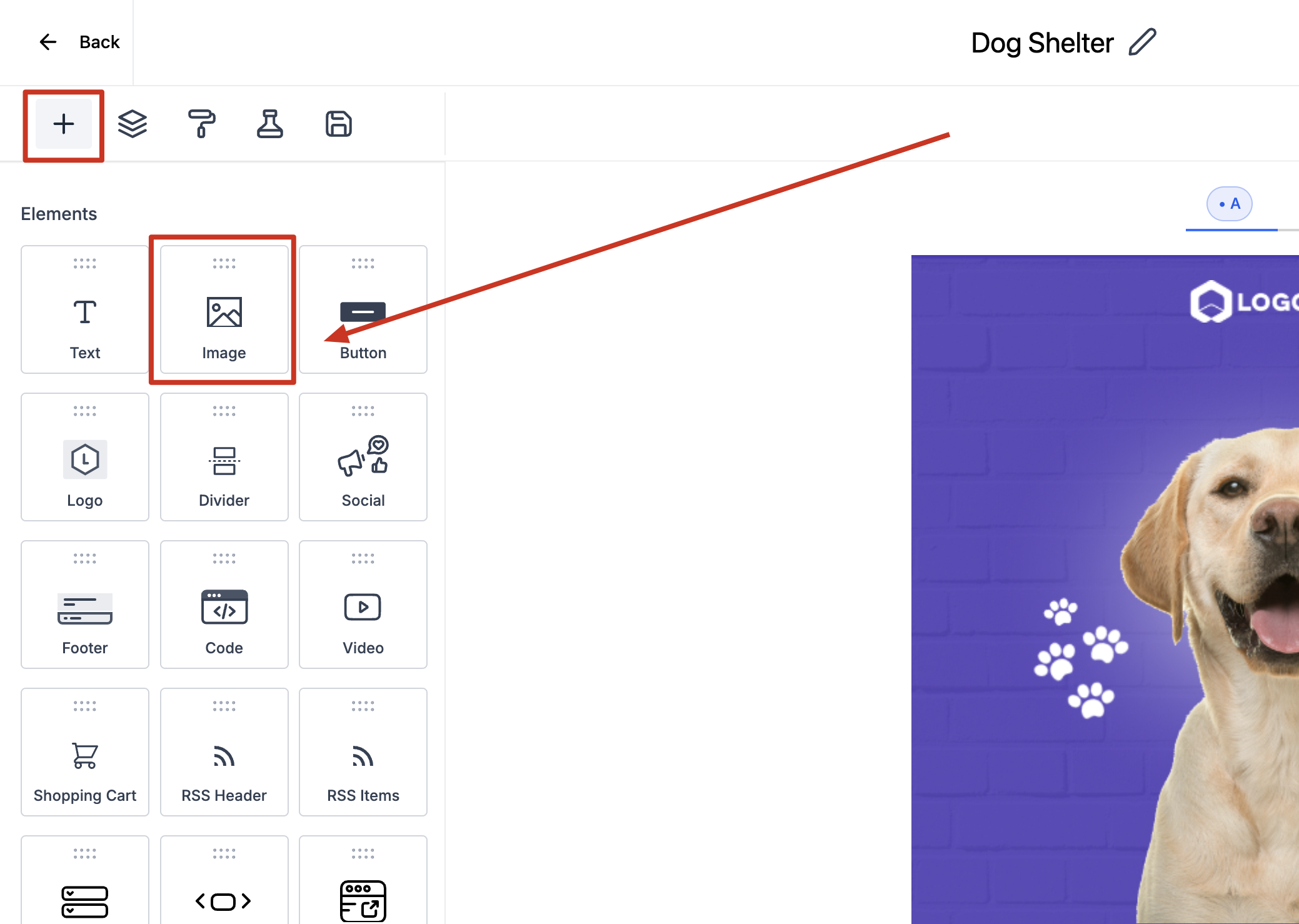
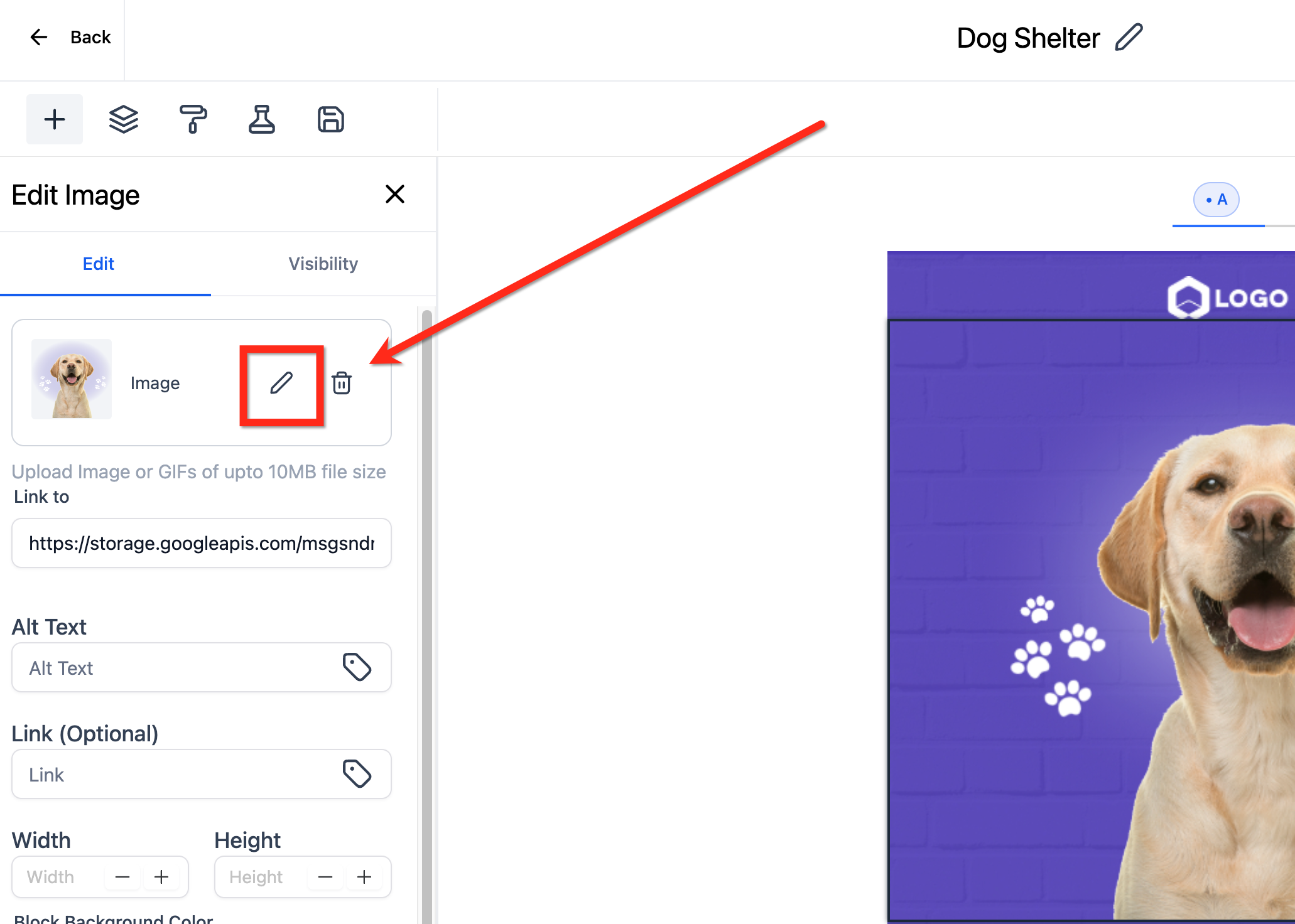!(https://assets.patientcopilot.ai/af3c7504252a643e.png)!(https://assets.patientcopilot.ai/6ea7391f9ffeef3f.png)!(https://assets.patientcopilot.ai/672f5d772f5e099d.png)
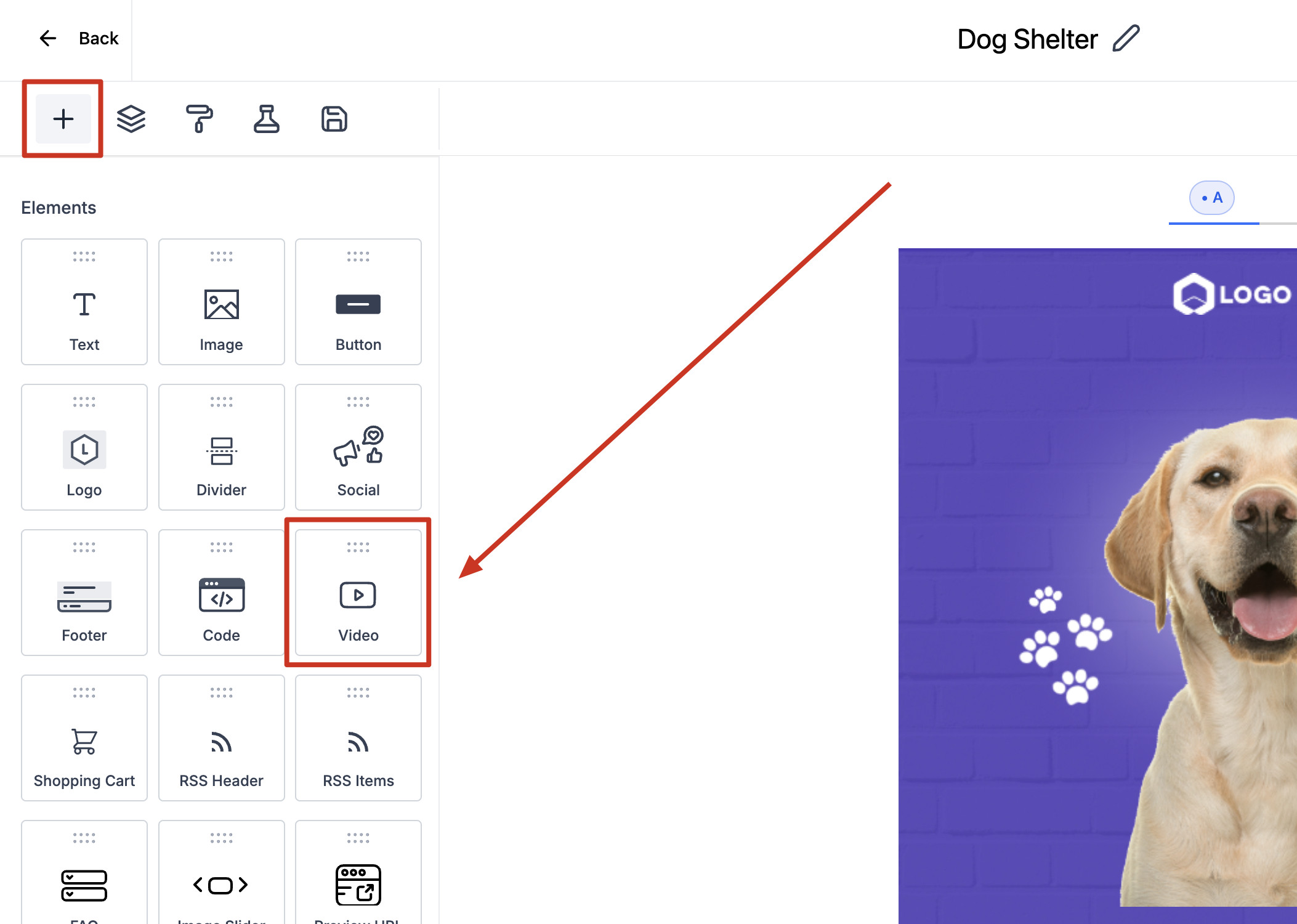
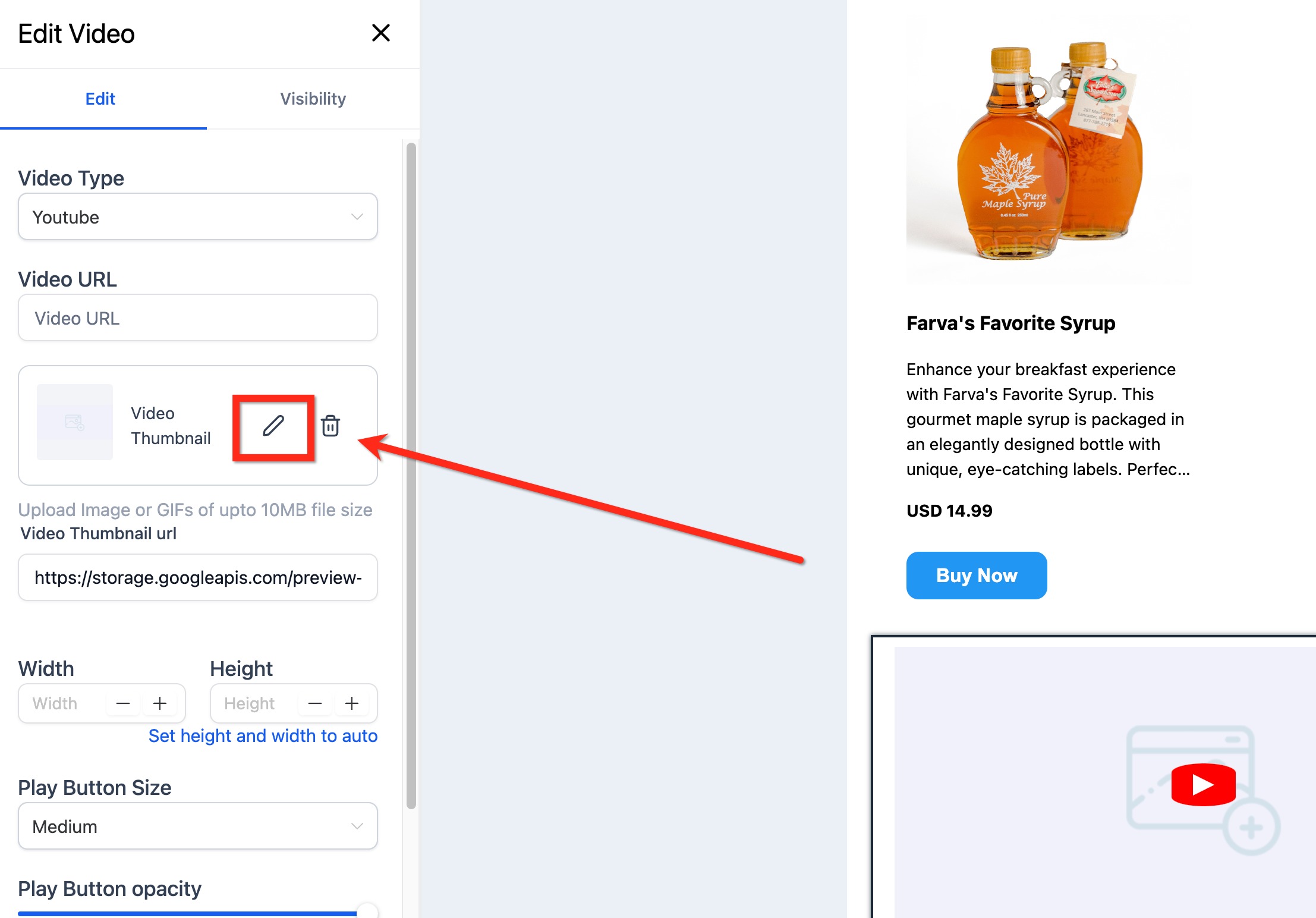!(https://assets.patientcopilot.ai/d28c8651e6a281db.png)!(https://assets.patientcopilot.ai/432c9189cee877ec.png)!(https://assets.patientcopilot.ai/689dc878fe19caf1.png)