Ad Manager: Create Ad campaigns using templates
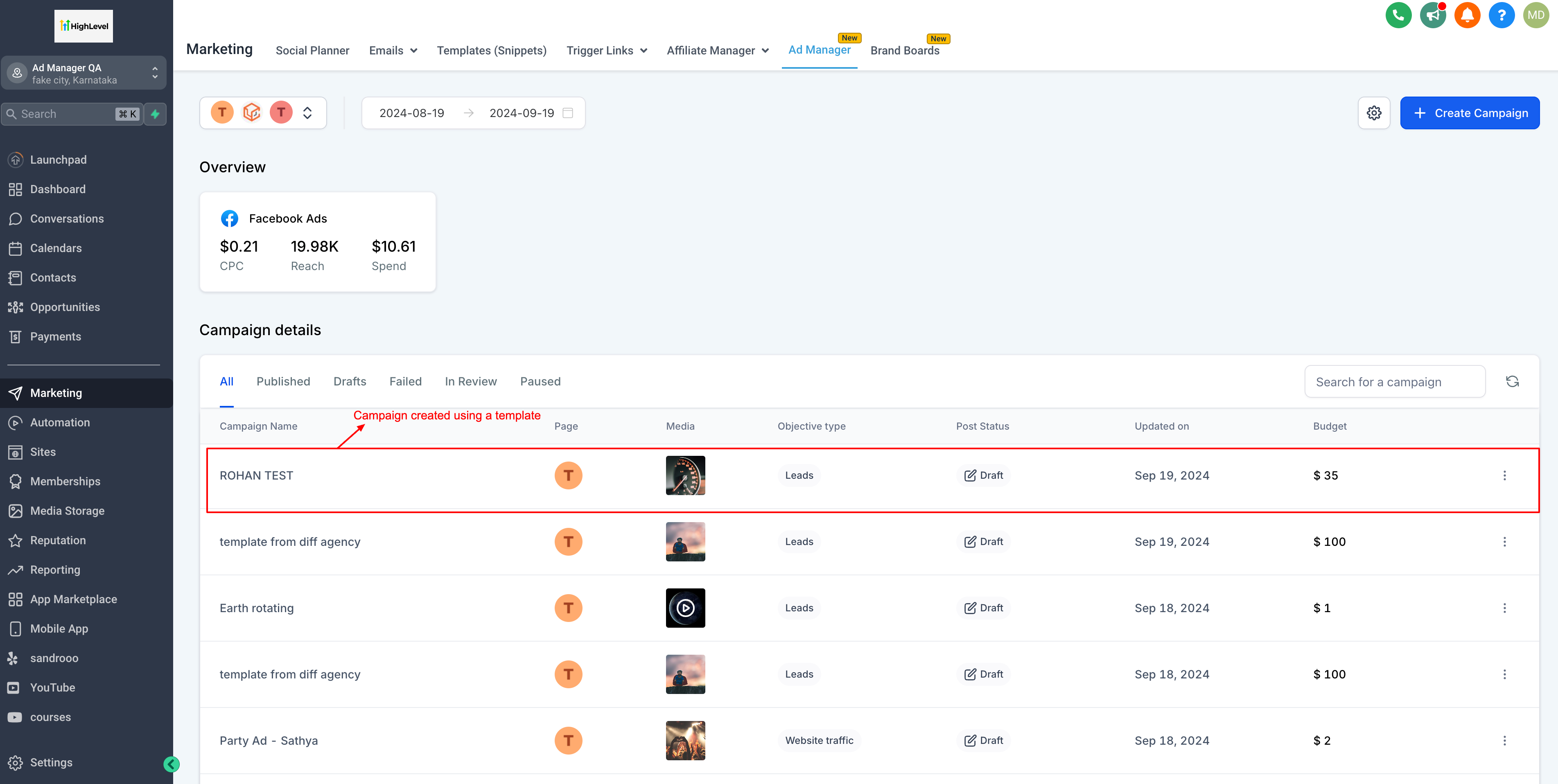
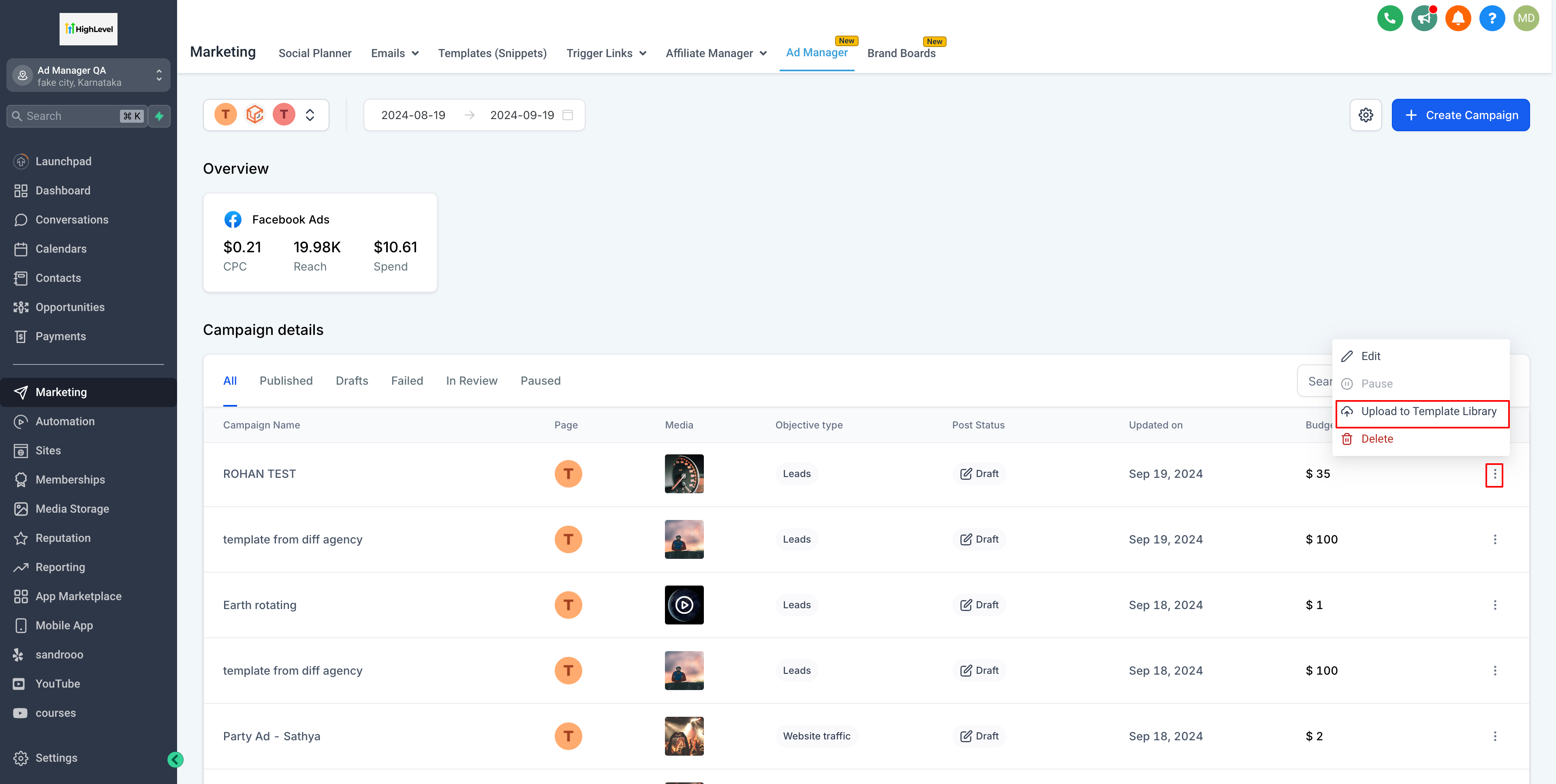
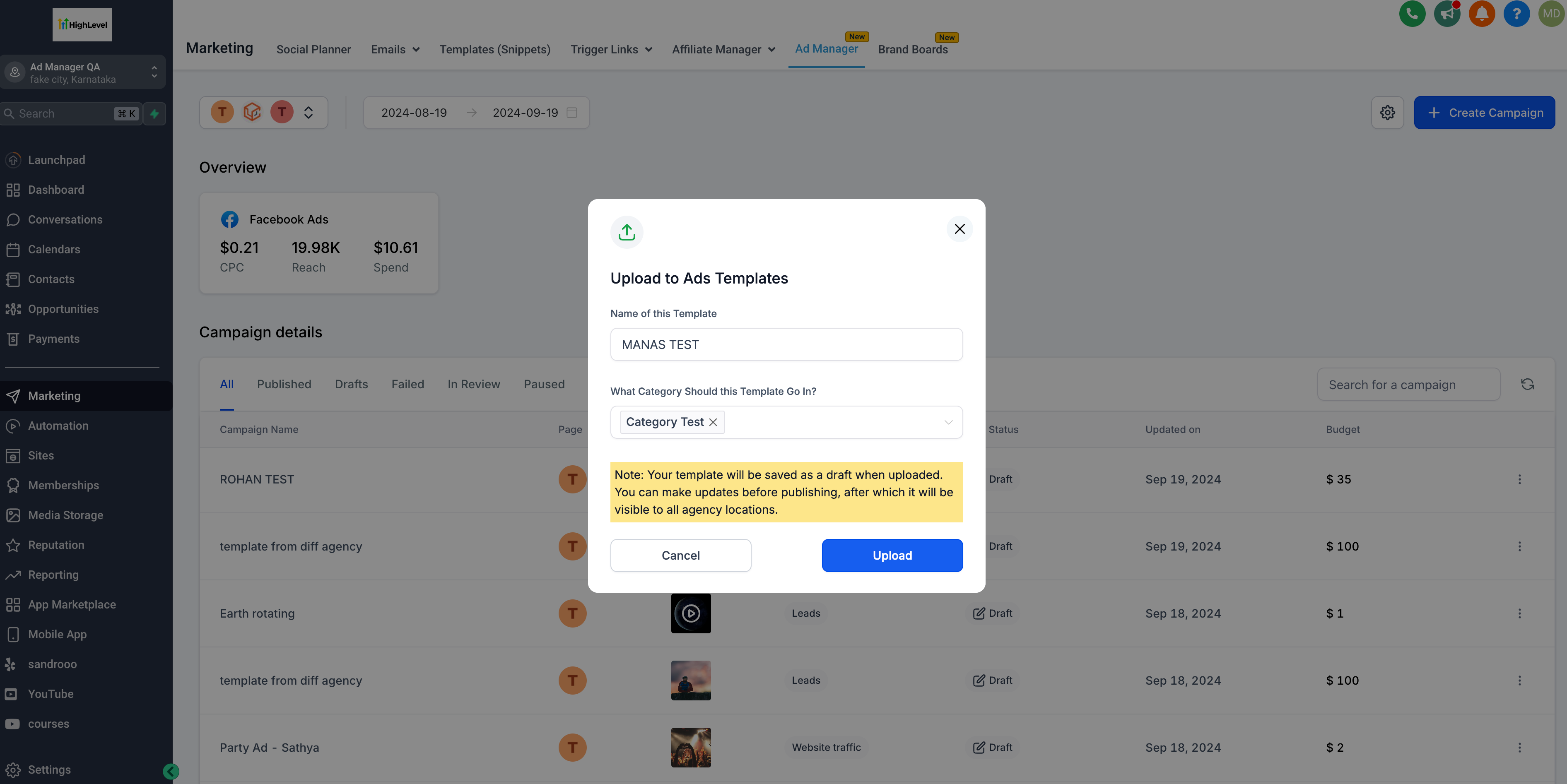
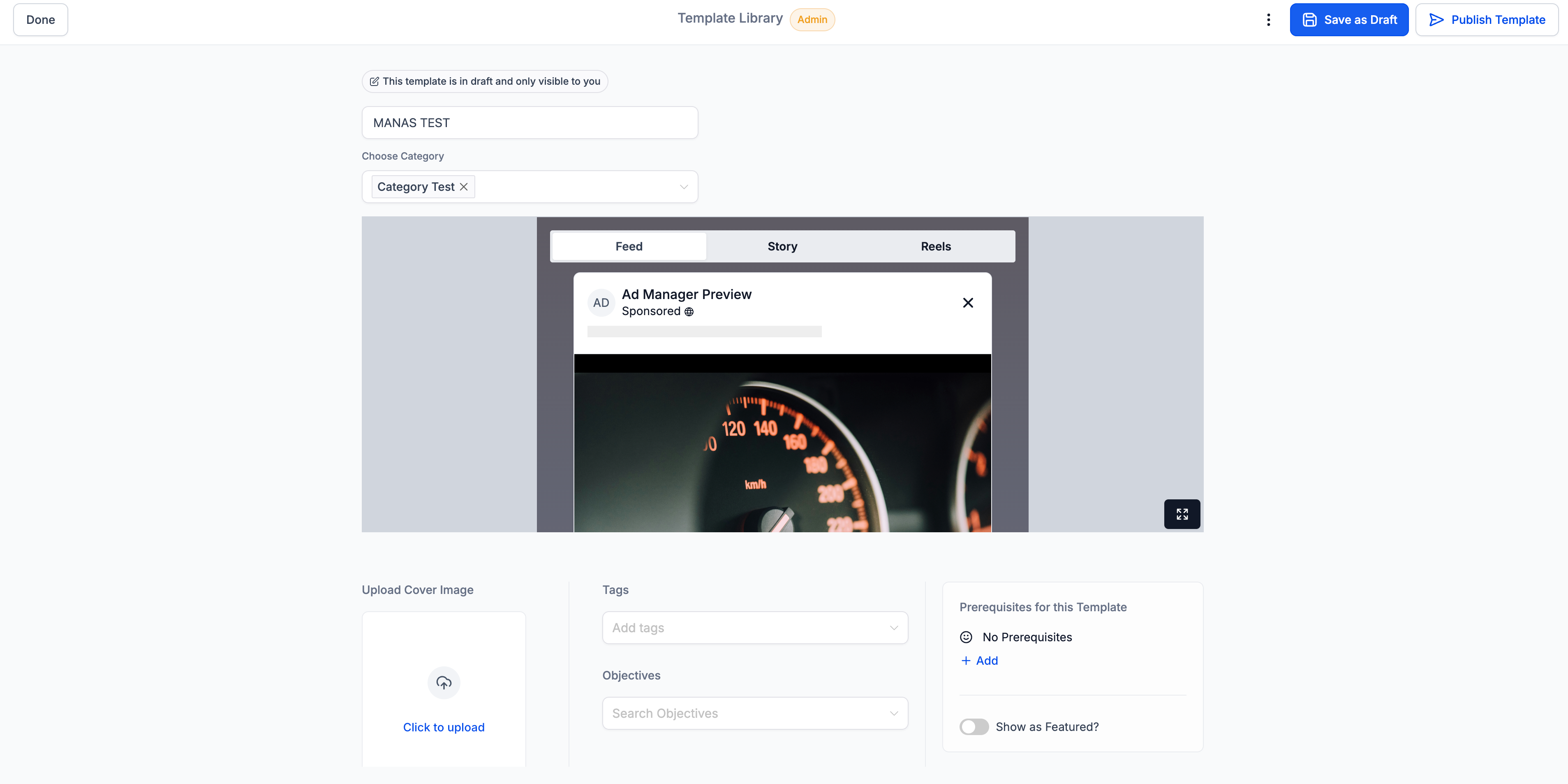
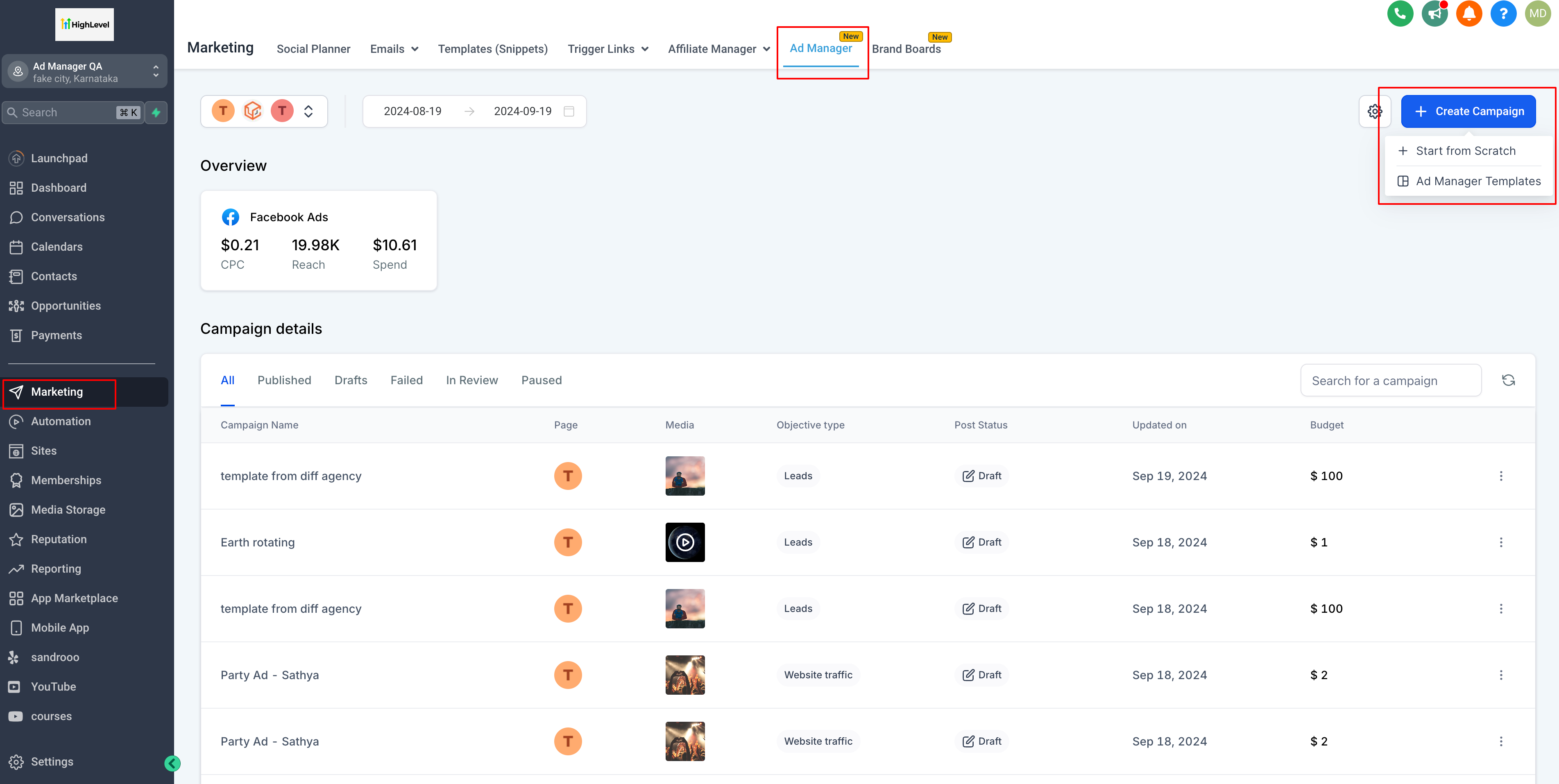
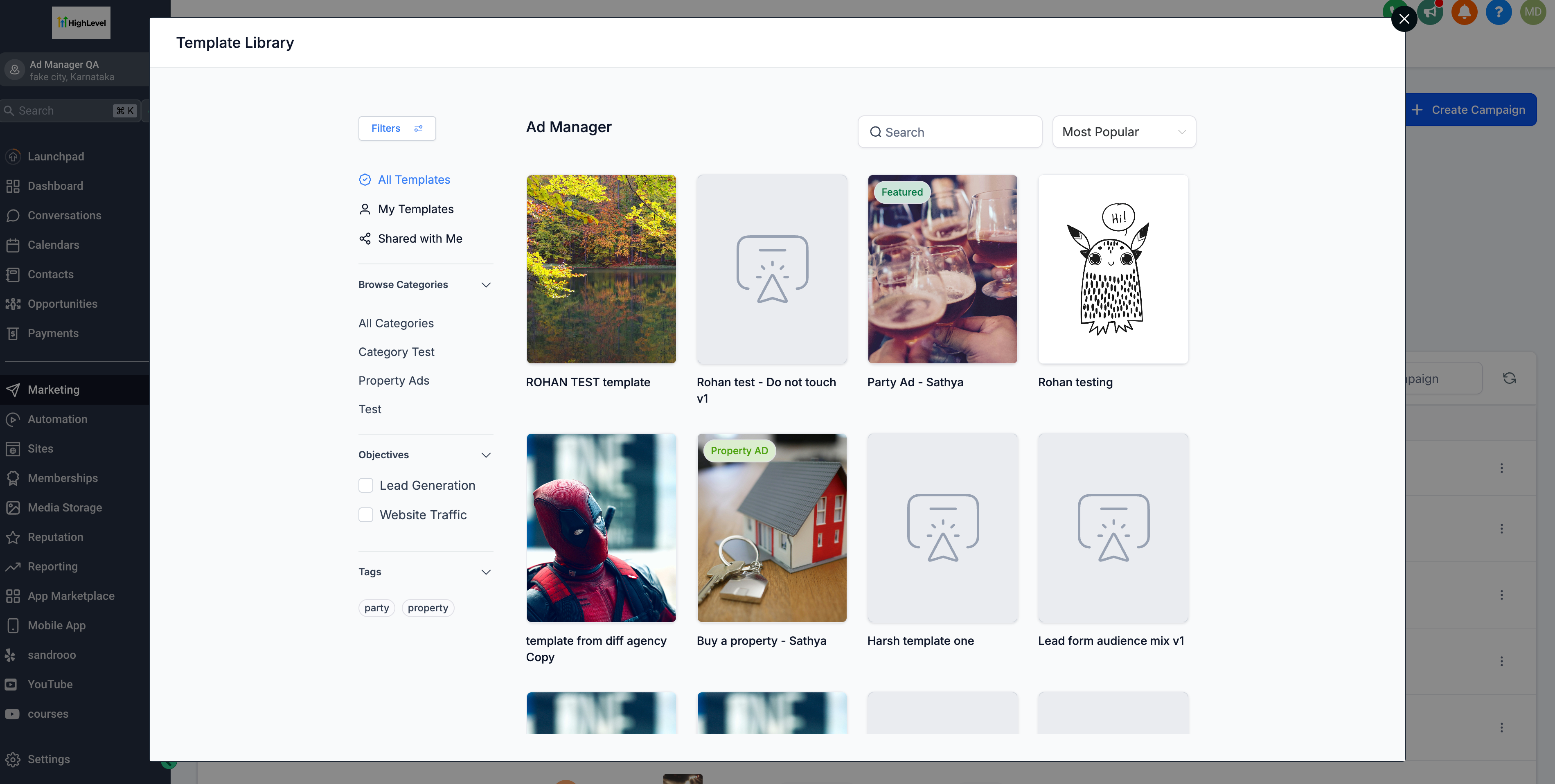
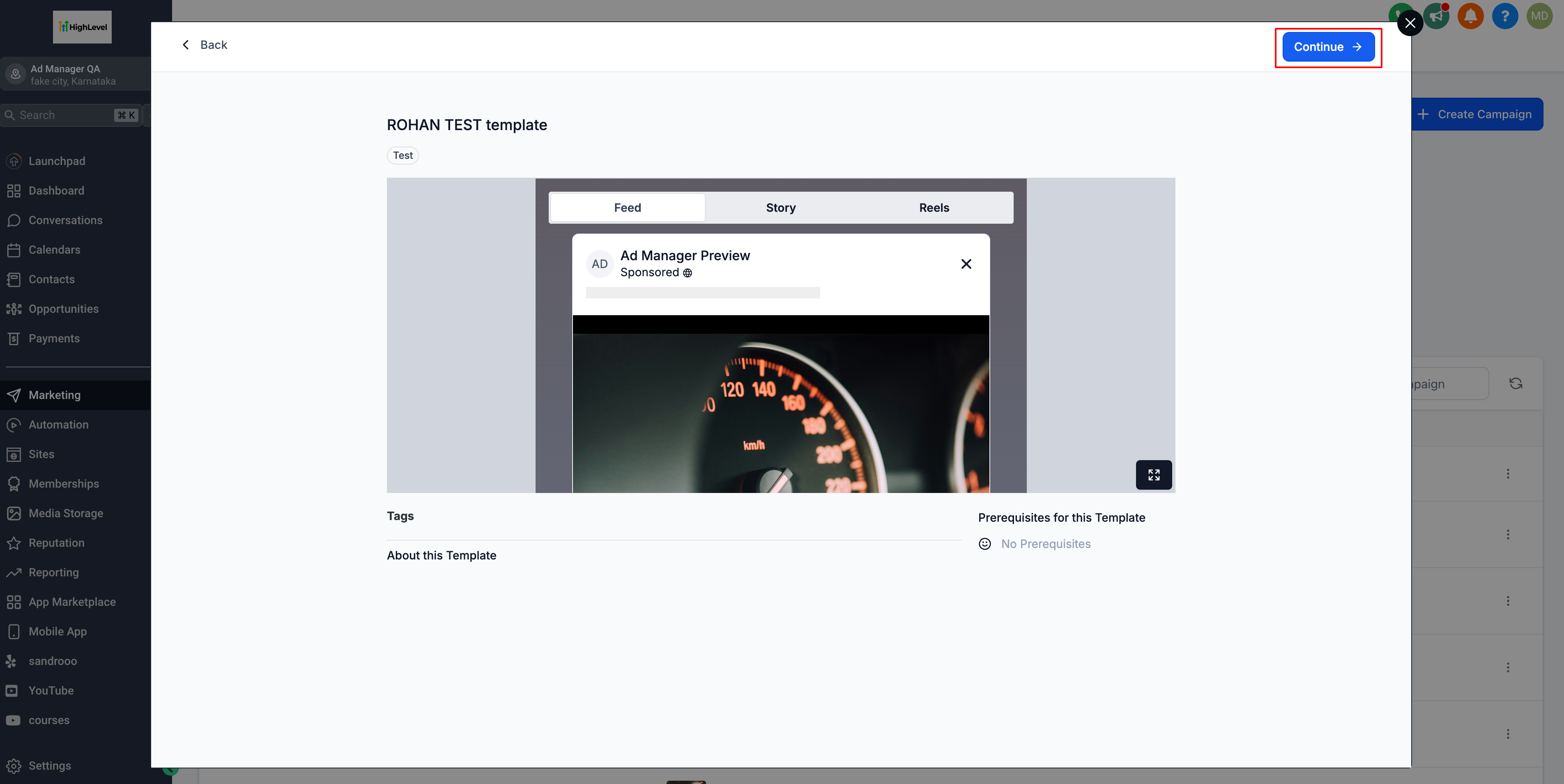
In this article, we will be discussing in detail about the template library integration with Ad Manager and ways to: 1. Create campaigns using templates from template library 2. Save an existing campaign as a template and upload to template library and briefly illustrate where an agency user or admin can find Ad Manager under Template Library. * * * ## ## How to create a campaign using templates? Below mentioned are the steps to be followed in order to create a campaign using Ad Manager templates housed in template library. 1. In Ad Manager home screen, the existing “Create Campaign” button is made a dropdown with two options: ‘Start from Scratch’ and ‘Ad Manager Templates’.!(https://assets.patientcopilot.ai/620015cde97cfcf9.png) 2. Click on ‘Start from Scratch’ and the existing flow to create an ad campaign begins. 3. Click on ‘Ad Manager Templates’ and a screen pops open to show all the templates.!(https://assets.patientcopilot.ai/cac39f53665e9d78.png) 4. User selects any one of the template to see a preview of the same and on click of ‘Continue’ the process of adding the template begins.!(https://assets.patientcopilot.ai/f8519949561caa0d.png)!(https://assets.patientcopilot.ai/fbb5f951f6af1423.png) 5. An ad campaign gets created with all the details pre-filled giving user an option to check the details, assign a Facebook form to the campaign if the objective is lead generation and proceed to publish the ad campaign.!(https://assets.patientcopilot.ai/002cadad8cf07dfc.png) Please Note: Every time a campaign is created using templates, it will not have the following things associated with the campaign and user need to enter it manually before proceeding to publish a campaign: 1. There will be no page associated to the newly created campaign and once user click on edit campaign, the page which is set as the default page will be assigned to this campaign which can be changed by the user if desired. 2. As there will be no page designated to the campaign, it means that the form to be used for ‘Lead Generation’ objective needs to be selected by the user manually. * * * ## How to create a template out of an existing campaign? Catering to the fact that there might be some exceptional campaigns that have outperformed and deserves to be saved as templates for future campaign creation process or you want to allow users of different sub-account to use the format of this campaign. In order to do that, below is a list of steps to be followed to create a template out of a campaign: 1. Out of the list of existing campaigns, user can choose to select any of the campaign to be used as a template by clicking on the ellipses of that campaign and select ‘Upload to Template Library’.!(https://assets.patientcopilot.ai/6056a8260f049879.png) 2. A dialog pops open, fill in the template name and which category this template will belongs. As category is an important step to have distinctive templates, if one doesn’t exist, it can be created under Template Library settings.!(https://assets.patientcopilot.ai/c46e3c5633a0a6af.png) 3. Click on ‘Upload’ and the campaign will be saved as a draft template. 4. On click of ‘Upload’, a screen showcasing the draft template opens up which can be modified if needed and saved as draft or can be published as a template.!(https://assets.patientcopilot.ai/ba48c670cbb1ef02.png) Note: In order to learn and create templates from Agency admin screen, refer How to Manage and Create Templates from the Admin Screen help article. Was this article helpful? That’s Great! Thank you for your feedback Sorry! We couldn’t be helpful Thank you for your feedback Feedback sent We appreciate your effort and will try to fix the article
!(https://assets.patientcopilot.ai/fbb5f951f6af1423.png)