Edit Membership Courses with the New Course Editor
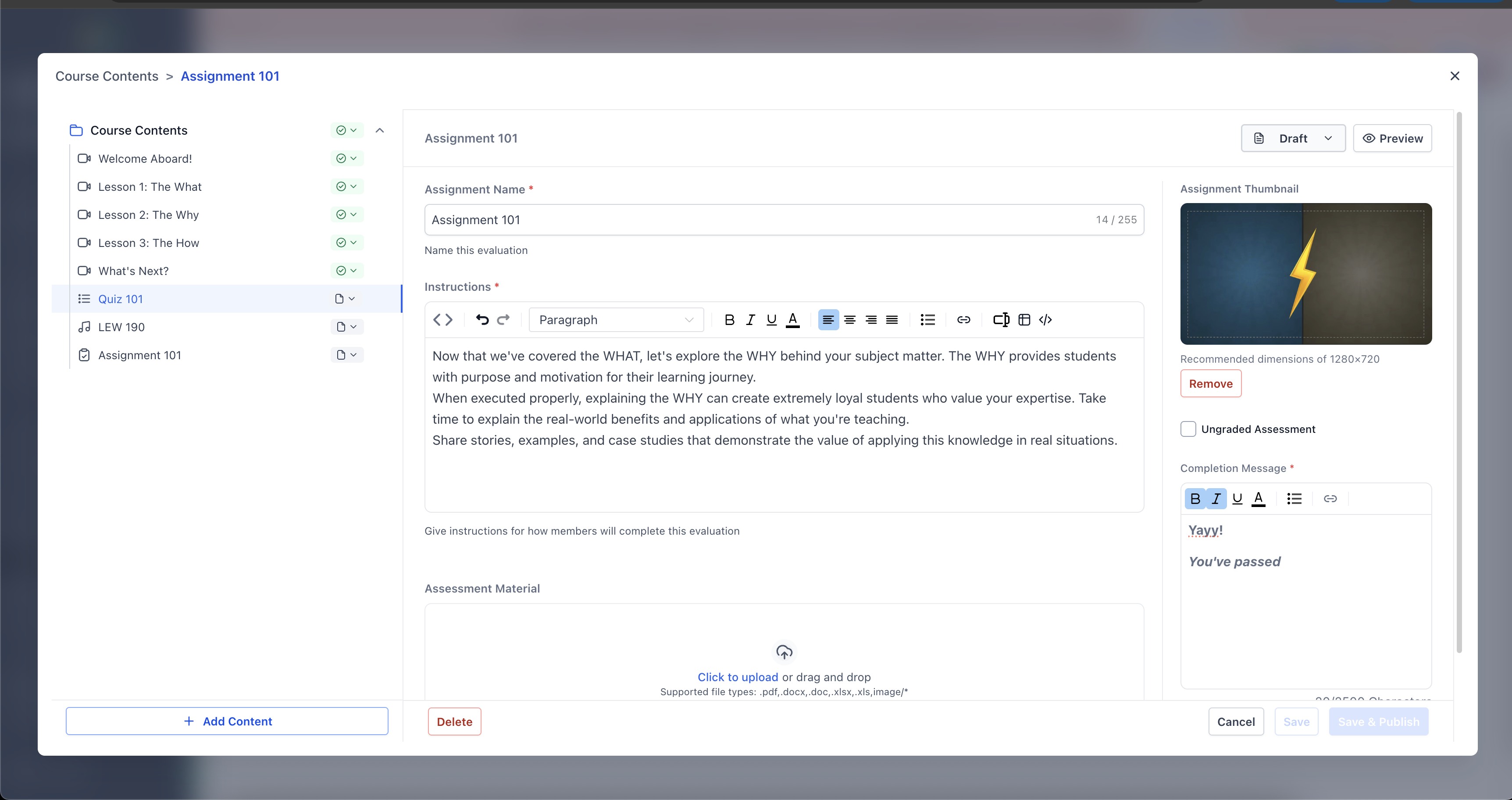
The new Memberships course editor gives you a larger, more focused workspace to build and manage courses. It opens a big editing window, keeps your full course structure visible, and reduces the need to switch between screens. * * * ## What is Edit Membership Courses with the New Course Editor Edit Membership Courses with the New Course Editor is the updated course editing experience in Memberships. It uses: - A large editor window that takes up most of your screen.
- A left-side course map that shows your full course structure.
- Breadcrumbs at the top so you always know where you are in the course. * * * ## Key benefits of Edit Membership Courses with the New Course Editor - Fewer Distractions: The editor blocks out other UI so you can focus on content.
- Faster Navigation: Jump to any lesson or quiz from the course map.
- Better Organization: Keep your course overview visible while editing individual items.
- Clear Location Awareness: Breadcrumbs show your current position in the course.
- Quick Structure Changes: Reorder content with drag and drop and collapse/expand sections. * * * ## How to Edit Membership Courses with the New Course Editor #### Step 1) Open the course editor 1. Go to Memberships and open Courses.
- Select the course you want to edit.
- Open the editor (the editor should launch in a large workspace). ####!(https://assets.patientcopilot.ai/f030ba01952664b2.png)**Step 2) Understand the layout** When the editor opens, you should see: - Left panel (Course Map): Your course structure, similar to a table of contents.
**Step)
- Main editor area: The selected item opens here for editing. ####!(https://assets.patientcopilot.ai/2f60fc4b739d44c9.png)**Step 3) Reorder your course content (drag and drop)** 1. In the course map, click and drag an item to a new position.
**Step)
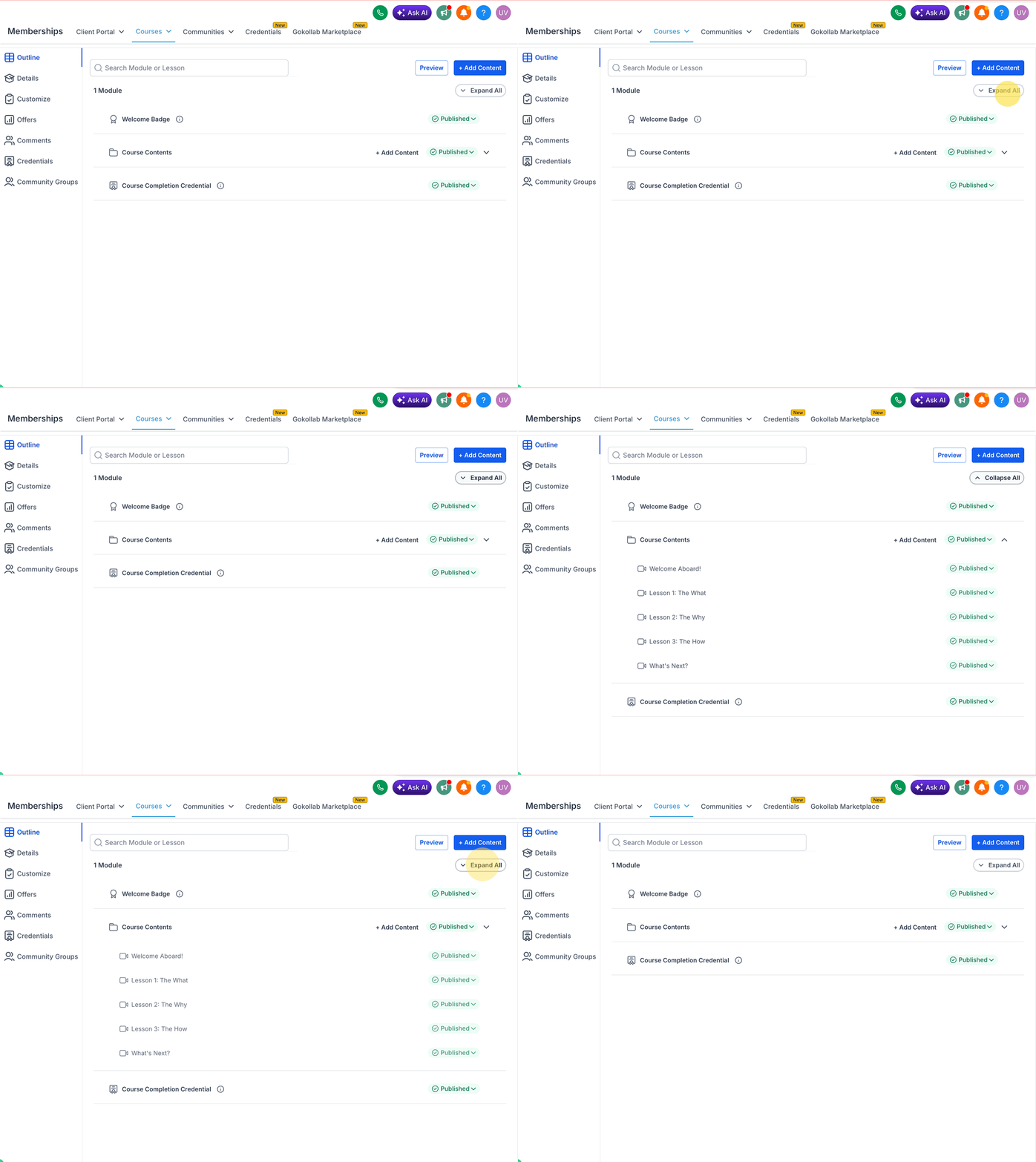
- Drop it where you want it in the structure. #### Step 4) Collapse and expand sections - Collapse modules or sub-sections to focus on one area.
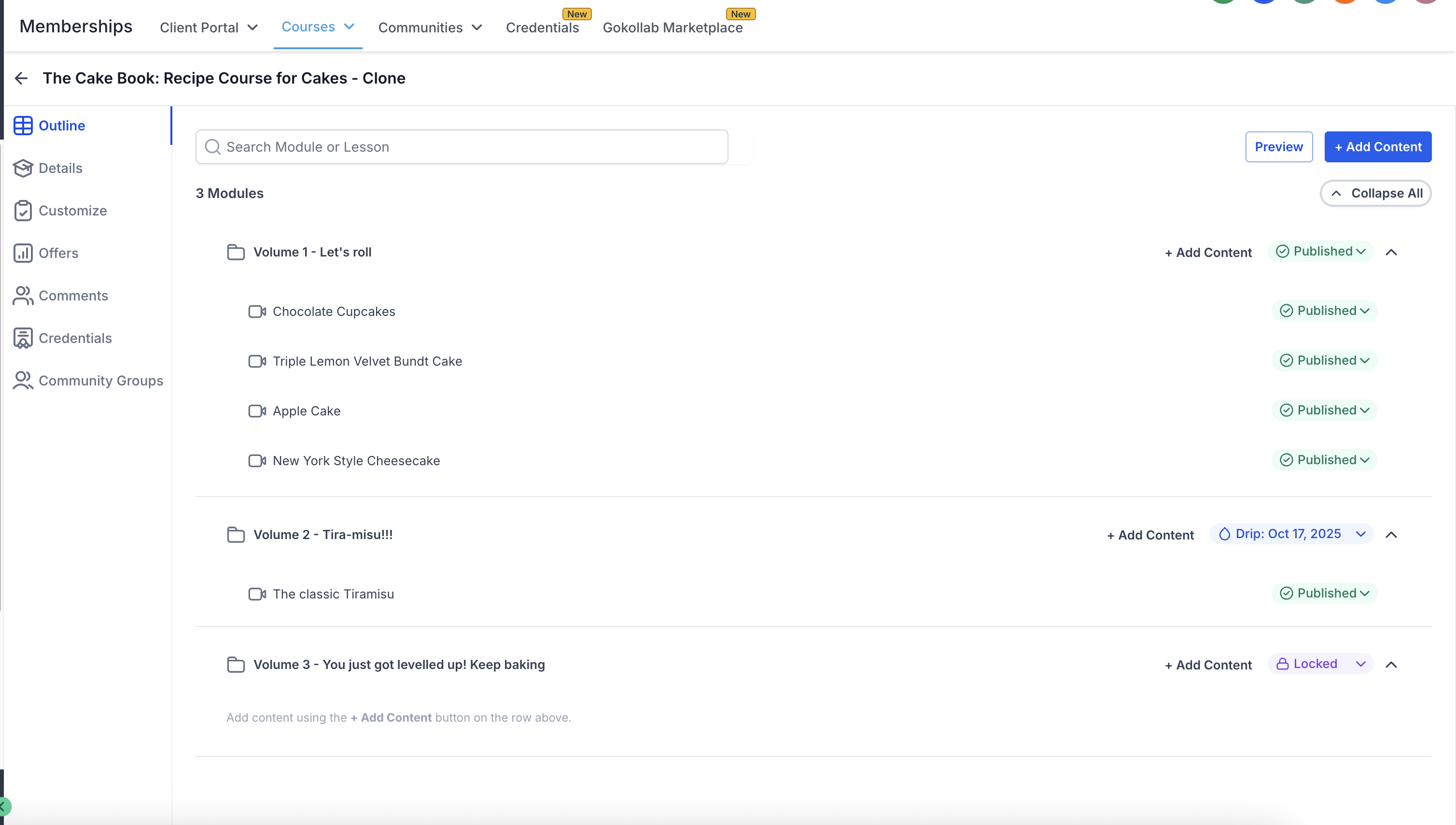
- Expand them again when you need the full view.!(https://assets.patientcopilot.ai/086f56591246d8bf.gif) #### Step 5) Use status indicators and quick actions The course map can show content status (for example, published/draft/locked) and provides quick actions (for example, edit, delete, and change visibility). ##!(https://assets.patientcopilot.ai/89da50e0b2aeb230.png) * * * ## **Frequently Asked Questions ** Q. Does the editor replace the old multi-page editing flow? The new experience is designed to reduce switching between different pages by keeping the course map and editor visible together. Q. Can I jump between steps while creating a course? The updated course creation flow supports a progress indicator with clickable steps and flexible navigation (go back, skip steps, or jump to completed steps). Q. Can I reorder modules and lessons? Yes. The course map supports drag-and-drop reordering. Q. What does “locked” mean in the course map? The course map may show “locked” content as a status. Q. Will I see performance improvements? The release notes state major page and editor interactions are significantly faster due to improved loading, caching, and state handling. * * * ## Relevant articles - Getting started: Create and launch a membership course
- Create an offer for a membership course (Free, One-time, Subscription)
- Manage course structure (modules, lessons, quizzes)
- Import media into lessons from Media Storage
- Membership products and offers overview