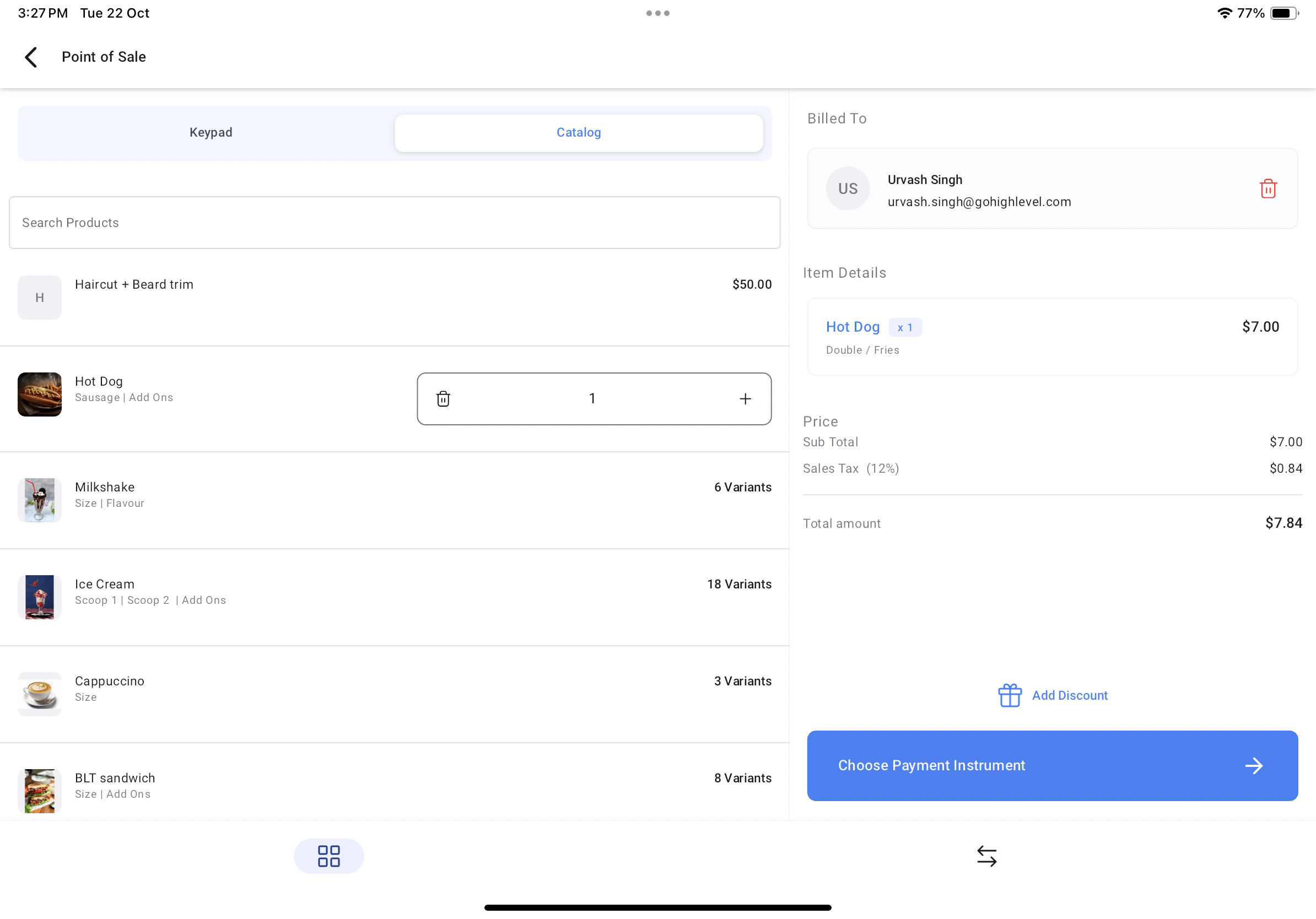
Mobile App POS Adjusts To iPad and Tablets Screens
For businesses that want to accept payment on larger screens, the Point Of Sale mobile payments window will take full advantage of the extra real estate. * * * ## Landscape or Portrait Mode POS now works in a horizontal (landscape) mode and vertical (portrait) mode. Based on your device orientation preference, you can use the POS comfortably with your tablet docks and associated payment hardware devices.!(https://assets.patientcopilot.ai/44a9bd3a75499383.png) * * * 1. Install your preferred mobile app (Patient Copilot, LeadConnector, or Whitelablled) on your iPad or Android tablet. 2. Head over to the POS screen by tapping on the $ icon on the bottom bar of the app. 3. You can now see a brand new view for the POS, with the item console (keypad and catalog) on the left and checkout on the right. 4. To accept a payment, simply add the items from the left side of the screen using the keypad for custom items or the catalog for your saved items. On the right side of the screen, link the contact of the individual/entity from whom you’re accepting the payment. 5. Review the item details on the right while adding items from the left. You can also add a discount to the final cost from the right side of the screen by tapping on the “Discount” button. 6. Once everything looks good to go, tap on the charge button to choose your preferred payments instrument, accept an optional tip, and complete the transaction! Was this article helpful? That’s Great! Thank you for your feedback Sorry! We couldn’t be helpful Thank you for your feedback Feedback sent We appreciate your effort and will try to fix the article