
List of all outgoing system generated emails
Email Reference List of All Outgoing System Emails A complete reference of every system-generated email — what it is, what triggers it, and how to disable it where possible. What You’ll Learn Every outgoing system email the platform sends, organized by scope. Sub-Account / Location Level emails are tied to individual locations (appointments, reviews, social planner, payments). Agency Level emails are sent from the agency itself (password resets, user provisioning, payment failures, registration status). 1 ## Sub-Account / Location Level Emails Email 1.1 New Appointment Request Sent from the Unassigned Calendar and the Group Calendar when someone books an appointment.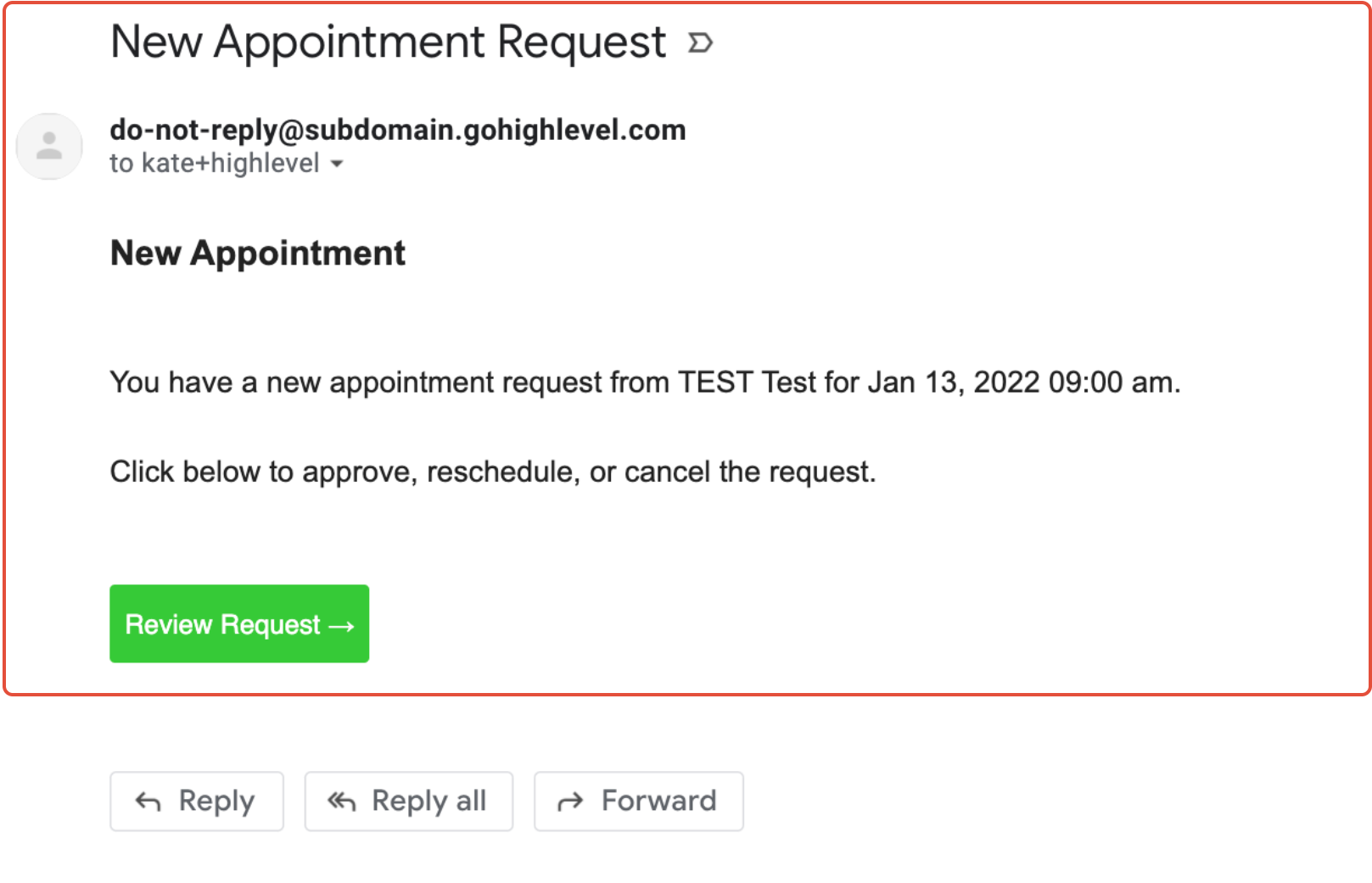 How to Disable Disable “New Appointment Requests” for assigned users in Group Calendars Open Locations Settings → Calendar Settings, open the calendar, click the 3. Confirmation tab, and save.
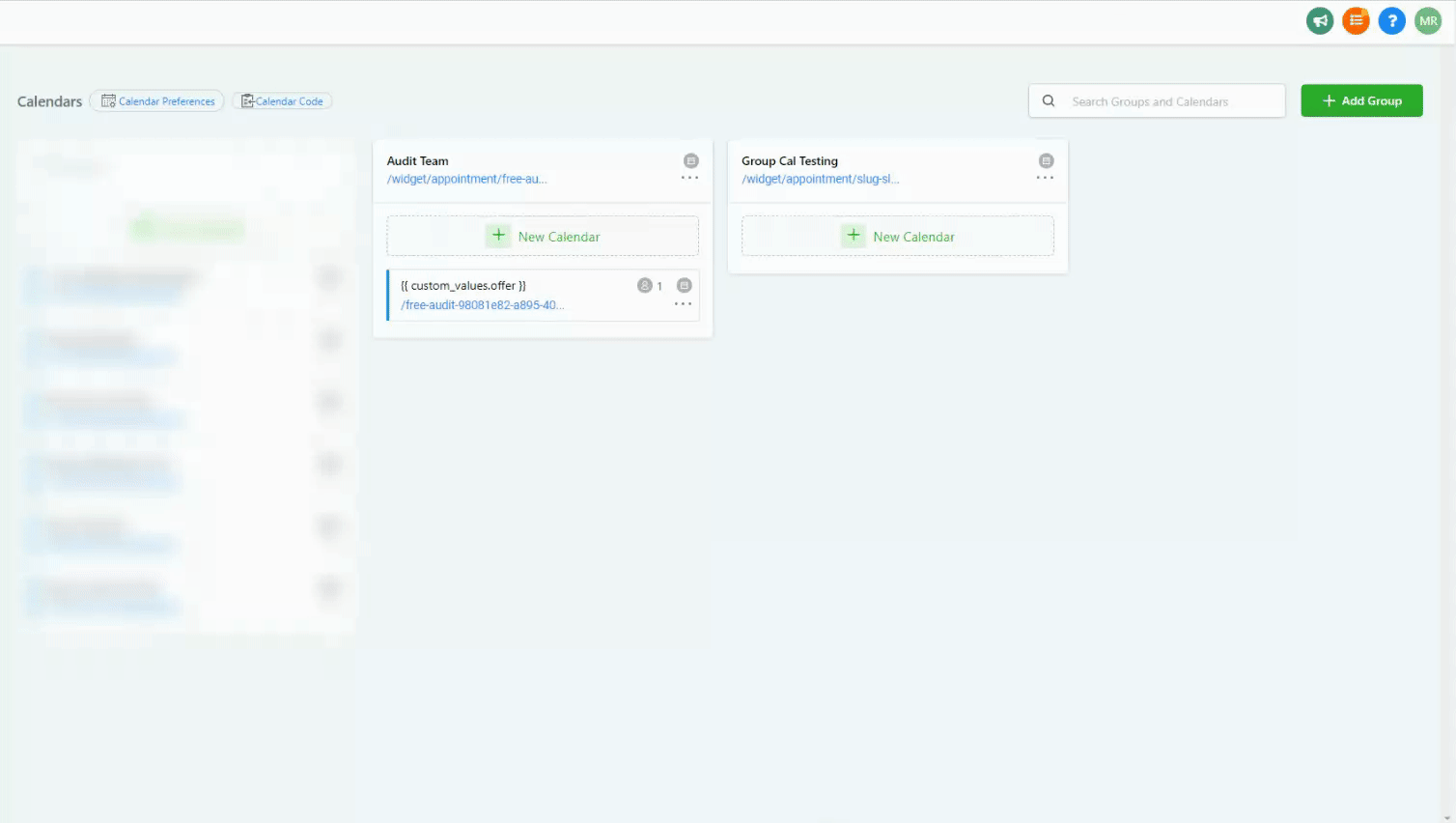 How to Disable Disable “New Appointment Requests” in Unassigned Calendar Open Locations Settings → Calendar Settings, open the calendar, click the 3. Confirmation tab, remove the email(s), and save.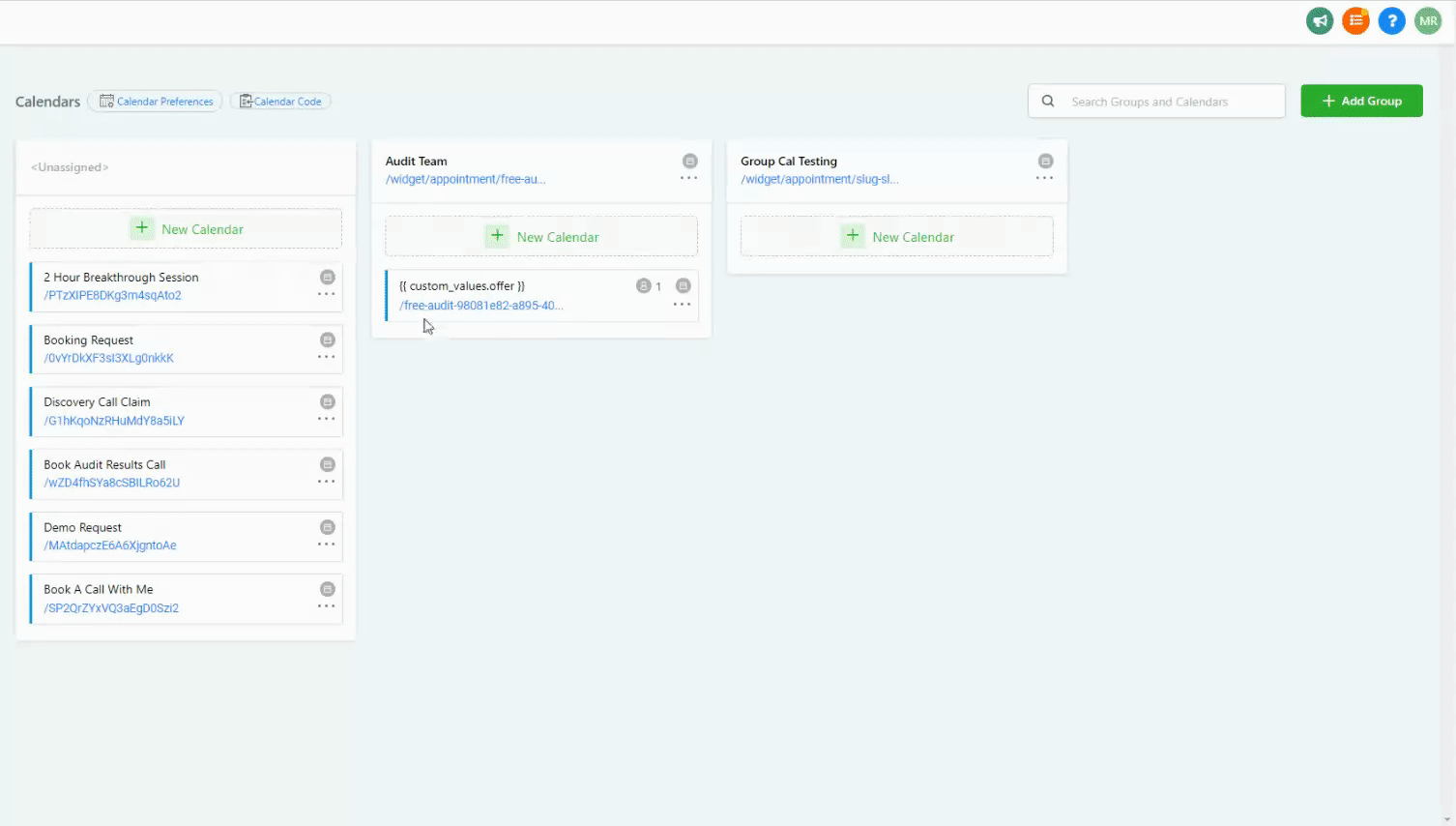
 Please Note If the calendar settings for auto confirmation and send appointment alert emails are enabled, appointment owners will still receive appointment request emails. The development team is rolling out a fix in an upcoming calendar update. Email 1.2 · Can be disabled Appointment Review Request — Email & SMS Sent to a contact after an appointment, asking them to leave a review.
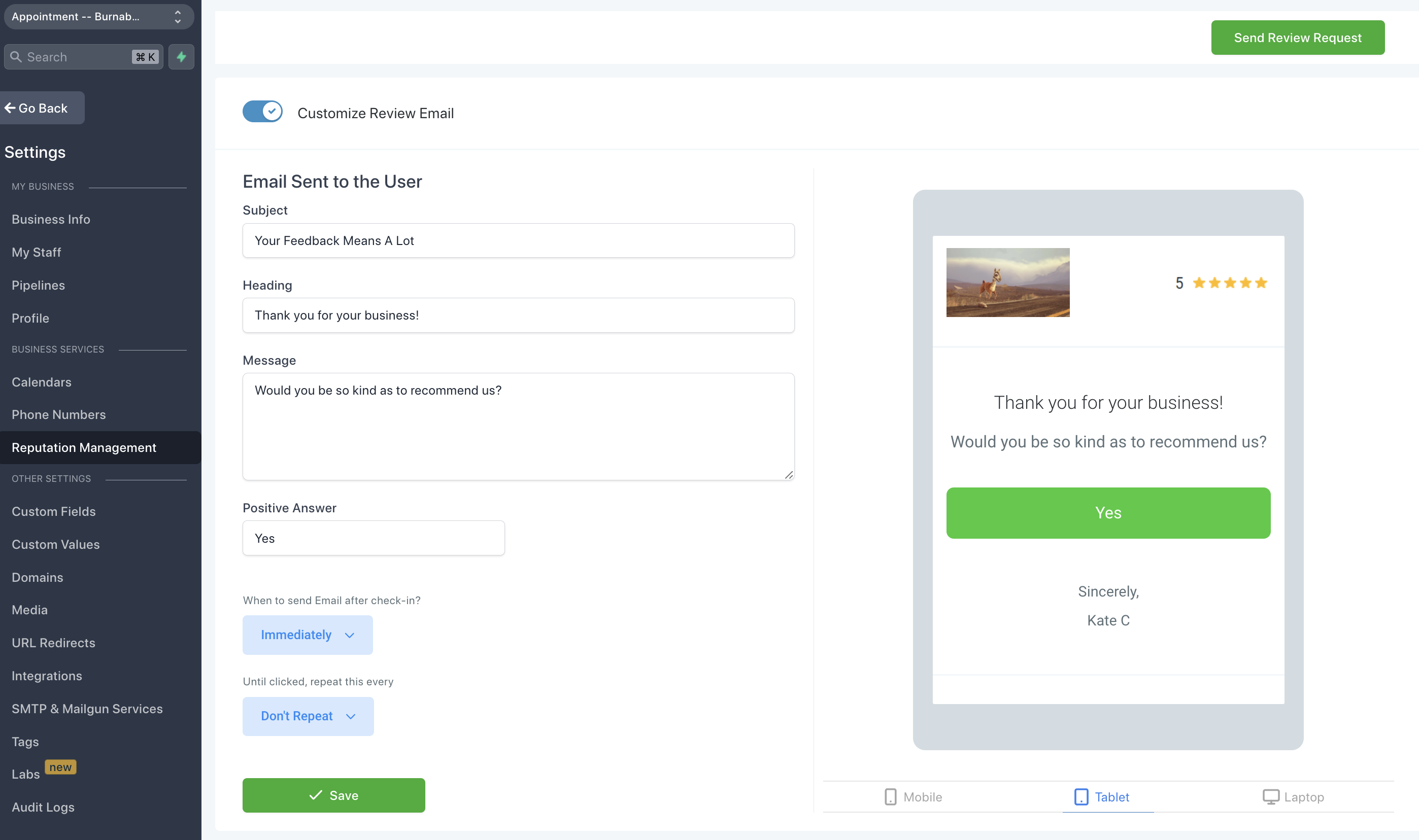 Please Note When sending a review request, the signed-in user is listed as the sender of the message.
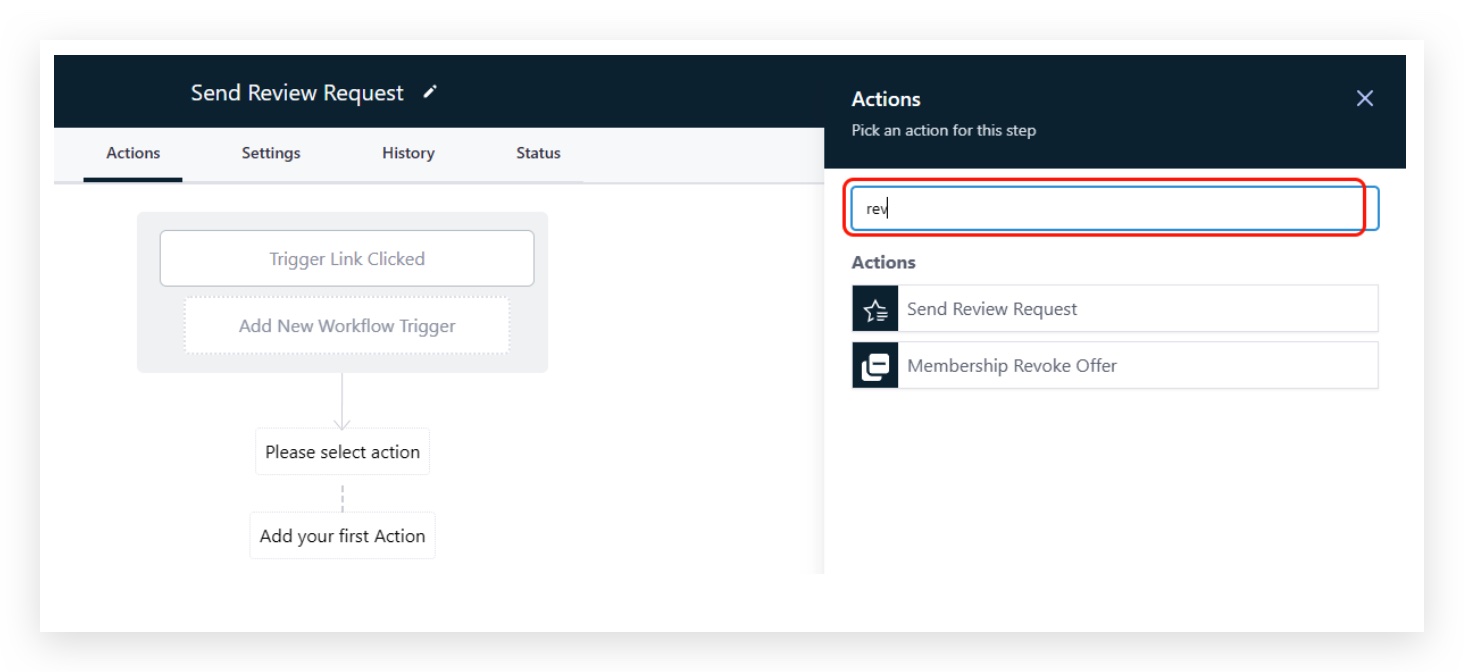
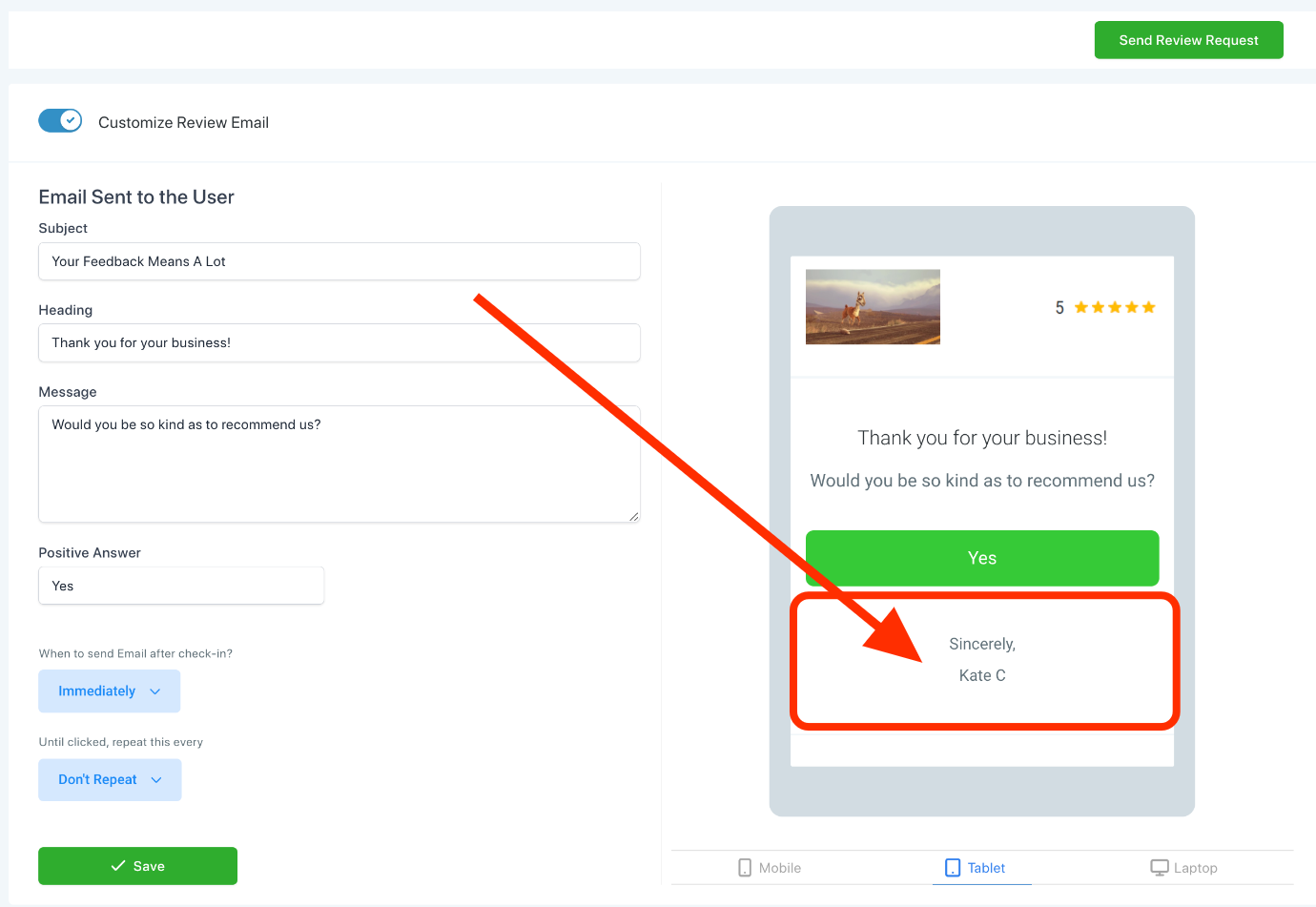 If you want to send a review request from the contact’s assigned user, use the Workflows action “Send Review Request” instead — it sends the request on behalf of the assigned user.
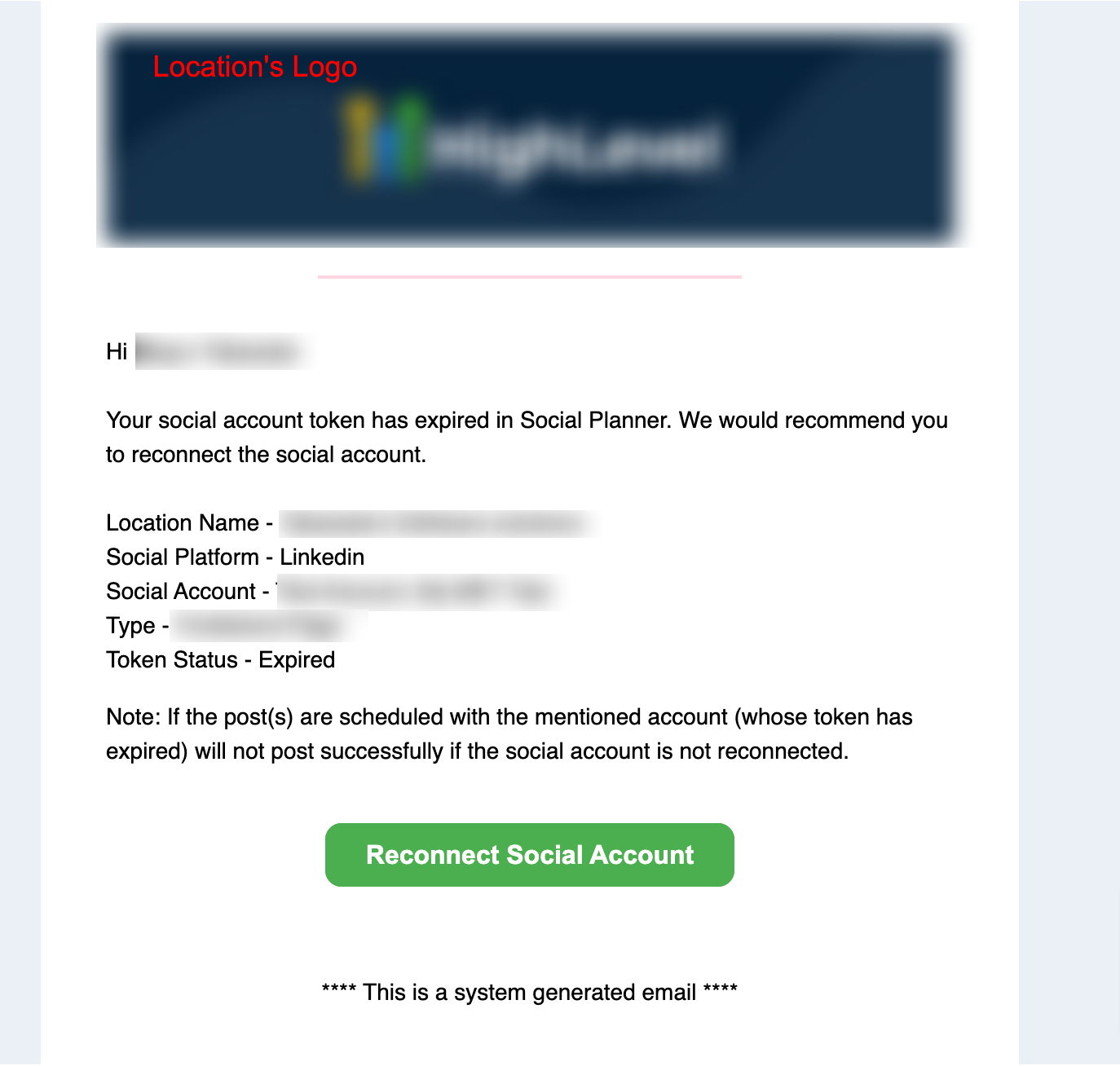
 Email 1.3 · Can be disabled Social Planner — Reconnect Expired Token Notification Sent when a connected social account’s auth token expires and needs to be reconnected.

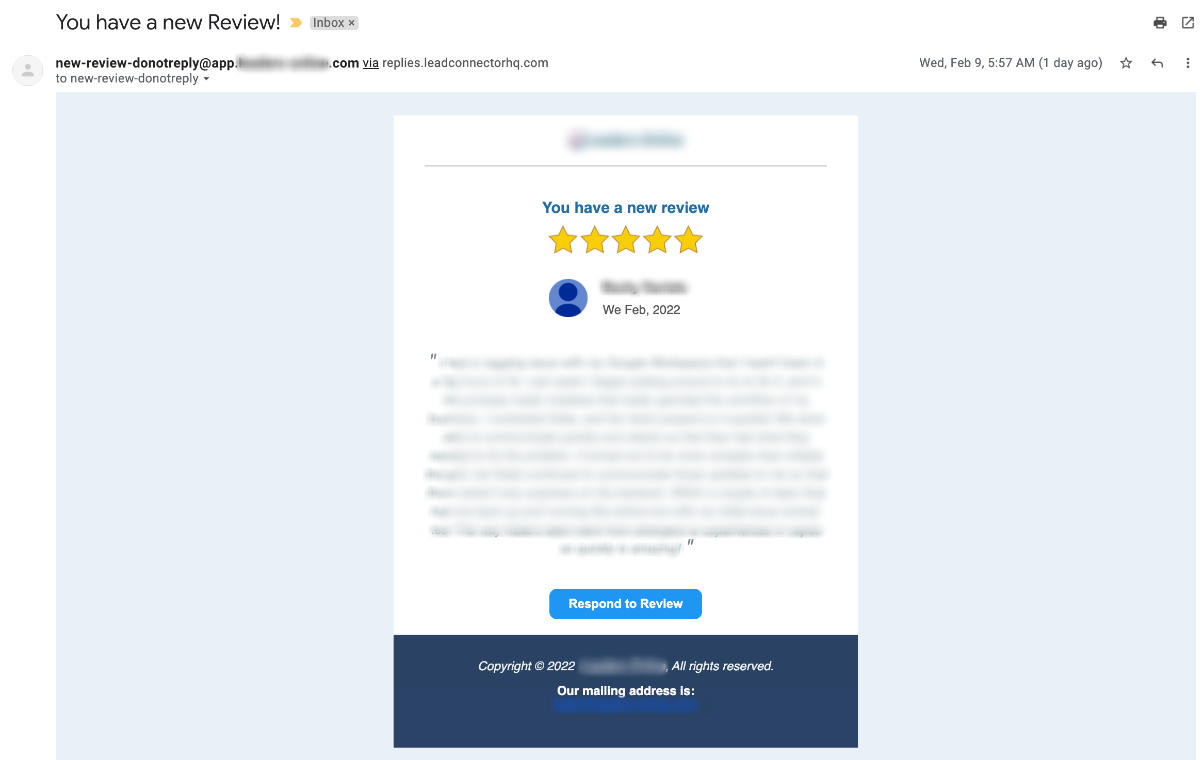
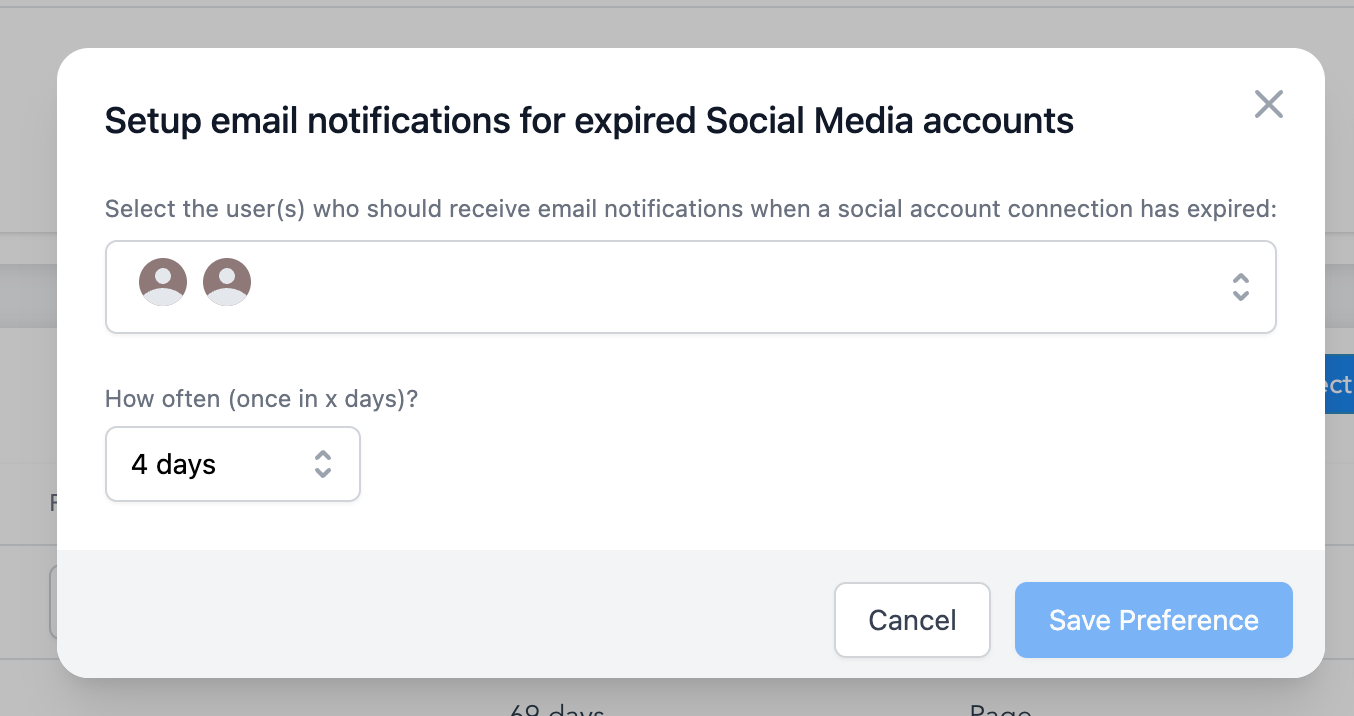 Please Note When sending an email notification, the signed-in user is listed as the sender of the message. Email 1.4 · Can be disabled New Review Email Sent when a new public review is submitted on one of the location’s connected platforms.
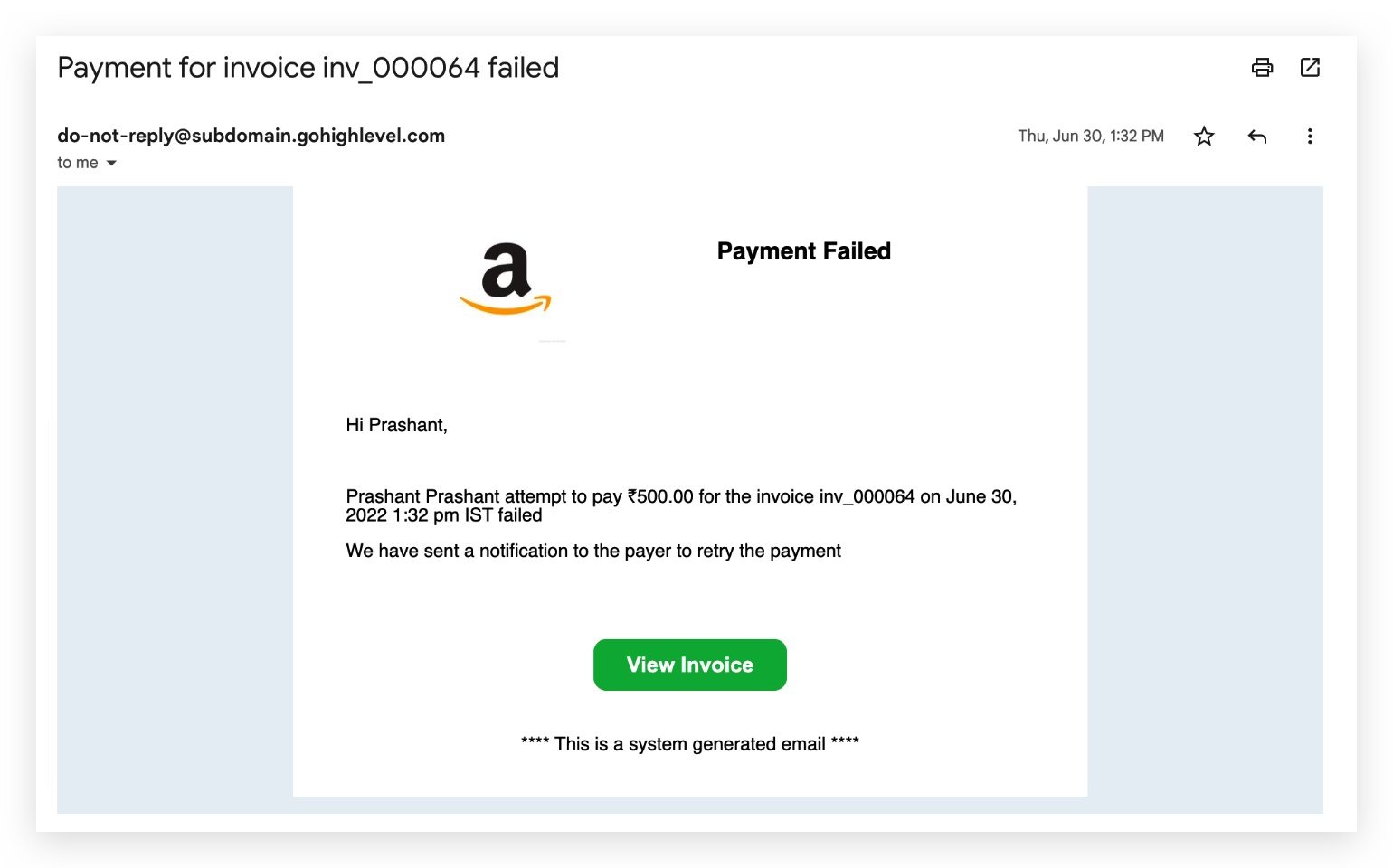
 2 ## Invoice & Payment Notification Emails Two audiences receive invoice-related emails: the business / sub-account (for failures and skips that need attention) and the end customer (for invoice receipts, successful payments, and upcoming auto-payments). Audience For the business / sub-account Email 2.1 Invoice payment attempt failed for the end customer
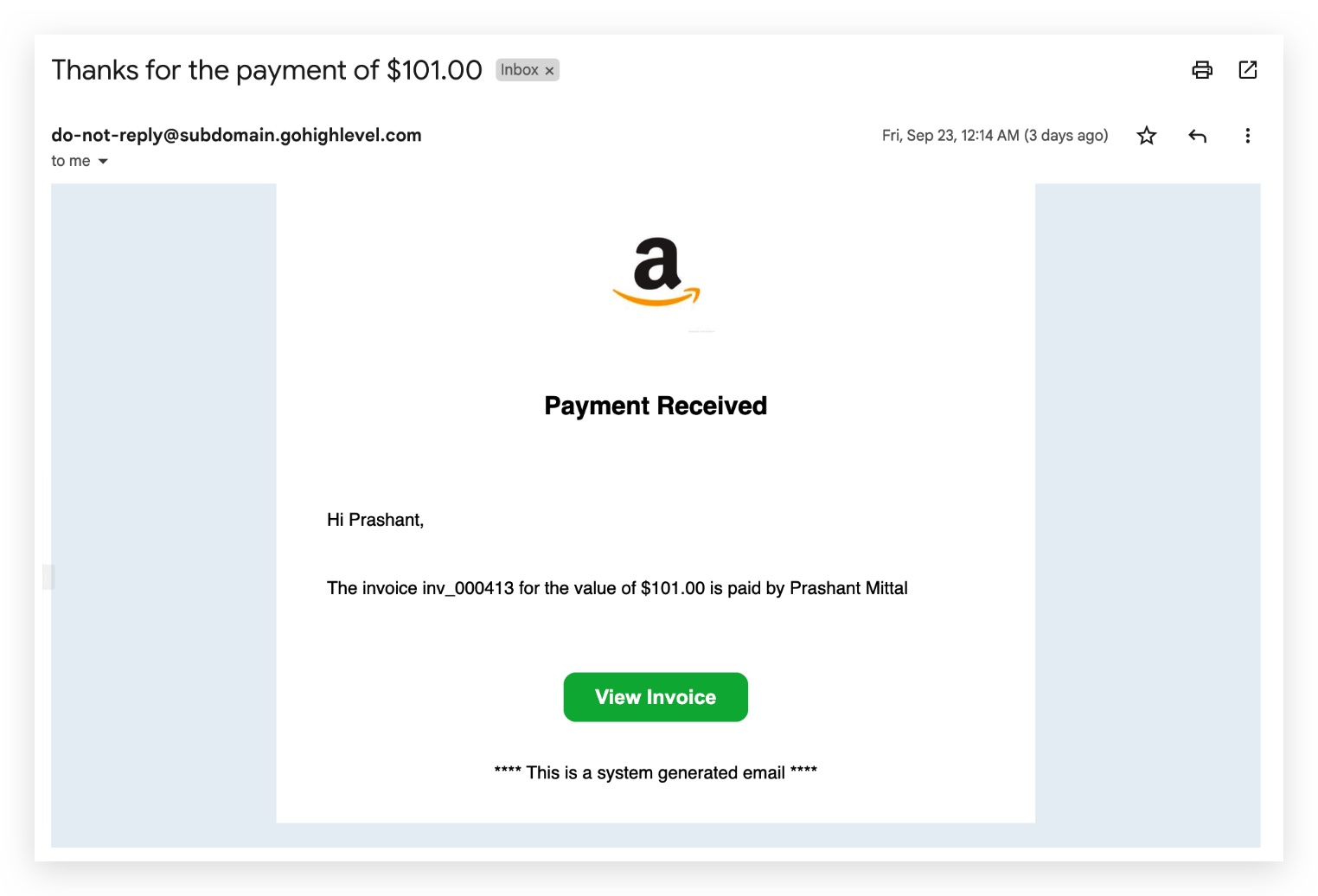
 Email 2.2 Invoice payment successful by end customer
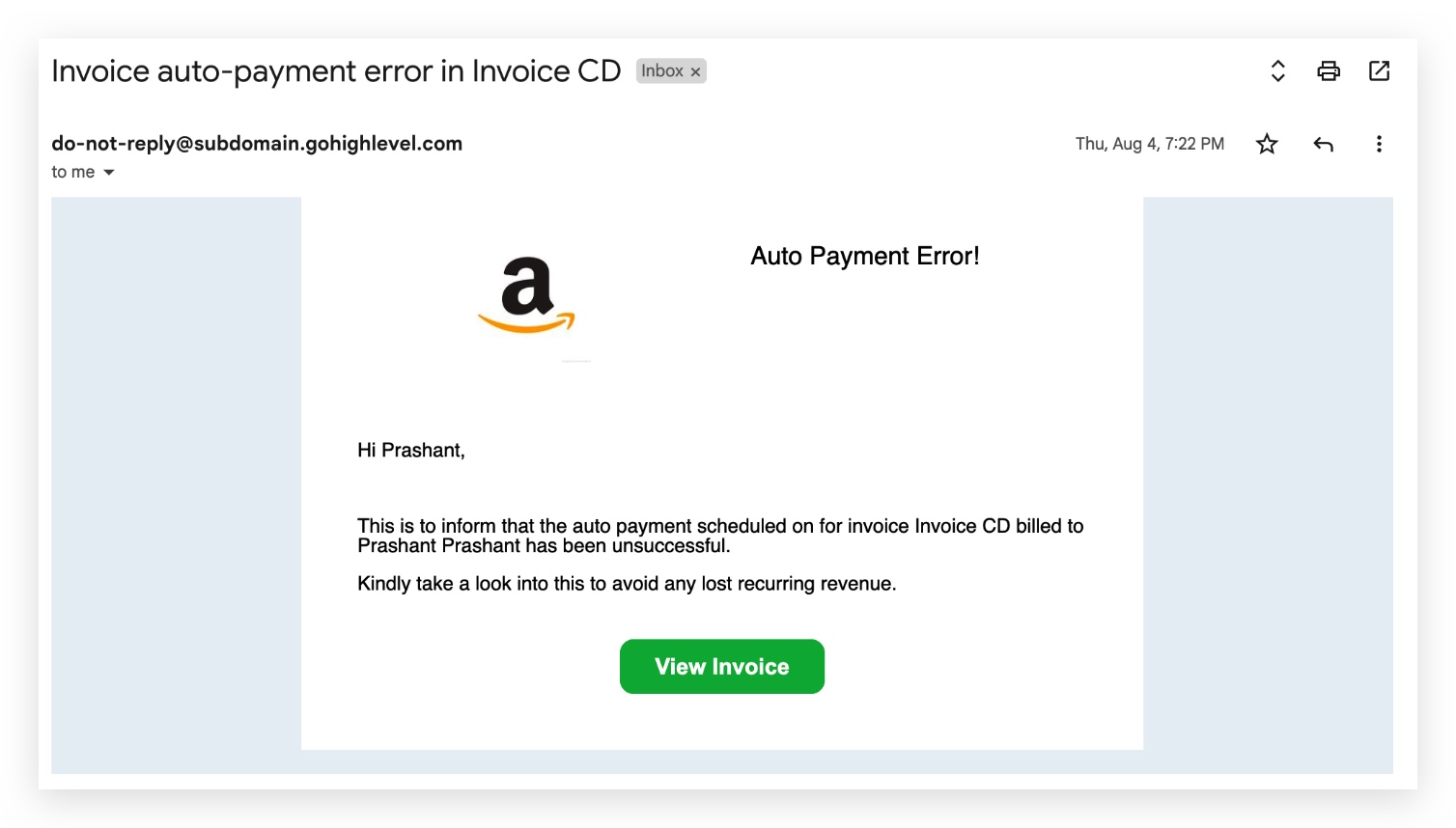
 Email 2.3 Error in auto-payment of a recurring template
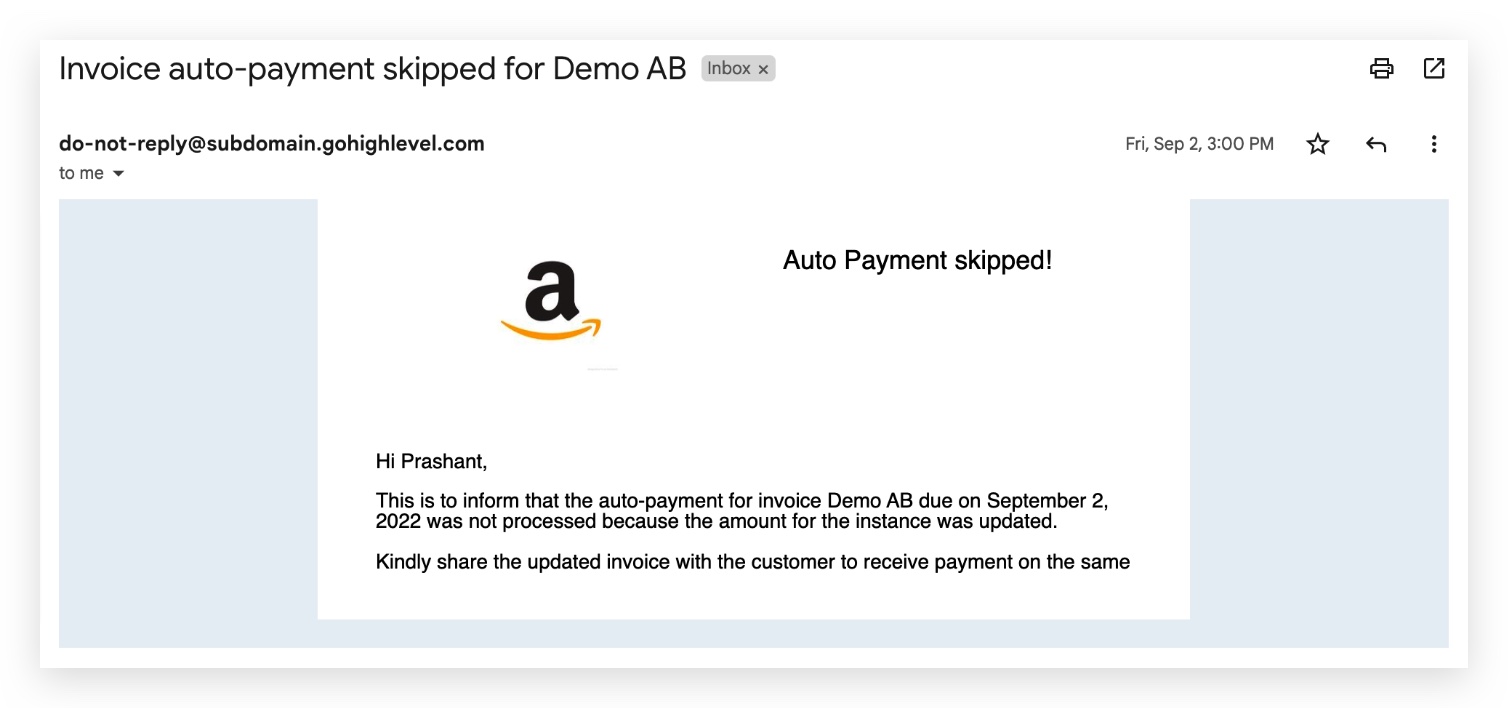
 Email 2.4 Skipping auto-payment because the invoice amount was manually updated
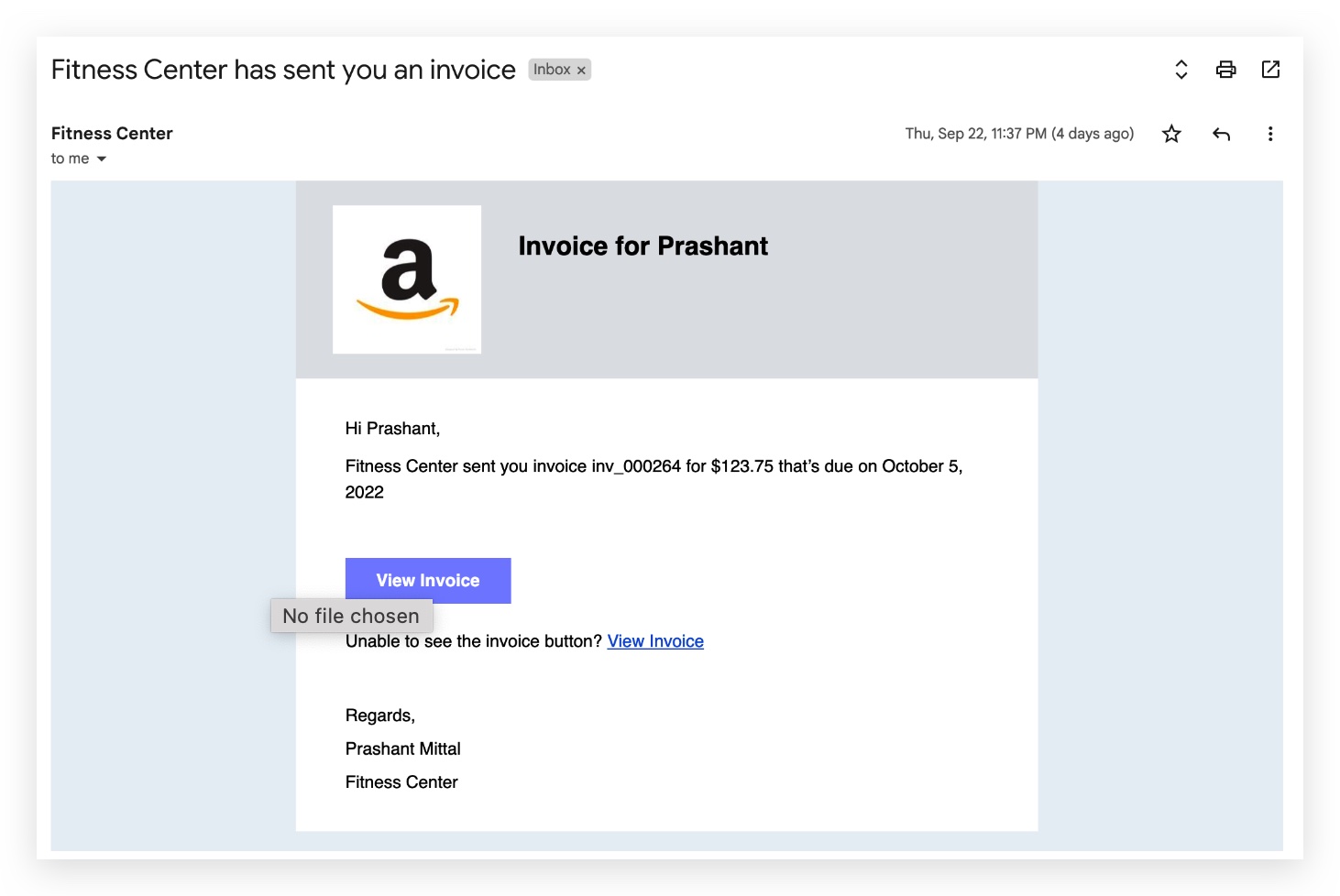
 Audience For the end customer Email 2.5 Invoice received
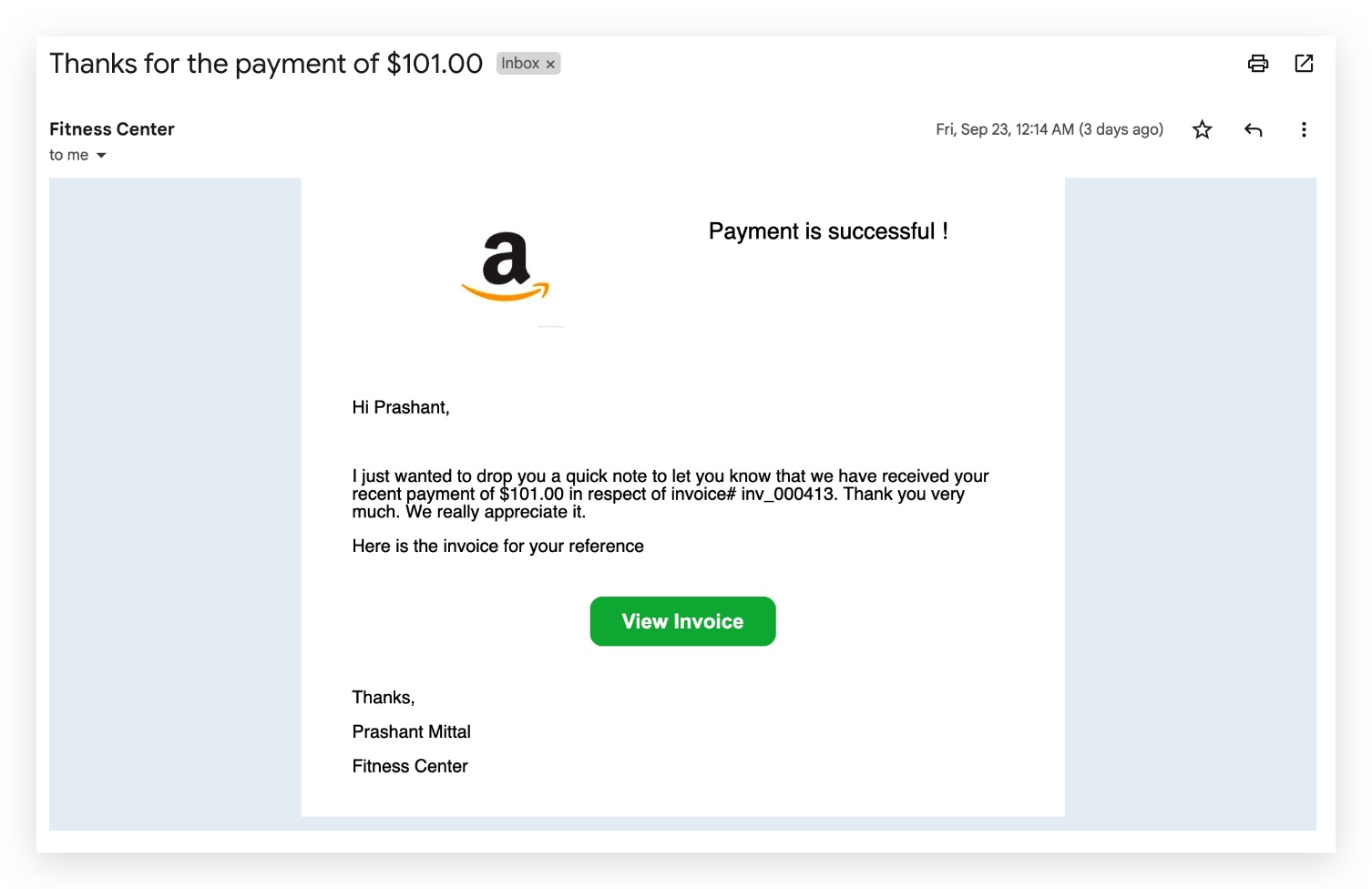
 Email 2.6 Payment for an invoice is successful
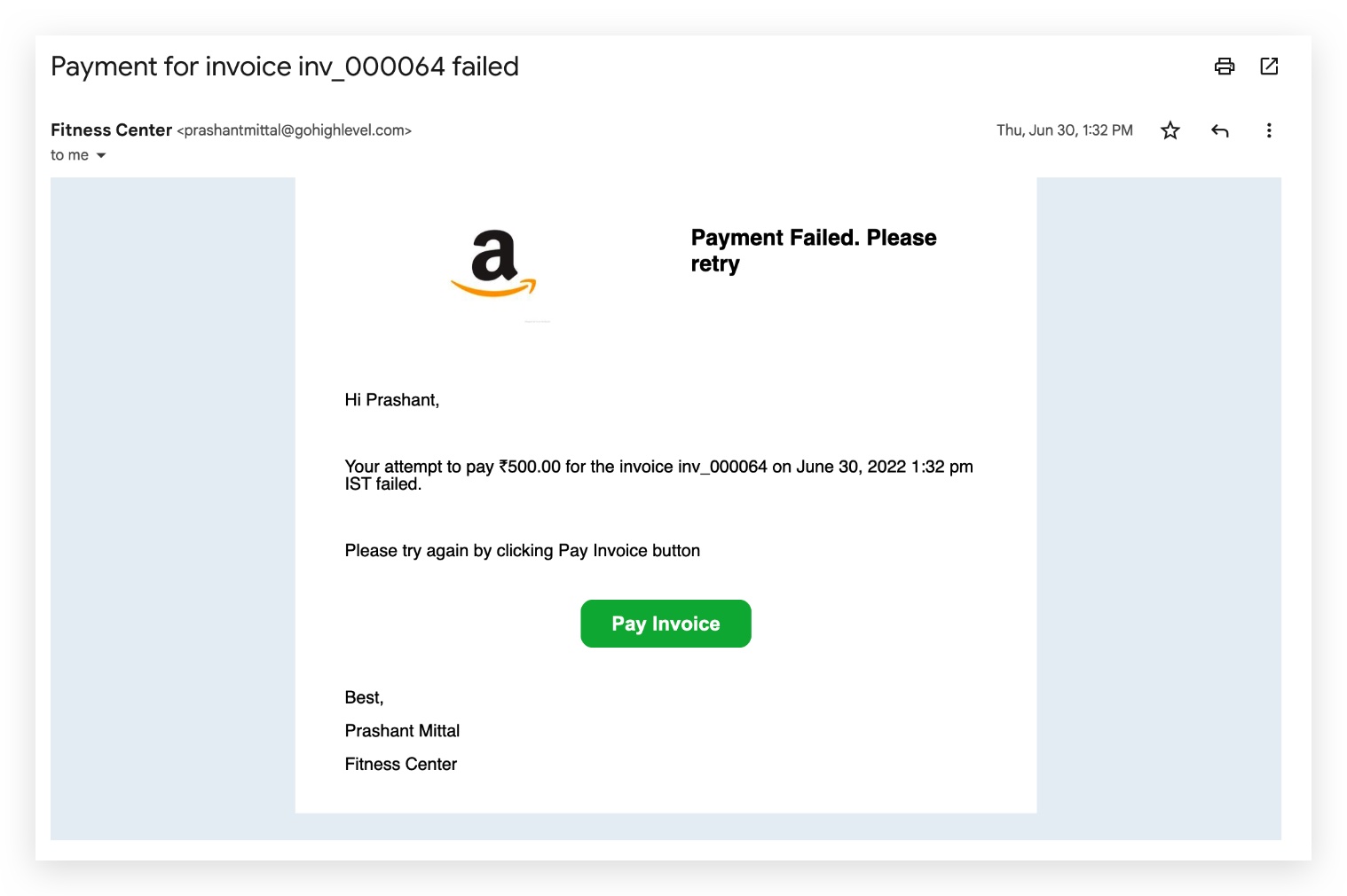
 Email 2.7 Payment attempt for an invoice has failed
 Email 2.8 Upcoming auto-payment information
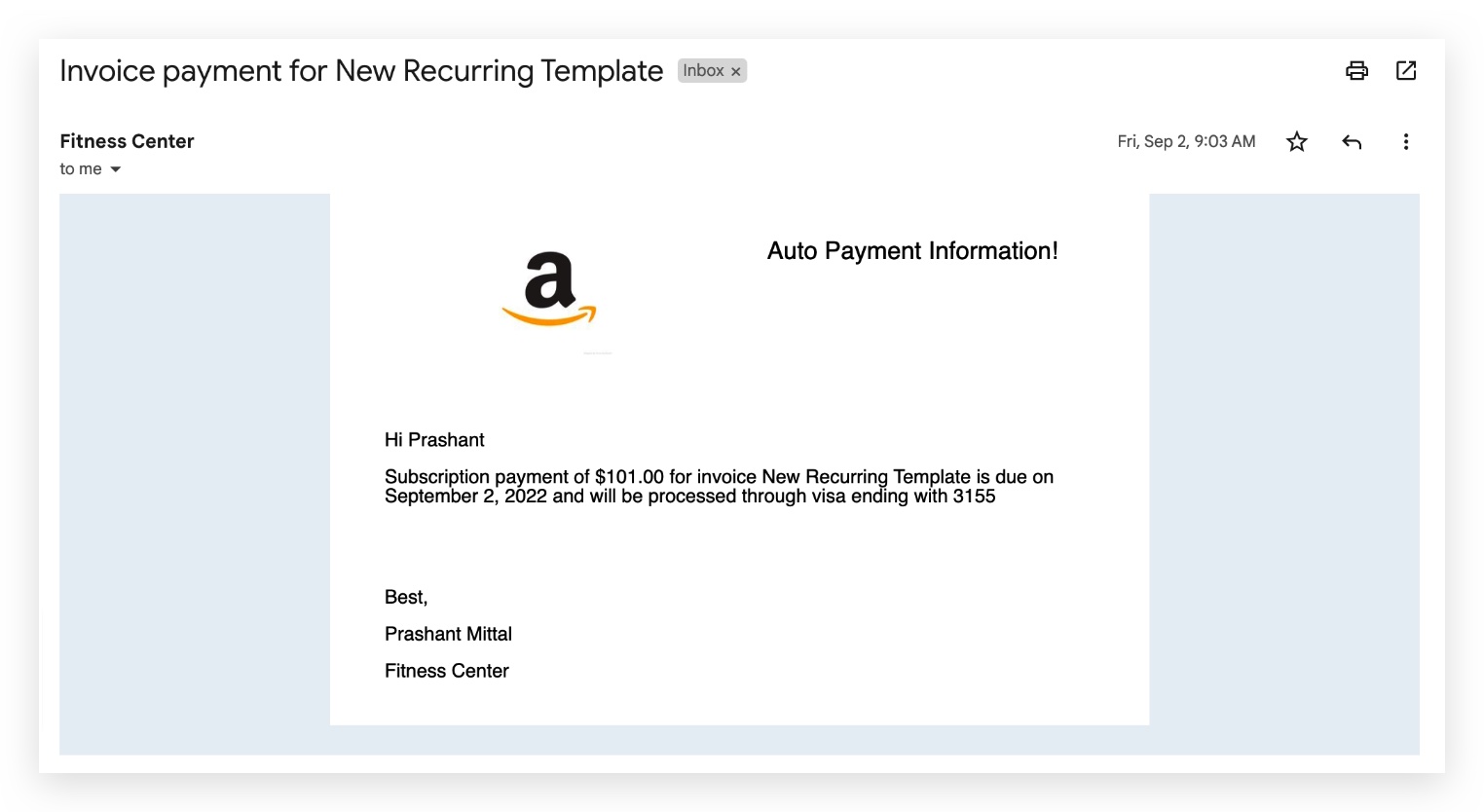 Email 2.9 Auto-payment failed for a recurring template
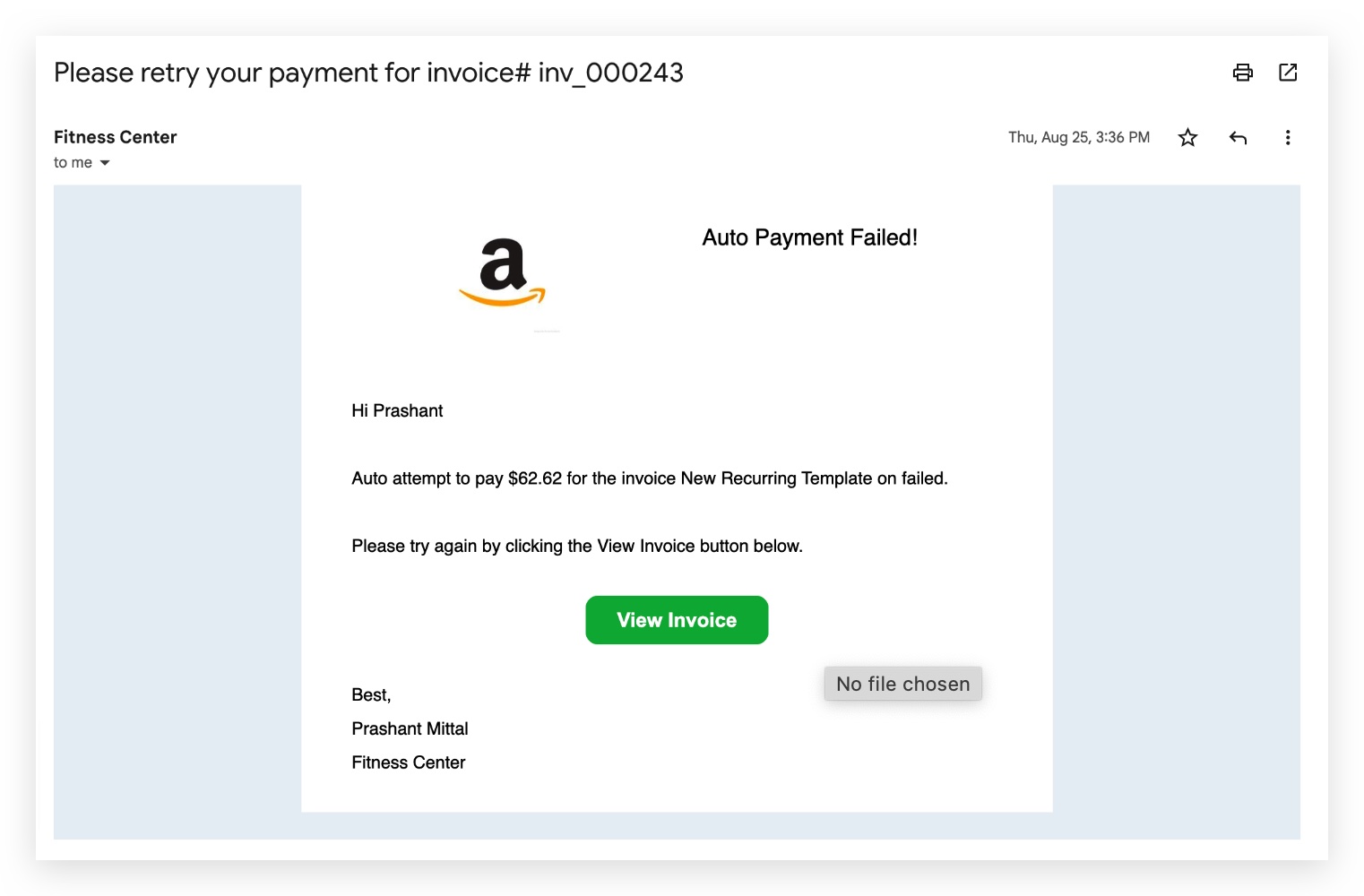 3 ## Agency Level Emails Email 3.1 Reset Password Sent when a user requests a password reset from the login page.
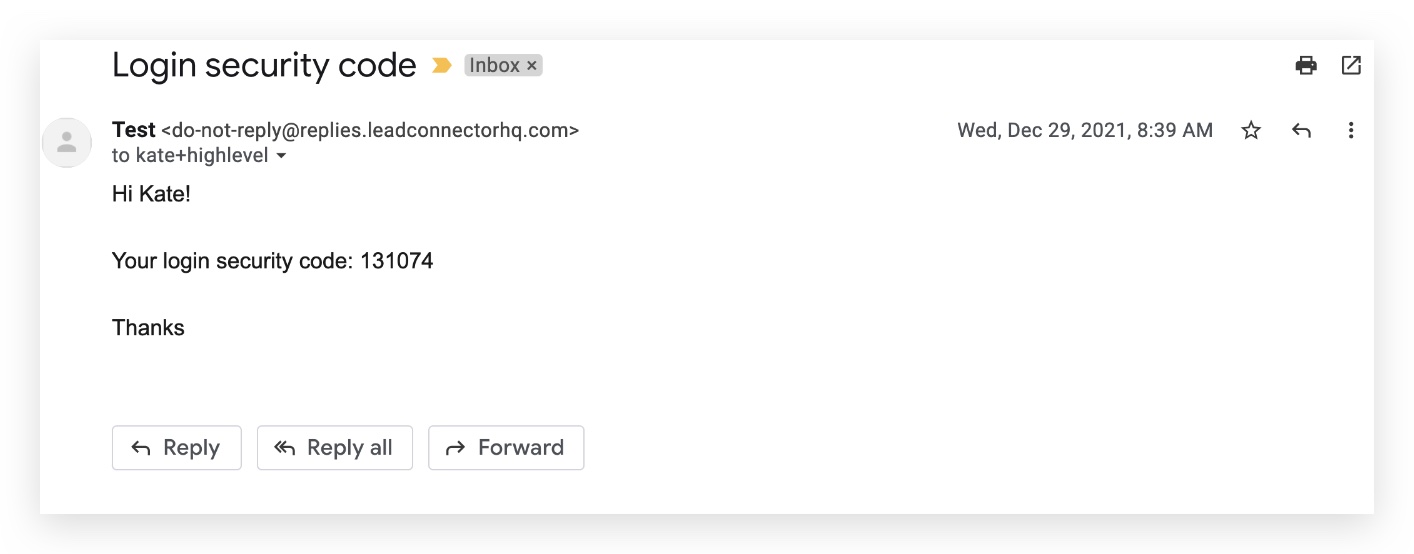
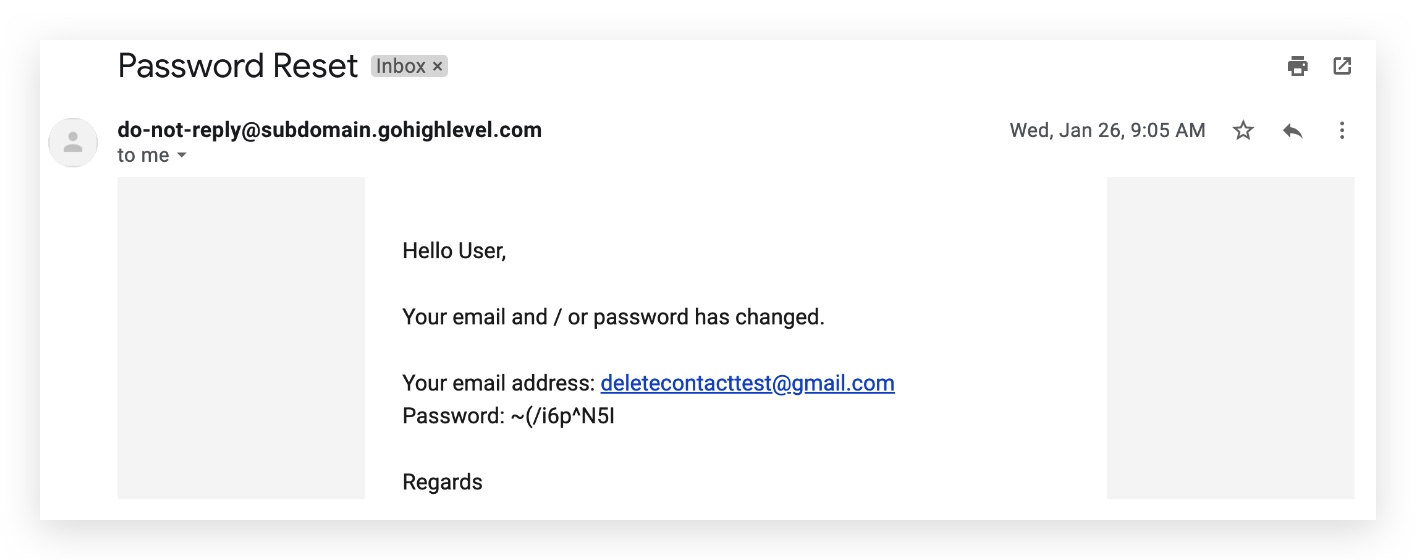 Email 3.2 Verification Code Email Sent during sign-in when an additional verification code is required.
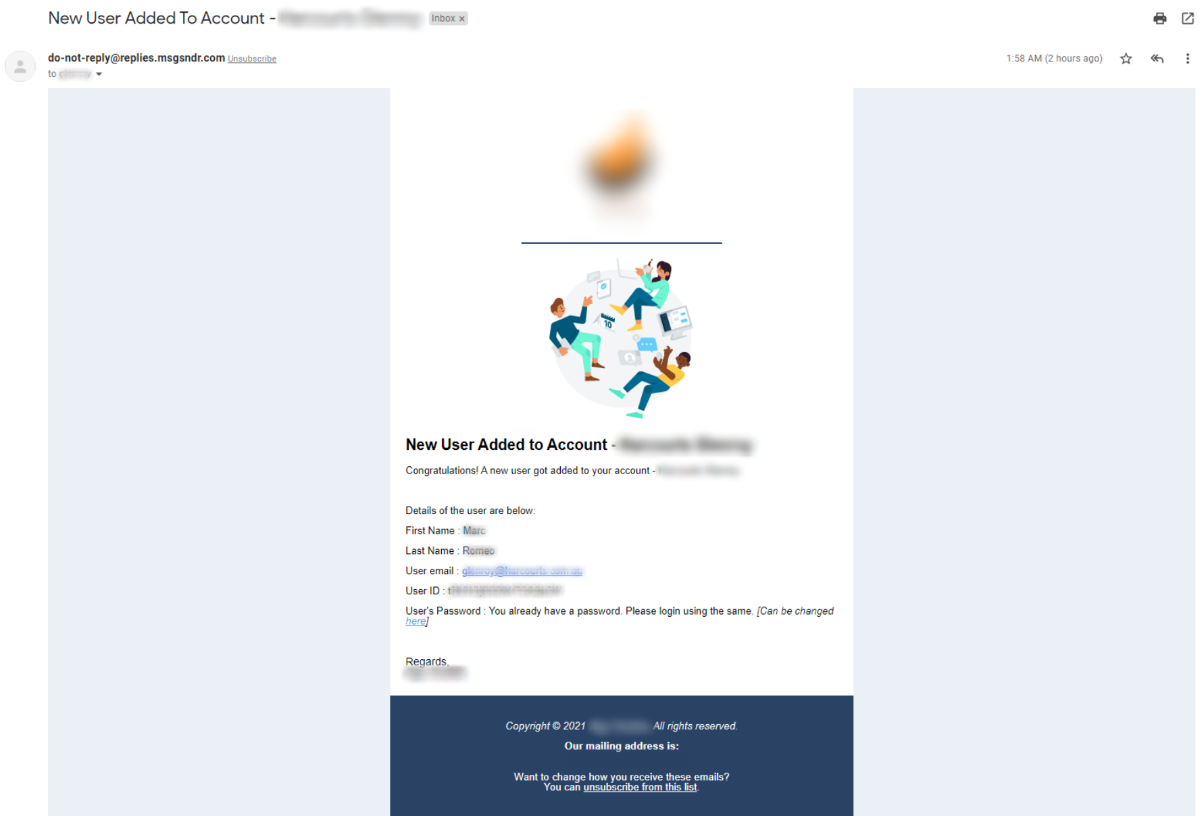
 Email 3.3 — Variant A New User Email Notification — to the agency Notifies the agency when a user is added to an agency account or a sub-account.
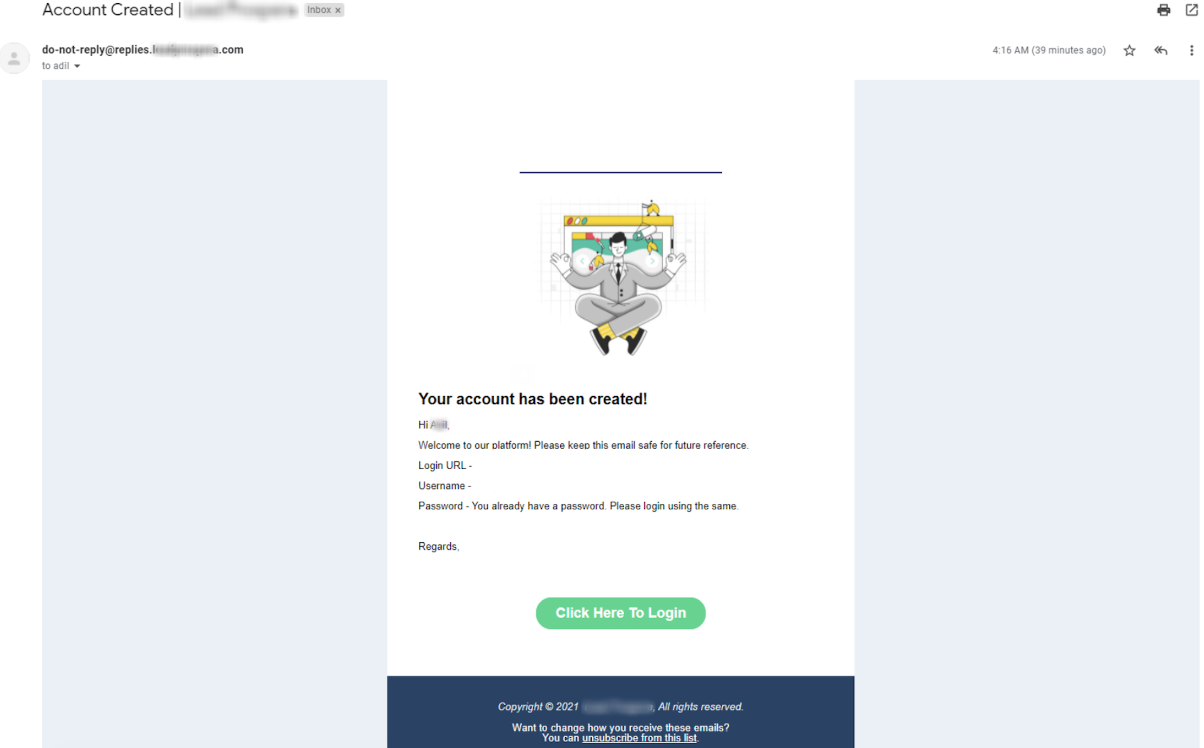
 Email 3.3 — Variant B New User Welcome — username & password Sent to a newly-provisioned user with their username and password.
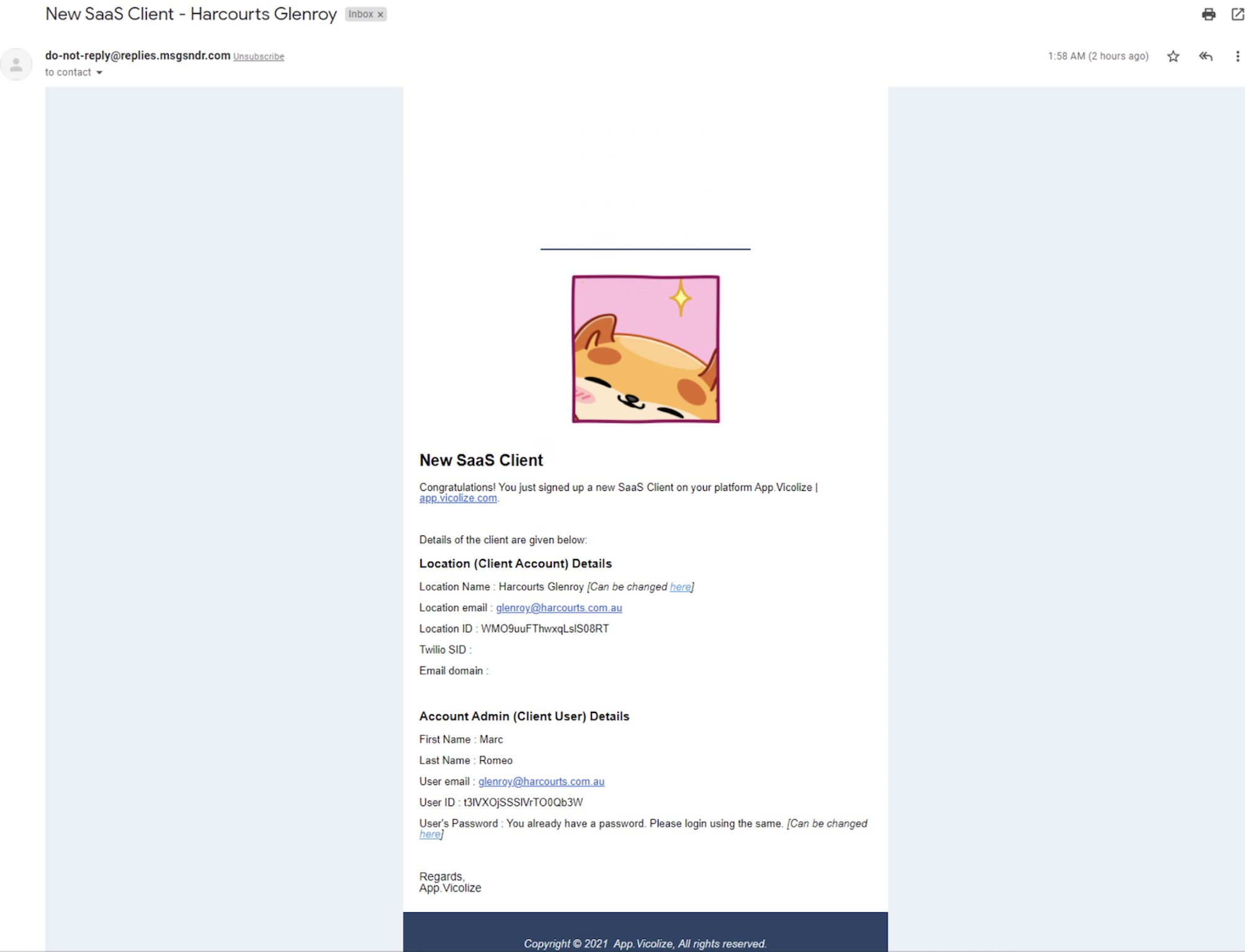
 Email 3.3 — Variant C Agency notified of a new SaaS sale Sent to the agency when a SaaS plan signup occurs.
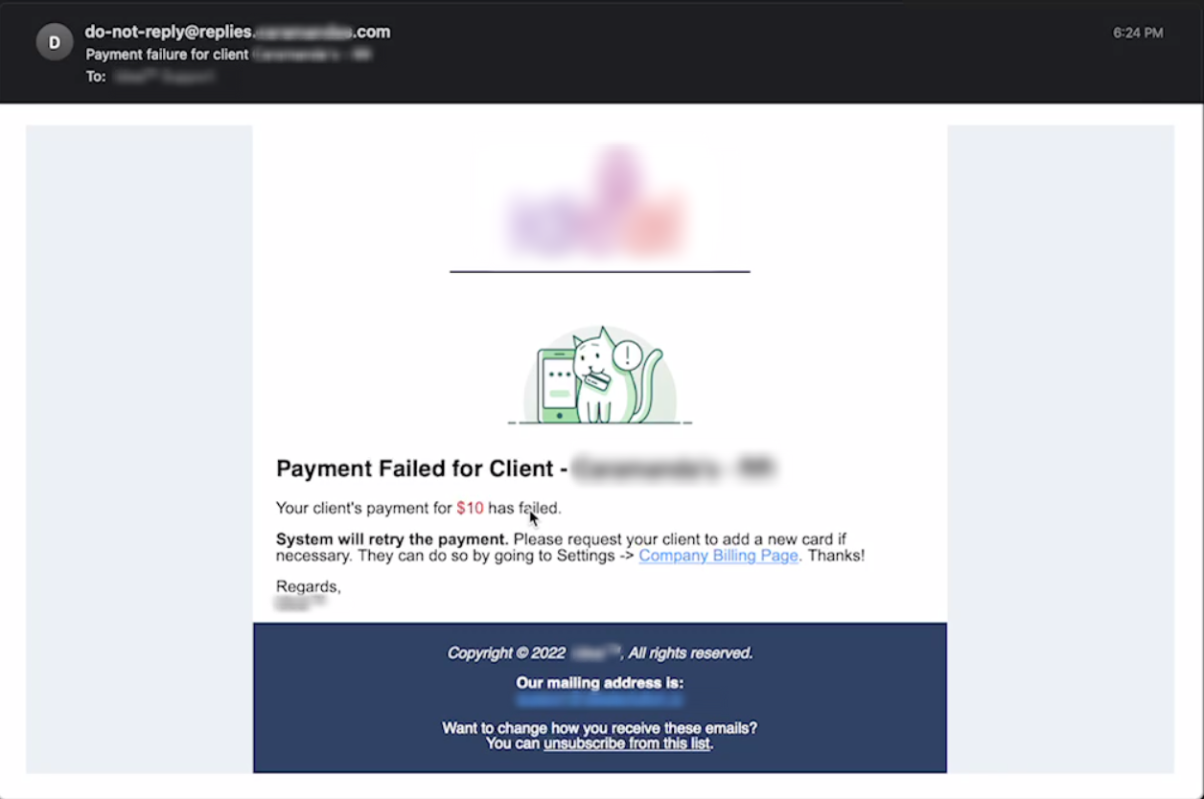
 Email 3.4 Payment Failed for the Client Sent to the agency when a client’s recurring SaaS payment fails to process.
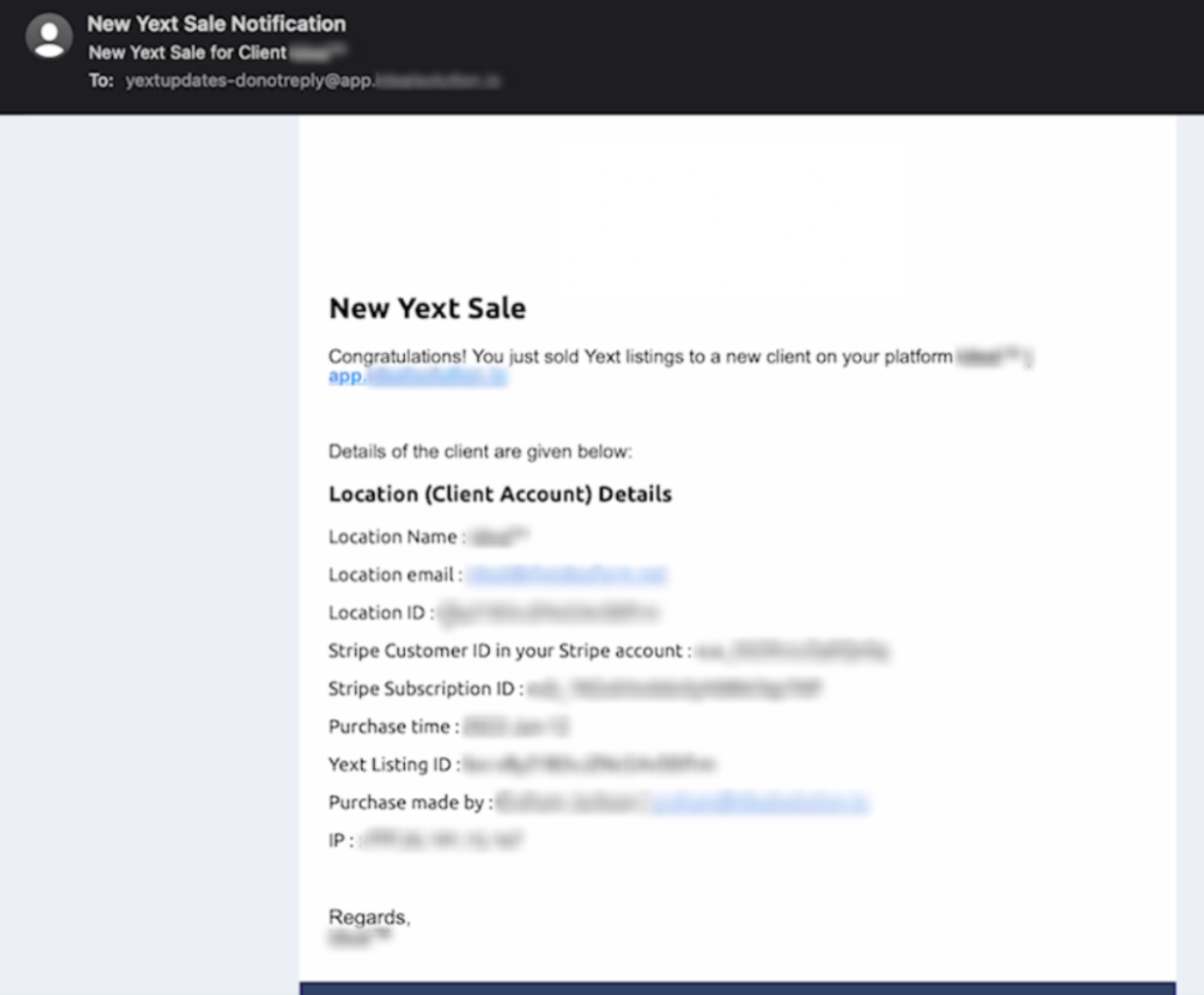
 Email 3.5 New YEXT Sale — Internal Email Internal-only notification sent to the agency when a YEXT listing service is purchased.
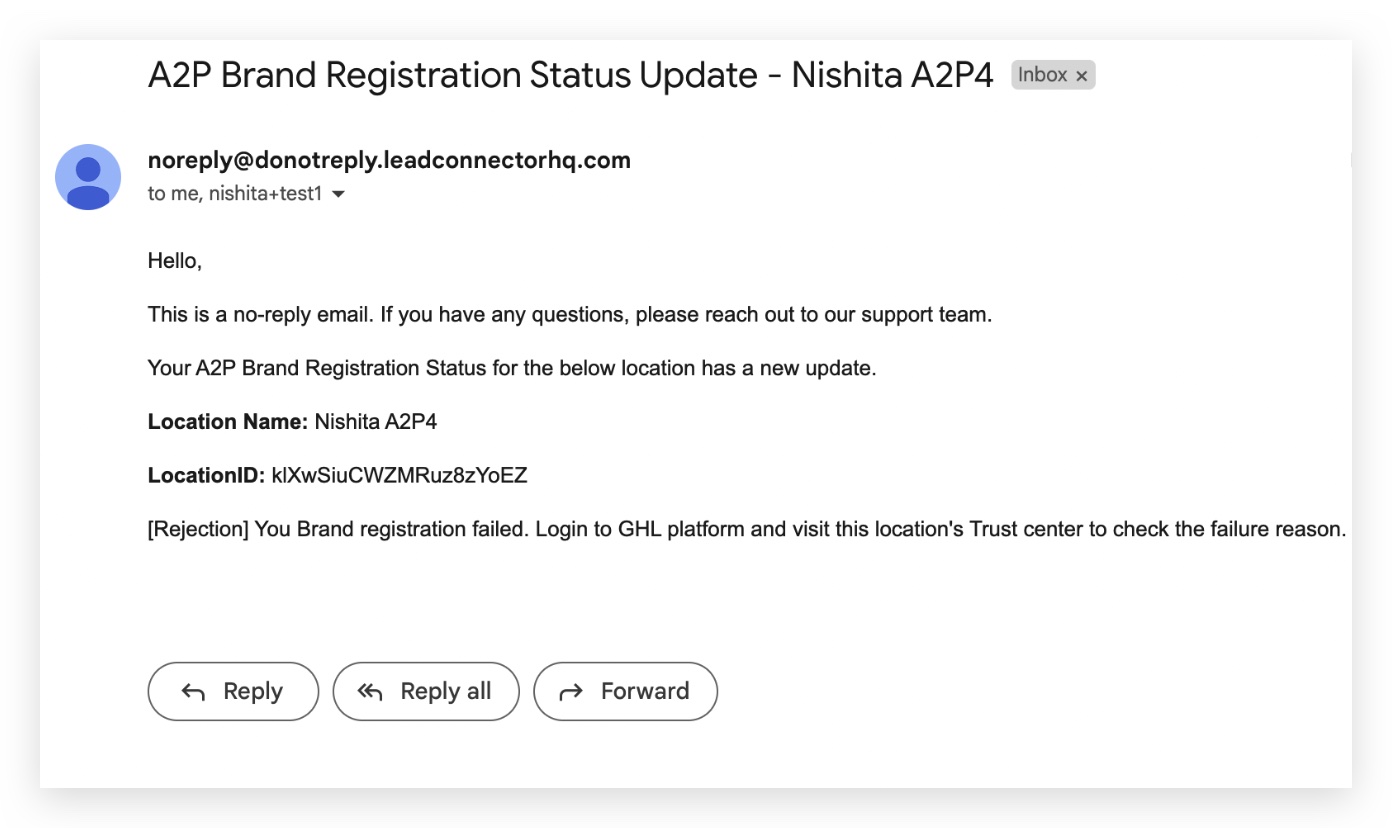
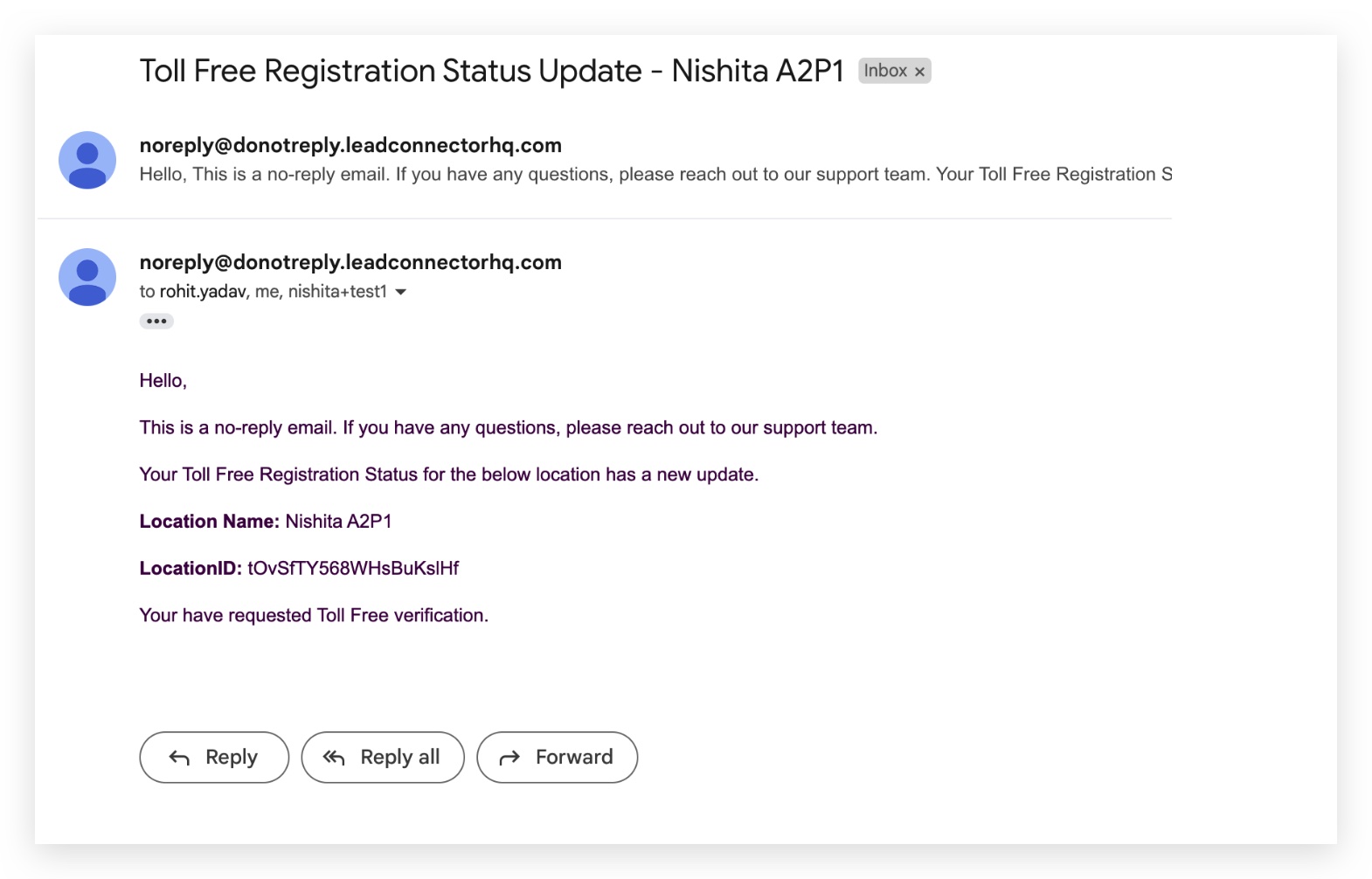
 4 ## A2P & Toll Free Verification Notifications A2P and Toll Free registration status updates are emailed to the agency owner and admins, sent from noreply@donotreply.leadconnectorhq.com. Notifications fire on these status updates from the carriers: A2P Brand — Rejection, Approvals A2P Campaign — Submitted, Rejection, Approvals Toll Free — Submitted, Pending Review, Rejections, Approvals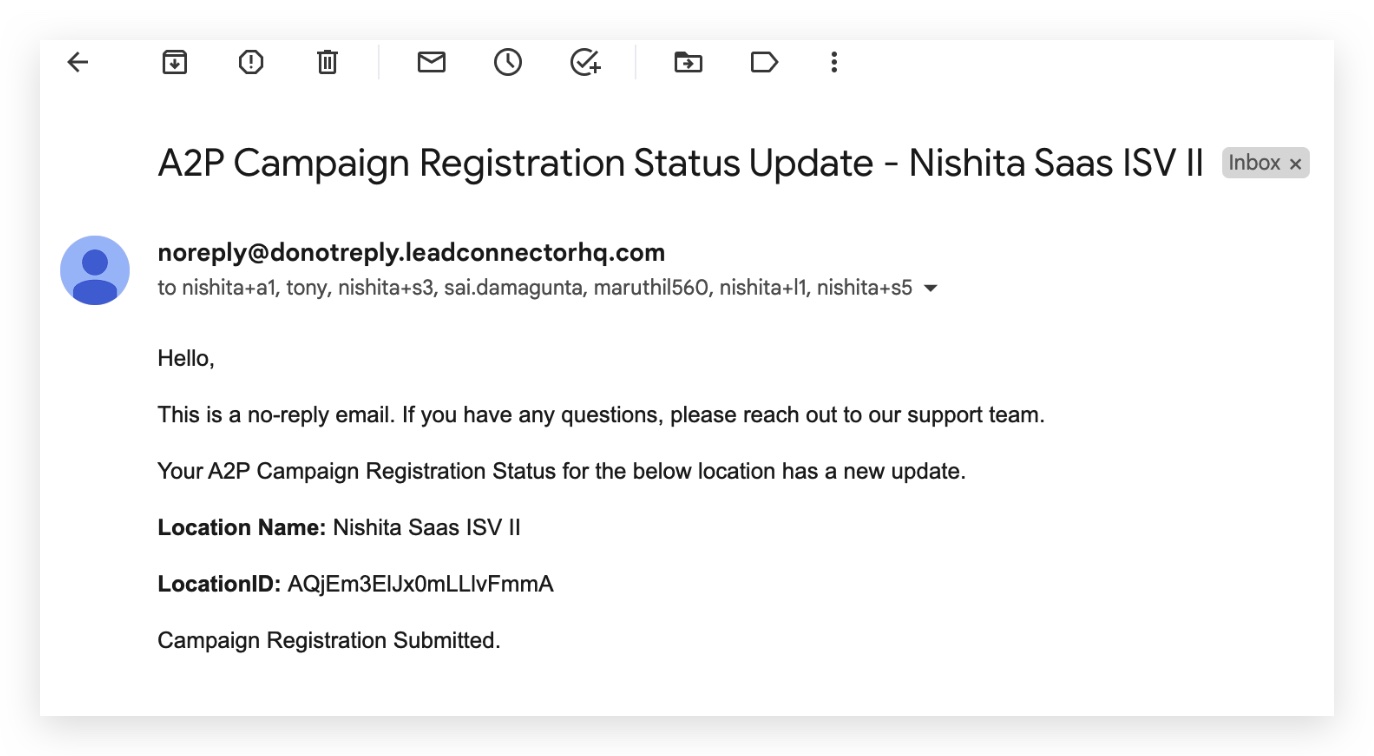
 5 ## Frequently Asked Questions Q: Can I disable every system email? Not all of them. Emails marked Can be disabled in this article have a setting that controls them. Reset Password, Verification Code, and credentialed New User emails are essential for account access and cannot be turned off. Q: Why is the calendar email coming from no-reply@support.domain.com instead of my own address? That’s the default sender used when no Mailgun subdomain or SMTP integration is configured for the location. Read the Calendar Email Sender Addresses guide to set up your own sender domain. Q: Who is shown as the sender on review request emails? The signed-in user is listed as the sender by default. To send from the contact’s assigned user, use the Workflows action Send Review Request instead — it sends on the assigned user’s behalf. Q: Are invoice emails sent to the business and the customer at the same time? They’re separate notification streams. The business gets summary emails on failures, successes, and skipped auto-payments; the end customer gets receipts, payment confirmations, upcoming auto-payment notices, and failure notifications addressed to them. Same triggering events, different recipients. Q: Who receives A2P and Toll Free verification emails? Agency owners and admins. They’re sent from noreply@donotreply.leadconnectorhq.com and cannot be redirected to a different recipient. Q: Can I customize the look and content of these system emails? Most account-level emails (Reset Password, Verification Code, New User) cannot be customized. Sub-account emails like Appointment Confirmations and Review Requests can be tailored from their respective settings pages, and onboarding emails can be customized — see the linked guide in Additional Resources. Q: My users aren’t receiving system emails — what should I check? Verify the email address is correct on the user record, check spam/junk folders (especially for password resets), confirm the user’s email domain isn’t blocking the sender, and confirm any agency-level email settings haven’t disabled the specific notification. Was this article helpful? That’s Great! Thank you for your feedback Sorry! We couldn’t be helpful Thank you for your feedback Feedback sent We appreciate your effort and will try to fix the article