How to Set Manual Expiry Dates for Templates
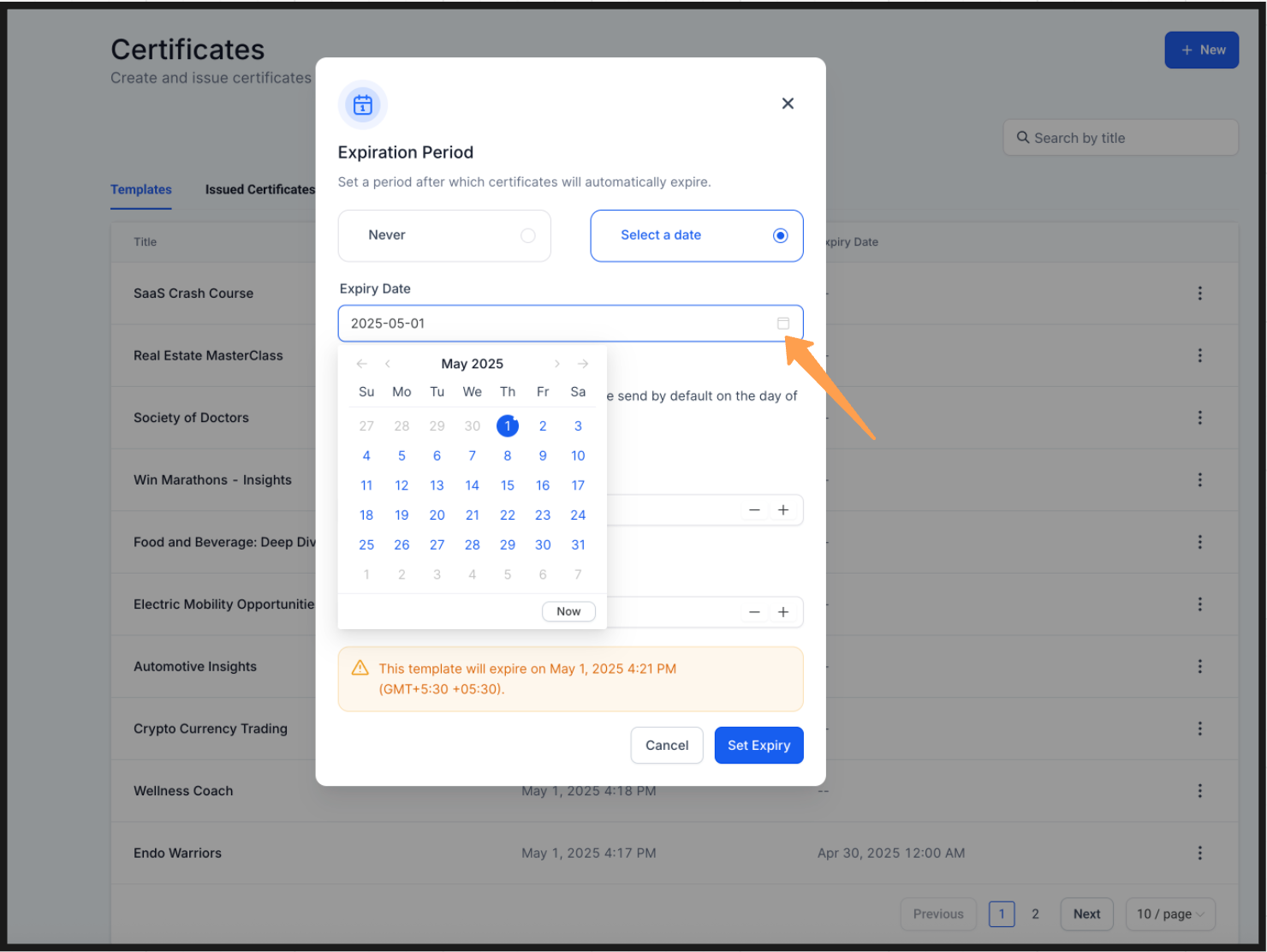
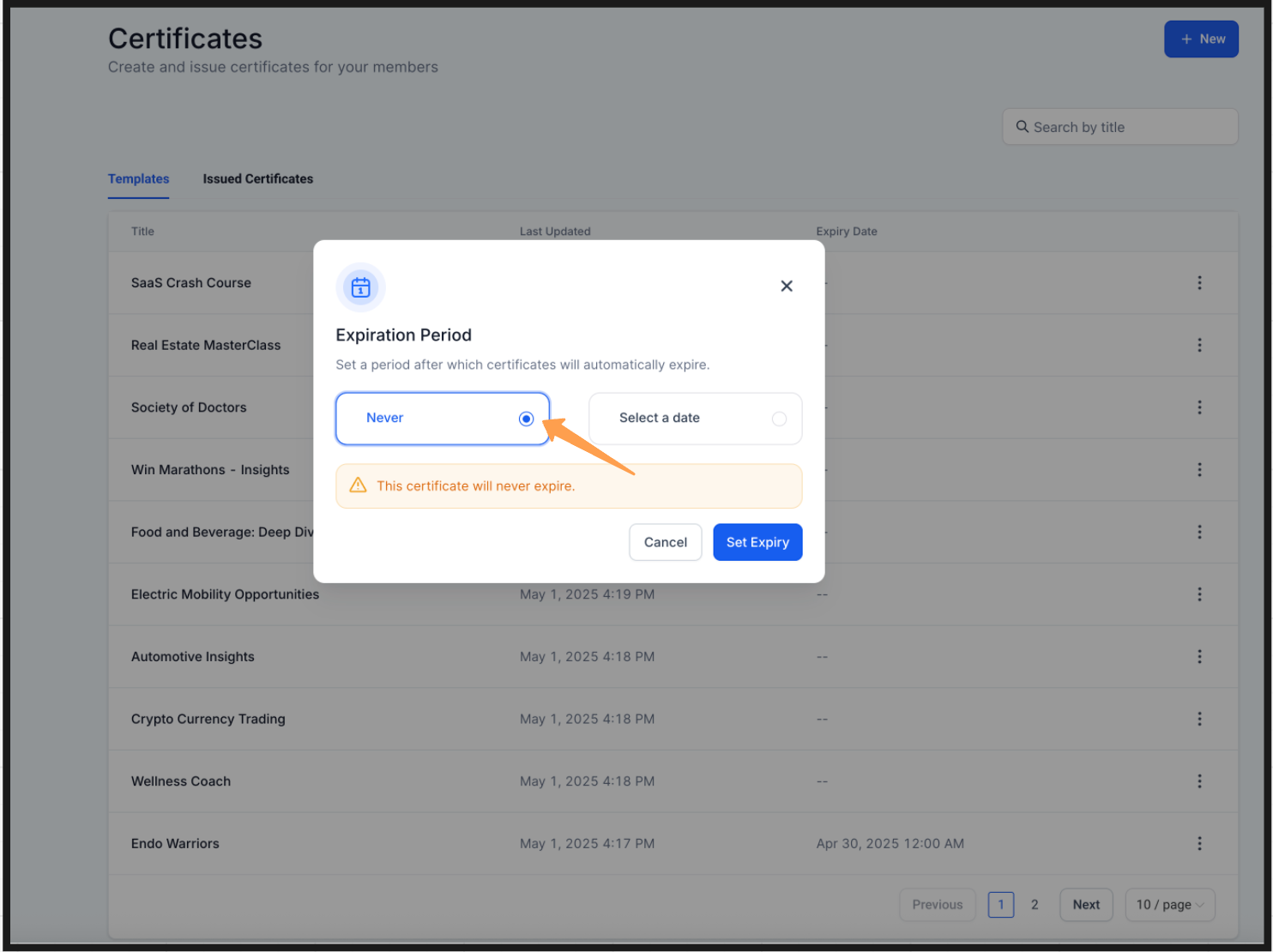
With the new update, you can now choose when your template expires. Follow these simple steps: ### ⌛️ Setting a Specific Expiry Date: 1. Go to Certificates from the dashboard. 2. Select the template you wish to edit. 3. Click the three-dot icon and select Set a Date. 4. Choose your desired expiry date from the calendar. A preview will show the selected expiry date. 5. Click Set Expiry to confirm.!(https://assets.patientcopilot.ai/e904584246a785f7.png) ###?? Setting a Template to Never Expire OR Removing an Expiry Date**:** 1. Go to Certificates from the dashboard. 2. Select the template you wish to edit. 3. Click the three-dot icon and select Never. 4. A preview message will show that the template will never expire. 5. Click Set Expiry to apply the changes.!(https://assets.patientcopilot.ai/d9e1332143699443.png) Was this article helpful? That’s Great! Thank you for your feedback Sorry! We couldn’t be helpful Thank you for your feedback Feedback sent We appreciate your effort and will try to fix the article