
Media Library - Built-In Image Editor
Patient Copilot’s built-in Image Editor lets you crop, rotate, flip, and fine‑tune images directly inside the Media Library, no external tools required. Edit, save, and reuse visuals across Social Planner, Funnels, and Email Builder in a few clicks. Keep assets consistent, reduce duplicates, and speed up production while staying fully inside Patient Copilot. * * * ## Key Benefits of the Built-In Image Editor - Work Inside Patient Copilot: Eliminate external tools and context switching.
- Cleaner Asset Management: Replace or save as new to prevent duplicate clutter.
- On-brand Visuals: Adjust right before publishing to maintain consistency.
- Lower Storage Overhead: Avoid multiple near-duplicate uploads.
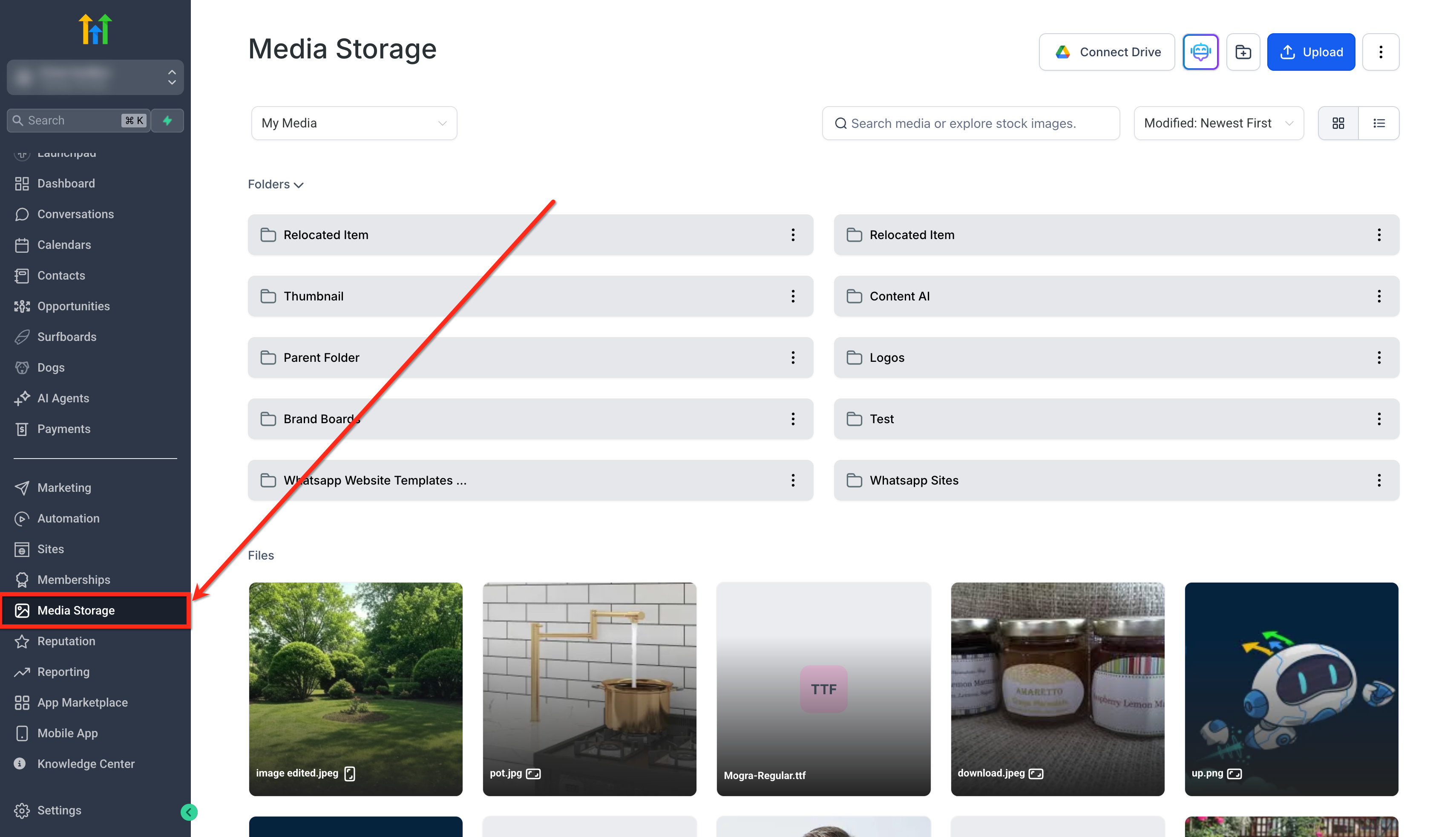
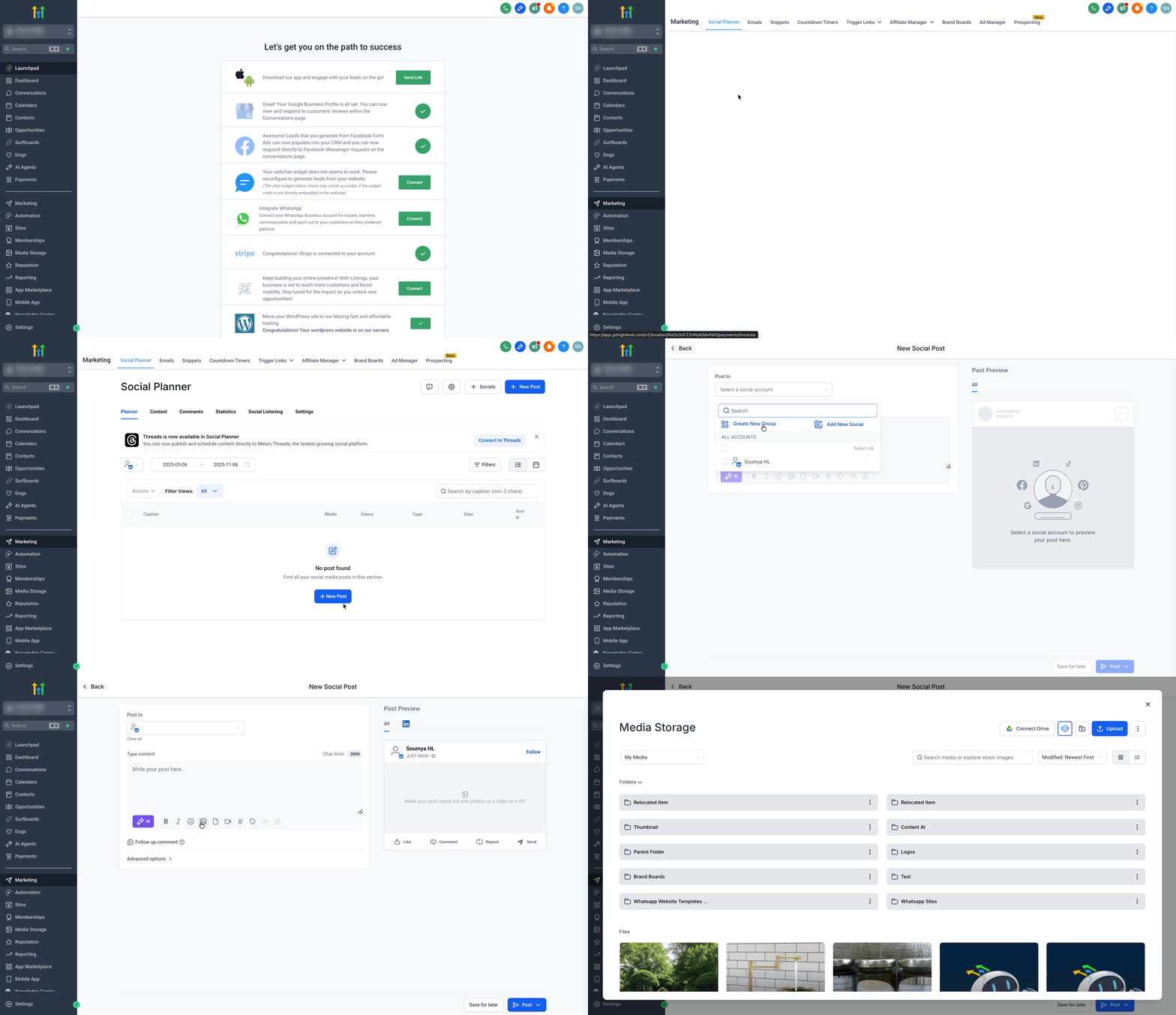
- Faster multi-module workflows: Edited images are immediately available anywhere the Media Library appears (e.g., Social Planner, Funnels, Email Builder). * * * ## How To Use the Built-In Image Editor Follow these steps to edit from any supported module: ### Step 1: Open the Edit Modal 1. Click on Media Storage from your sub-account.!(https://assets.patientcopilot.ai/93925185b7f89708.png)
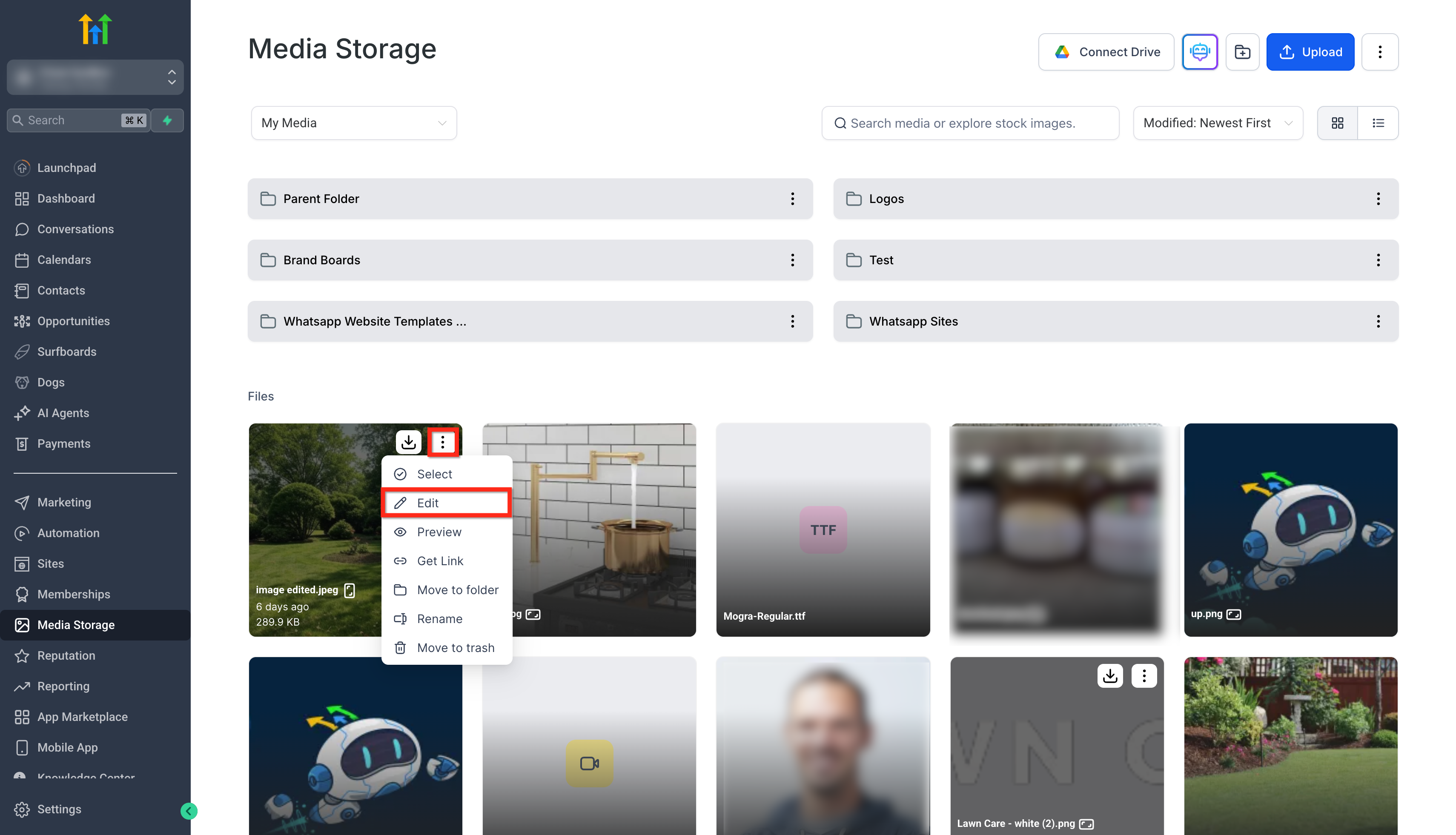
- Or open any Media Library supported module like Social Planner and click on Upload from Media Storage.!(https://assets.patientcopilot.ai/3b0645ab992084c7.gif) 3. Hover on the image you want to edit and click on the three dots on the top right corner.
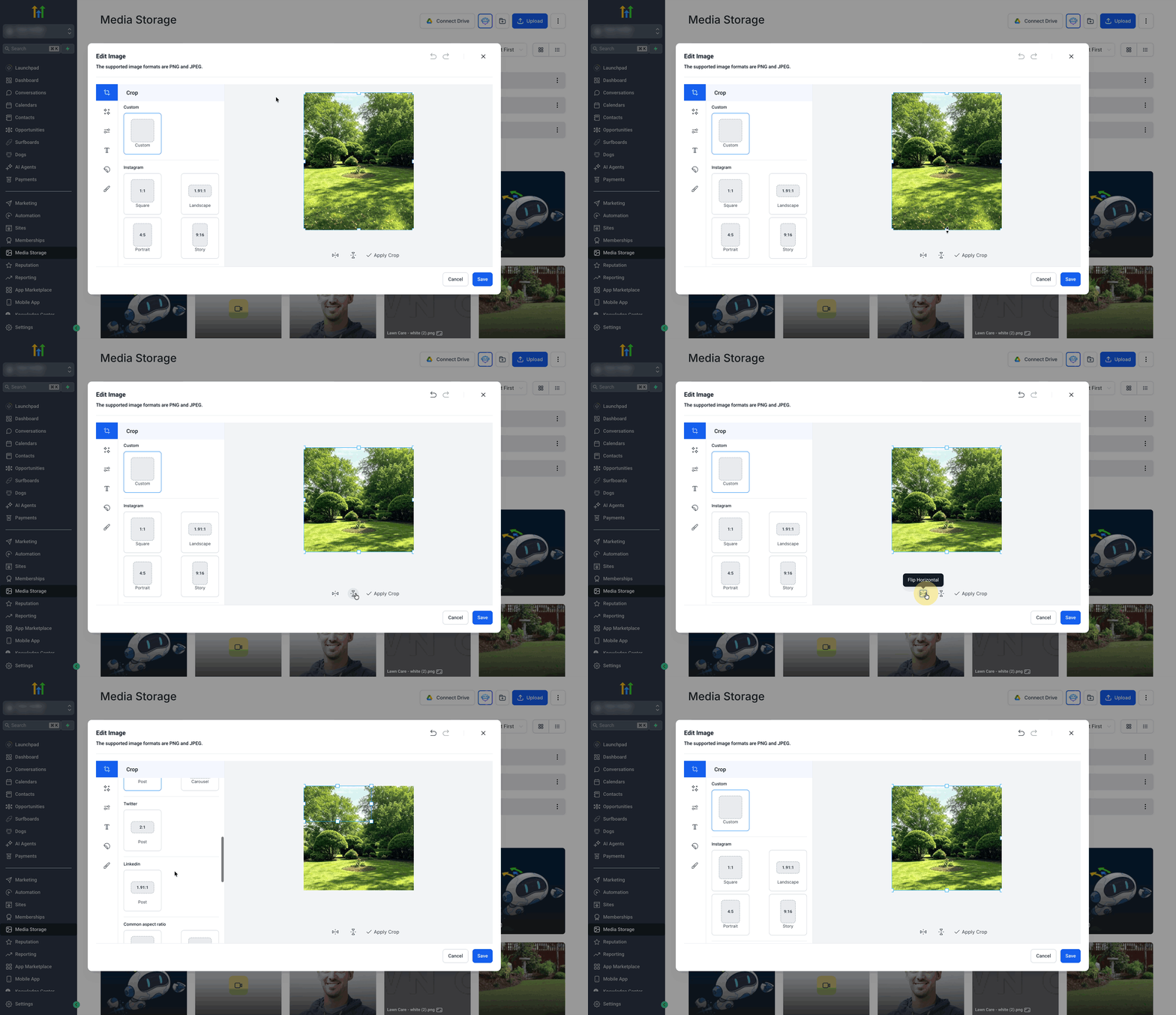
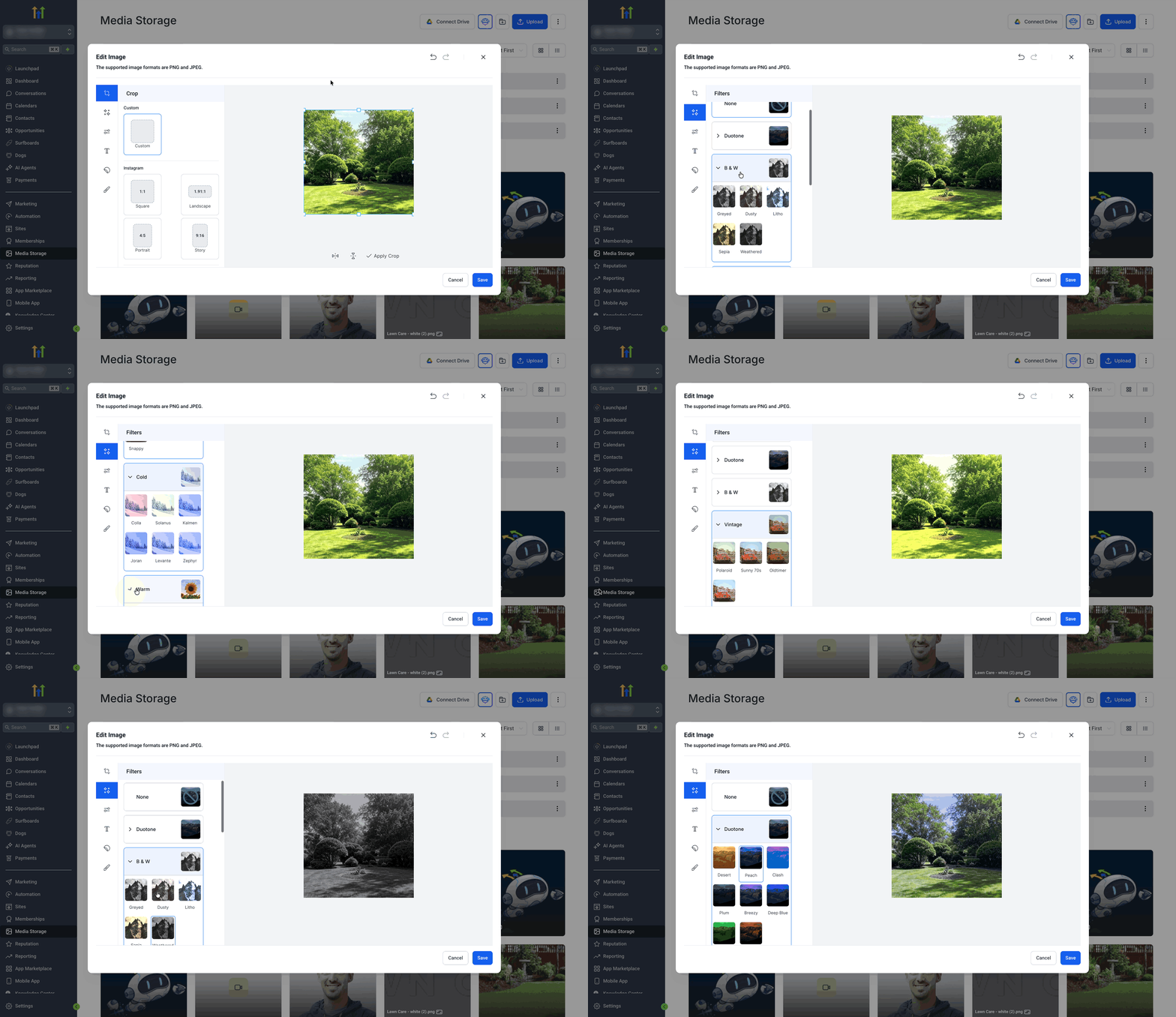
- Click on Edit.!(https://assets.patientcopilot.ai/1689d8b13964f36a.png) ### Step 2: Edit an Image 1. Crop an image using custom aspect ratio or pre-set aspect ratios.
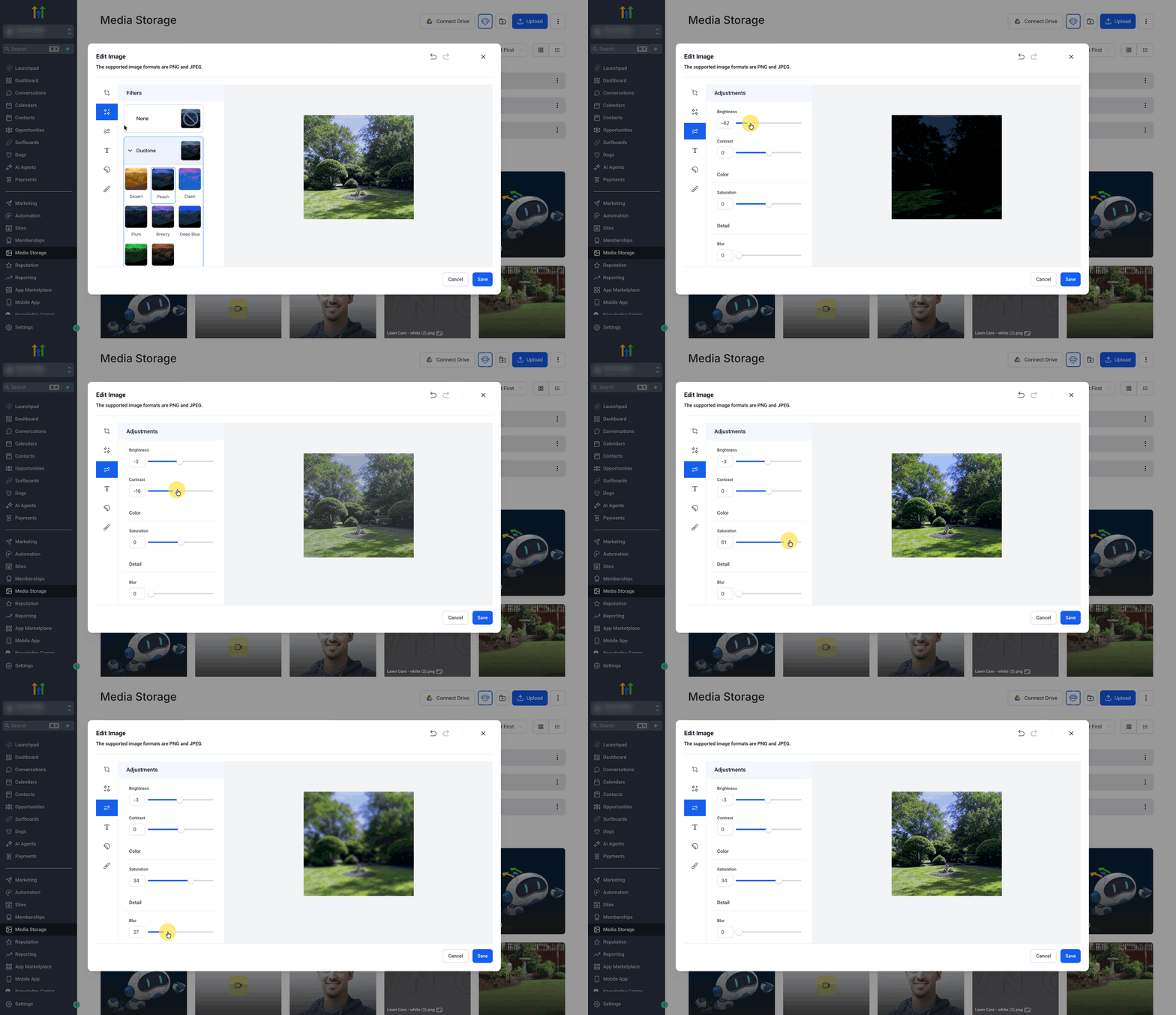
- You can also flip an image horizontally or vertically.!(https://assets.patientcopilot.ai/4d3c737bf4e4a3a1.gif) 3. Apply Filters to the image from a wide range of options.!(https://assets.patientcopilot.ai/d3bff8e49fc88c5b.gif) 4. Make Adjustments to the image like brightness, contrast, saturation, and blur.!(https://assets.patientcopilot.ai/6a1e930f1321bd48.gif)
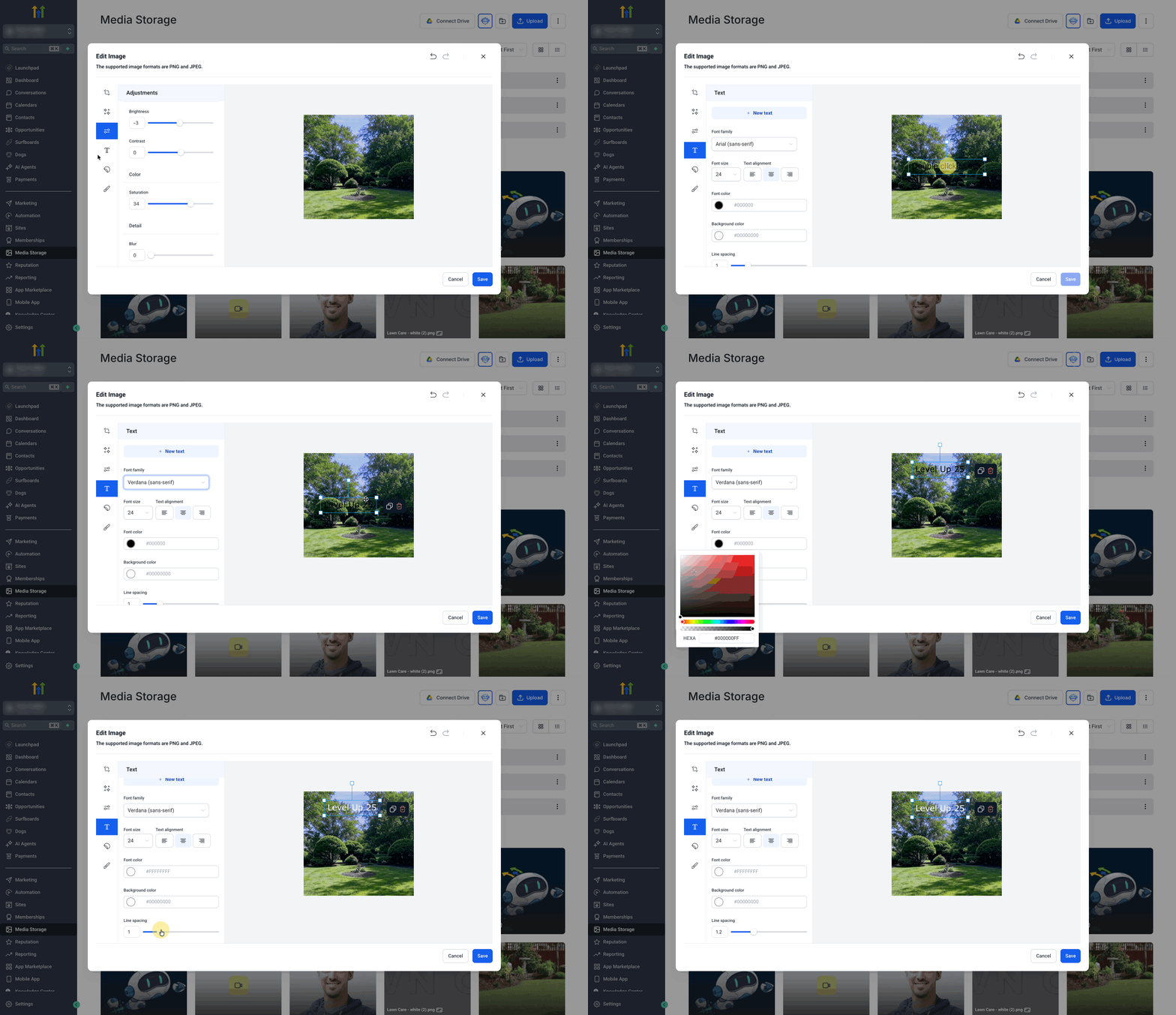
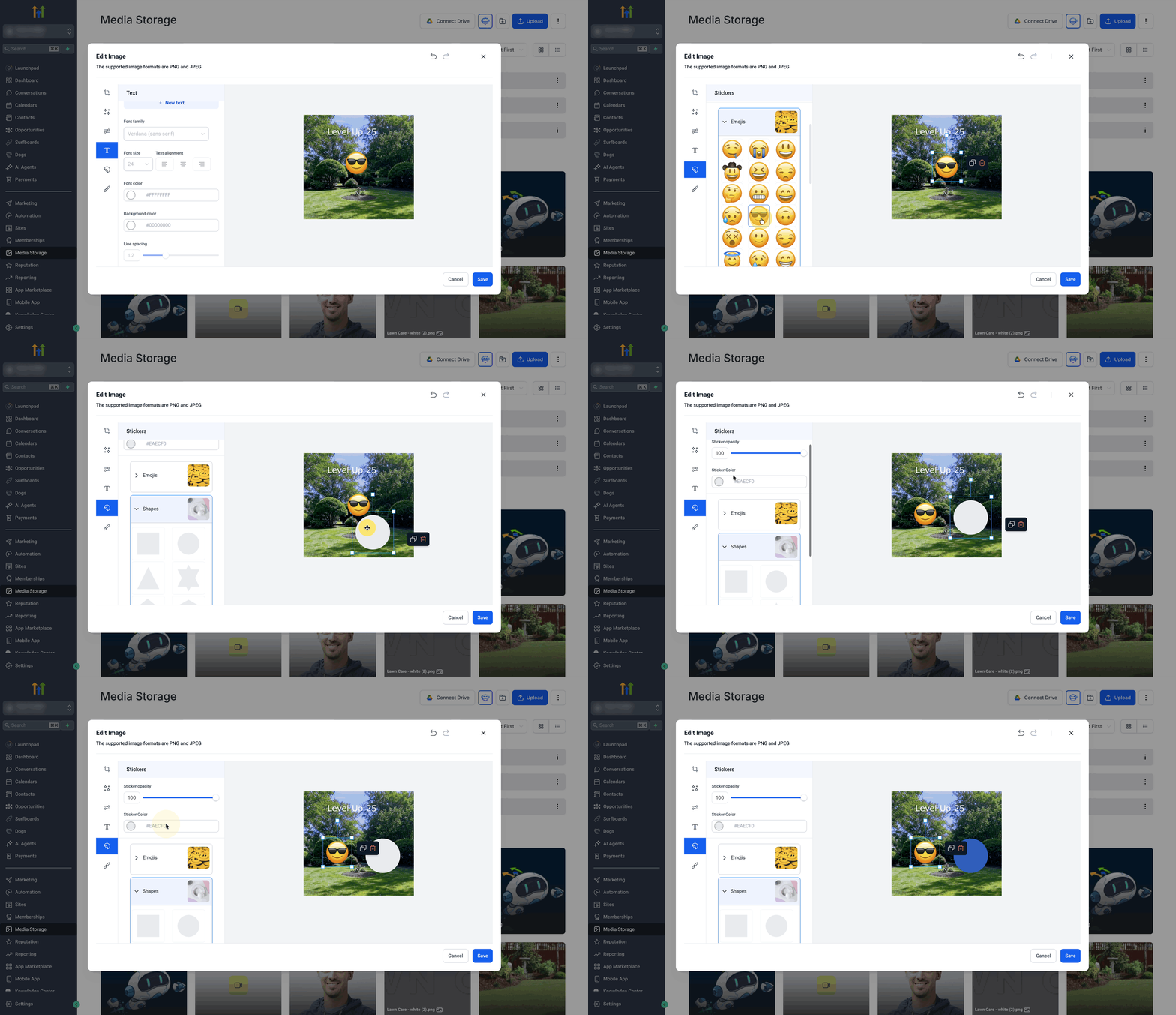
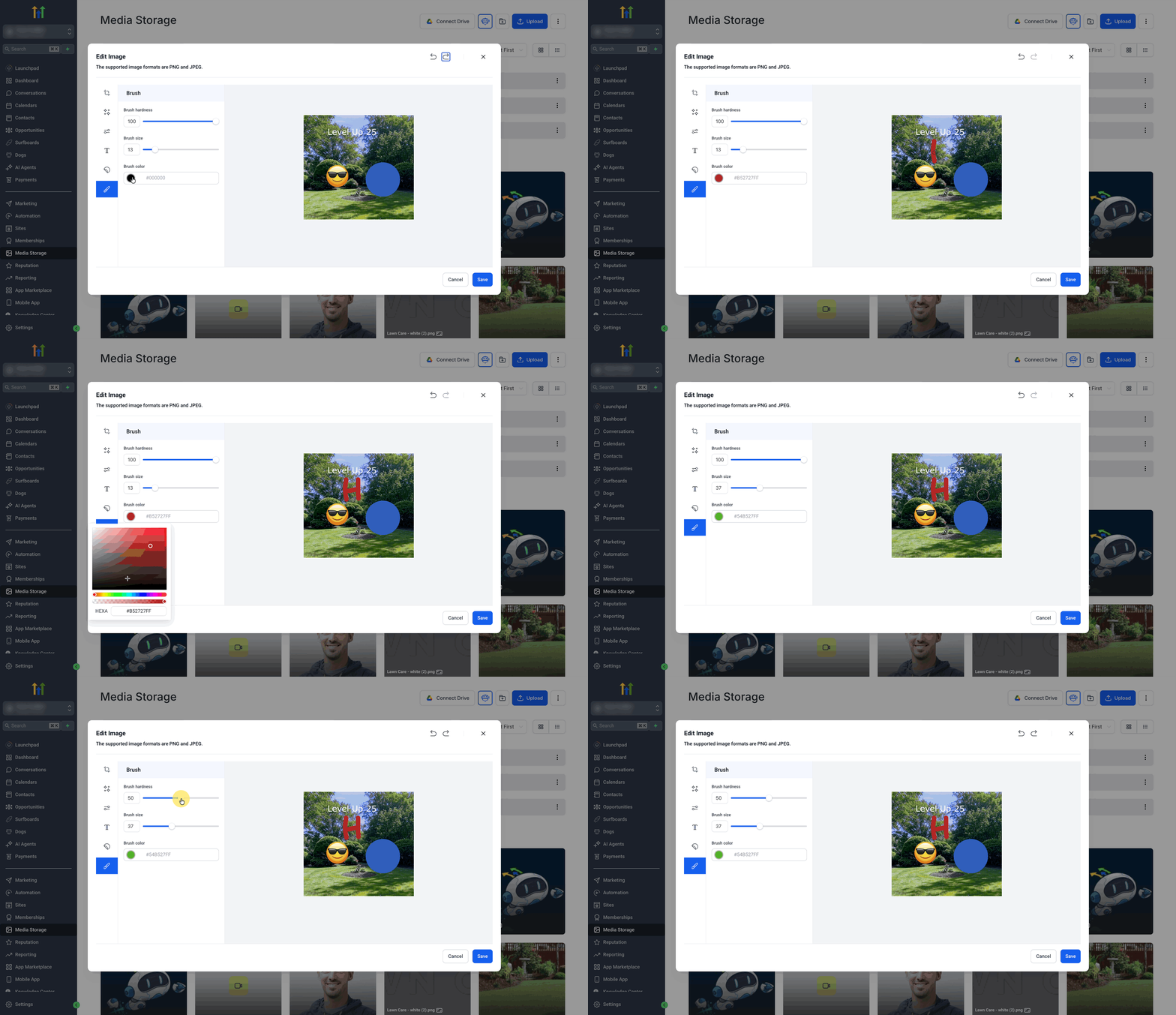
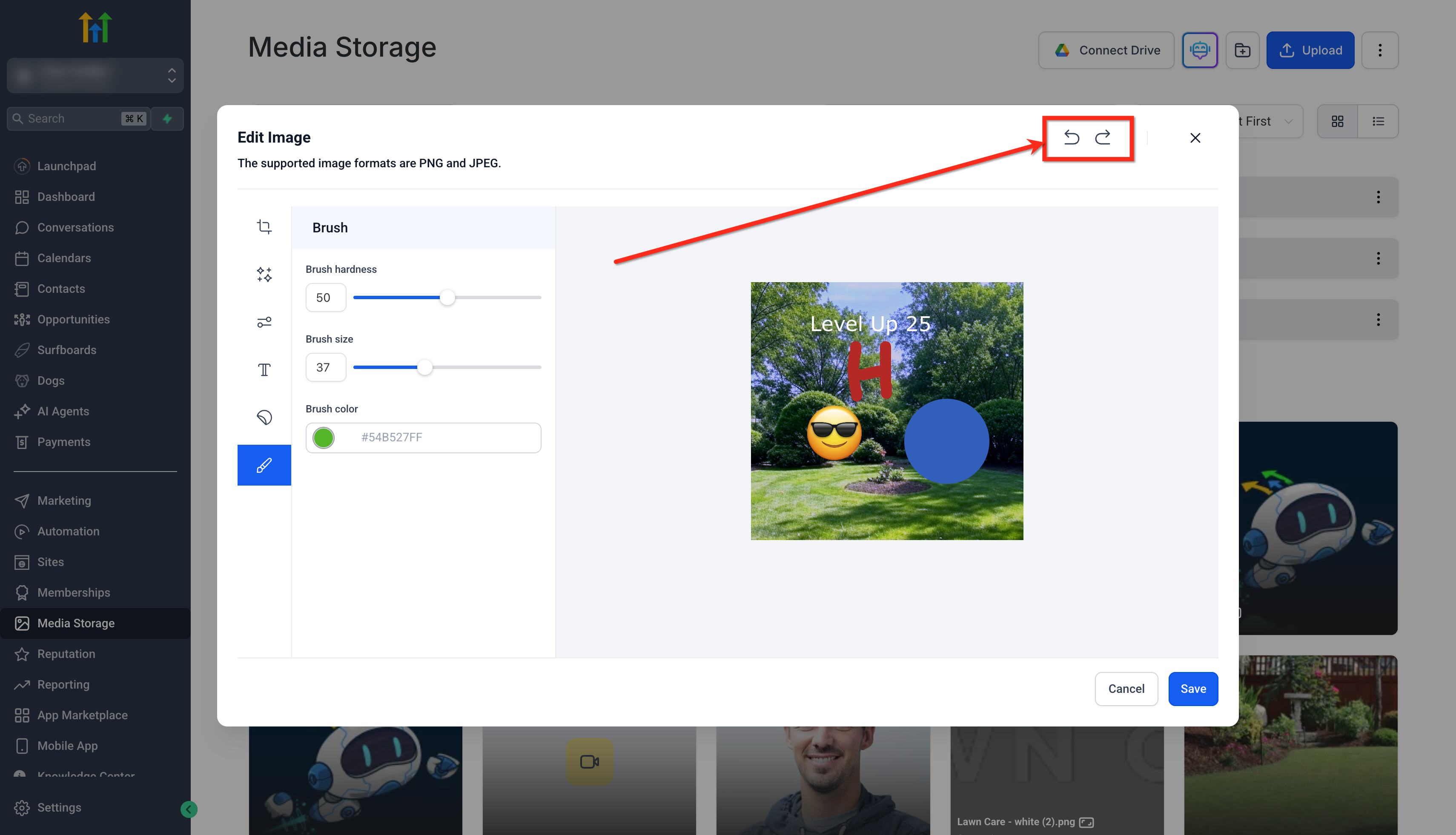
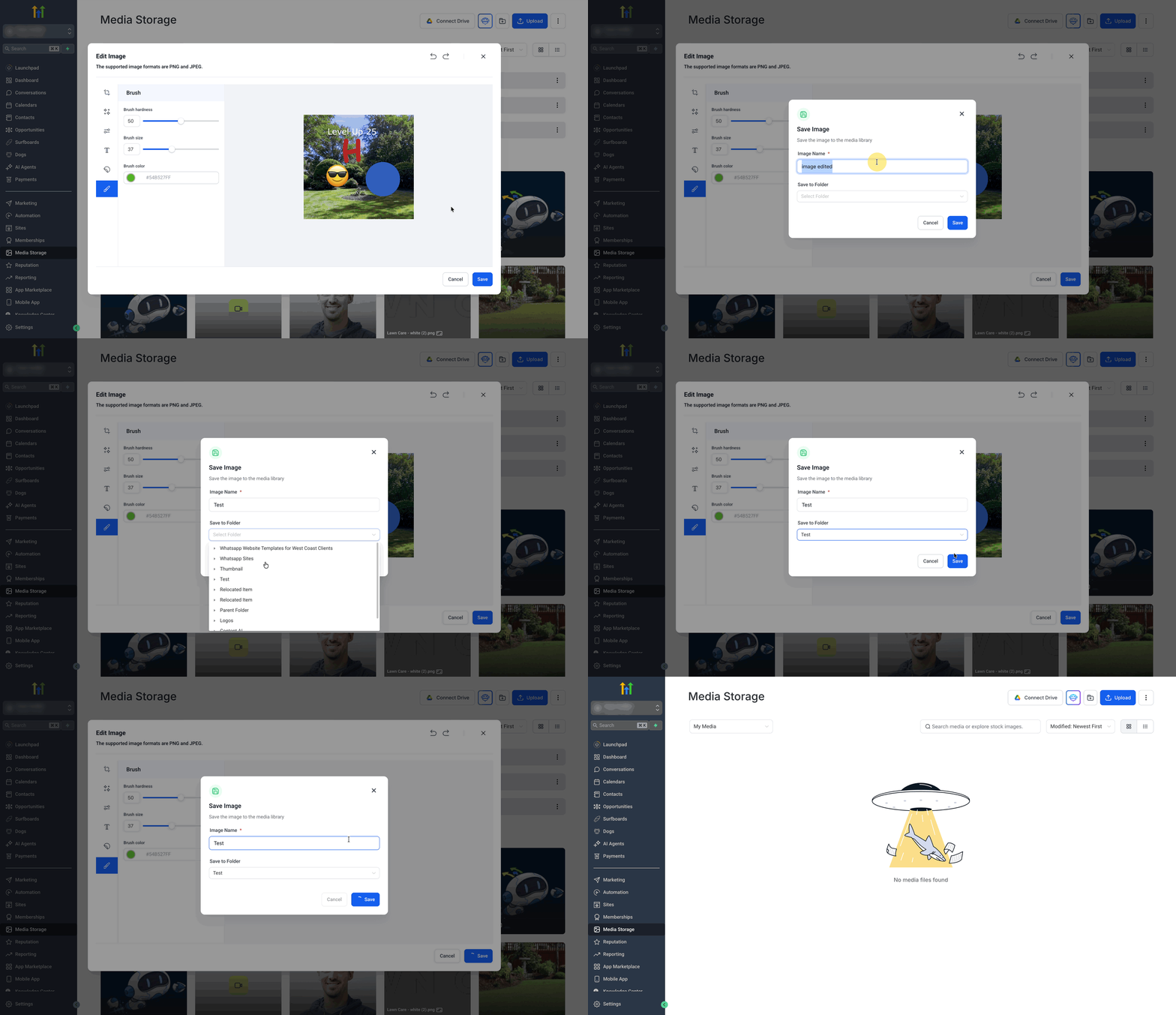
- Add Text to the image and customize the Font Family, Font Size, Alignment, Font Color, Background color, and Line Spacing.!(https://assets.patientcopilot.ai/ed495f50e9a75fc3.gif) 6. Add Stickers in the form of Emojis or Shapes and adjust its Opacity and Color.!(https://assets.patientcopilot.ai/c6a9571dc2bf9100.gif) 7. Use the Brush to draw on the image and adjust Brush Hardness, Size, and Color.!(https://assets.patientcopilot.ai/c800f394169b0468.gif) 8. Use the Undo and Redo icons to reverse or reapply the previous actions.!(https://assets.patientcopilot.ai/32ba1781ff663e47.png) 9. Click on Save, name the image and you can also choose to Save to Folder.
- Click on Save to store it to the Media Library as a new image.!(https://assets.patientcopilot.ai/2ea65a219d0d602b.gif) * * * ## Frequently Asked Questions **Q: Is the editor available in the mobile app? **Not yet. The feature currently targets desktop. Edits made on desktop are visible on mobile once saved. **Q: Which file types can I edit? ** Supported image formats are PNG and JPEG. **Q: Can I bulk edit multiple images at once? **Not currently. Open and edit images one at a time. * * * ## Related Articles - Media Library – Mobile App
- Complete Guide to Media Storage!
- Media Storage & File Upload Limits Was this article helpful? That’s Great! Thank you for your feedback Sorry! We couldn’t be helpful Thank you for your feedback Feedback sent We appreciate your effort and will try to fix the article