Voice AI Chat Widget
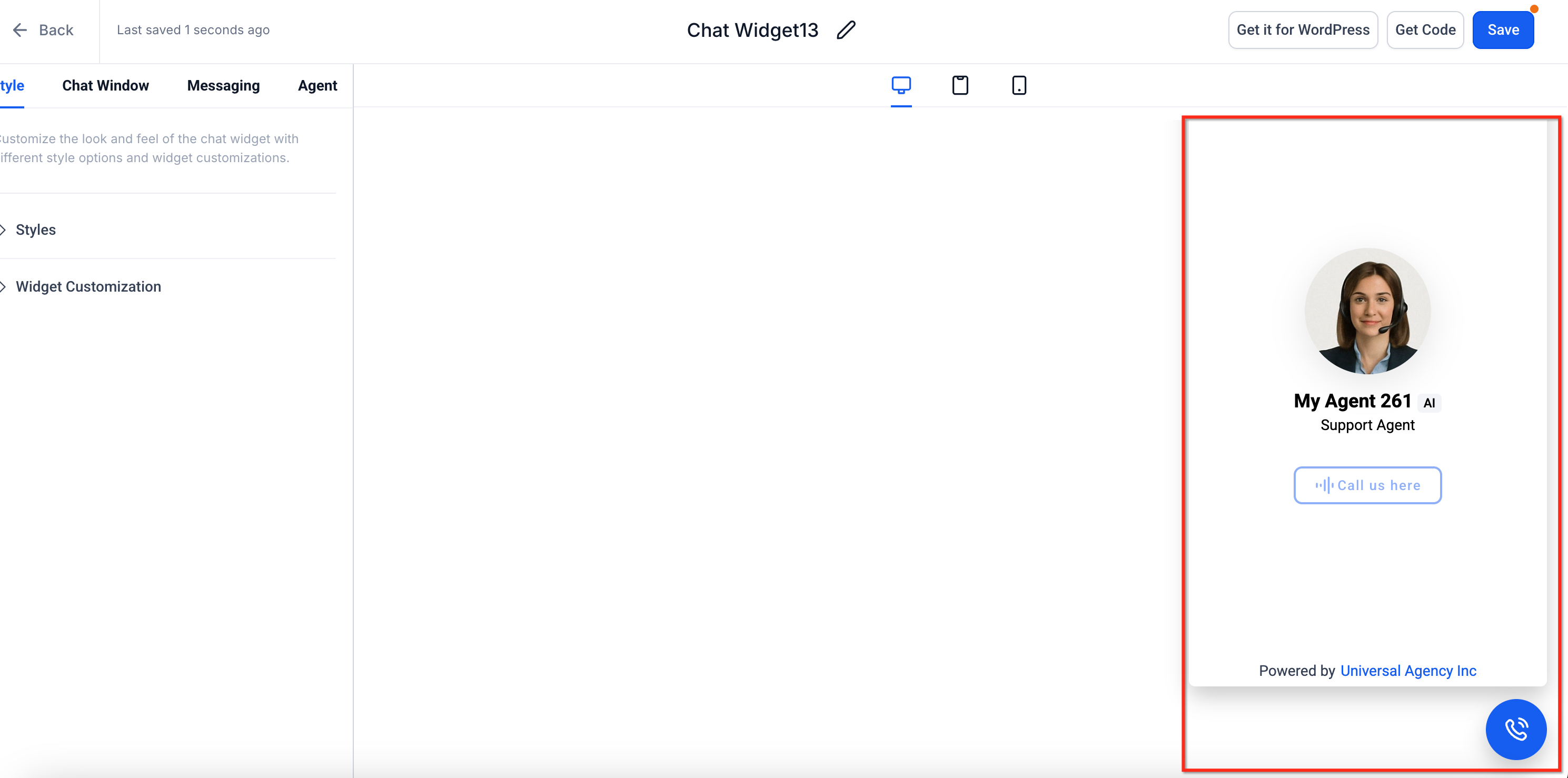
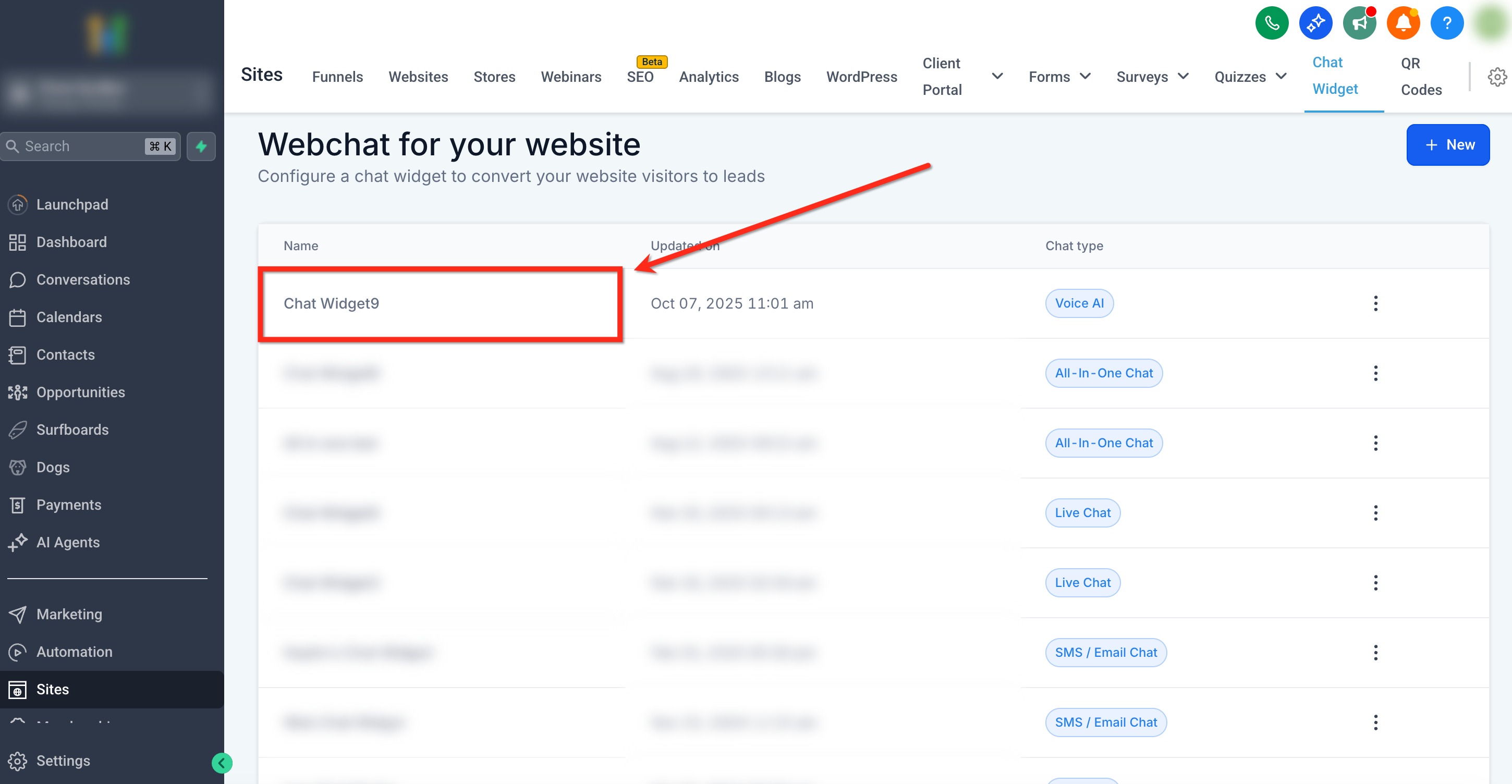
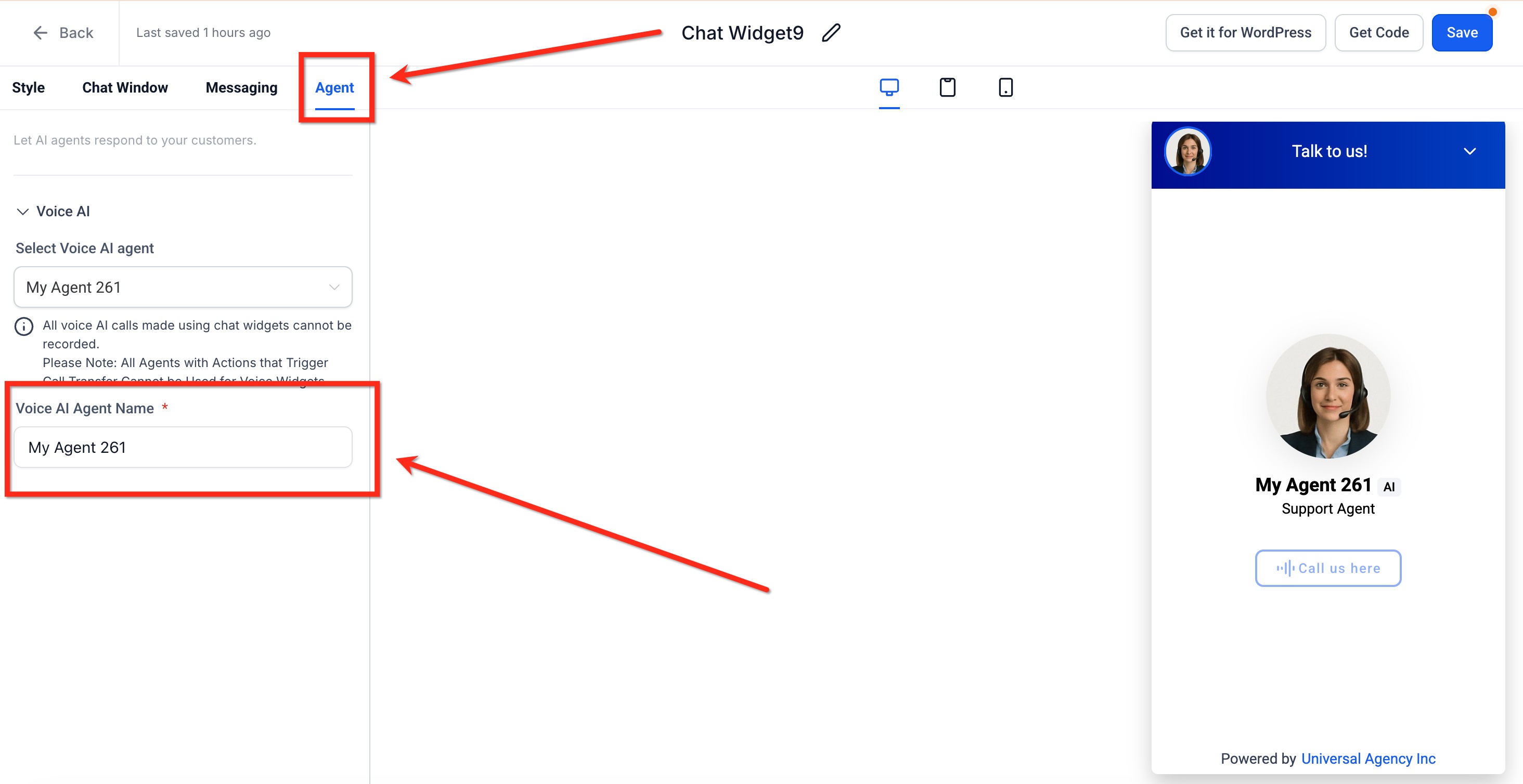
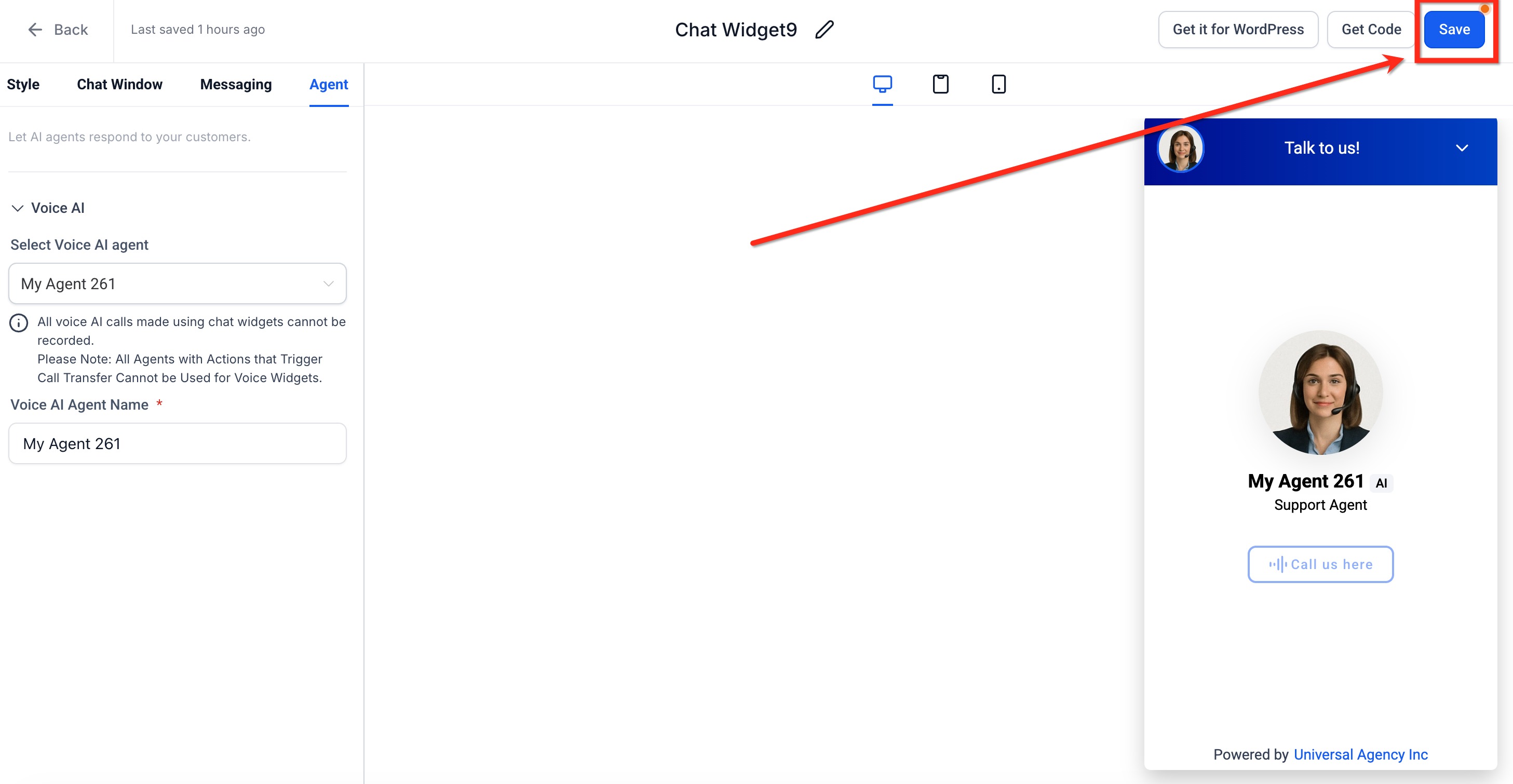
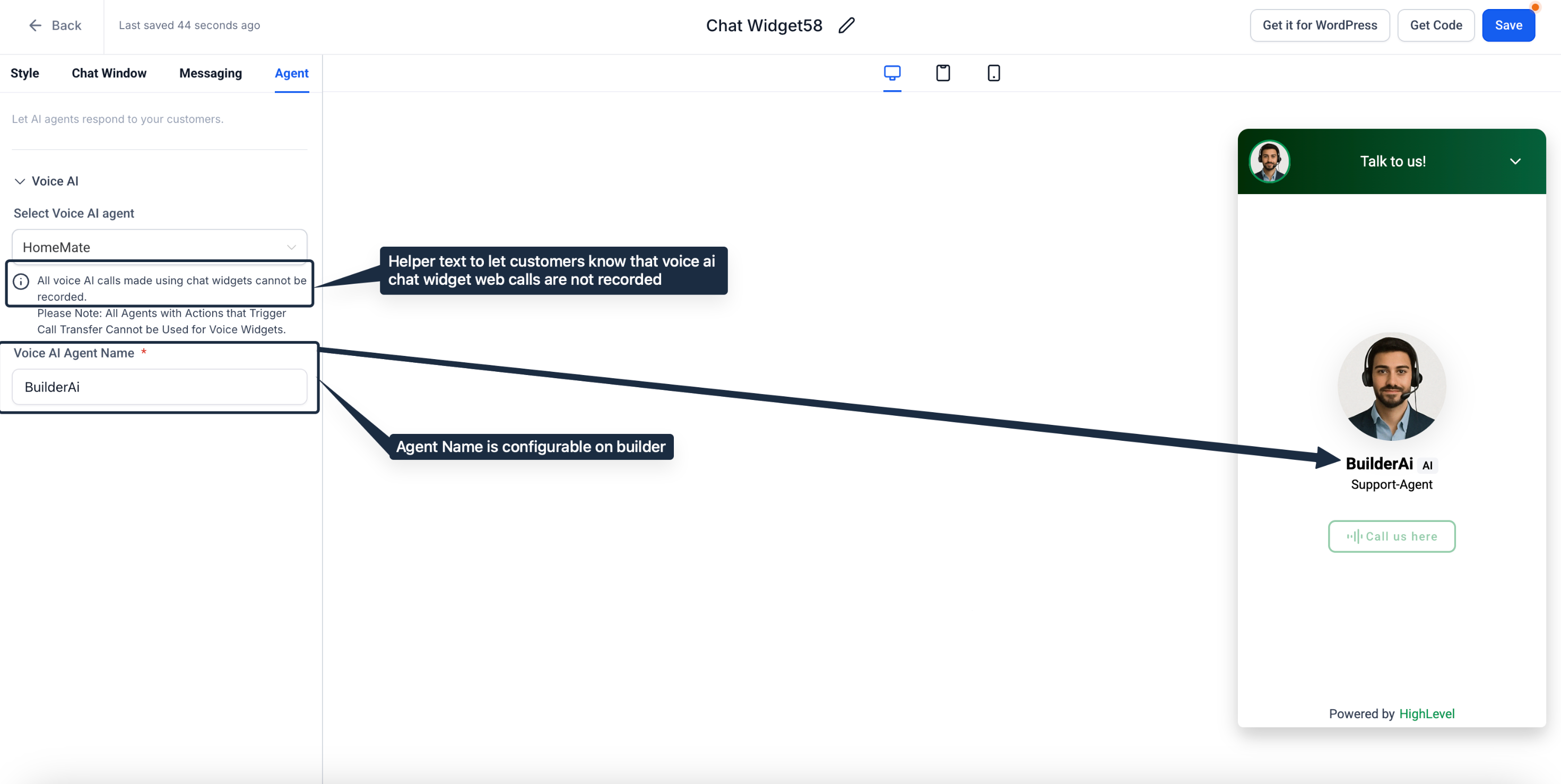
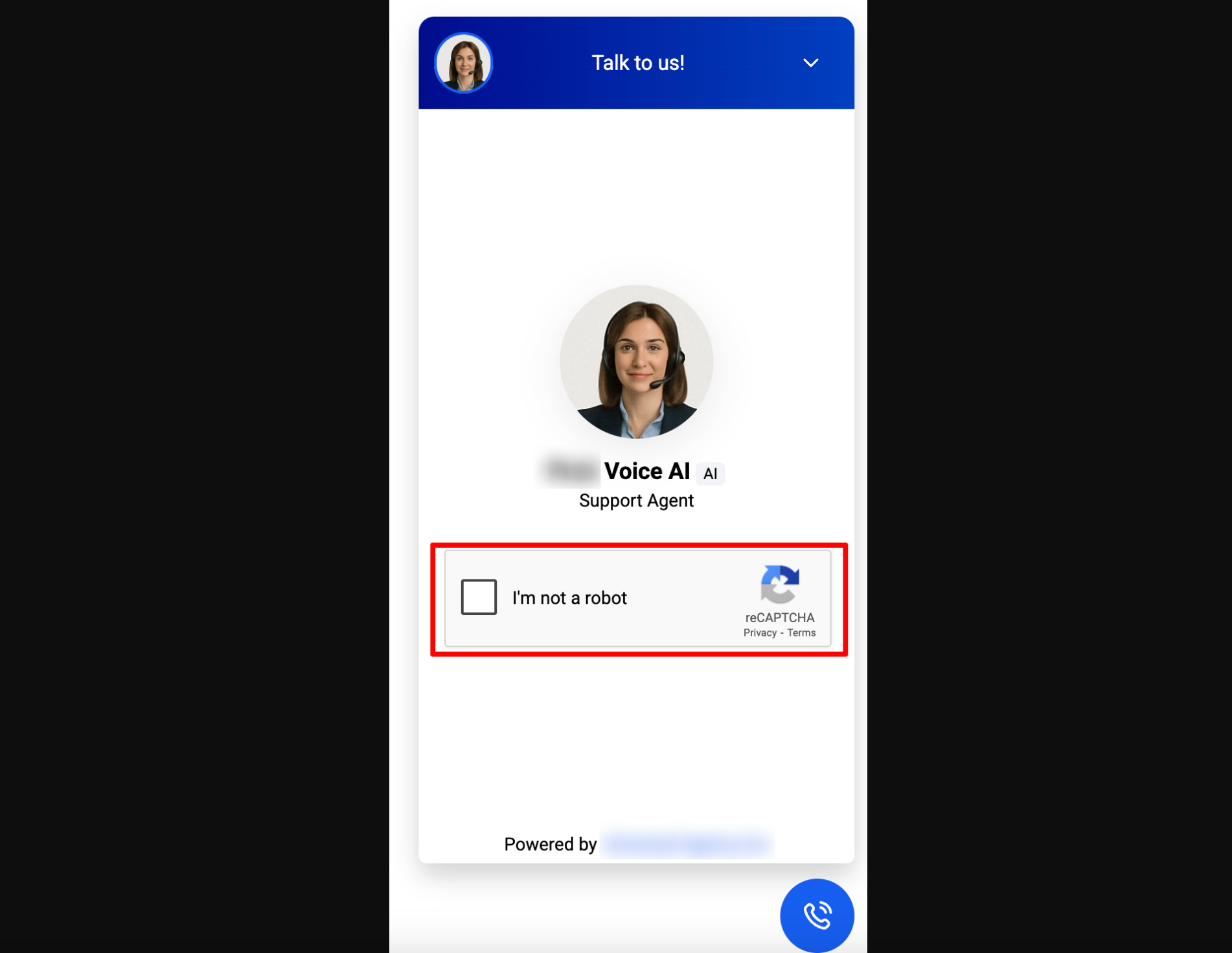
Deliver human-like voice interactions directly in your Patient Copilot Chat Widget—no phone numbers, downloads, or extra setup—so you can capture and qualify more leads instantly. IMPORTANT: This feature is currently available in Labs and needs to be enabled by Agency for Sub-accounts. For more information, refer to Labs Features - Complete Overview * * * ## Voice-Only Chat Type Voice-only mode streams audio through the visitor’s mic and speakers so the entire call lives inside the chat window—no PSTN or VoIP connection required. This makes it ideal for quick demos, support triage, or hands-free sales conversations. * * * ## Built-In Call-Recording Notice To keep expectations clear, the widget surfaces a banner that reads “All voice AI calls made using chat widgets cannot be recorded.” This transparency protects both you and your visitors from compliance confusion.!(https://assets.patientcopilot.ai/595b21fddbd98adb.png) * * * ## reCAPTCHA Protection If a visitor connects or disconnects 10 times within 60 seconds, the system prompts Google reCAPTCHA to confirm they’re human, stopping bot loops and malicious toll-free abuse before it starts.!(https://assets.patientcopilot.ai/d4a323c8050515d5.png) * * * ## Browser-Based Engagement Because everything runs in-browser via WebRTC, there’s no telephony setup, SIP trunk, or softphone to configure. Agencies can embed the widget anywhere a normal Patient Copilot chat bubble fits—websites, funnels, blogs, or the Client Portal. * * * ## Concurrent Call and Agent Limit You can currently create up to 100 Voice AI agents, allowing room for experiments, production setups, and specialized workflows. The number of concurrent calls is capped at 20. Call #21 will trigger the red banner shown in the examples below. Calls in other locations are unaffected as they each have their own 20 call limit. This safeguard prevents quality degradation when multiple website visitors call at once. To Check Service Status: Visit status.patientcopilot.ai to confirm any ongoing outages. * * * ## Supported Features - Start a voice call with the AI agent.
- Mute the agent during conversation.
- Provide contact information during the call.
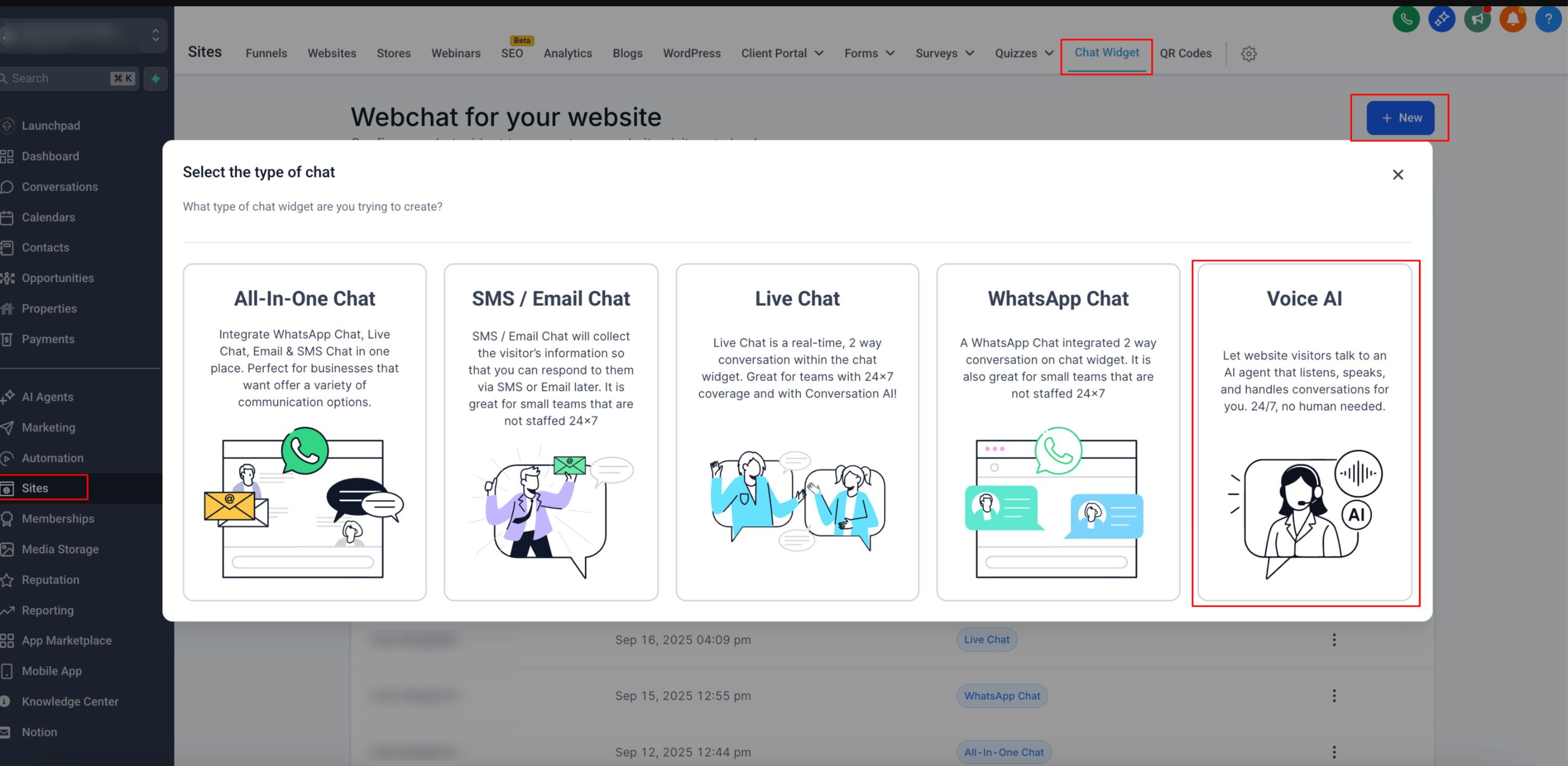
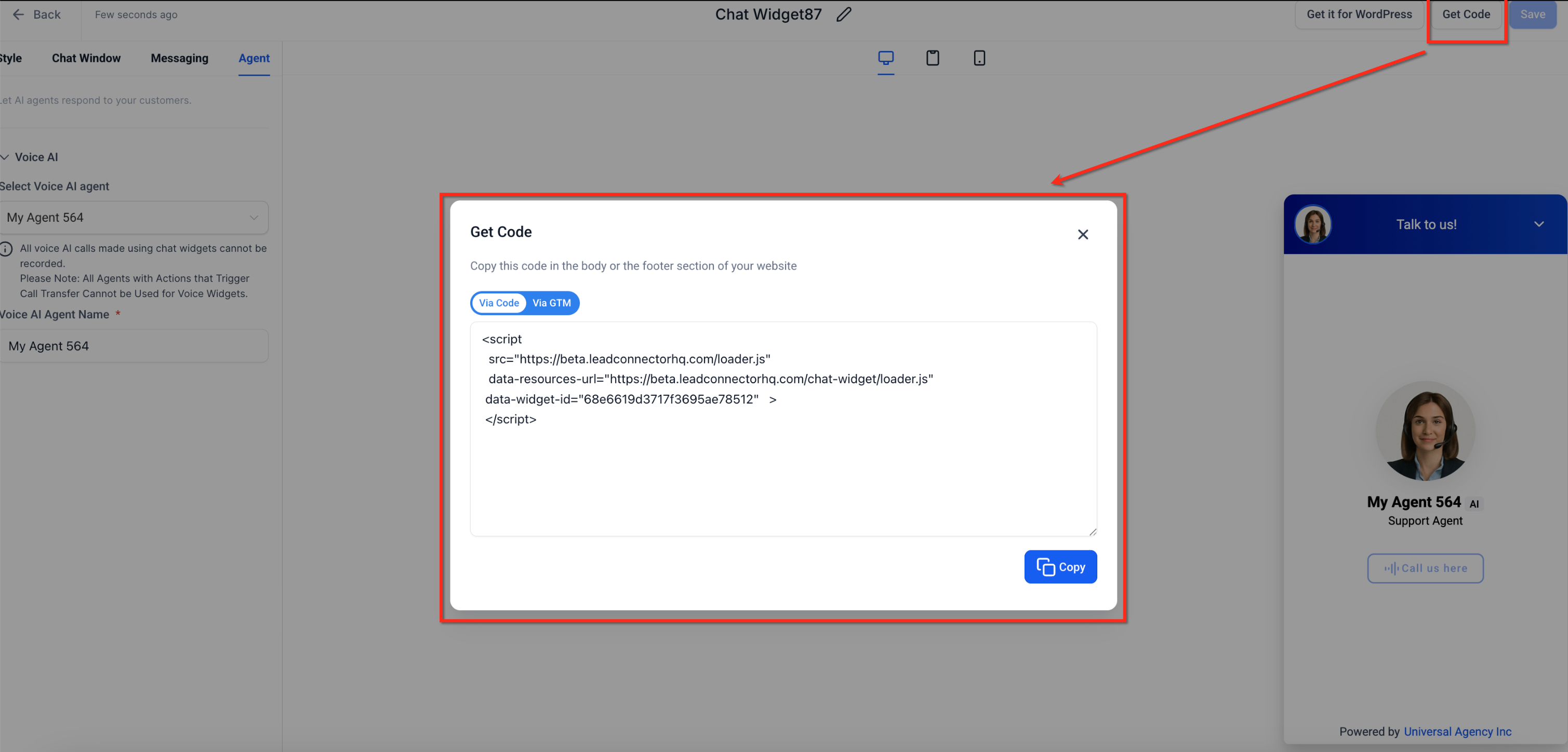
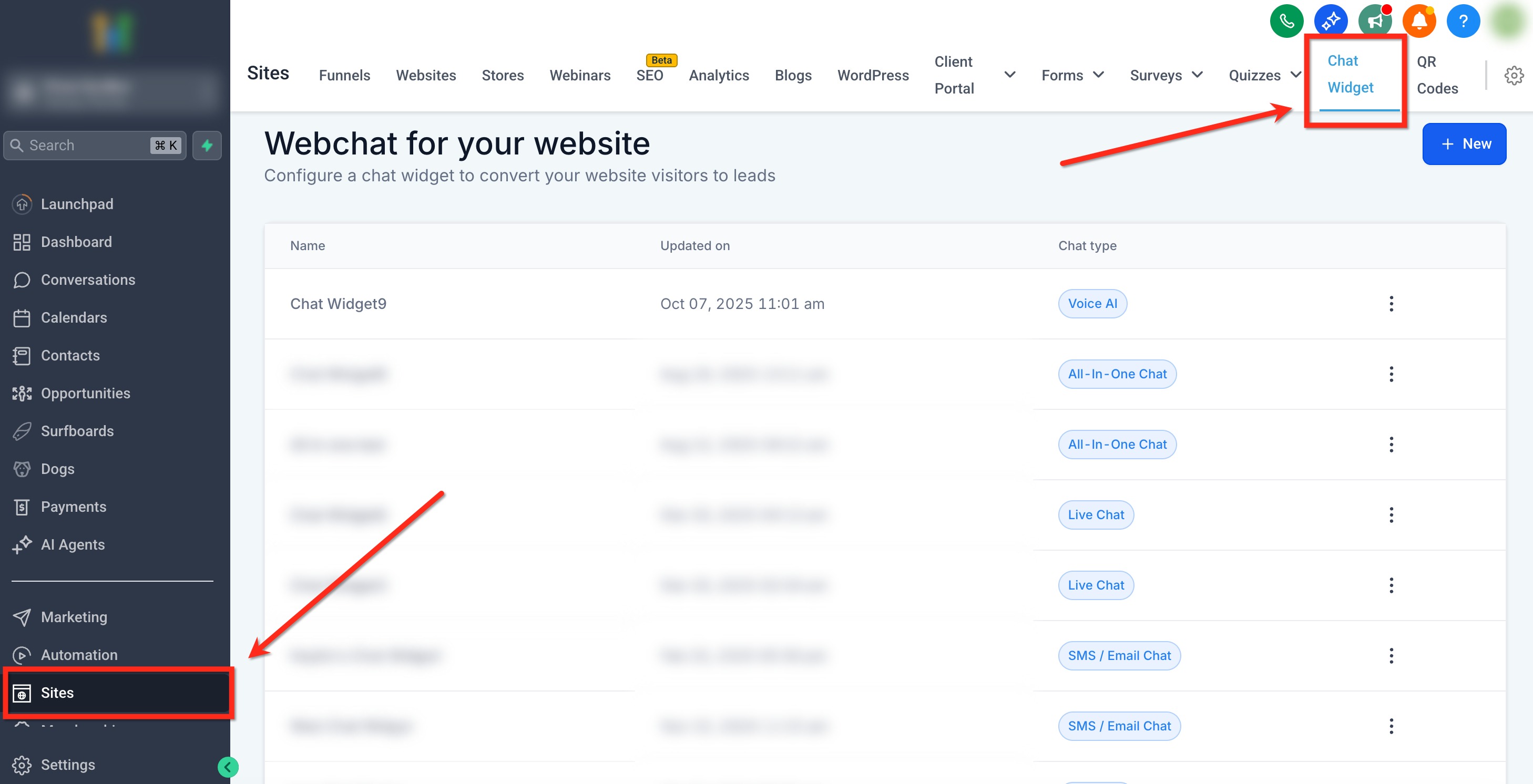
- End or restart a call when needed. Note: Call transfer is not yet supported while in beta. * * * A correct setup ensures that the Voice Widget works smoothly on your website. The process is simple and requires adding a script to your site’s code. 1. Navigate to Sites → Chat Widget → New → Voice AI as the widget type.!(https://assets.patientcopilot.ai/492267b7b1cebc6a.png) 2. Locate the Get Code option and copy the provided
<script>code.!(https://assets.patientcopilot.ai/f05597cd76ef6e11.png) 3. Paste the script into your website: - For custom-coded sites, place it in the<head>or<footer>section. - For platforms like Wix, Shopify, and Squarespace, use their custom code embed feature. Note: Save and publish your changes. Test the widget by visiting your live site and starting a voice call.!(https://assets.patientcopilot.ai/70dd02e8e4f58105.png) * * * ## How to Change the AI Agent Name Give your AI a friendly, on-brand identity by setting a display name in the widget builder (Sites > Chat Widgets > Agent tab). The chosen name appears on every voice reply, reinforcing trust and professionalism. Changing the name of your Chat Widget Agent is easy and can be done directly in the web chat builder! To change the name, follow these steps: #### Step 1: Navigate to Chat Widgets From your location dashboard, go to Sites → Chat Widgets !(https://assets.patientcopilot.ai/b496d95644f74f9e.jpg) #### Step 2: Open Your Widget Click on the widget to open the editor!(https://assets.patientcopilot.ai/f71ddbba3f4ed6e0.jpg) #### Step 3: Update Name - Navigate to the Agent tab - Use the Voice AI Agent Name box to enter a new name for the agent!(https://assets.patientcopilot.ai/a9197a20a8218d1a.jpg) #### Step 4: Save Changes Once the name has been changed, apply your changes by clicking the blue Save button in the upper right corner.!(https://assets.patientcopilot.ai/070be09ec34d2365.jpg) * * * ## Frequently Asked Questions Q: Do visitors have to grant mic permission every time? Most modern browsers remember permission after the first allow, but private/incognito sessions will ask again. Q: Can I offer both text chat and Voice AI in one widget? Not yet. Voice AI is currently a dedicated “Voice-Only” widget type. Use separate widgets (text vs. voice) if you need both. Q: Is the audio recorded anywhere in Patient Copilot? No. Voice AI Chat Widget calls are streamed only; recording is disabled to comply with privacy regulations. Q: What happens if the visitor’s connection drops? The call ends gracefully. The visitor can click the mic icon to reconnect; repeated drops trigger reCAPTCHA. Q: Does Voice AI work on mobile browsers? Yes—Safari (iOS 16+), Chrome, and Edge support in-browser audio as long as the user allows microphone access. Q: Can agencies set different AI agents for different pages? Absolutely. Create multiple Voice AI widgets—each with its own agent persona—and embed the appropriate script on each page. * * * ## Related Articles - How to Use Multiple Chat Widgets