Social Planner: In-App Notification Banner for Disconnected Accounts
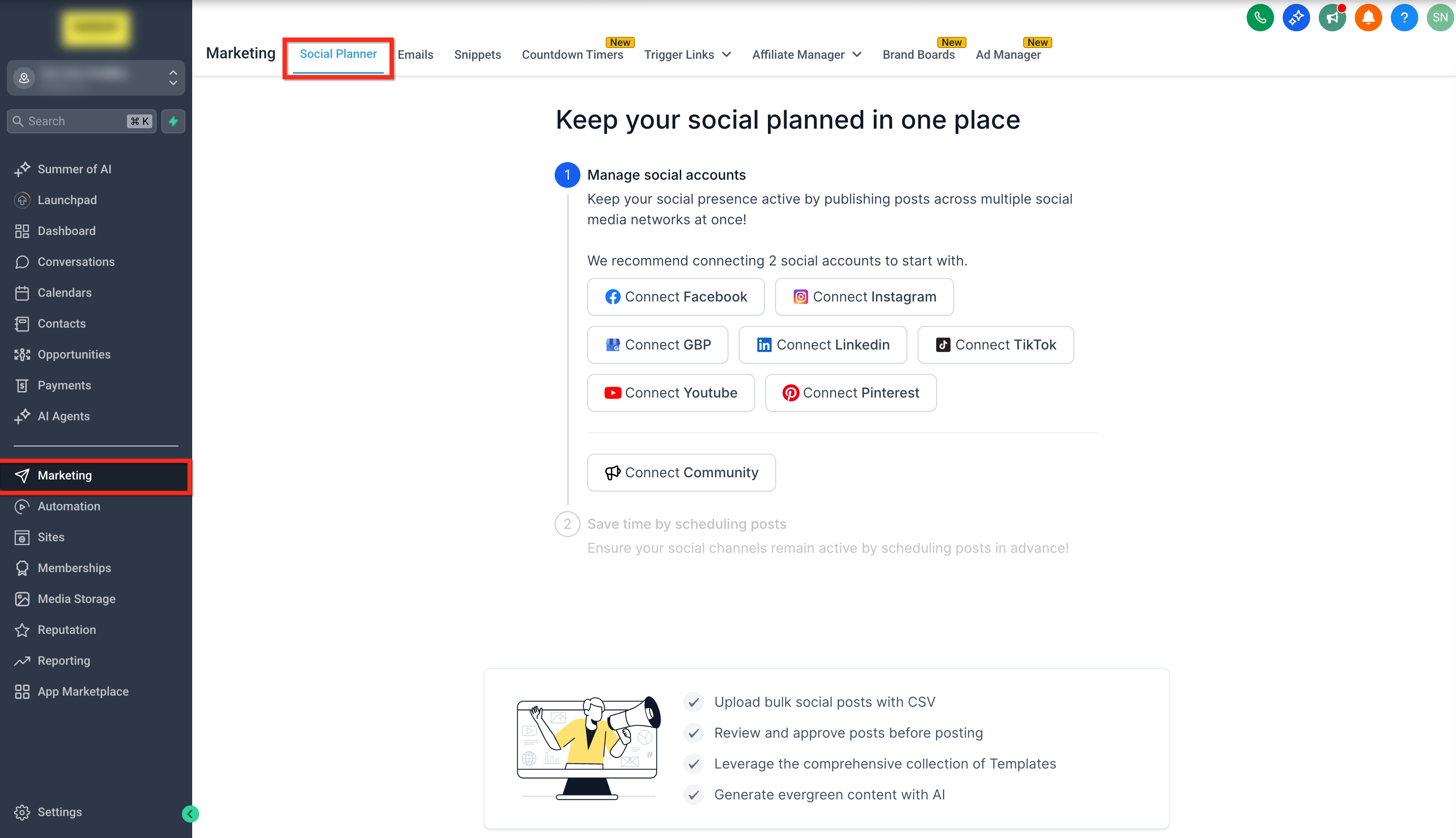
Stay on top of your social media scheduling with Patient Copilot’s new in-app notification banners for disconnected accounts. This feature helps you avoid missed posts by alerting you in real time whenever a connected social account loses authentication, so you can reconnect and keep your content calendar running smoothly. * * * ## How to Find and Act on Disconnected Account Alerts Tracking and responding to in-app notification banners is straightforward, ensuring you can act quickly to restore any disconnected accounts and keep your social content on track. - Click on Marketing from your account.
- Click on the Social Planner tab.
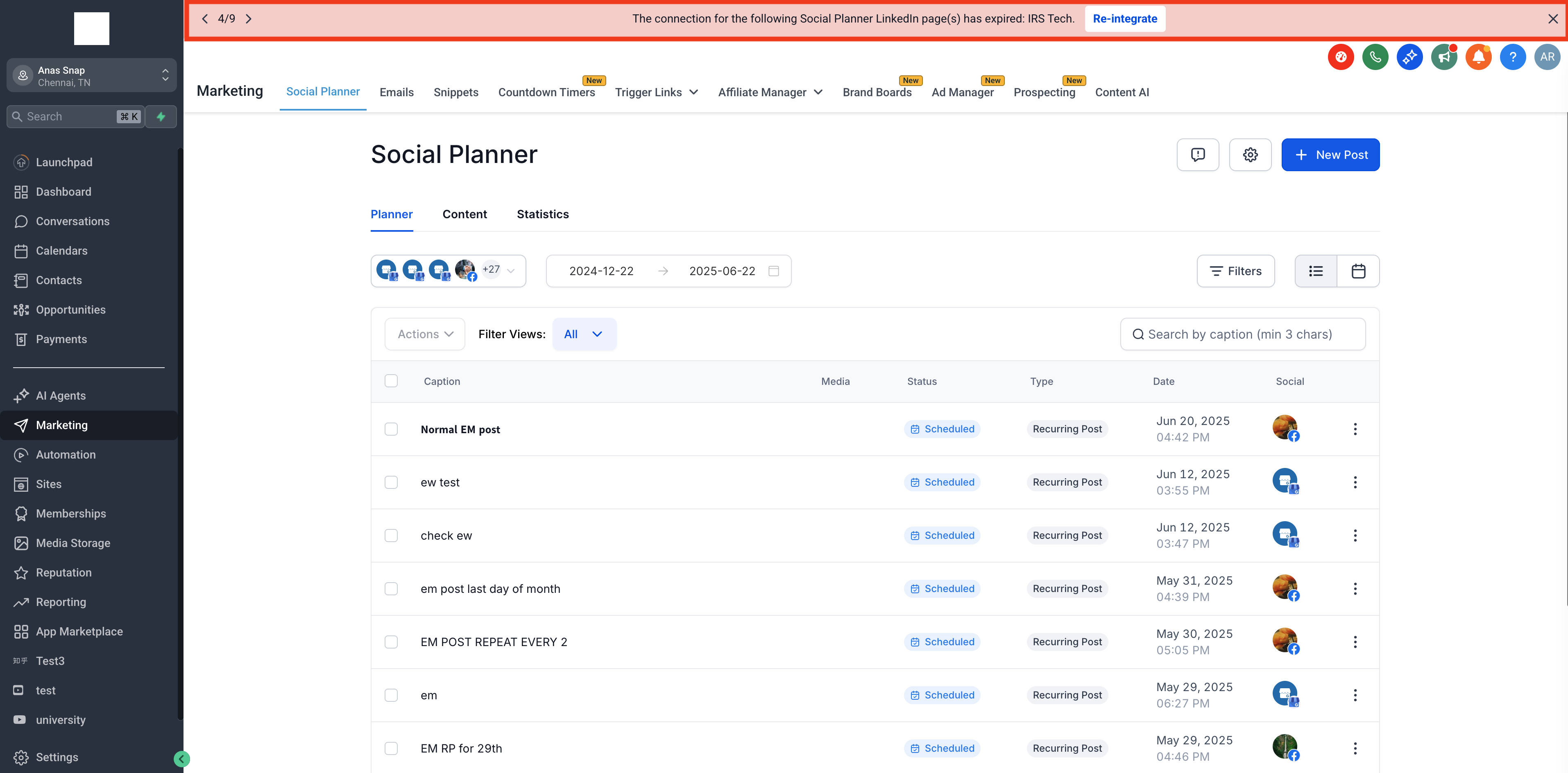
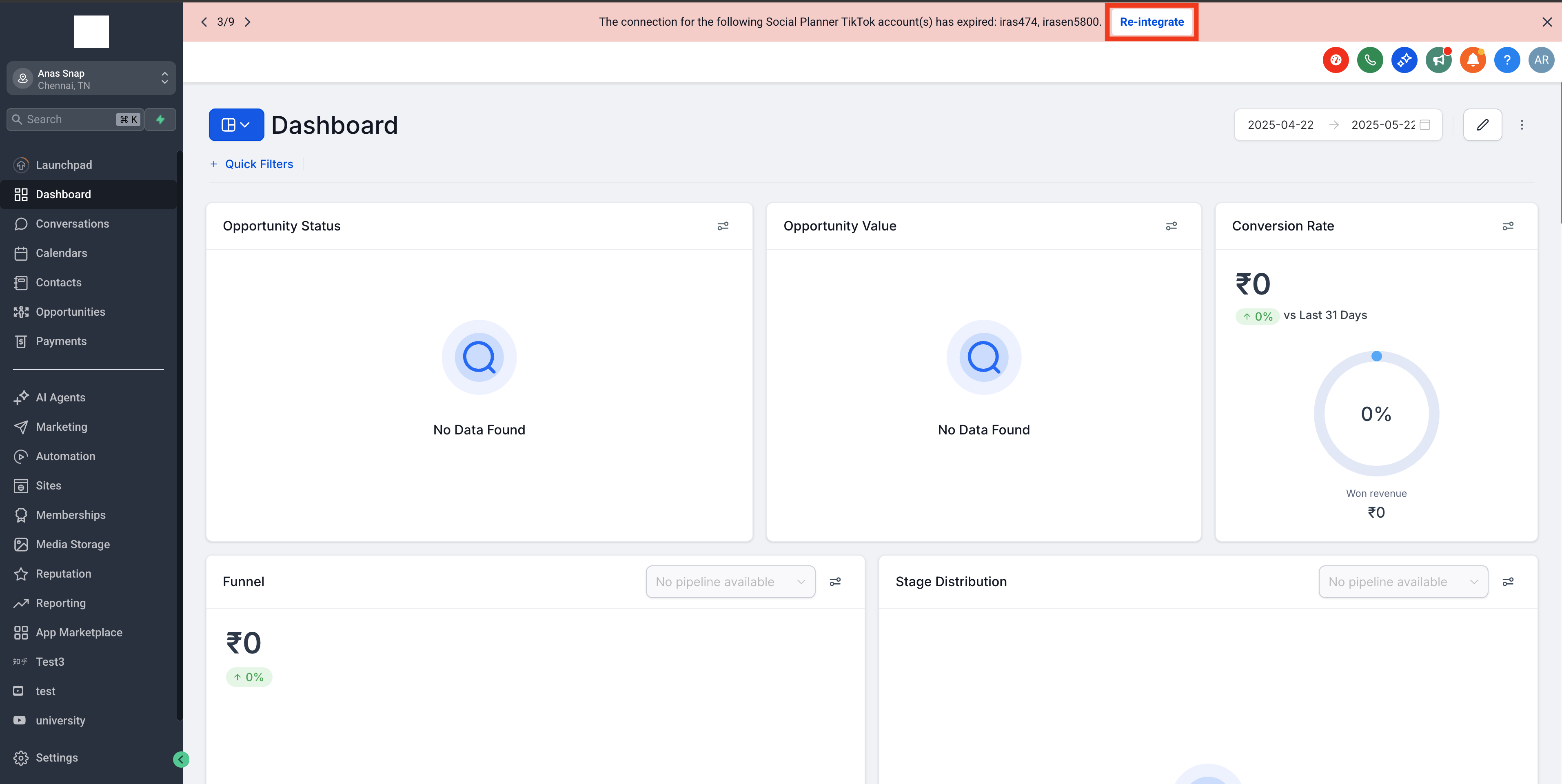
- Connect your desired social media accounts (Facebook, Instagram, Google Business Profile, LinkedIn, TikTok, Pinterest, YouTube).!(https://assets.patientcopilot.ai/850fb7c35322ef7d.png) - If any account becomes disconnected, a banner will appear at the top of Social Planner, Launchpad, or Dashboard.
- The banner will specify which account and platform require your attention.
- Each banner provides a platform-specific message, such as: - “The connection for the following Social Planner Facebook page(s) has expired: [Account Name].” - “The connection for the following Social Planner Instagram account(s) has expired: [Account Name].”!(https://assets.patientcopilot.ai/1ed89a9306b0048f.png) ### Step 3: Take Action to Reconnect - Click on the Re-integrate button of the banner.
- Complete the authentication process for the relevant social platform.
- You will also receive an email notification about the disconnection, providing another prompt to take action.!(https://assets.patientcopilot.ai/bf570c2030cc4958.png) * * * ## Multi-Channel Alert System Patient Copilot’s notification system ensures you’re alerted through both in-app banners and email, maximizing the chances you’ll see and act on account disconnections before they impact your posting schedule. - In-app banners provide immediate, visible alerts within your workflow.
- Email notifications serve as a backup, ensuring you’re informed even when not logged into Patient Copilot. * * * ## Account Health Monitoring Proactively monitoring your account connections helps ensure your scheduled posts are published without interruption and maintains the integrity of your social media strategy. - Regularly check for banners.
- Reconnect accounts promptly to avoid missed posts.
- Review your email for additional alerts. * * * ## Frequently Asked Questions Q: What causes a social account to become disconnected in Social Planner? Disconnections typically occur due to expired authentication tokens, password changes, revoked permissions, or platform security updates. Q: Will I lose scheduled posts if my account disconnects? Scheduled posts will not be published while an account is disconnected. Once you reconnect, posting resumes as normal. Q: Do I get notified for all types of social accounts? Yes, the system supports notifications for Facebook, Instagram, Google Business Profile, LinkedIn, TikTok, Pinterest, and YouTube. Q: How quickly will I be notified after a disconnection? Notifications are sent in real time, both via in-app banners and email, as soon as a disconnection is detected. Q: Will other team members see the notification banner? Yes, all users with access to Social Planner will see the banner for disconnected accounts. * * * ## Related Articles - Email Notification for Failed Post, Account Expired and Post Approval
- Getting Started - Setup Social Planner
- Social Planner Statistics
- How to post Recurring Social Posts through the Social Planner