Siteground Dedicated Sending Domain Setup (LC Email)
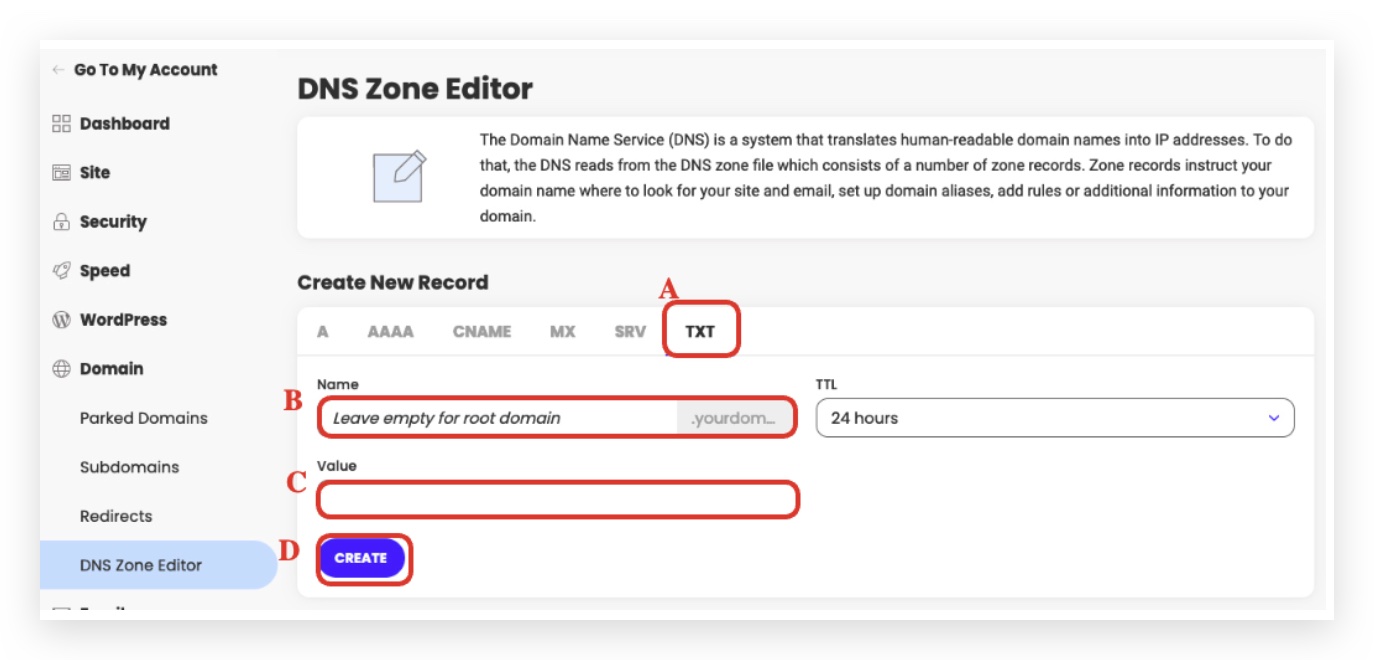
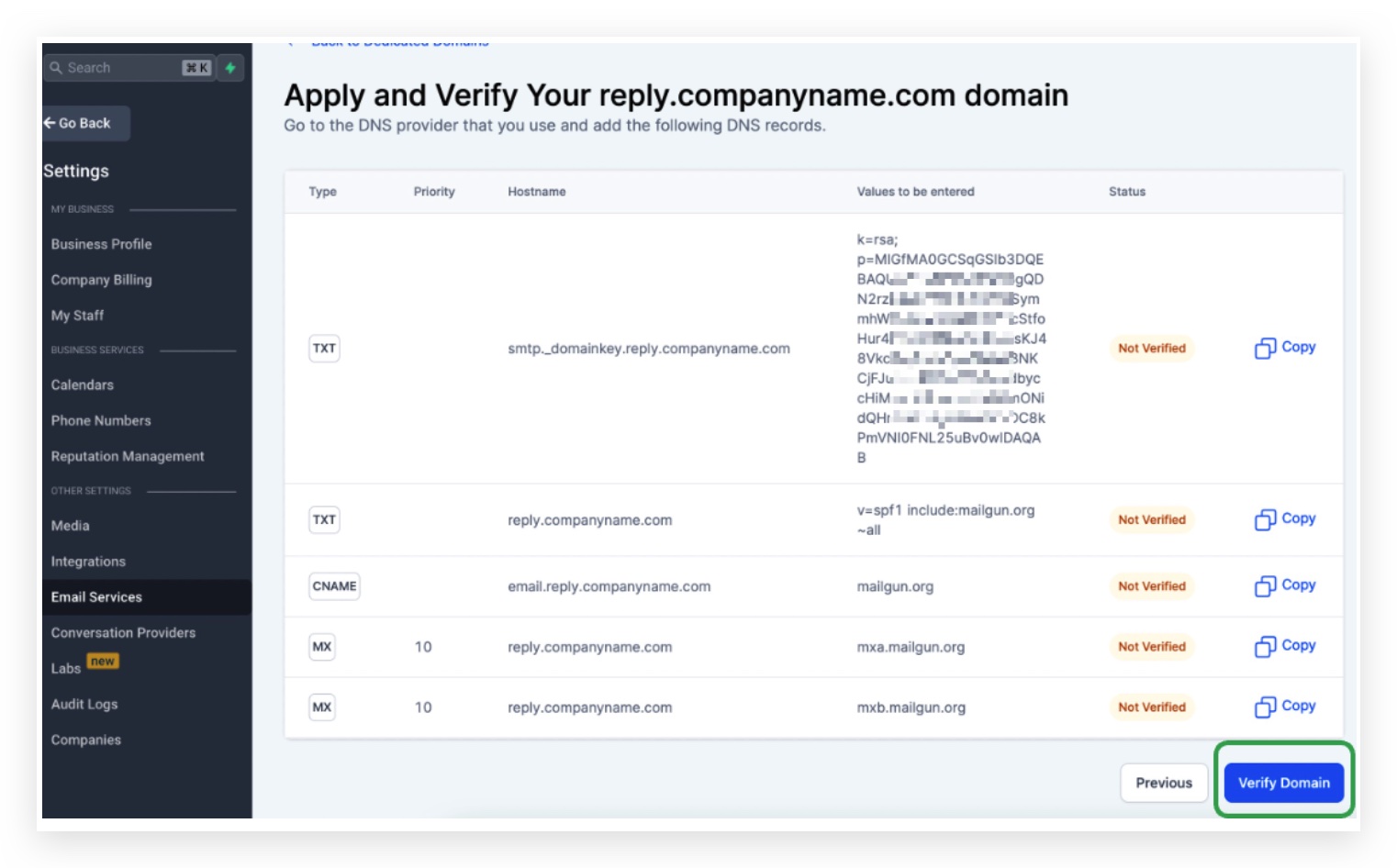
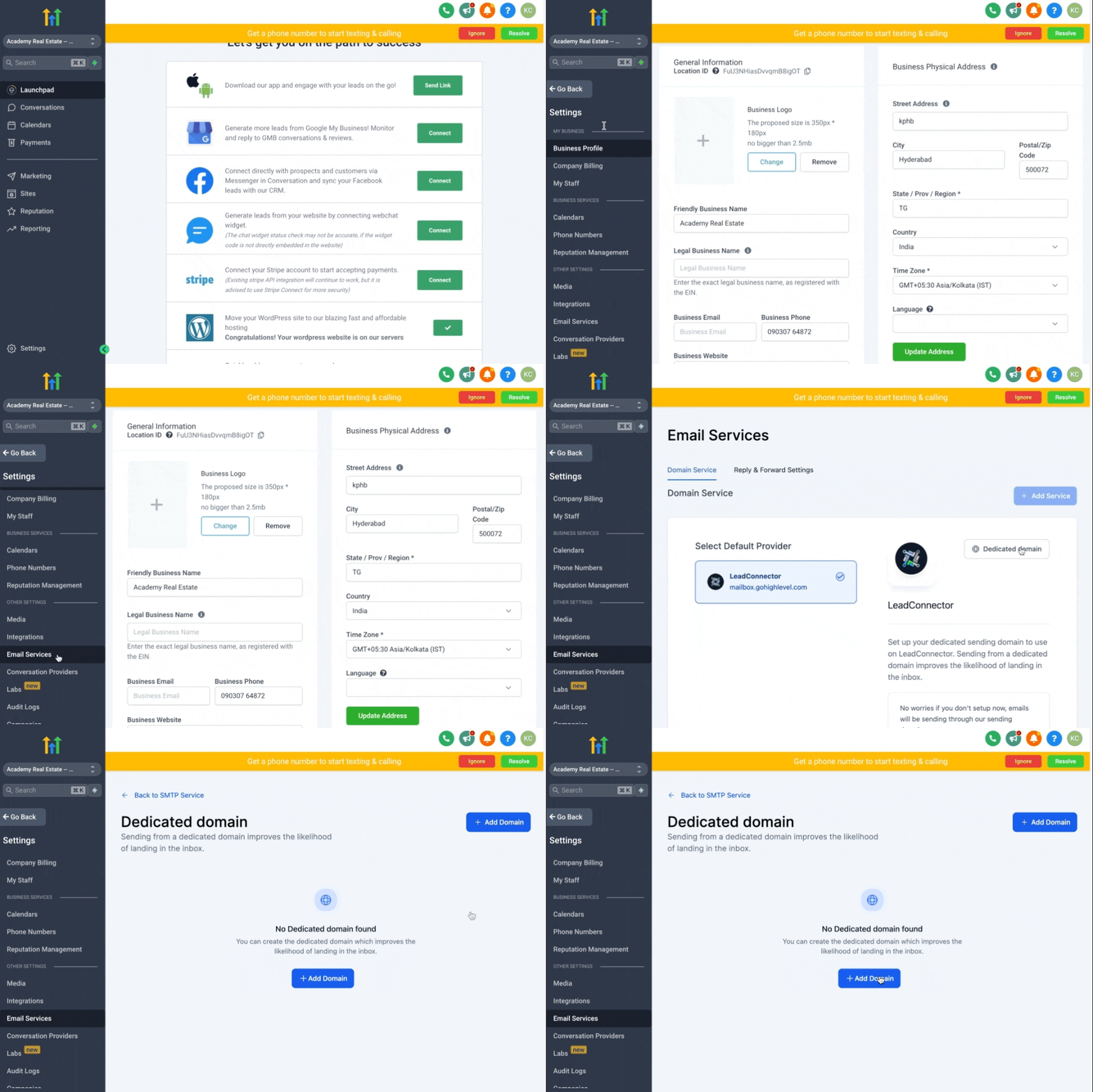
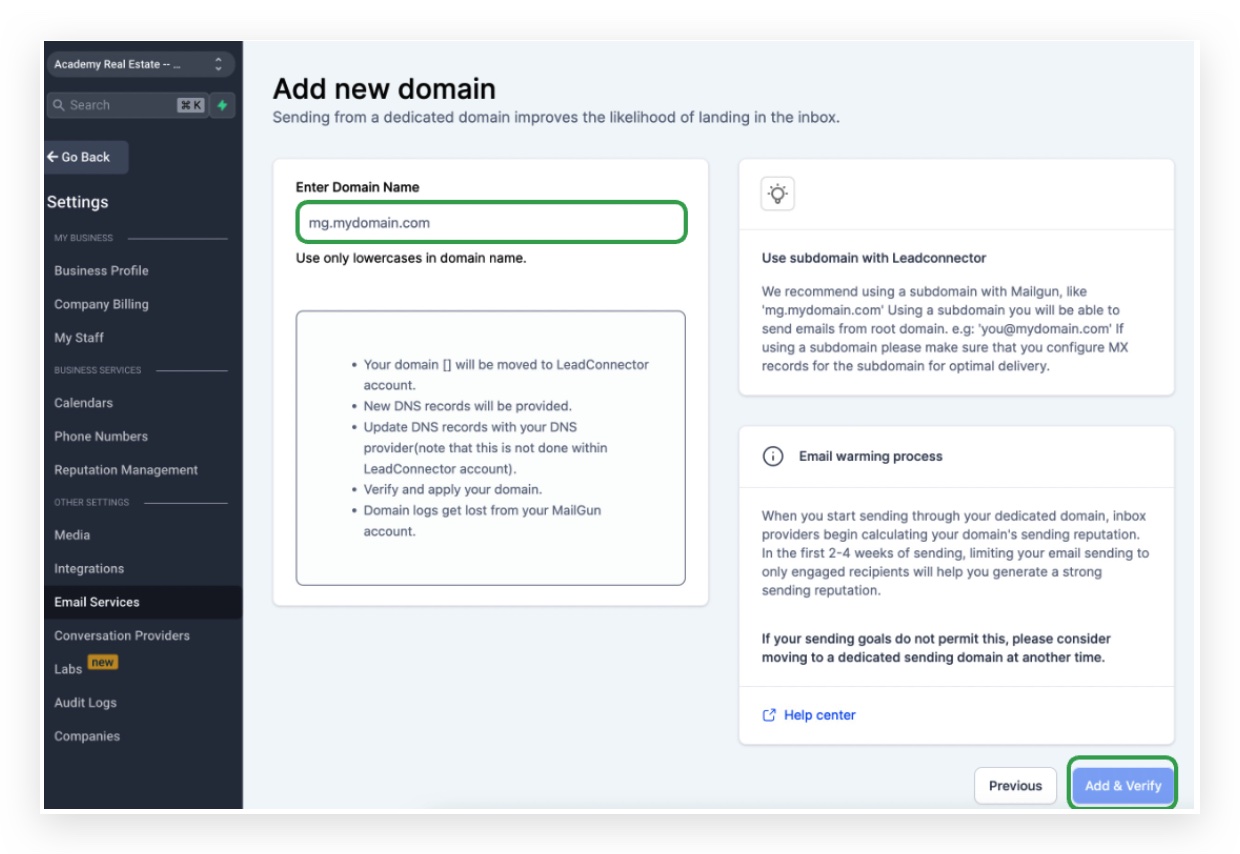
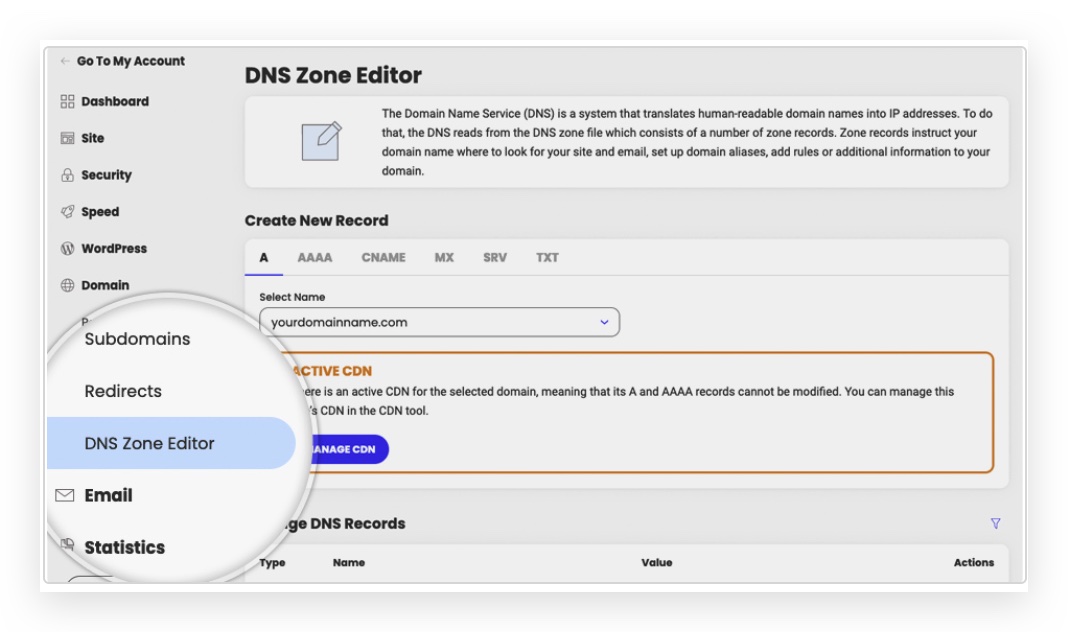
Step-by-step LC Email Dedicated Domain Setup - Siteground 1. Once you are in the sub-account > Click on Settings > Email Services > Dedicated Domain > + Add Domain Check out How to Migrate My Agency Over to LC - Email!(https://assets.patientcopilot.ai/6cc7383bd743415d.gif) 2. If your Domain is companyname.com, you can set up a main Domain or sub-domain. Check out How to move a sending domain from Mailgun to LeadConnector? Main Domain: - If you are adding the main Domain, it should not be used with Gsuite or any other email provider Sub-domain: - To set up the subdomain, you can type ANYTHING_HERE.companyname.com - Examples: - **replies.**companyname.com - support.companyname.com 3. Click on Add & Verify!(https://assets.patientcopilot.ai/3080418739ed87e2.jpg) The next screen that you’re taken to will ask you to add DNS records to your Domain. Leave this screen open for the next step.!(https://assets.patientcopilot.ai/ae4602c16b21d404.jpg) 4. Now log in to your DNS records based on where you get the Domain and add the 5 DNS records. ## To add the 1st TXT record To Add your first TXT record, Log in to (https://dash.cloudflare.com/login)[Siteground](https://login.siteground.com/login?lang=en) Go to Site Tools > Domain > DNS Zone Editor!(https://assets.patientcopilot.ai/8459818bc60e5bca.jpg) In the Create New Record section!(https://assets.patientcopilot.ai/c3a00c85fb1d0cc3.jpg) A. click on the TXT tab B. Name: different for everyone, DO NOT INCLUDE THE ROOT DOMAIN!(https://assets.patientcopilot.ai/890f21c6e34c0d40.jpg) - Depending on the subdomain you are trying to set up, if you are trying to set up - lc.companyname.com - The host name will be lc(https://replies.companyname.com/) - replies.companyname.com - The host name will be replies
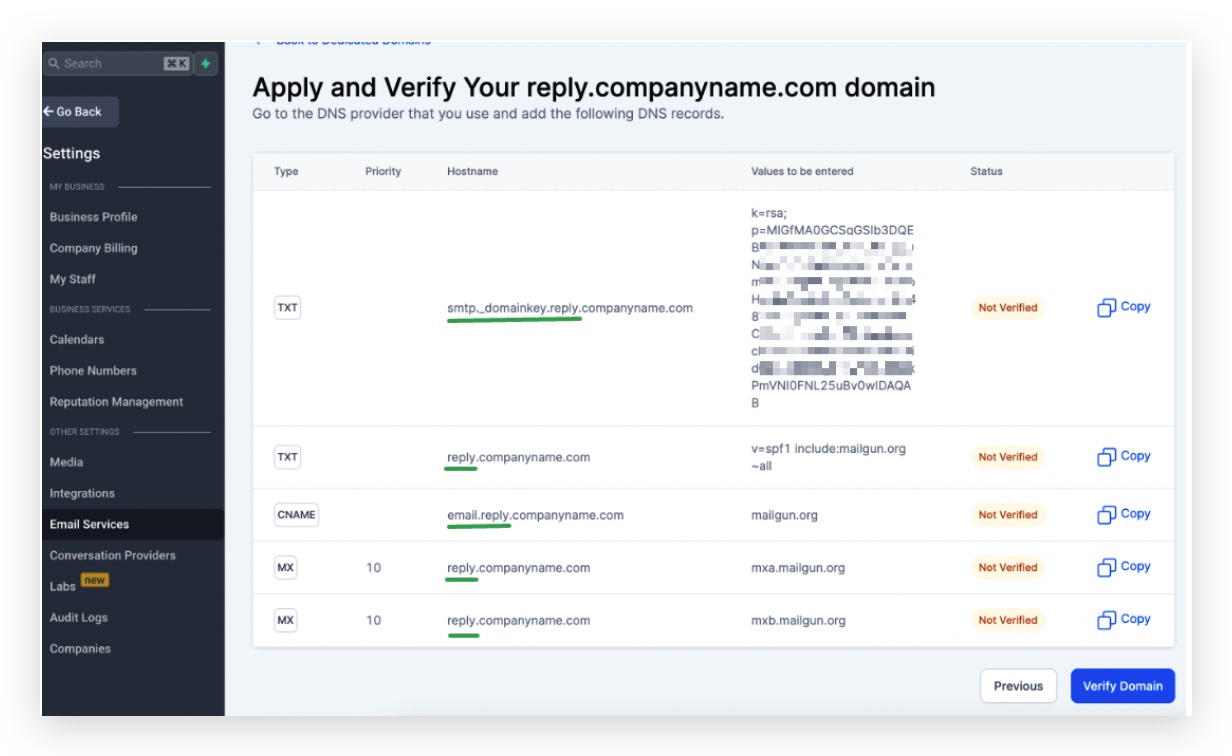
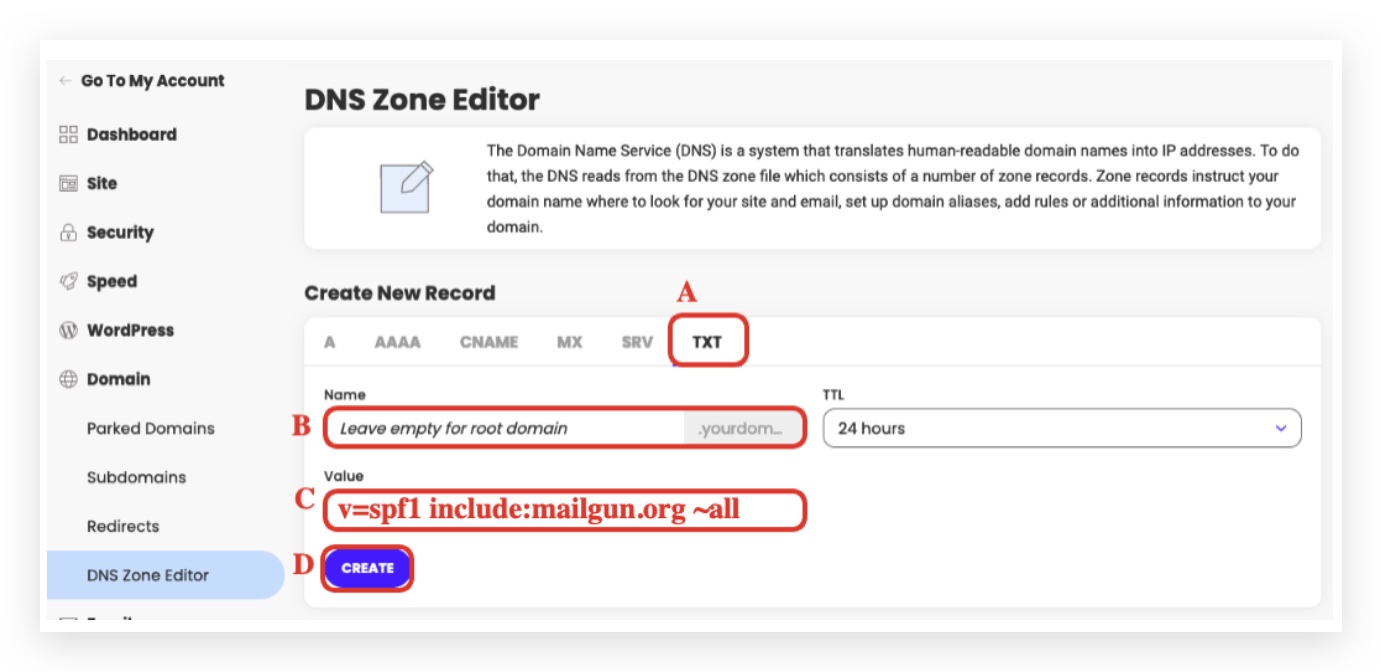
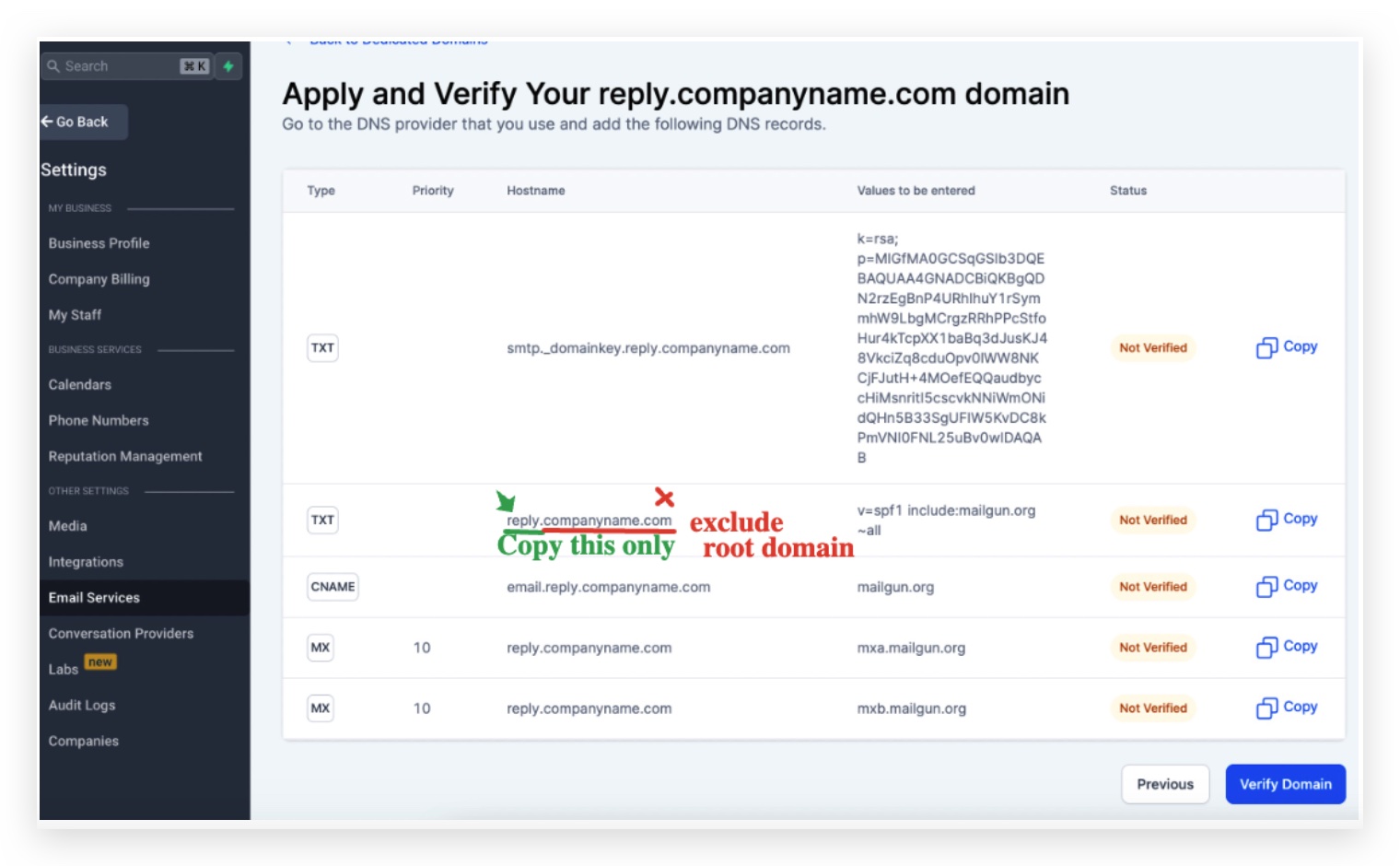
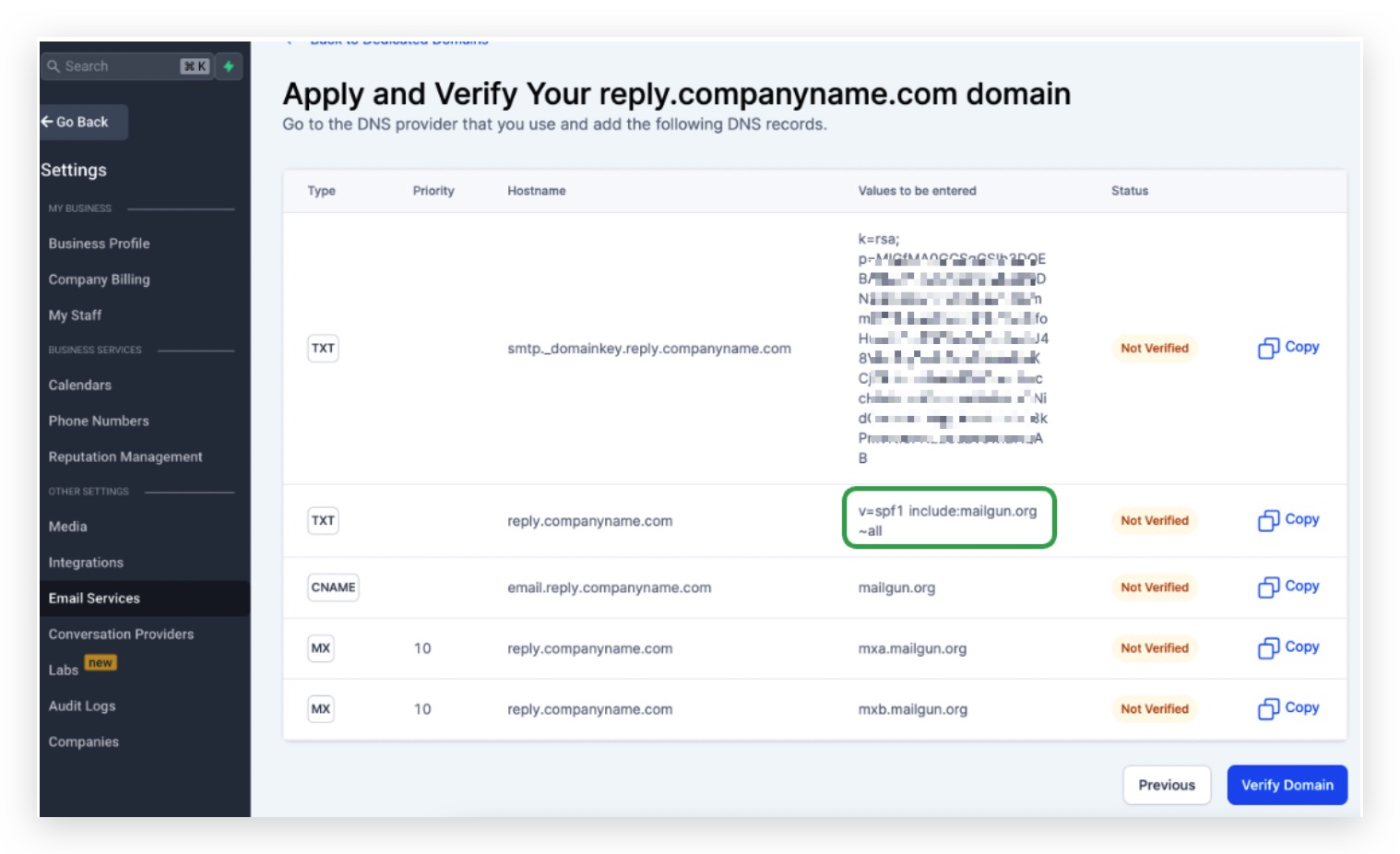
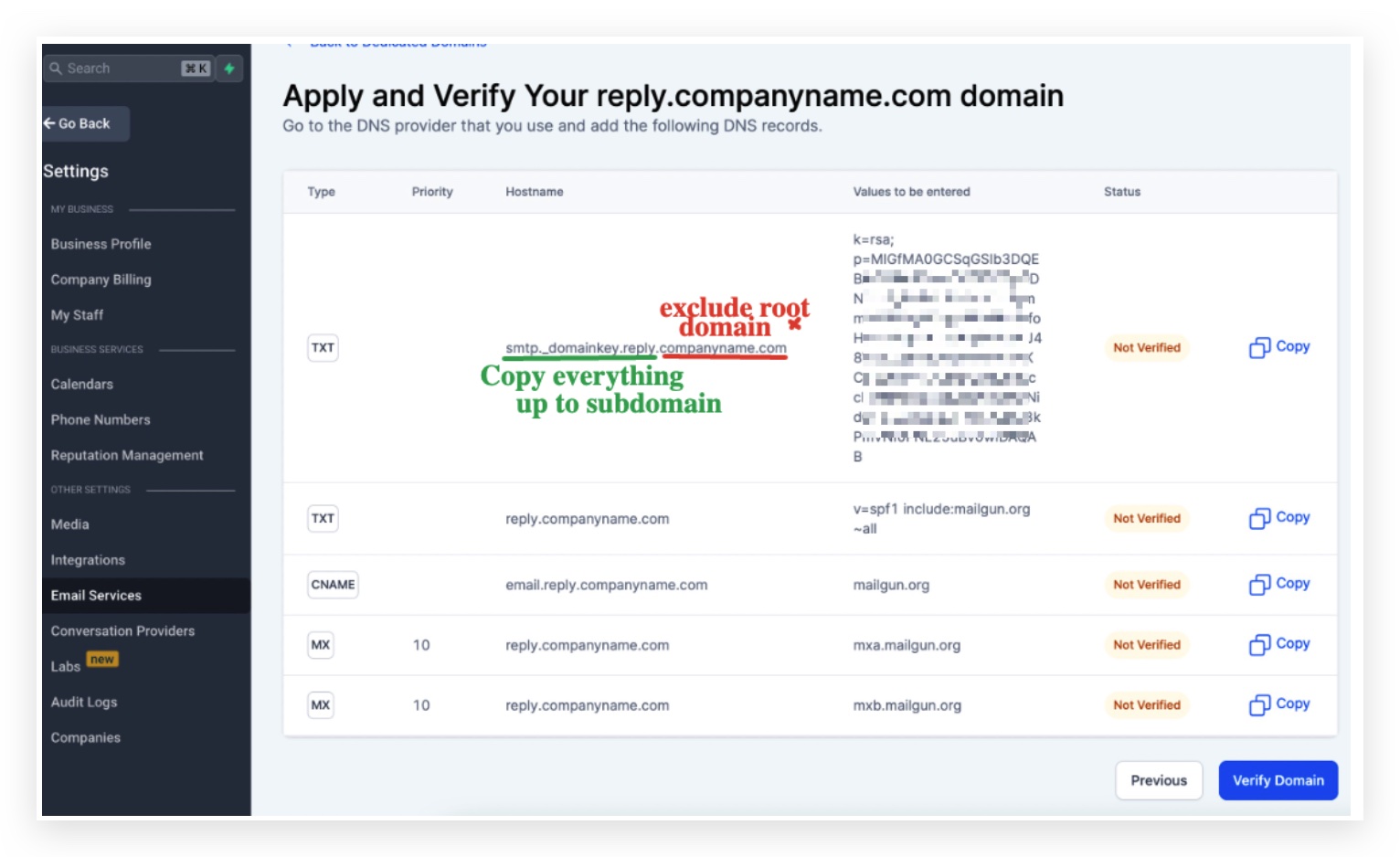
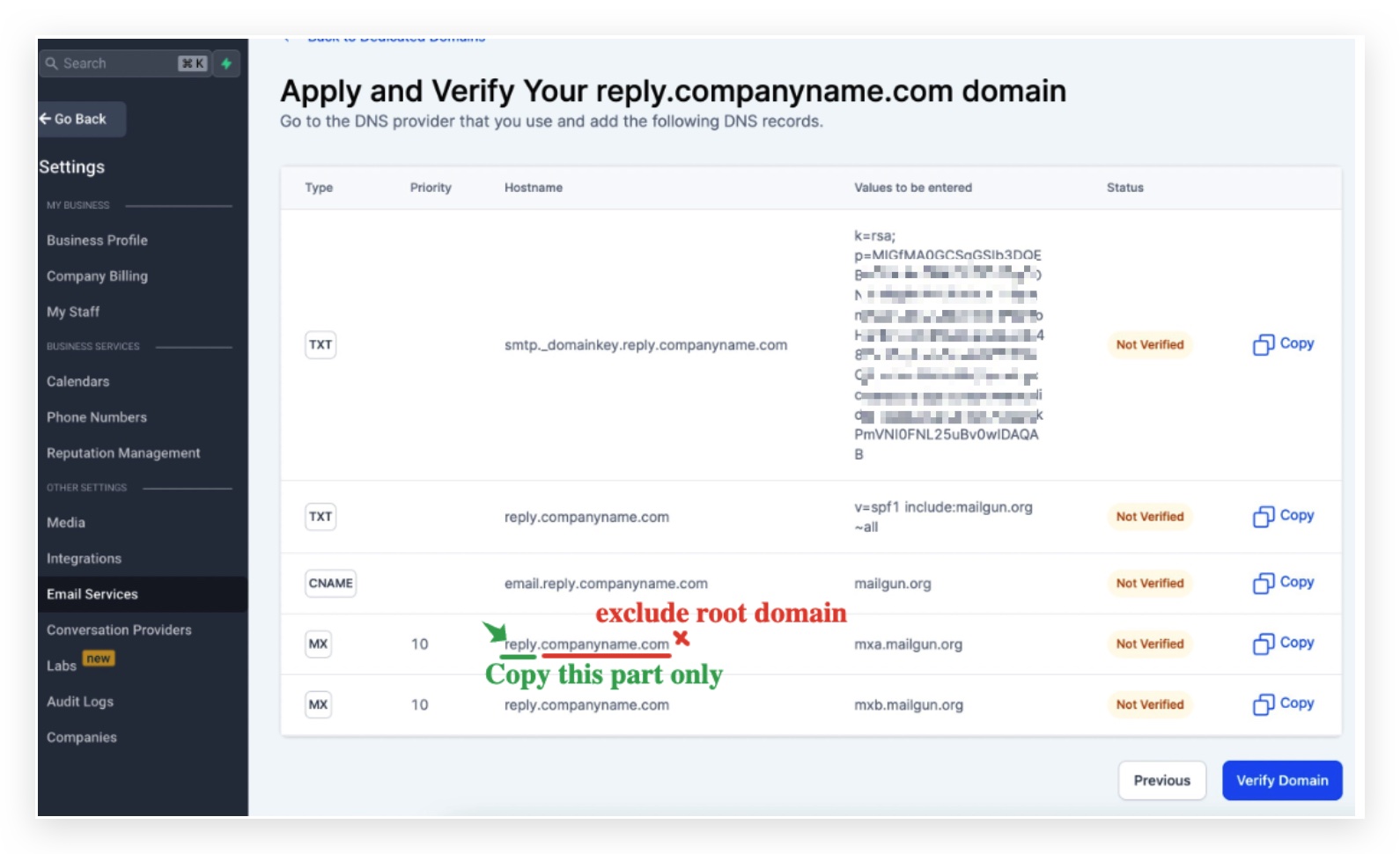
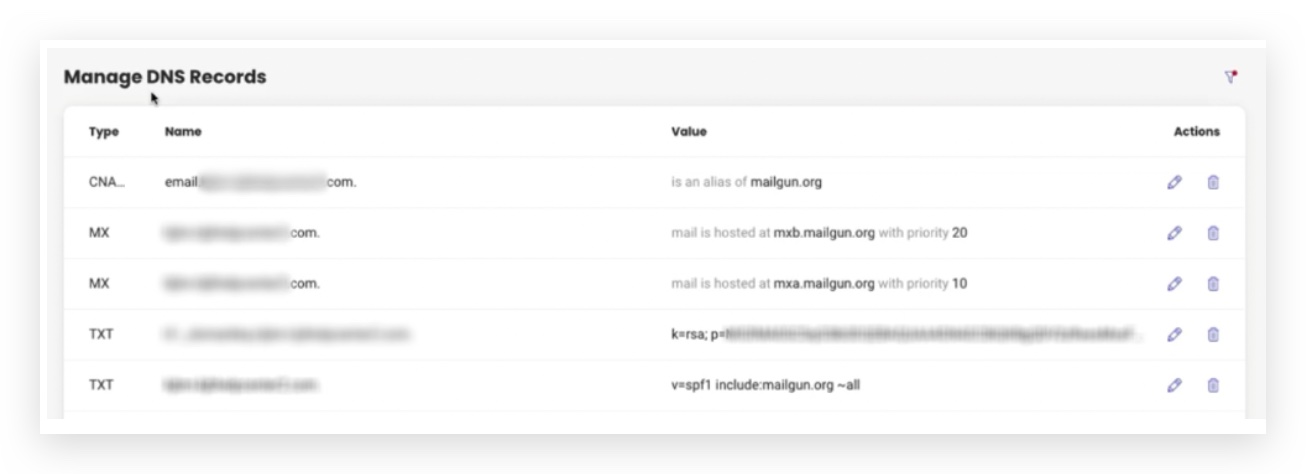
- If you are setting up a main domain like companyname.com, the host name will be @ or leave empty C. Value: Same for everyone - paste the following record v=spf1 include:mailgun.org ~all!(https://assets.patientcopilot.ai/b66fd0d3c4d9dfa2.jpg) D. Click on Create * * * ## To add the 2nd TXT record Click on + Add Record again!(https://assets.patientcopilot.ai/d480f4da474568eb.jpg) A. click on the TXT tab B. Name: it’s a bit tricky but the key here is to copy everything from the beginning until the subdomain part, DO NOT INCLUDE THE ROOT DOMAIN!(https://assets.patientcopilot.ai/1f5173ee8f300890.jpg) **Everyone’s 2nd TXT record hostname and value is different Examples: copy the highlighted part ONLY
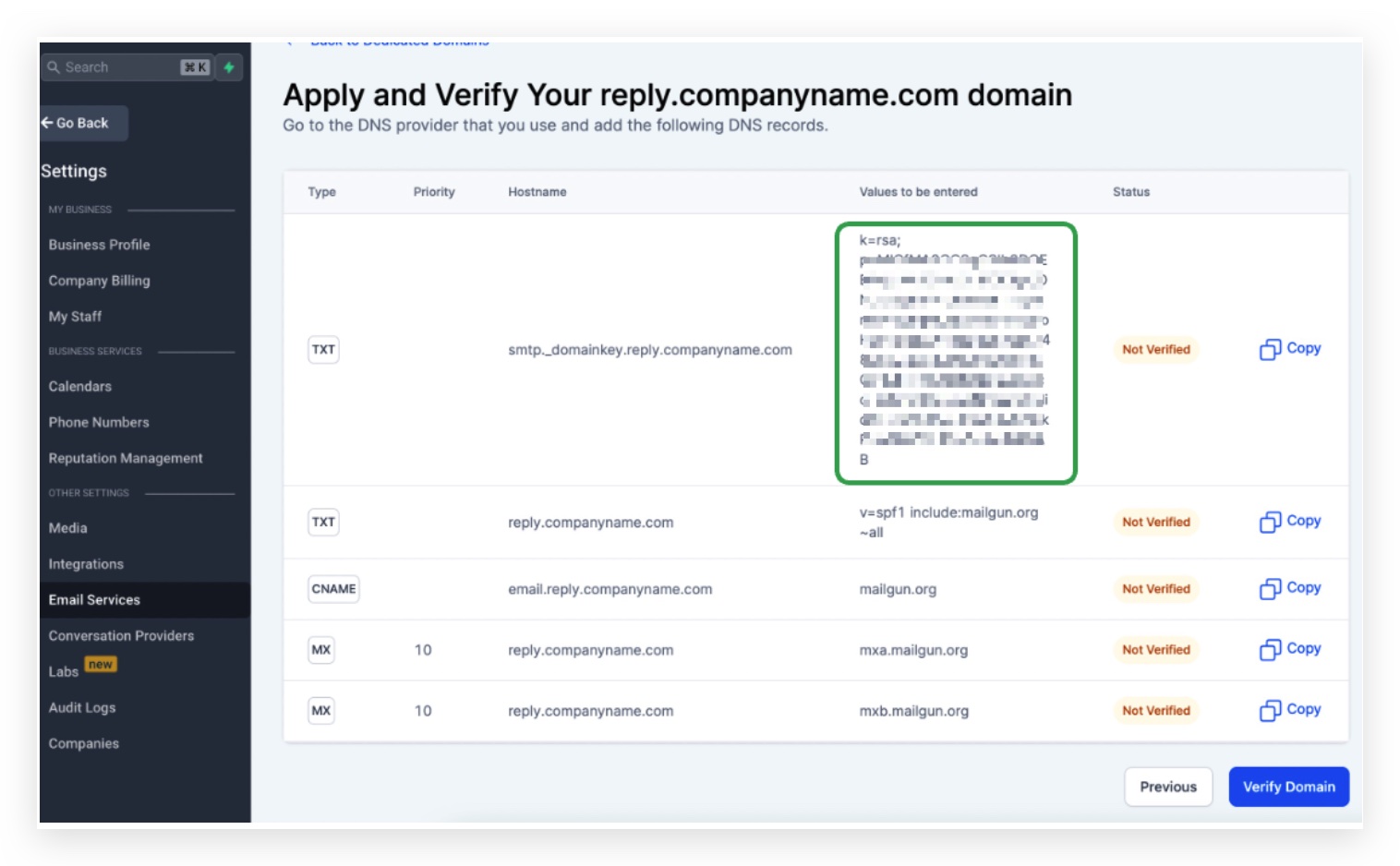
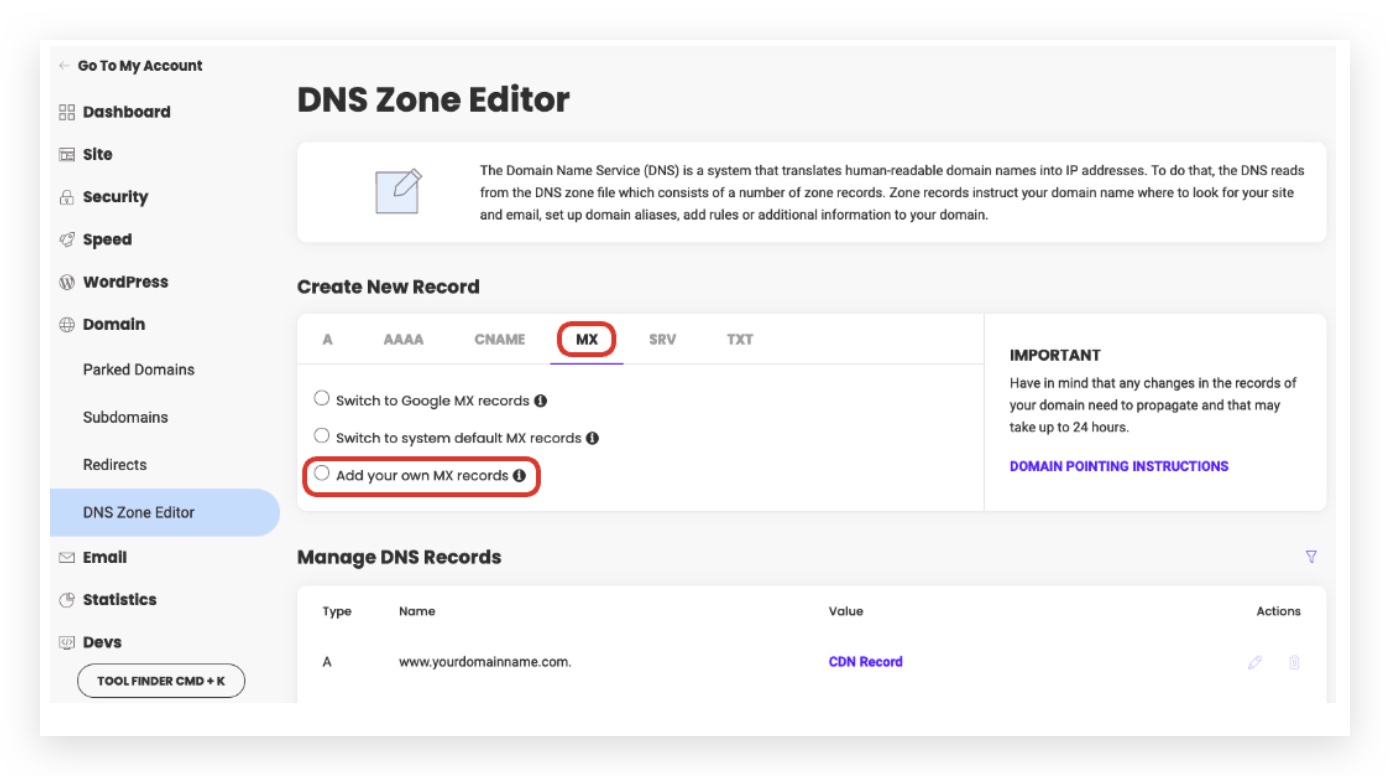
C. Value: Head back to Patient Copilot and Copy and paste the 2nd TXT record here highlighted in the screenshot below!(https://assets.patientcopilot.ai/44cf6fb37faf276f.jpg) D. Click on Create * * * ## To add the 1st MX records Click on the MX tab > Select Add your own MX records!(https://assets.patientcopilot.ai/5afd7485d7cbdd58.jpg) If you have a Gsuite account to capture incoming emails for the main domain. Make sure you are using a subdomain. Check out Can I Use the Same Domain Name for Mailgun and for Google Apps (Or Another Email Server)?!(https://assets.patientcopilot.ai/3aa75255aea8d042.jpg) A. Name: Different for everyone!(https://assets.patientcopilot.ai/df715c31be54243d.jpg) Depending on the subdomain you are trying to set up, if you are trying to set up - lc.companyname.com - The host name will be lc(https://replies.companyname.com/)Example 1 using subdomain:
Copy mx._domainkey.helpdesk as the hostname
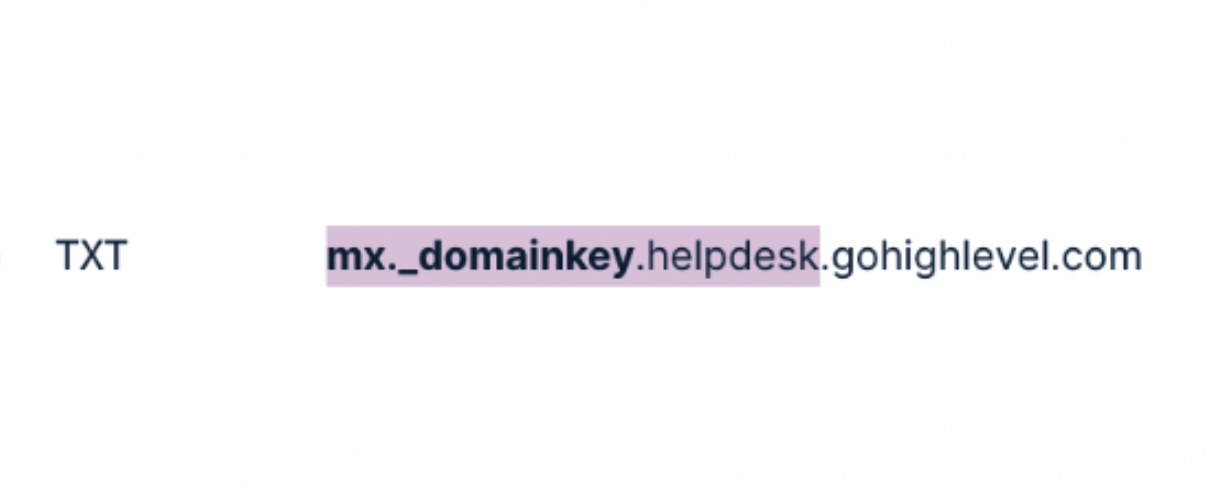
Example 2 using main Domain:
Copy mailo._domainkey as the hostname
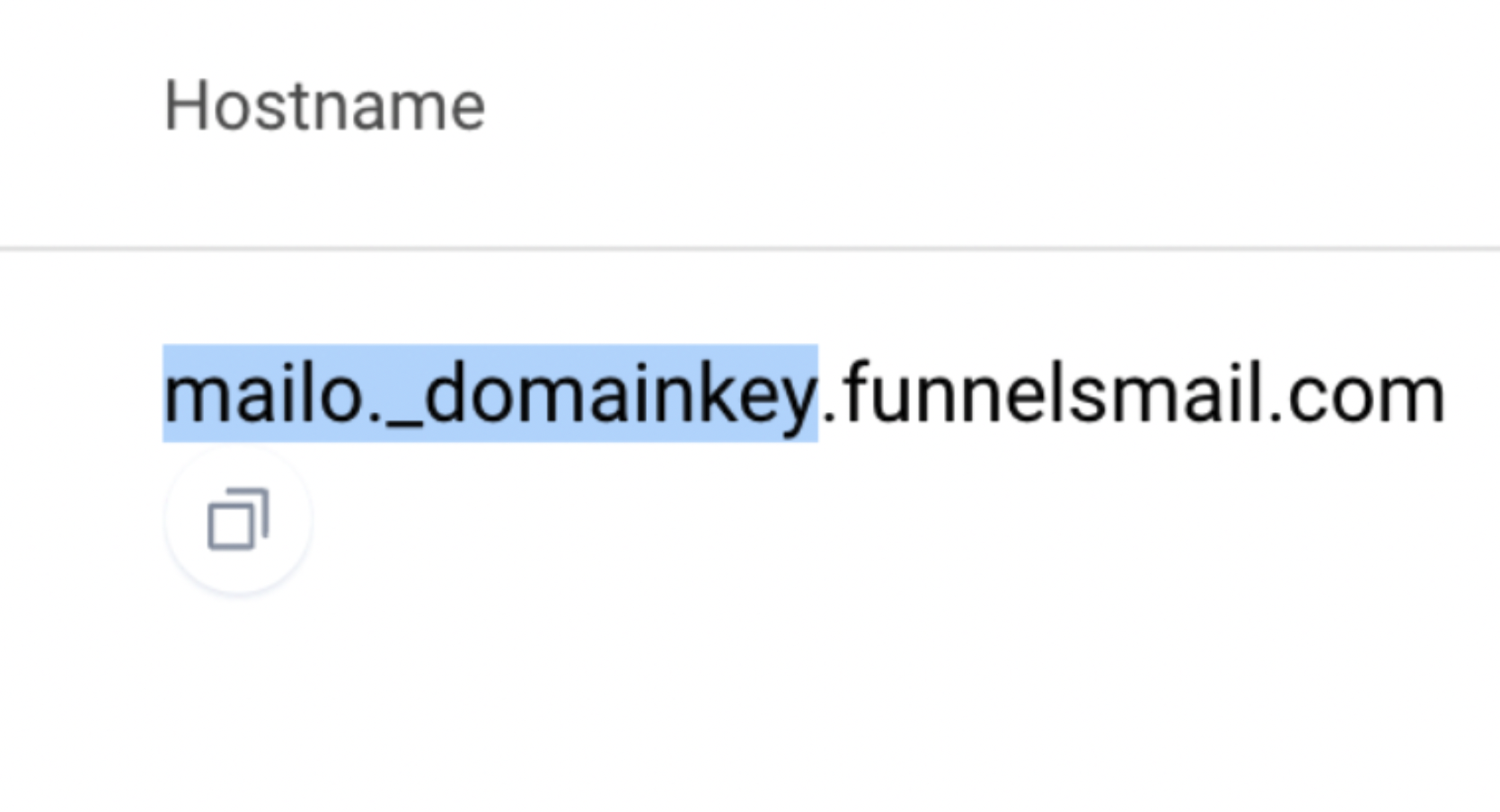
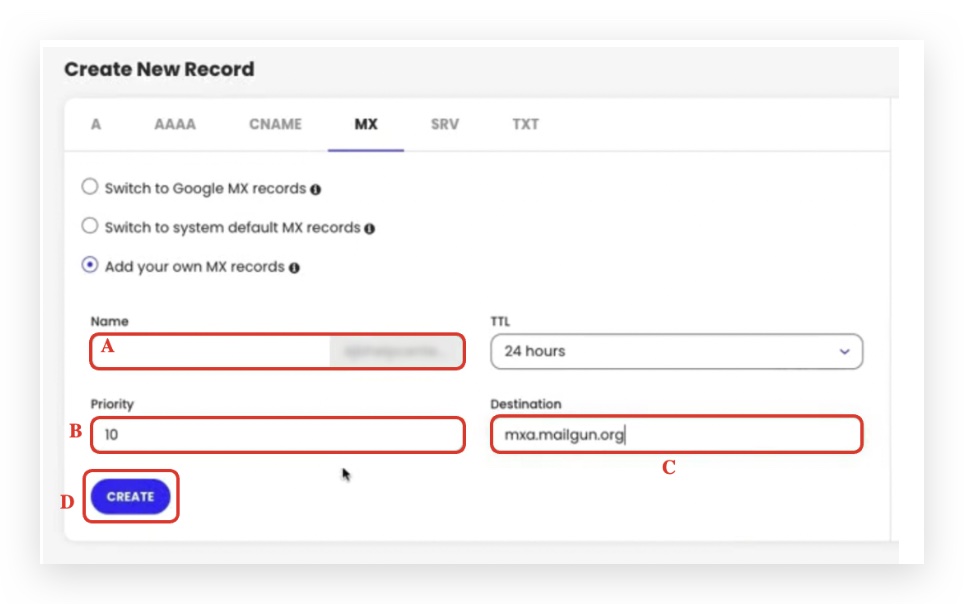
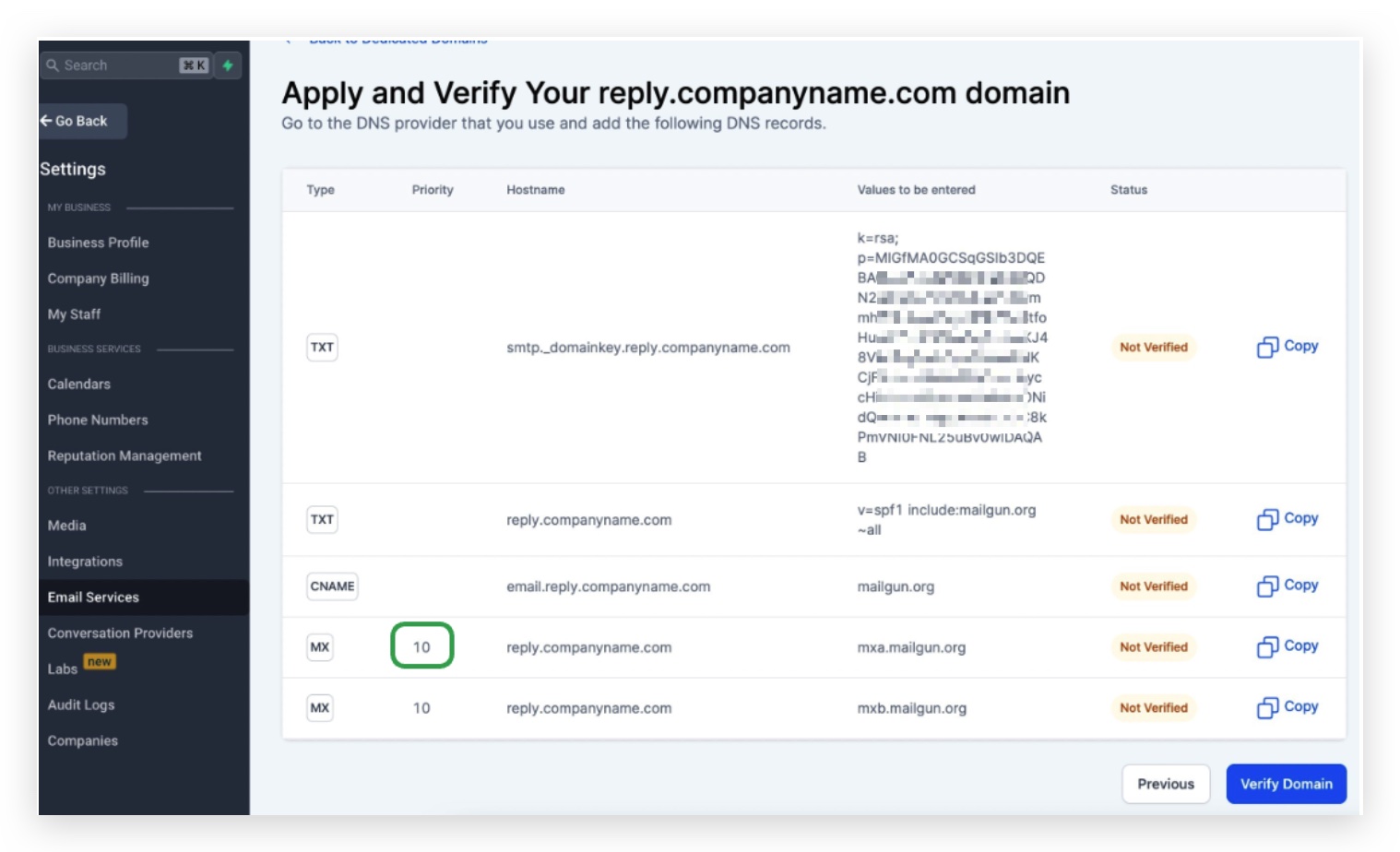
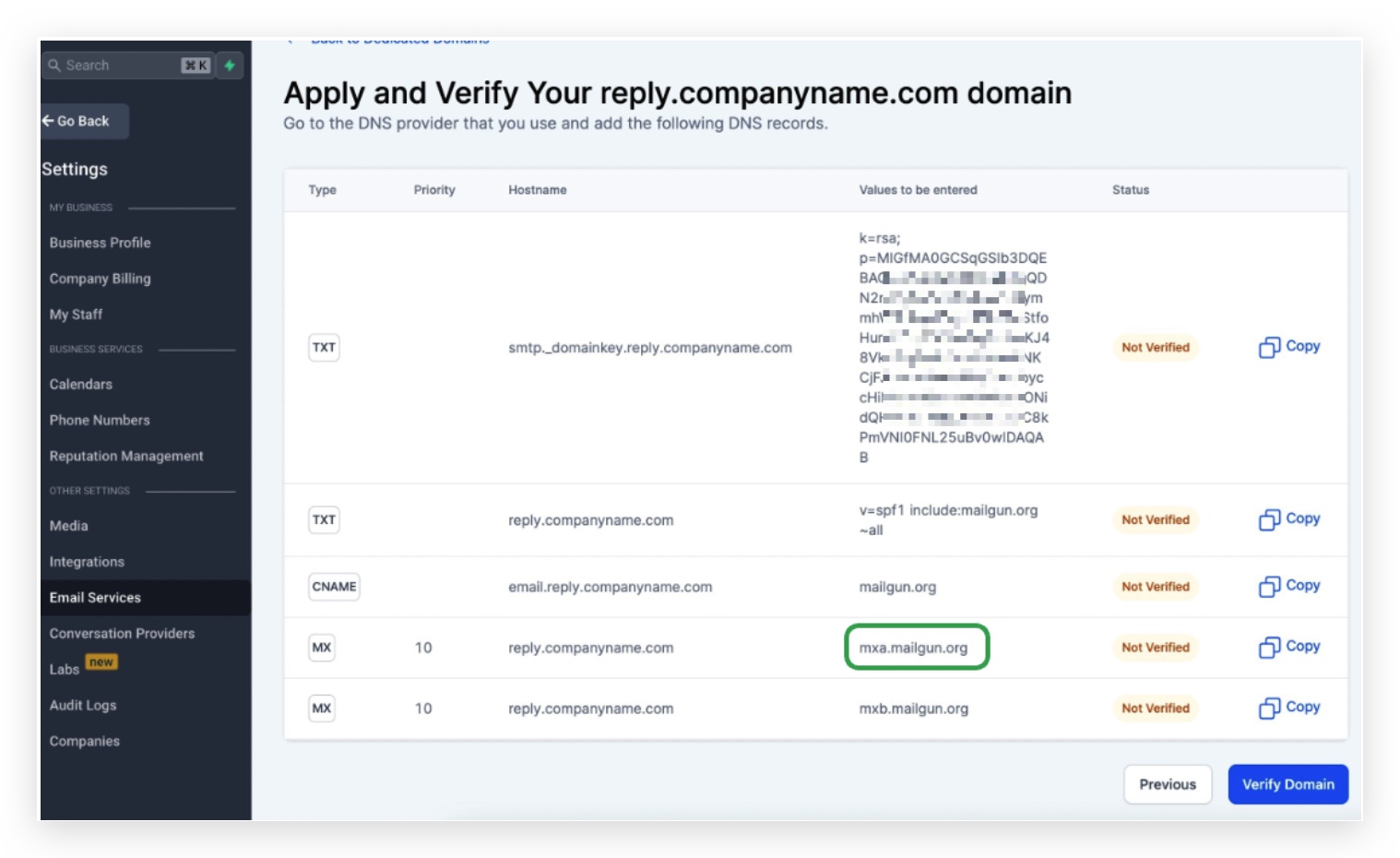
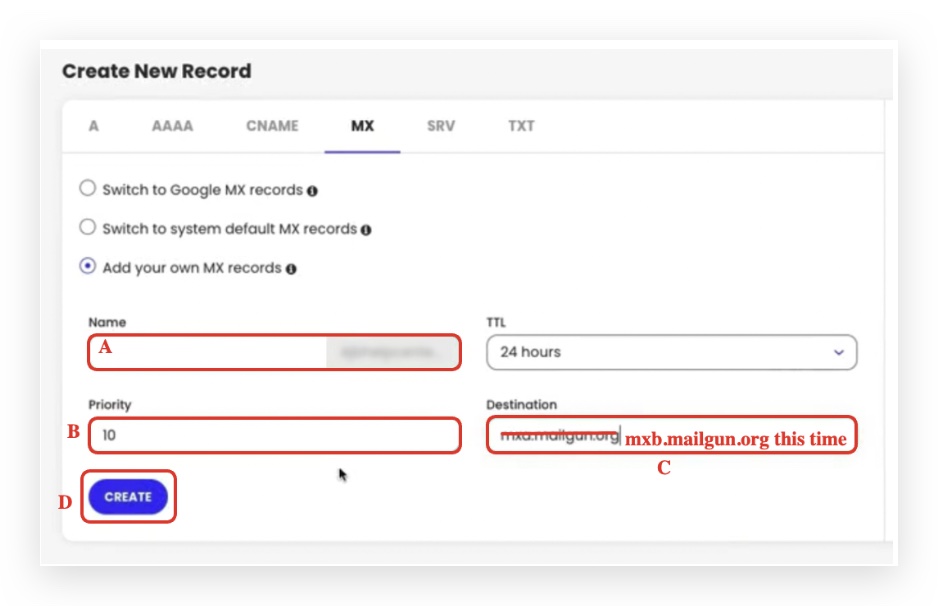
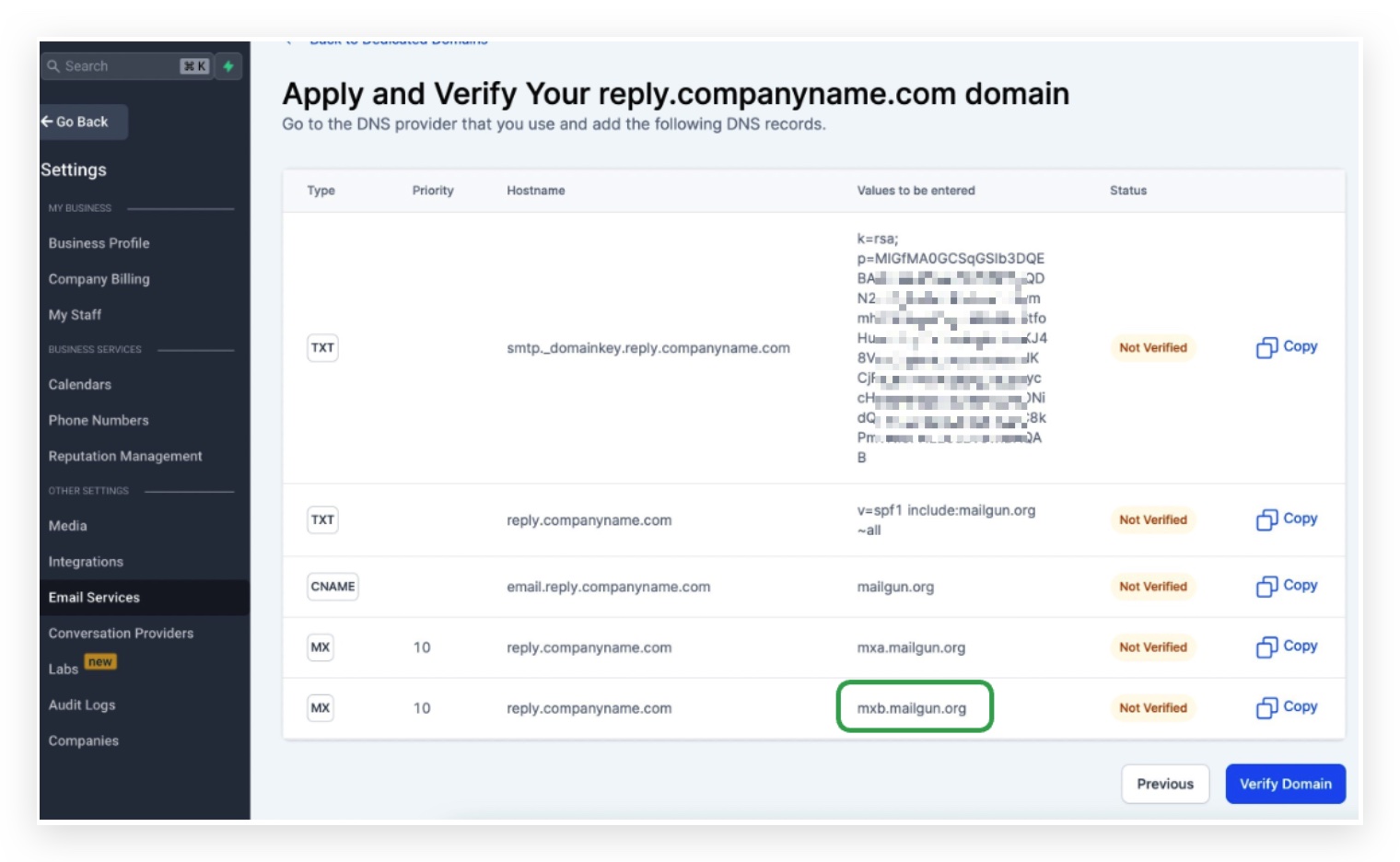
- replies.companyname.com - The host name will be replies If you are setting up a main domain like companyname.com, the host name will be @ B. Priority is 10 which is also same for everyone no matter what domain you are trying to set!(https://assets.patientcopilot.ai/df7a8e34e75ccc26.jpg) C. Destination: Same for everyone paste the following data mxa.mailgun.org!(https://assets.patientcopilot.ai/2e9e0807012c2f1e.jpg) D. Click on Create * * * ## To add the 2nd MX records Add another MX record again, this time Destination will be mxb.mailgun.org!(https://assets.patientcopilot.ai/7ec99a309abf47bf.jpg) A. Name: Different for everyone!(https://assets.patientcopilot.ai/c83cc205a184153c.jpg) Depending on the subdomain you are trying to set up, if you are trying to set up - lc.companyname.com - The host name will be lc(https://replies.companyname.com/)
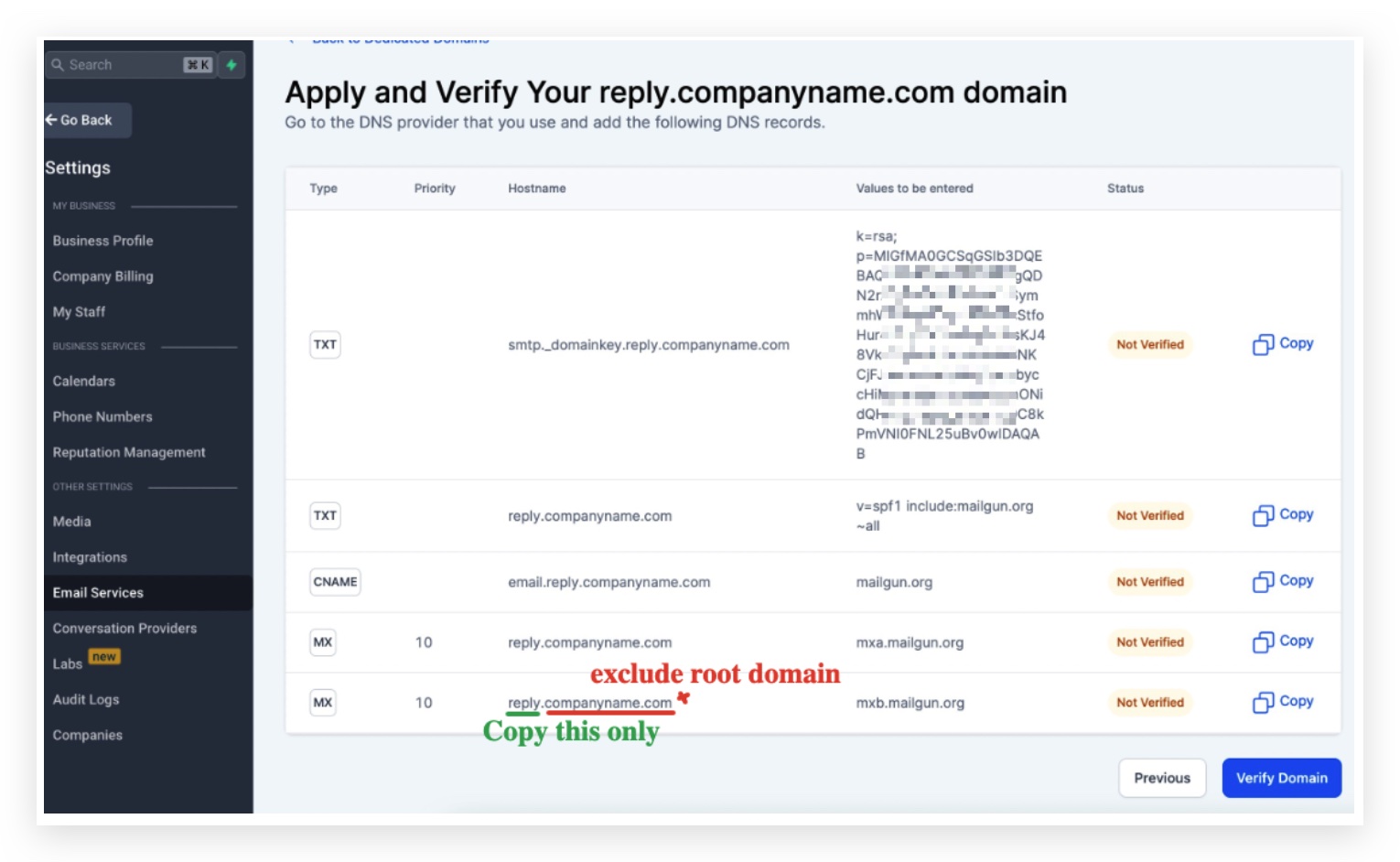
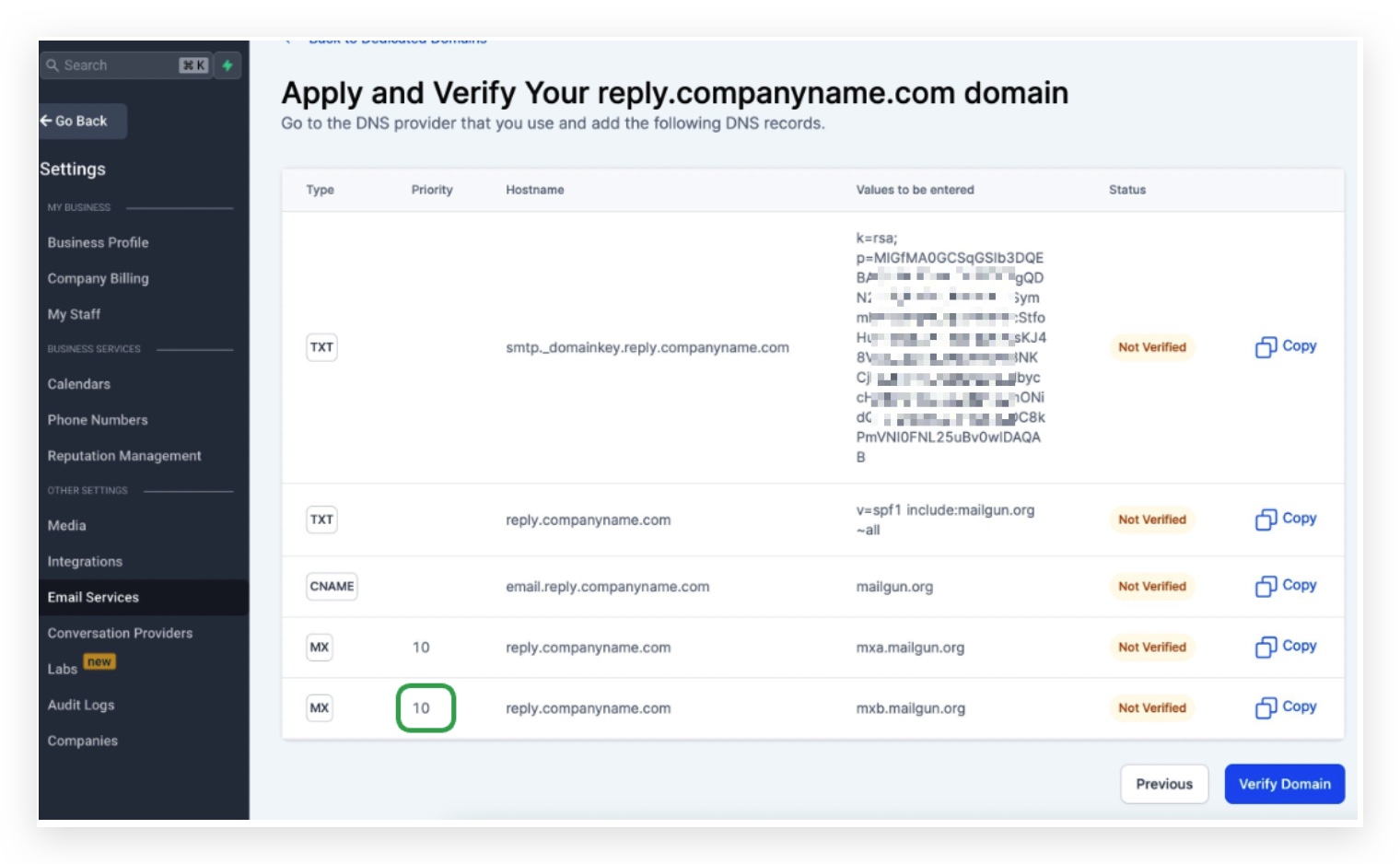
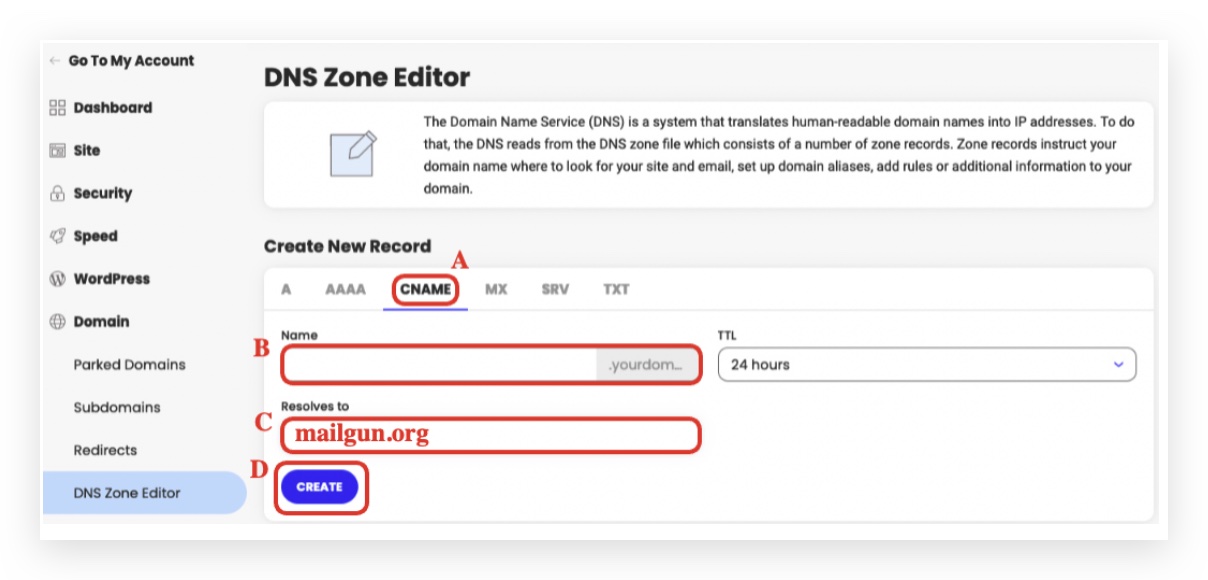
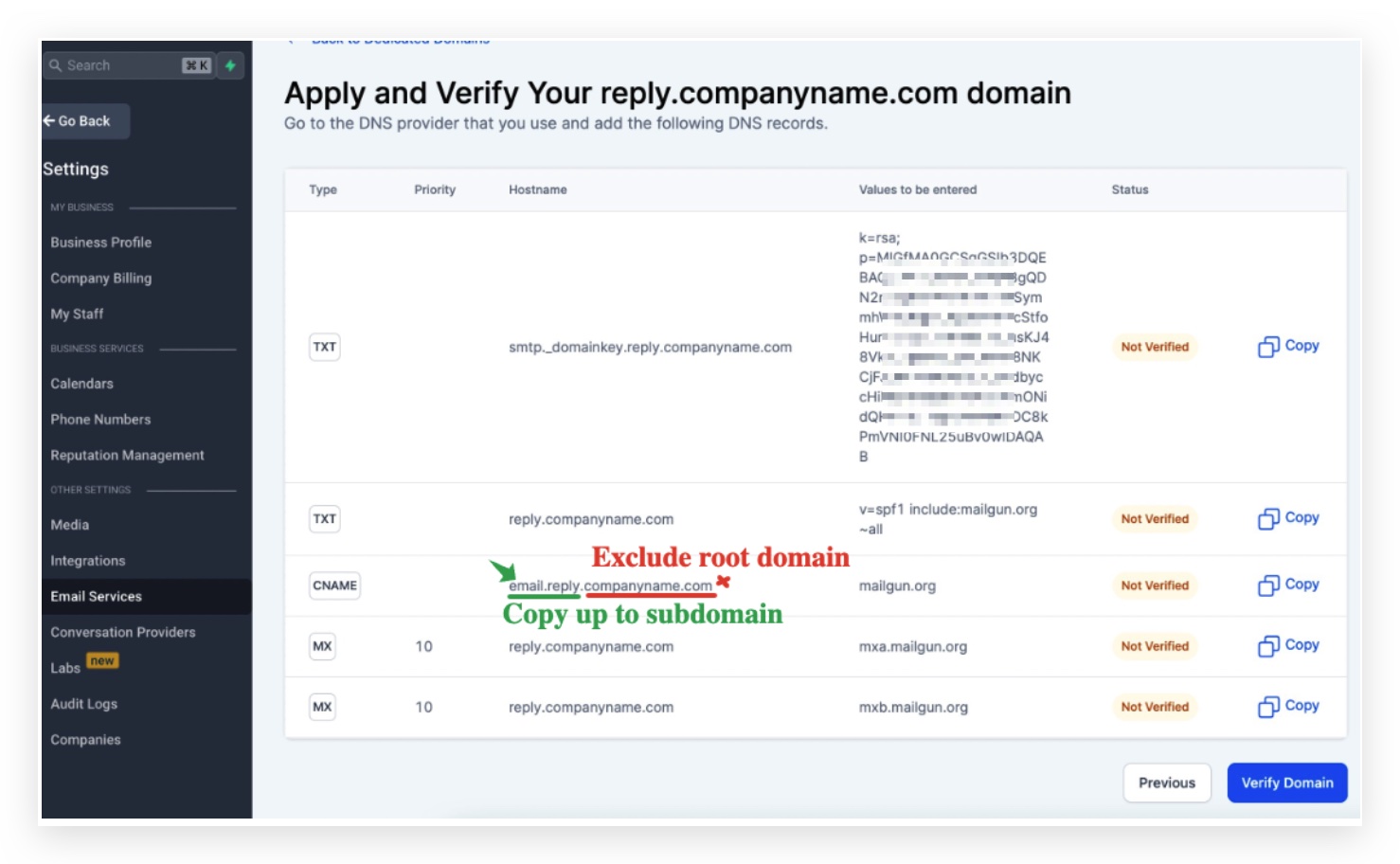
- replies.companyname.com - The host name will be replies If you are setting up a main domain like companyname.com, the host name will be @ B. Priority is 10 which is also same for everyone no matter what domain you are trying to set!(https://assets.patientcopilot.ai/381aa5e4e539d6f1.jpg) C. Destination: Same for everyone paste the following data mxb.mailgun.org!(https://assets.patientcopilot.ai/47232545ca047d3a.jpg) D. Click on Create * * * ## To add the CNAME record!(https://assets.patientcopilot.ai/24459818a9ae5db5.jpg) A. Click on the CNAME tab B. Name: Different for everyone Head back to Patient Copilot to copy the host name, it’s a bit tricky but the key here is to copy everything from the beginning until the subdomain part, DO NOT copy the main domain!(https://assets.patientcopilot.ai/a52ab4f61ca309f0.jpg) Depending on the subdomain you are trying to set up, if you are trying to set up - lc.companyname.com The host name will be email**.**lc
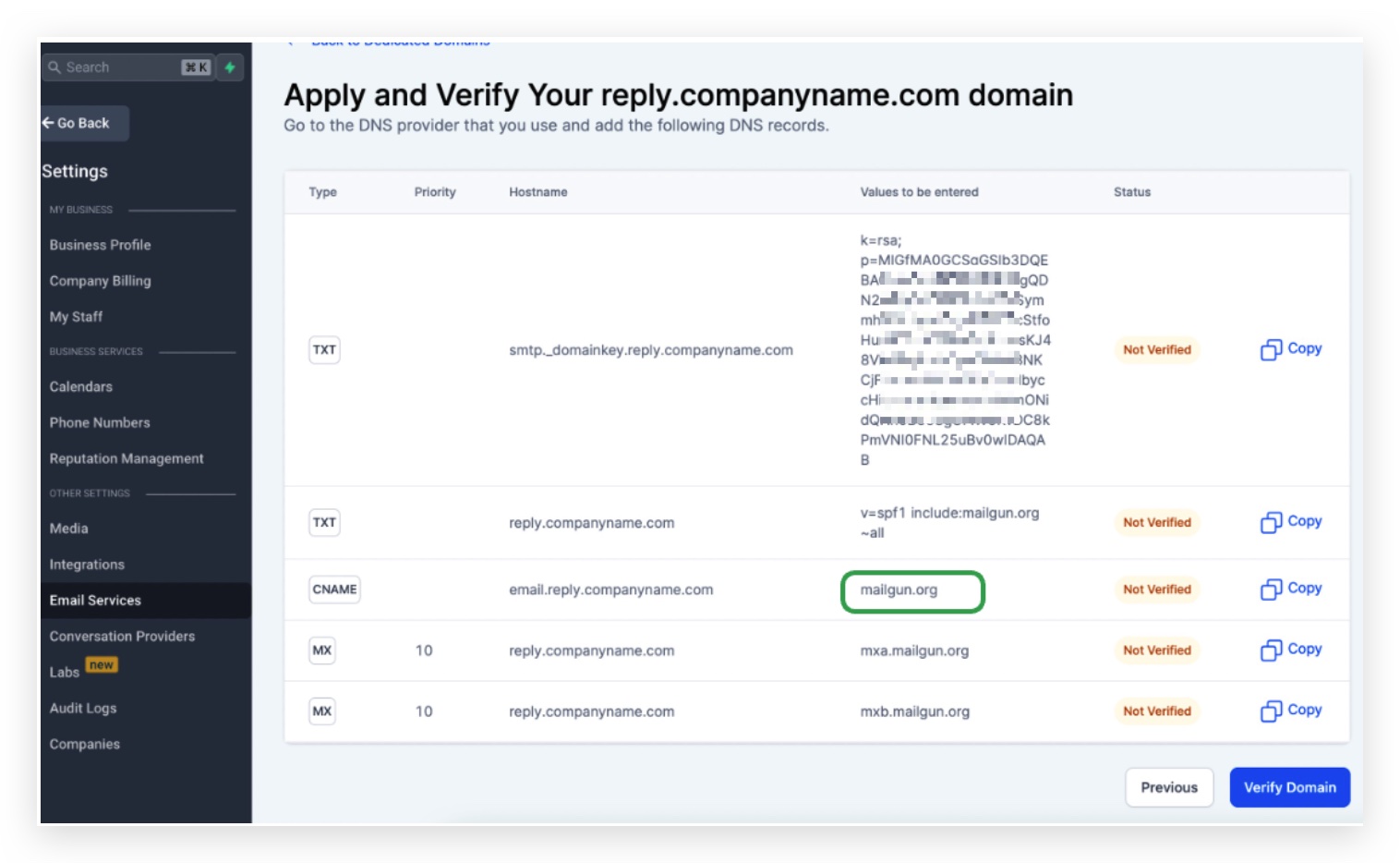
- replies.companyname.com The host name will be email**.**replies If you are setting up a main domain like companyname.com, the host name will be email C. Resolves to: Same for everyone paste the following data mailgun.org!(https://assets.patientcopilot.ai/43fb6d75f2904ec1.jpg) D. Click on Create!(https://assets.patientcopilot.ai/c3e4db13d3e3b8d6.jpg) Now that you have added 5 records, Go back to Patient Copilot and click on Verify DNS Settings!(https://assets.patientcopilot.ai/f563d37d65e172d4.jpg) Click the same button to Verify Domain again if some records are still not showing the green checkmark Once you add all the DNS records and verify, you can make sure the SSL Certificate for Dedicated Sending Domain (LC - Email) is all set. Then we could send a test email to see if everything works! Click here to learn How to send a test email in the Conversation * * * ## Frequently Asked Questions Currently no frequently asked questions. Submit feedback on this article to help is add questions to this section! * * * ## Related Articles - Siteground Domain Setup for Mailgun