
Track SMS Restriction History
The SMS Restriction History dashboard gives you transparent visibility into any warnings or temporary restrictions applied to SMS sending in a sub‑account. It helps you understand what happened, when, and why, so you can quickly correct issues and keep messaging compliant. * * * * * * ## What is SMS Restriction History? The SMS Restriction History dashboard provides businesses with a transparent way to track and manage their SMS sending activities. Logging warnings and restrictions helps users stay compliant with carrier guidelines and avoid disruptions in communication. A read‑only log showing warnings and temporary sending restrictions triggered by carrier‑ or policy‑driven thresholds. Typical causes include: - Daily/Weekly sending limit violations
- High opt‑out rate
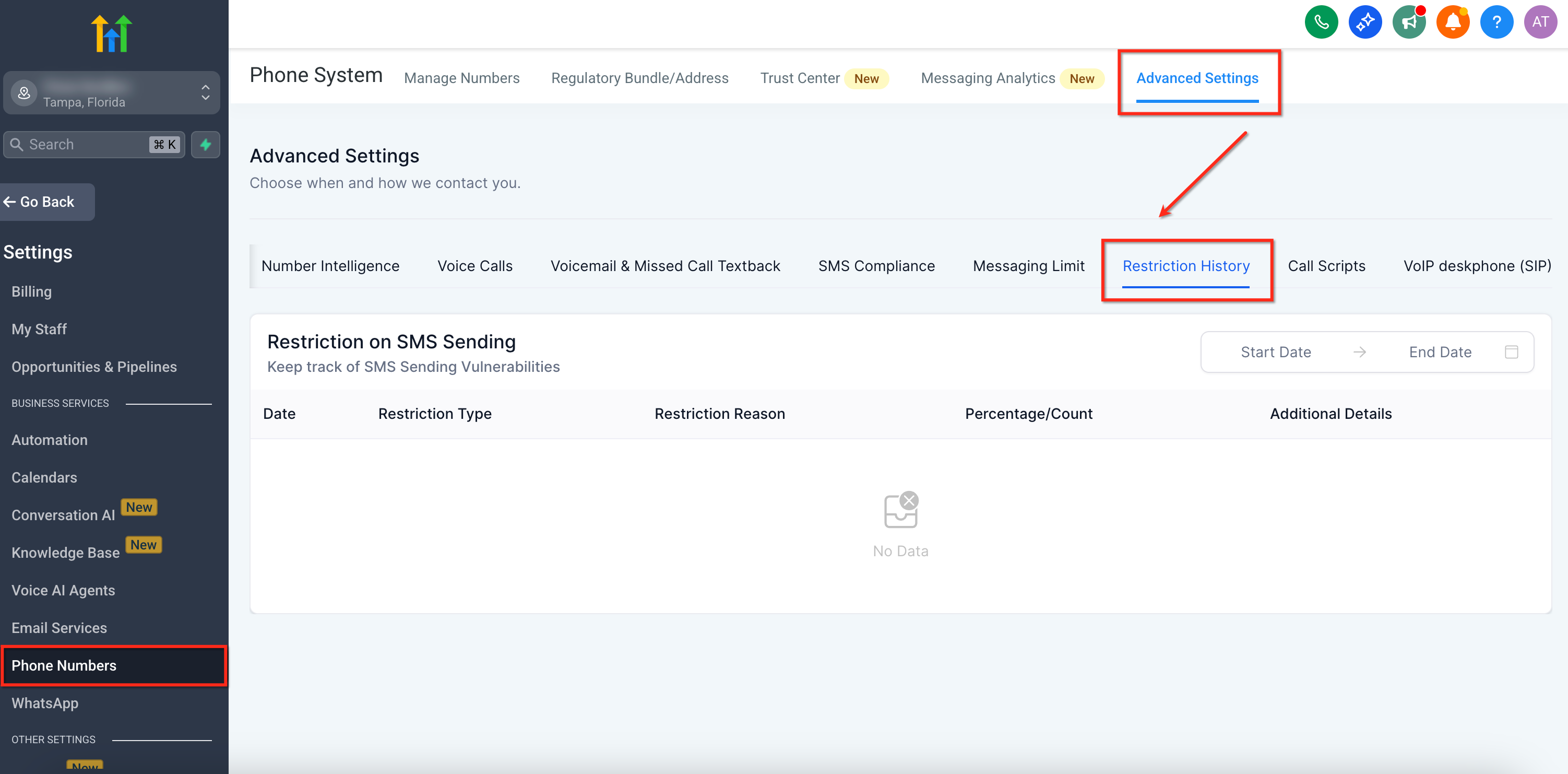
- High delivery error rate (including carrier filtering such as Error 30007) Example: If a campaign generates a 6% opt‑out rate—above the 2–3% target you should stay under—the sub‑account may receive a temporary restriction. The log captures the date, time, and additional details so you can investigate and avoid repeats. * * * ## Where to find the SMS Restriction Log Navigate to Location → Settings → Phone Numbers → Advanced Settings (top‑right). In the far‑right tab, click Restriction History to view events for the sub‑account.!(https://assets.patientcopilot.ai/3bb2a96cdd759e64.png) Note — Filtering Options On the right-hand side of the table, there are Start Date and End Date filters, allowing users to view restriction history for a specific time period. The pagination control at the bottom ensures that users can navigate through multiple pages of restriction records. * * * ## Using the Restriction Log The table lists each restriction event with: - Date — when the warning or restriction occurred - Restriction Type — Warning or Temporary Restriction
- Restriction Reason — e.g., Opt‑out rate exceeded threshold
- Percentage / Count — the measured value at the time (e.g., opt‑out %)
- Additional Details — related metrics such as Error Rate * * * ## Threshold guidance - Opt‑out rate: Target: stay below 2–3% to avoid risk. Good: 0–1%. At 3%, the sub‑account is locked for 24 hours.
- Delivery error rate: Good: 0–6%. At 10%, the sub‑account is locked for 24 hours. IMPORTANT: After a lockout, review recent sends, content, list hygiene, and compliance settings before resuming. * * * ## What are the error and opt-out rates good for having a threshold? 1. A High Opt-Out rate indicates that contacts receiving your messages have objected, generated complaints, or marked your SMS as spam. A good opt-out rate is typically in the range of 0—1%. Once the opt-out rate hits 3%, the sub-account will be locked for sending text messages for 24 hours.
- A High Delivery Error Rate indicates that you are sending SMS to contacts that are no longer in service, are unreachable, or use a non-SMS-capable device, such as a landline. This may also mean that external carrier filters are refusing to deliver your SMS due to bad sending behavior in the past. A good error rate is typically in the range of 0—6%. Once the error rate hits 10%, the sub-account will be locked for sending text messages for 24 hours. * * * ## Frequently Asked Questions Q. Does Restriction History show real‑time data? It records events with timestamps; use date filters to explore windows of time. Q. Will I see both warnings and temporary restrictions? Yes—the log includes warnings and temporary restrictions along with the reason and measured values. Q. How do I lower my error rate? Clean lists regularly, remove landlines, verify numbers during capture, and avoid content patterns that trigger filtering.