How to Create an Exit-Intent Pop-Up in Patient Copilot
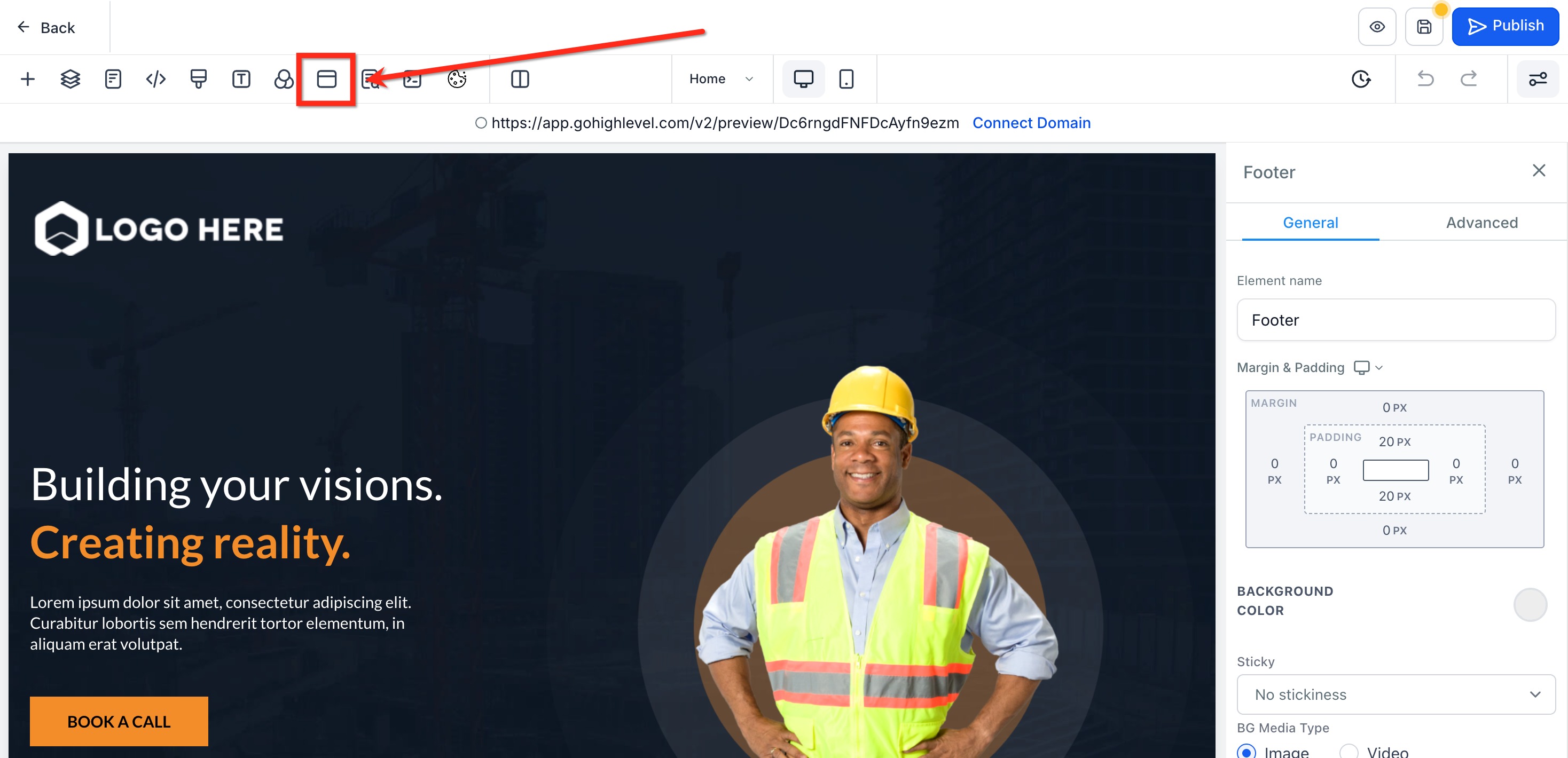
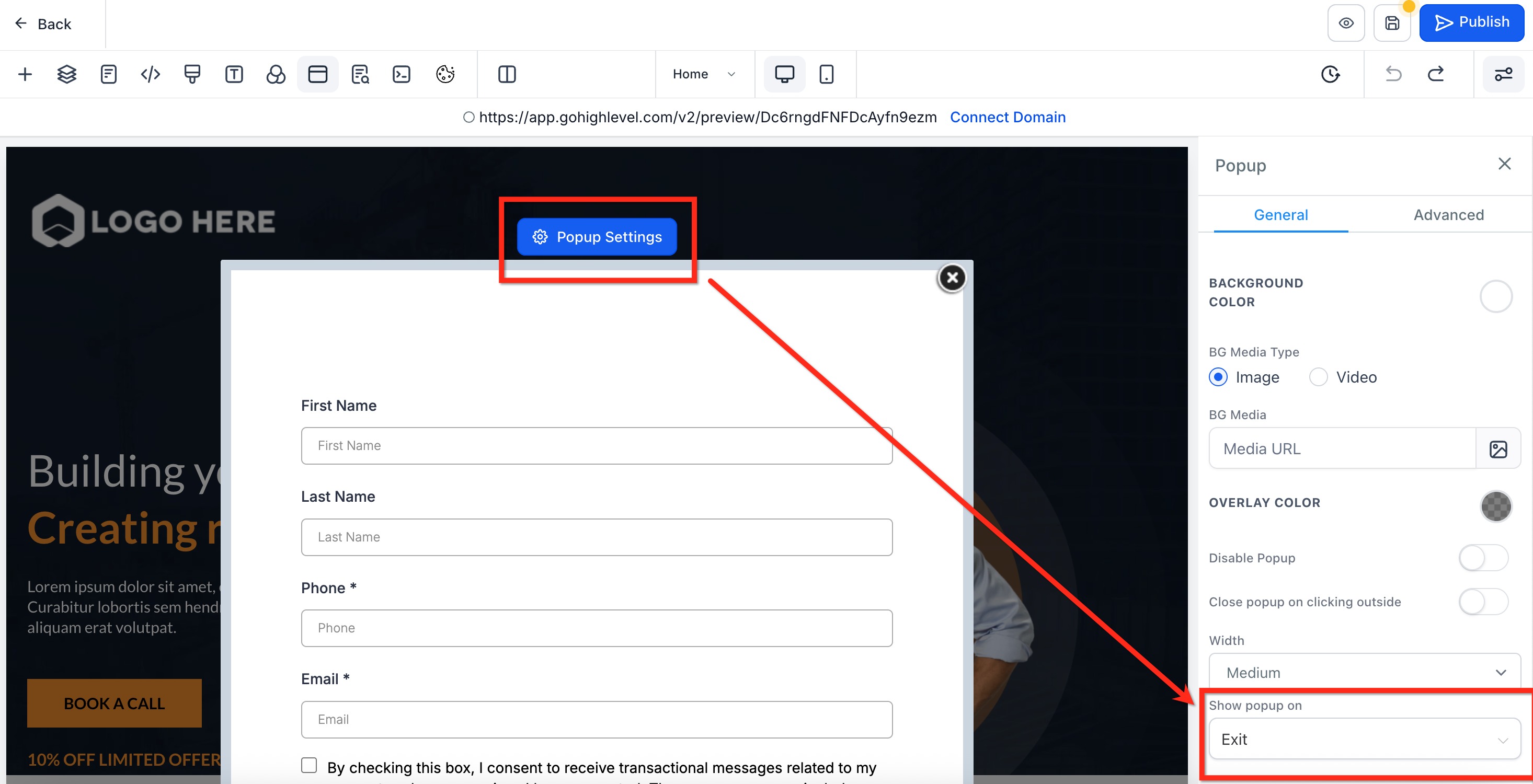
This article will show you how to build and configure an exit-intent pop-up using Patient Copilot’s website and funnel builders. Exit-intent pop-ups help re-engage users before they leave your page, encouraging sign-ups, lead capture, or special offers. * * * ## What is an Exit Intent Pop-up? Exit intent pop-ups are triggered when a user’s cursor behavior indicates they are about to leave your site, typically by moving toward the browser bar or close button. Patient Copilot enables you to design pop-ups within the website or funnel builder and configure them to trigger based on exit intent. * * * ## Key Benefits of Exit Intent Pop-ups Exit-intent pop-ups can significantly boost lead capture and conversion by offering a last-chance call-to-action. Here’s what makes them valuable: - Reduce bounce rate: Prevent users from leaving without engaging by presenting an offer right before they exit. - Capture abandoning visitors: Use one final message or incentive to collect lead information before the user leaves. - Boost conversion rates: Exit pop-ups can turn hesitant users into leads with time-limited deals or special discounts. - Customizable content: Design the look, layout, and form fields of your pop-up to fit your brand. - Flexible form integration: Embed any Patient Copilot form to collect emails, phone numbers, or other key data. - Works within funnel and website builder: No need for third-party tools—exit-intent behavior is built into Patient Copilot’s editor. * * * ## How To Create an Exit Intent Pop-up Follow these steps to build your exit-intent pop-up from form creation to trigger configuration. #### Step 1: Create a Form for Your Pop-up Forms are what allow you to collect information from users in the pop-up. Start by creating or locating the form you want to use in the pop-up. Click here to learn more: How to create a contact form in Patient Copilot? #### Step 2: Create the Pop-Up Now you’ll create pop-up within a funnel or website builder page and add the form that was created. - Navigate to Sites → Funnels or Websites and select the funnel or website you want to use - Locate the specific funnel step or page that the pop-up will be added to. Click the blue Edit button to open that website page or funnel step in the builder - In the top navigation bar of the website builder, click Pop-up Settings - Click Add Row, then Add Element to add a Form element to the Pop-Up. Use the form picker to select your desired form - Customize the pop-up design to match your branding. - (Optional) Use the sidebar dropdown to switch the selected form after adding the initial form.!(https://assets.patientcopilot.ai/3fee736f3d337a35.jpg) #### Step 3: Set the Pop-up to Trigger on Exit Intent To make the pop-up appear when users attempt to leave, you need to configure the correct setting. - Click the blue button named Pop Up Settings with the gear icon at the top of the pop-up. - In the sidebar, scroll to “Show Pop-up On”. - From the dropdown, choose Exit. Selecting “None” or “Delay” will disable or change the intended behavior!(https://assets.patientcopilot.ai/75a3f014b5ad447d.jpg) #### Step 4: Test the Pop-up Once saved and published, test that the Pop-Up is working as desired. - Preview the page or funnel step
- Move your cursor toward the top of the browser (as if exiting)
- Confirm the pop-up appears
- Adjust styling and content as needed!(https://assets.patientcopilot.ai/9e1a17f2ad2aa84a.gif) * * * ## Desktop vs Mobile Behavior Exit intent detection uses mouse cursor tracking, so it only works on desktop. This behavior does not function on mobile because touchscreens lack a cursor. Explore best practices for mobile engagement in our guide: Creating Mobile-Responsive Designs Made Easy * * * ## Frequently Asked Questions Q: Can I use an exit-intent pop-up on a non-Patient Copilot website? No. Exit-intent pop-ups are only supported on funnels and websites built inside Patient Copilot. Q: What happens if I choose “None” or “Delay” instead of “Exit”? The pop-up won’t behave as an exit-intent prompt. “None” disables it, and “Delay” will show the pop-up after a time delay instead of cursor exit. Q: Can I use different forms for different pop-ups? Yes. You can assign different forms to individual pop-ups on each funnel step or page. Q: Can I preview the pop-up before going live? Yes. Use the page preview option inside the builder to test behavior before publishing. Q: Does the pop-up styling match my site? You can fully customize the pop-up’s row, column, background, and form styles to match your site branding. * * * ## Related Articles - Embedding Patient Copilot Forms on Non-Patient Copilot Websites