How to Switch Between Multiple Workflows
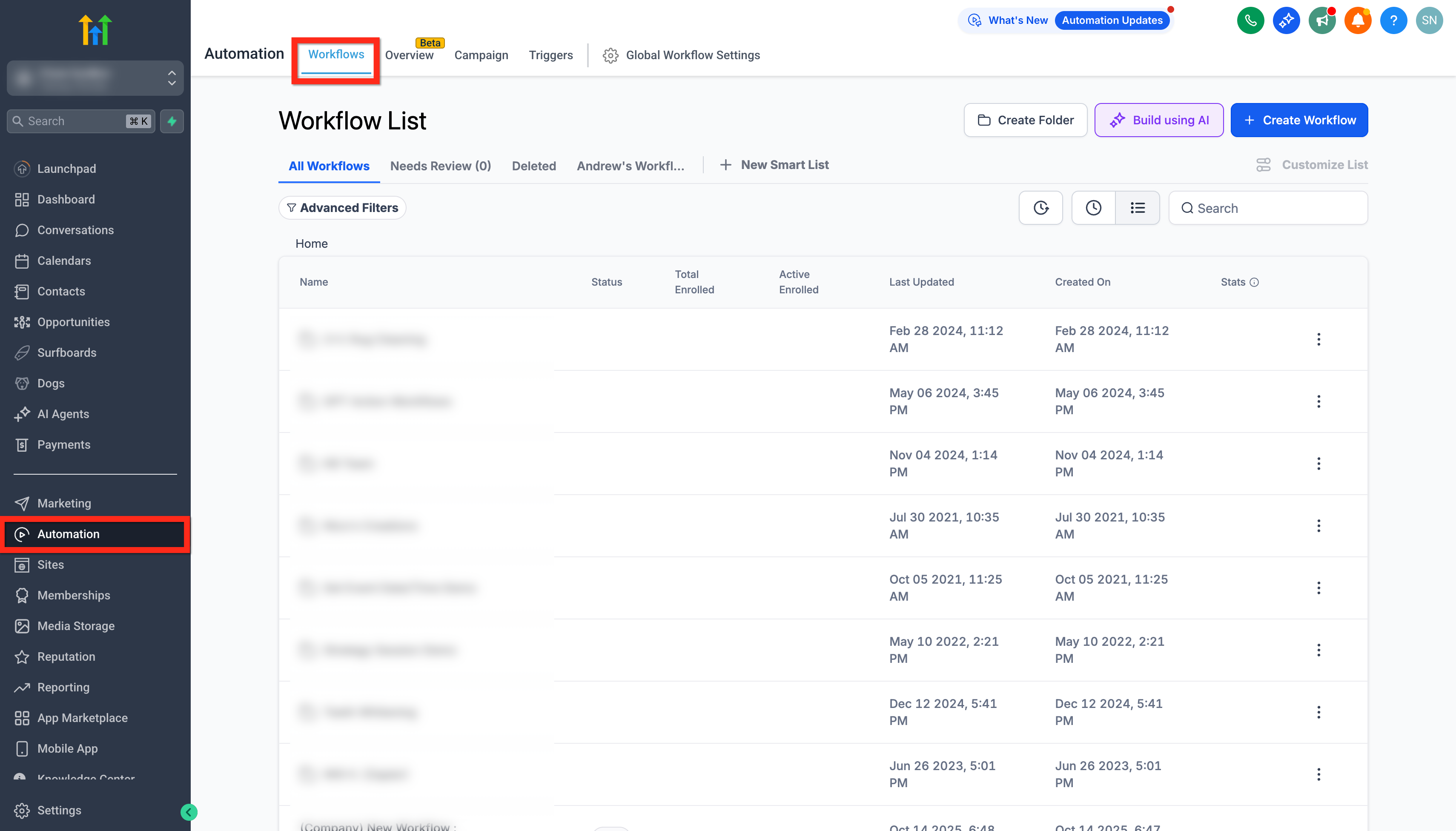
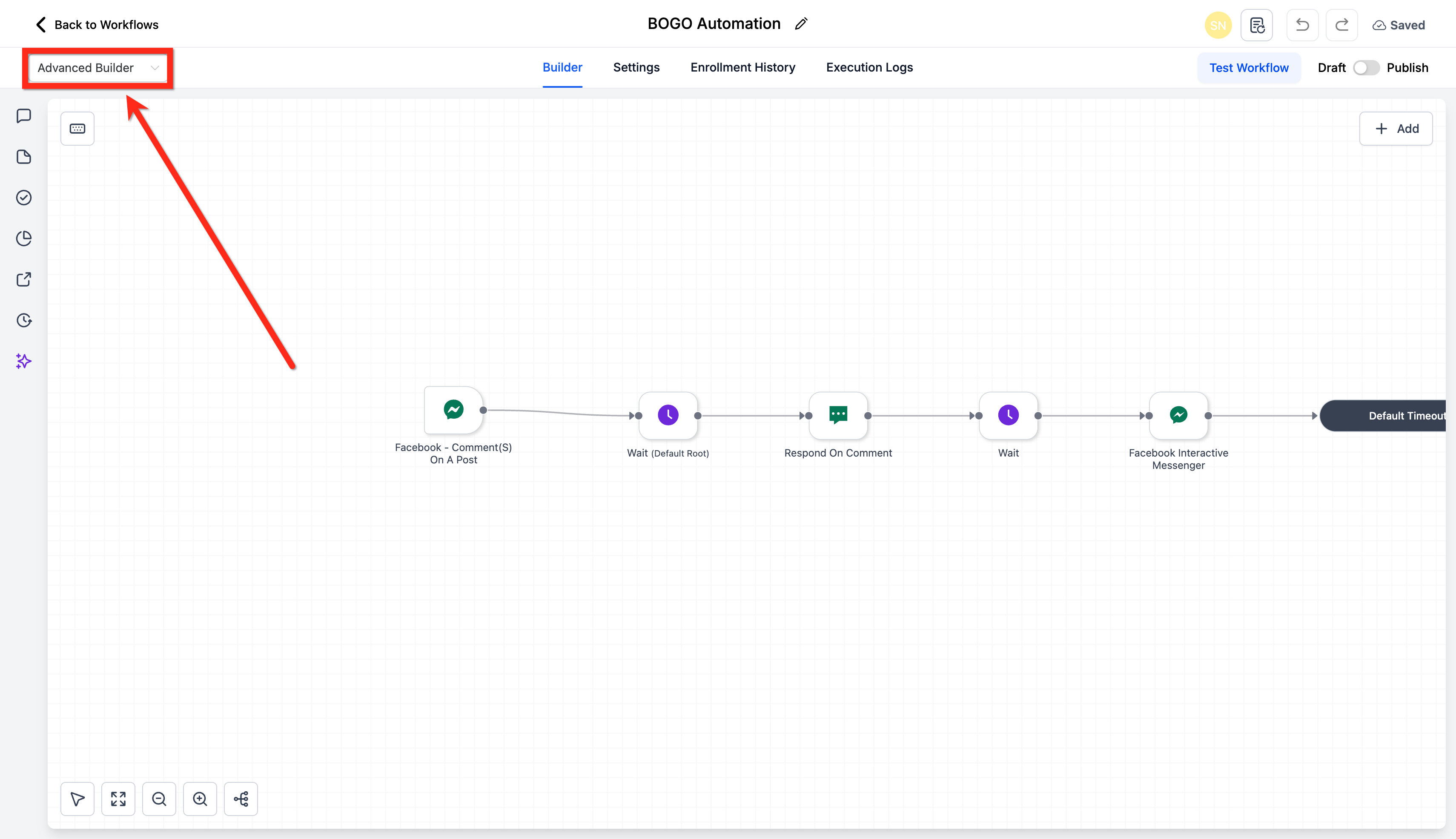
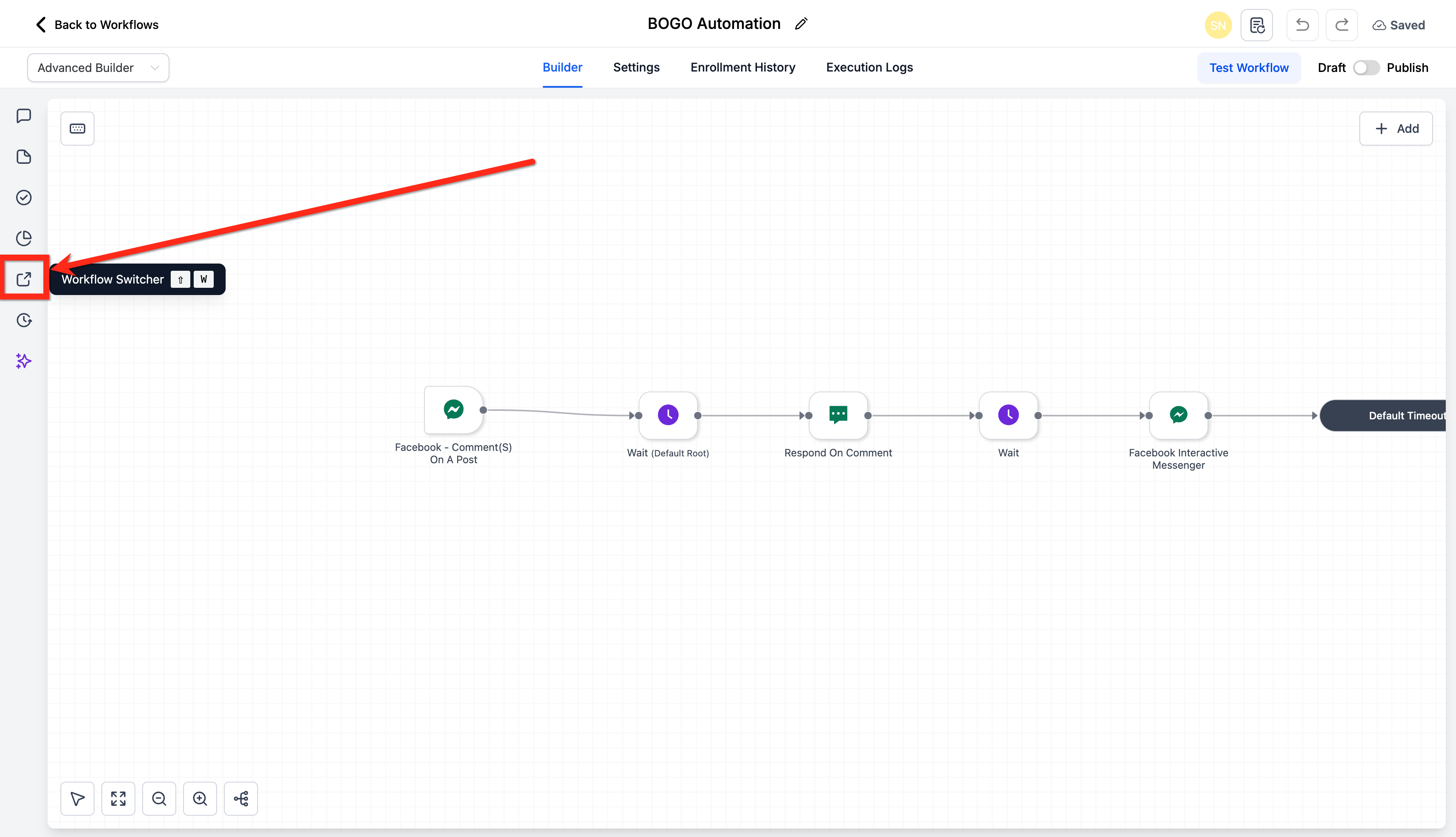
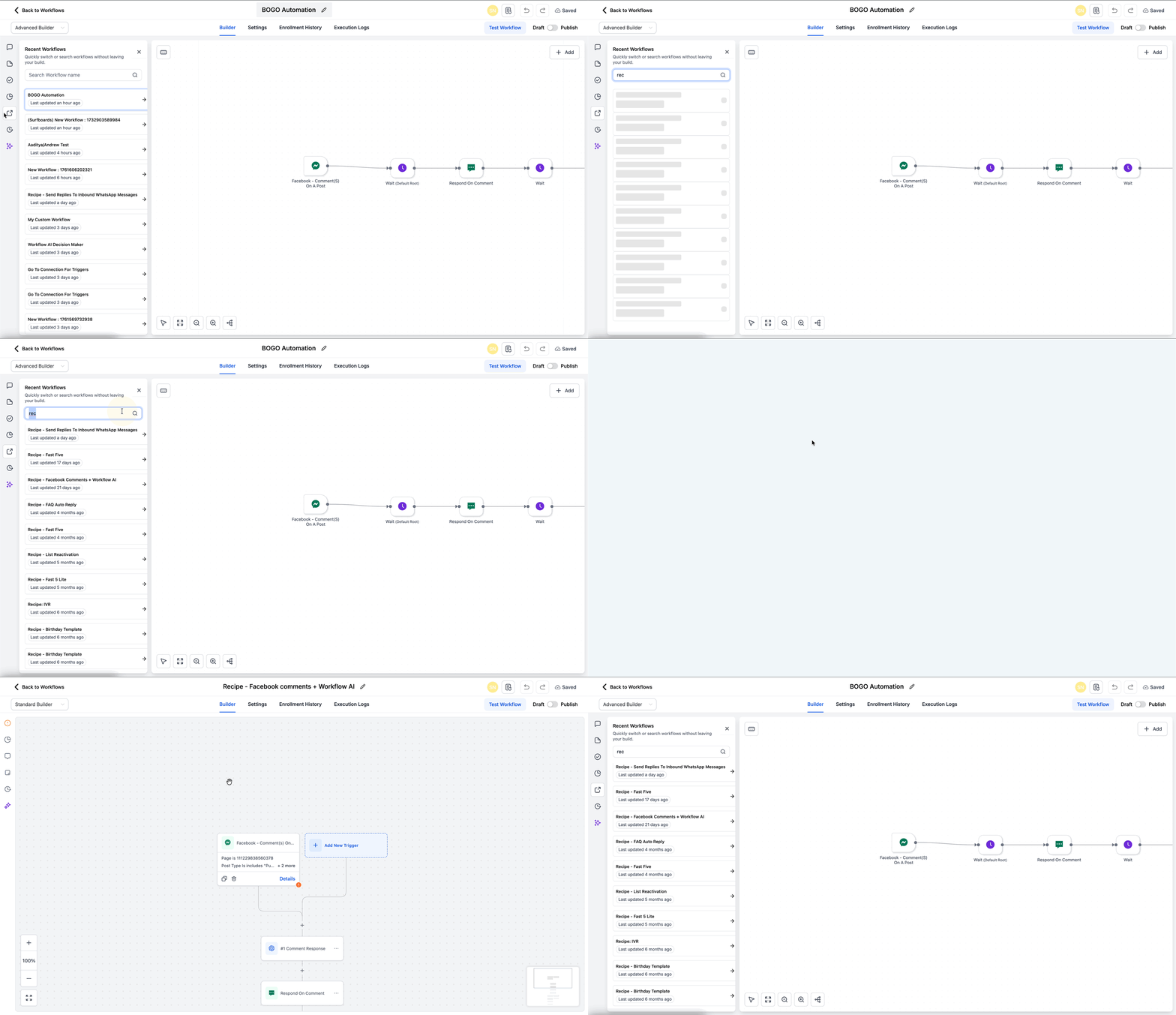
Workflow Switcher is a faster way to move between automations in Patient Copilot’s Advanced Builder. Open a searchable panel, find recent workflows, and launch another workflow in a new browser tab without leaving your current canvas. This article shows how to use the workflow switcher. * * * ## What is Workflow Switcher? Workflow Switcher is a left‑sidebar tool in Advanced Builder that lets you jump to other workflows quickly. It surfaces your recent workflows and a quick search, then opens the selected workflow in a new browser tab so your current canvas stays put—enabling safe, rapid context switching while you build. * * * ## Key Benefits of Workflow Switcher - Stay in flow: Jump to another workflow without leaving your current builder tab. - Side‑by‑side editing: Open the other workflow in a new tab to compare logic branches easily. - Faster reuse: Copy/paste actions or branches across workflows for consistent, reusable automations. - Time savings: Avoid page reloads and re‑searching; get to your next workflow in one click. - Reduced error risk: Keep your current canvas intact while exploring another automation. * * * ## How To Use the Workflow Switcher Following these steps ensures you can find and open other workflows without breaking focus on your current build. 1. Go to Automations → Workflows.!(https://assets.patientcopilot.ai/1fc4fd9033174031.png) 2. Create a new workflow or open an existing one. 3. Switch to Advanced Builder (ensure you’re not in the standard builder).!(https://assets.patientcopilot.ai/7b54af05afd429a9.png) 4. Click the Workflow Switcher button on the left sidebar or press Shift + W.!(https://assets.patientcopilot.ai/e3bbe83e8f1a0173.png) 5. Use Quick Search or pick from Recent Workflows. 6. Click a workflow to open it in a new browser tab while your current canvas remains open.!(https://assets.patientcopilot.ai/5c04d0bae7a19332.gif) * * * ## Frequently Asked Questions Q: Does Workflow Switcher work in the standard builder? Workflow Switcher appears in Advanced Builder only. Q: What does Quick Search look for? Quick Search finds workflows by name so you can open them quickly. Q: Will I lose my changes if I open another workflow? The other workflow opens in a new tab, so your current canvas stays open. Q: Can I copy steps between the two workflows I opened? Yes, use copy/paste across workflows to reuse actions or branches. Q: Is there a keyboard shortcut? Yes, press Shift + W to open/close the Switcher panel when the builder tab has focus. * * * ## Related Articles - Getting Started with Workflows