
Facebook Multi Page Lead Ads Integration
The Facebook Lead Ads integration allows you to collect leads directly from Facebook Ads and have them automatically synced with your CRM. With this integration, you can easily capture contact information from potential customers interested in your products or services on Facebook and quickly follow up with them through your CRM. By automating the lead capture process, you can save time and improve the efficiency of your sales and marketing efforts. ## What is the Facebook Lead Ads Integration? Integrating Facebook Lead Ads with Patient Copilot (Patient Copilot) allows businesses to automatically capture leads and manage them in one platform. This streamlines lead management, eliminates manual errors, enhances lead quality, boosts conversions, and drives business growth. ### Who is this integration helpful for? Integrating Facebook Lead Ads with Patient Copilot (Patient Copilot) is ideal for businesses using Facebook Ads to generate leads and streamline their lead management. It’s especially beneficial for small businesses or startups with limited sales teams, as it automates lead capture, saving time and resources while improving data accuracy. For businesses already using Patient Copilot, this integration ensures seamless lead import into existing workflows, enhancing follow-ups and maximizing efficiency. ### What are the benefits of this integration? The benefits of integrating Facebook Lead Ads with the CRM include: Automated lead capture: With this integration, businesses can automatically capture leads generated through Facebook Ads and import them into their CRM system, eliminating the need for manual data entry. Improved Lead Quality: By tracking and managing leads through CRM, businesses can better understand their audience, personalize their marketing efforts, and improve the overall quality of their leads. Enhanced lead management: The CRM system allows businesses to track and manage their leads in one place, providing a 360-degree view of their interactions with prospects and customers. This can help companies to streamline their sales and marketing efforts and improve customer retention. Efficient follow-up: With lead data automatically captured and imported into the CRM system, businesses can quickly follow up with leads and prioritize their sales efforts based on lead quality and behavior. Increased conversions: Businesses can increase their conversions and ROI from Facebook Ads by automating lead capture and improving lead management. ## Pre-requisites for Facebook Lead Ads - Access: You must have access to the Facebook page for which you’re creating lead ads. Refer to this FacebookHelp article on how to give someone a role on your Page.
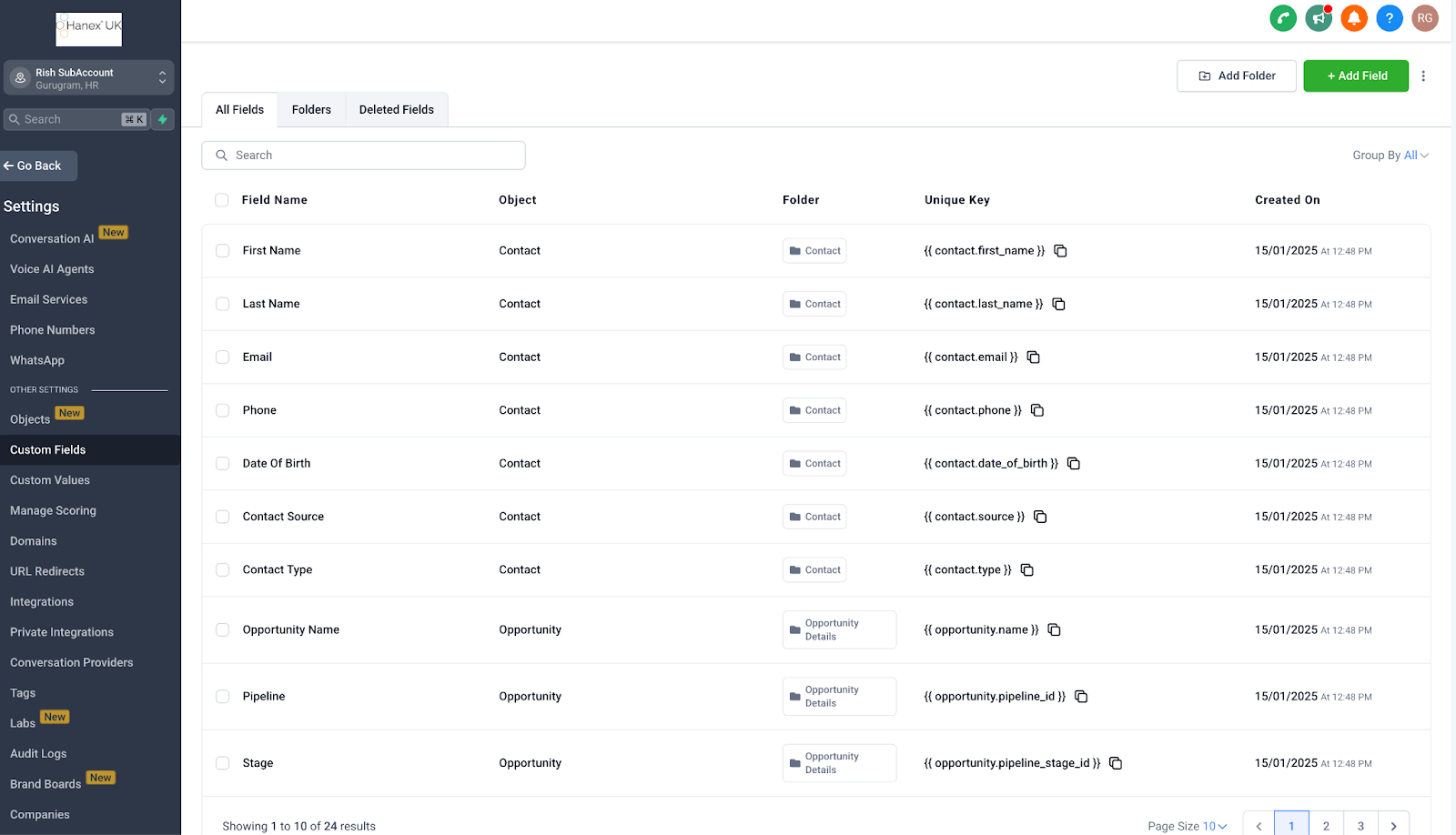
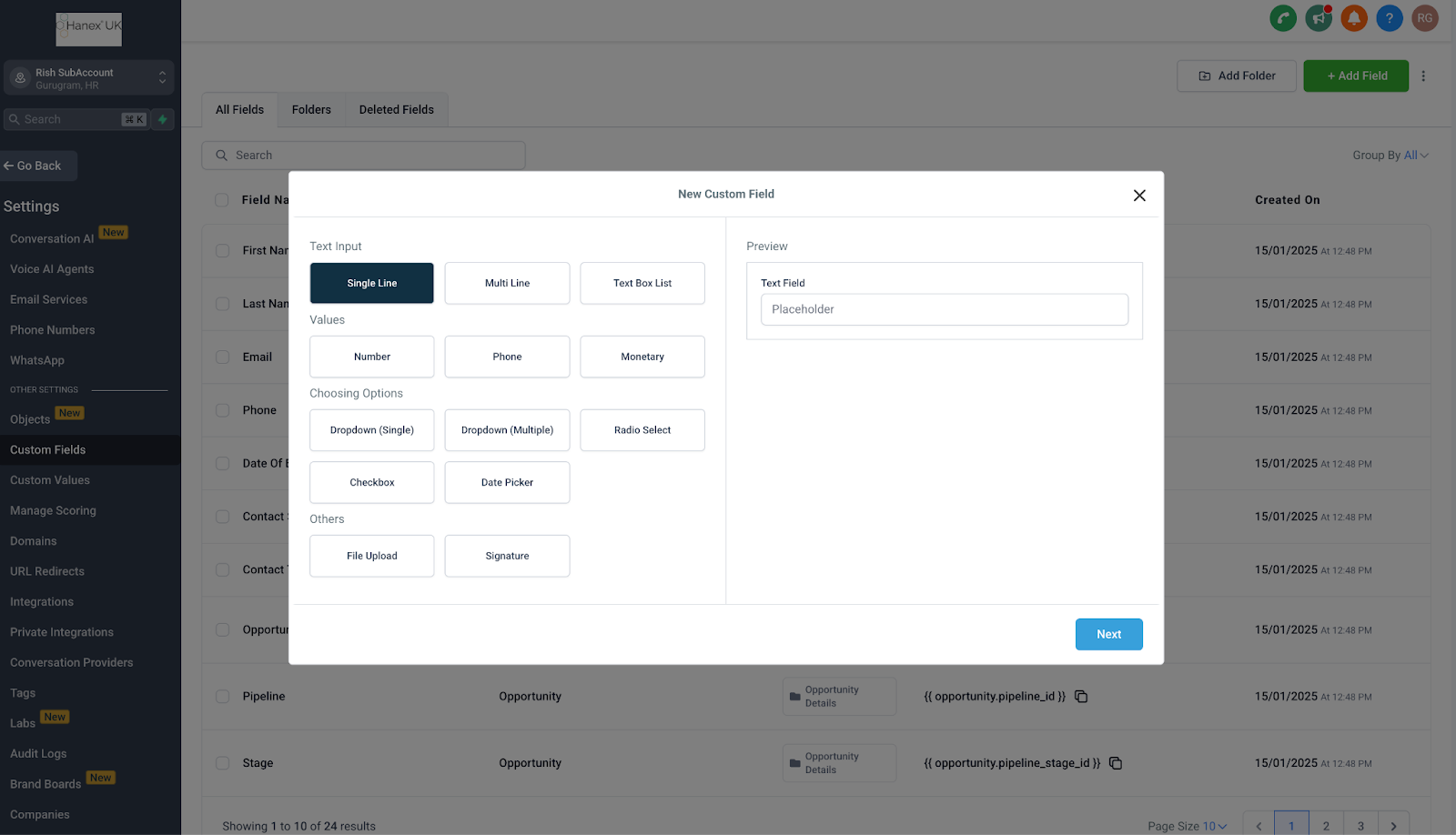
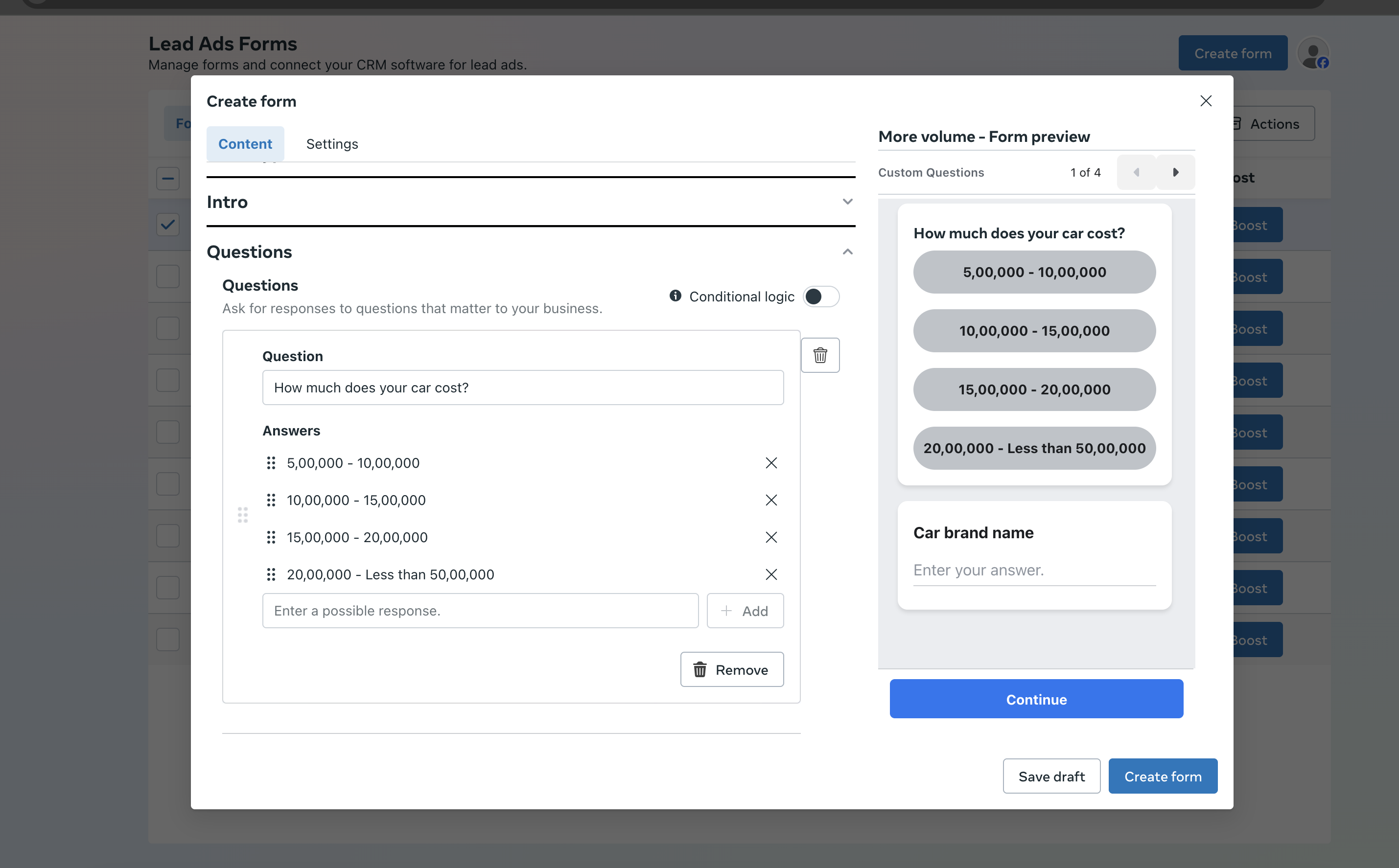
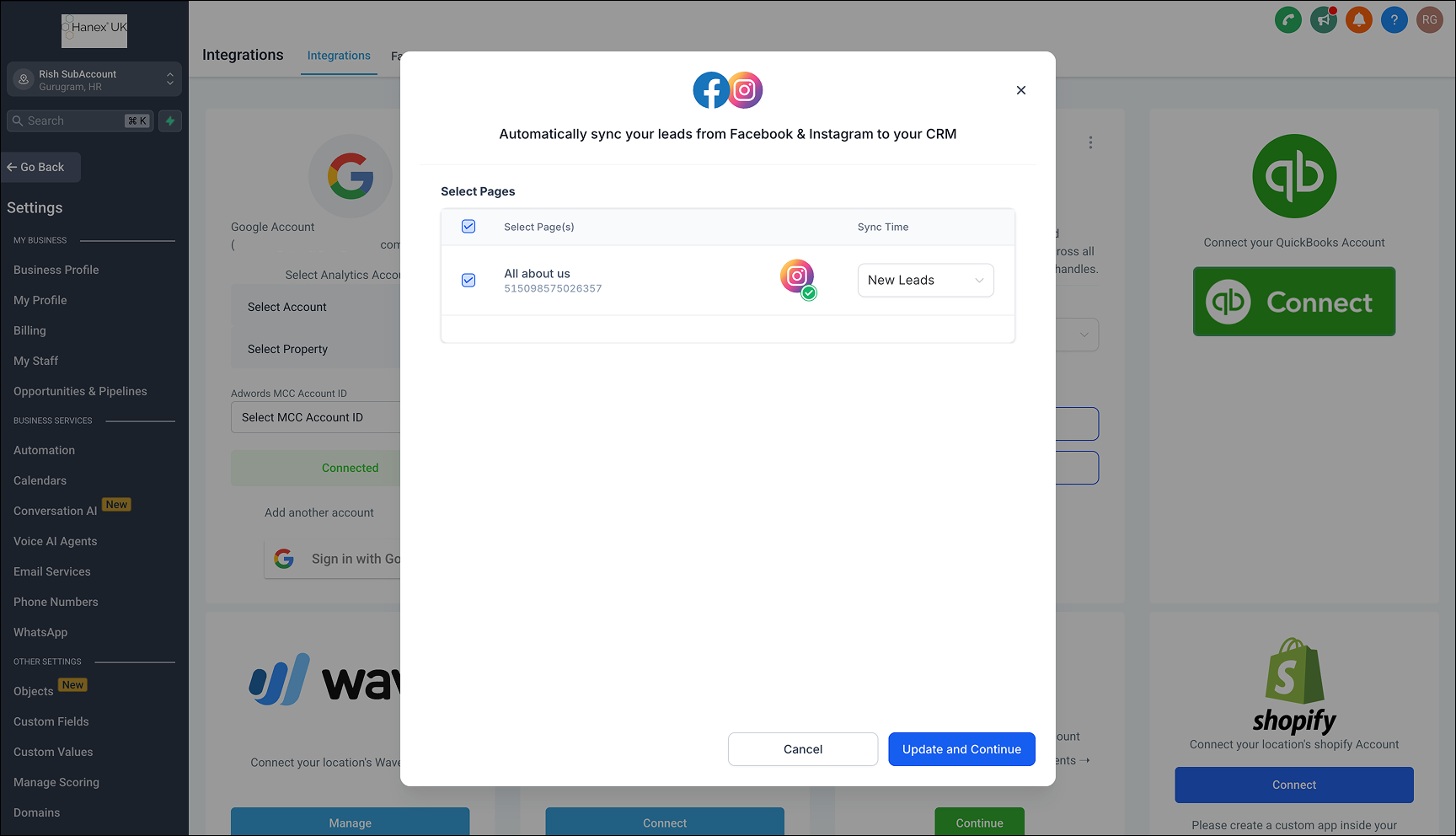
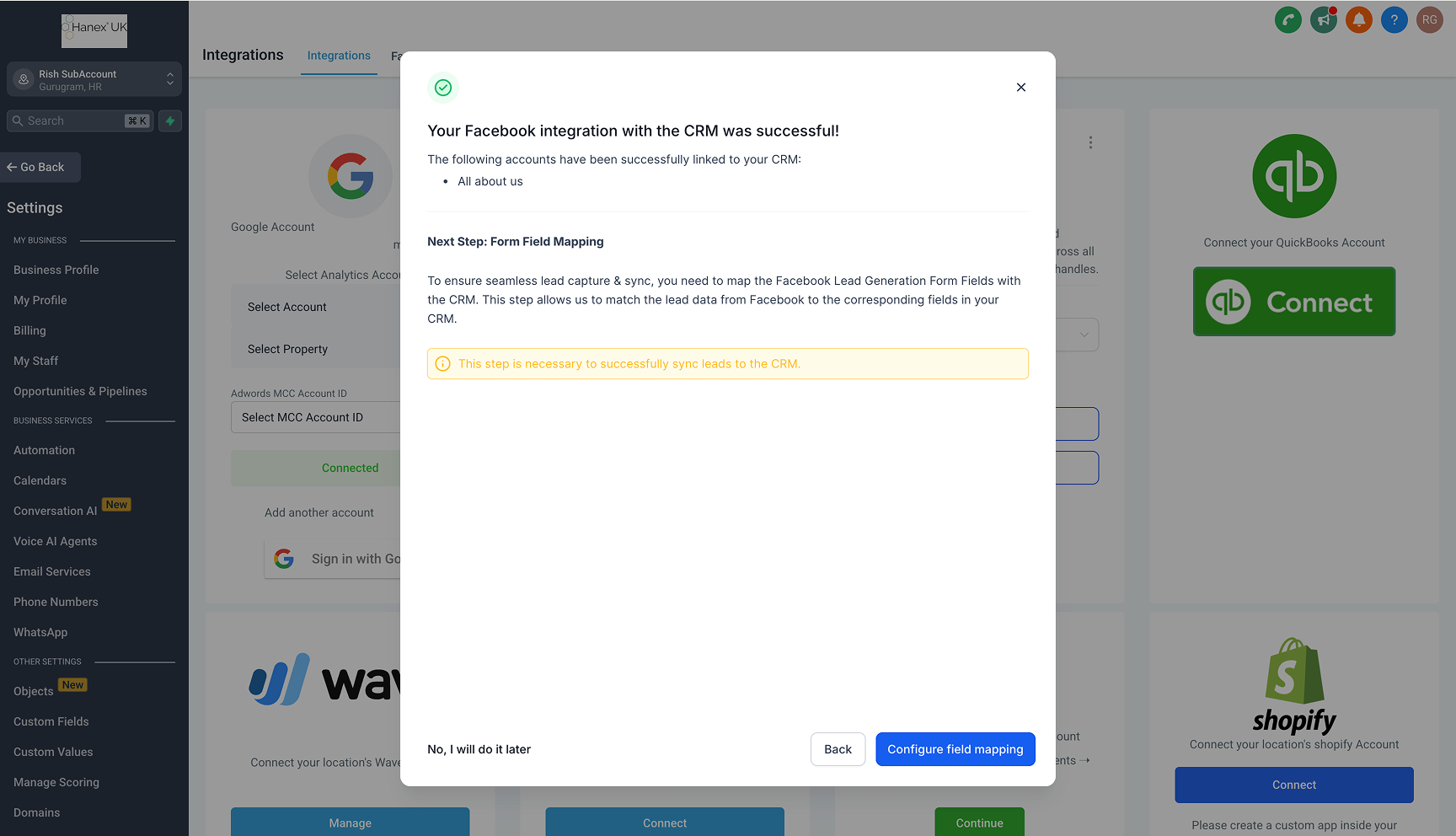
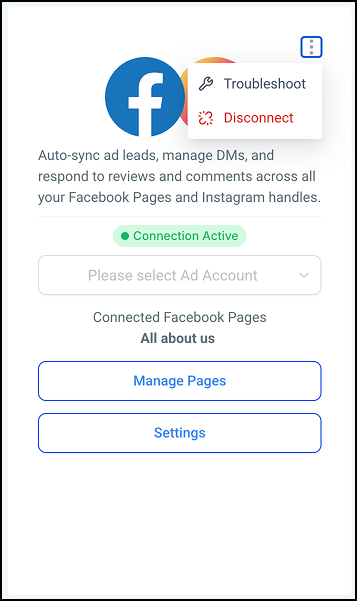
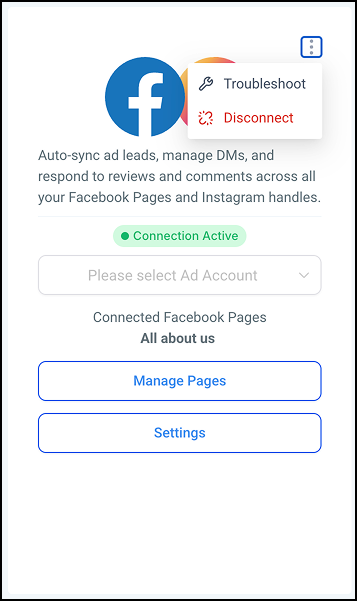
- Ownership: Ensure the same user owns the page and the ad account. For business-level integrations, the owner of the page and the ad account must be the same—more on this in the Facebook help section on Ad account roles. - Permissions: Verify that you have the page and ad account permissions. You should ideally have admin or manage permissions. To understand different levels of permissions, refer to Facebook Pages roles and Ads permissions. The user trying to integrate the Facebook Page into the CRM will need to be an admin of the Facebook Business page and have Lead Access Permission to access Lead data (A requirement set by Facebook). - Ad Account Check: Confirm your page is connected to the appropriate ad account. To do this, navigate to the Ad Account settings and verify the connected page—more on how to navigate your ad account settings. - Visibility: Note that only individuals with relevant permissions can see the owners of ad accounts. For details, check Facebook’s guide on user permissions for ad accounts. - Leads Access: Check if you have lead access. If the lead connector isn’t showing, you may need to manually search for it or enable it. For issues related to leads not syncing, refer to Facebook’s troubleshooting guide for lead ads. - LeadConnector will need access to the Facebook Business Manager and Business Page from which you run the Facebook Lead Ad. - You can allow trusted people to manage some of your Facebook business pages. You can give some people access to certain parts of your Facebook page without giving them full access. - Open business manager > Left navigation > Users > People. If you have added the person, who will be integrating the FB page to the CRM, there already: they will appear at the centre of the page. How to add users to your business? - To know about type of pages and profiles available in facebook refer following link ### To create custom fields: - When creating the custom fields for the Lead Ad in the CRM, please make sure to use the supported custom fields listed below: - Supported custom fields when using Facebook Lead Ads: - TEXT - LARGE_TEXT - NUMERICAL - PHONE - MONETARY - SINGLE_OPTIONS - DATE - DROPDOWN (single) ###!(https://assets.patientcopilot.ai/e1bc4cba75b54166.png) ###!(https://assets.patientcopilot.ai/3a8d0723f39192ae.png) We recommend not to update the field names in Facebook forms under settings in FB form creation, as they may impact mapping at Patient Copilot end:!(https://assets.patientcopilot.ai/34556133e0ed2e3d.png)!(https://assets.patientcopilot.ai/ea6572ebe9fb266a.png) * * * ## How to integrate or manage Facebook Leads Ads with a Sub-Account Please Note: Only the User that integrated the FB page will be able to select the pages to connect. They need to have full access to the page in Facebook. ### To setup FB integration: 1. Go to integrations under sub-account: Subaccount >> Settings >> integration!(https://assets.patientcopilot.ai/952694fc0a7673ca.png) 2. Click on “Connect” under facebook. 3. Allow necessary permissions.!(https://assets.patientcopilot.ai/58019b79cc82022a.png) 4. Select the pages under the account that you want to connect with Patient Copilot.!(https://assets.patientcopilot.ai/9607fa60b3f0cc66.png) 5. Once pages are connected, the next step is to set up the form, map the required fields with Patient Copilot fields, and we are all set to go:!(https://assets.patientcopilot.ai/8060b61b0d116c7b.png) ### To disconnect facebook integration: 1. Go to integrations under sub-account: Subaccount >> Settings >> integration 2. Go to facebook, and click on 3 dots on the card.
!(https://assets.patientcopilot.ai/ea6572ebe9fb266a.png)
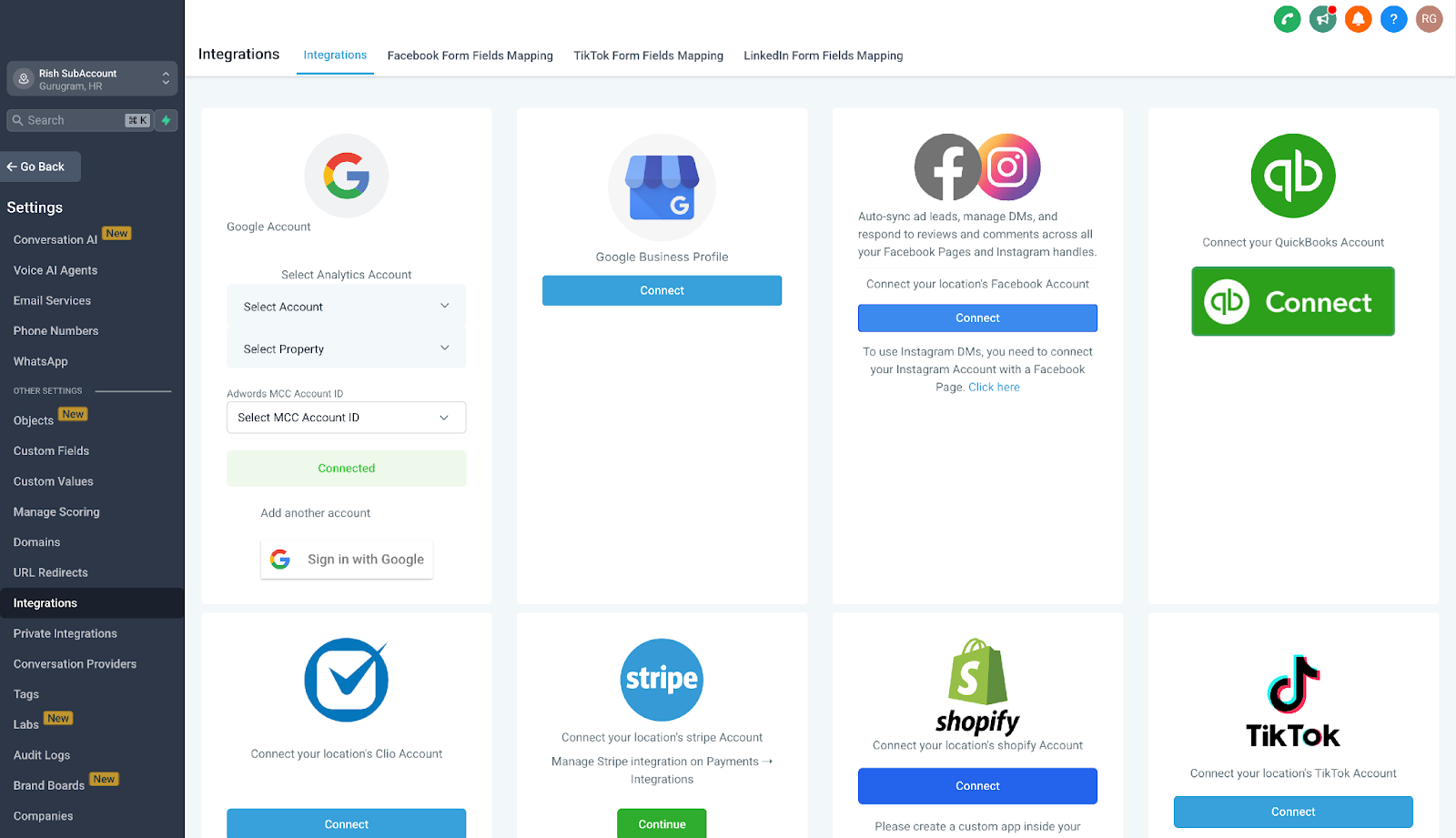

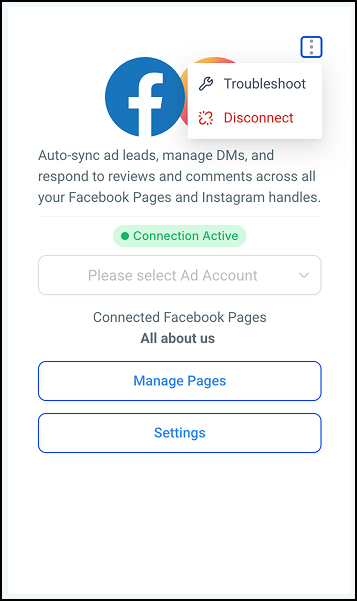
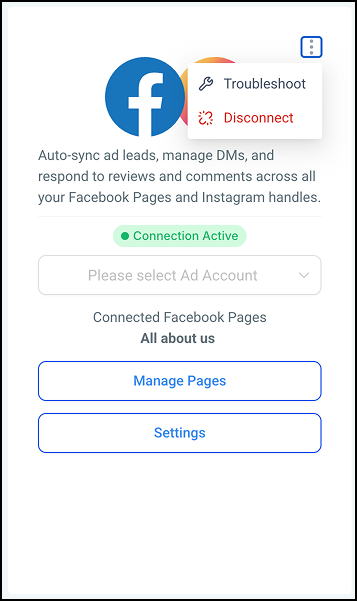
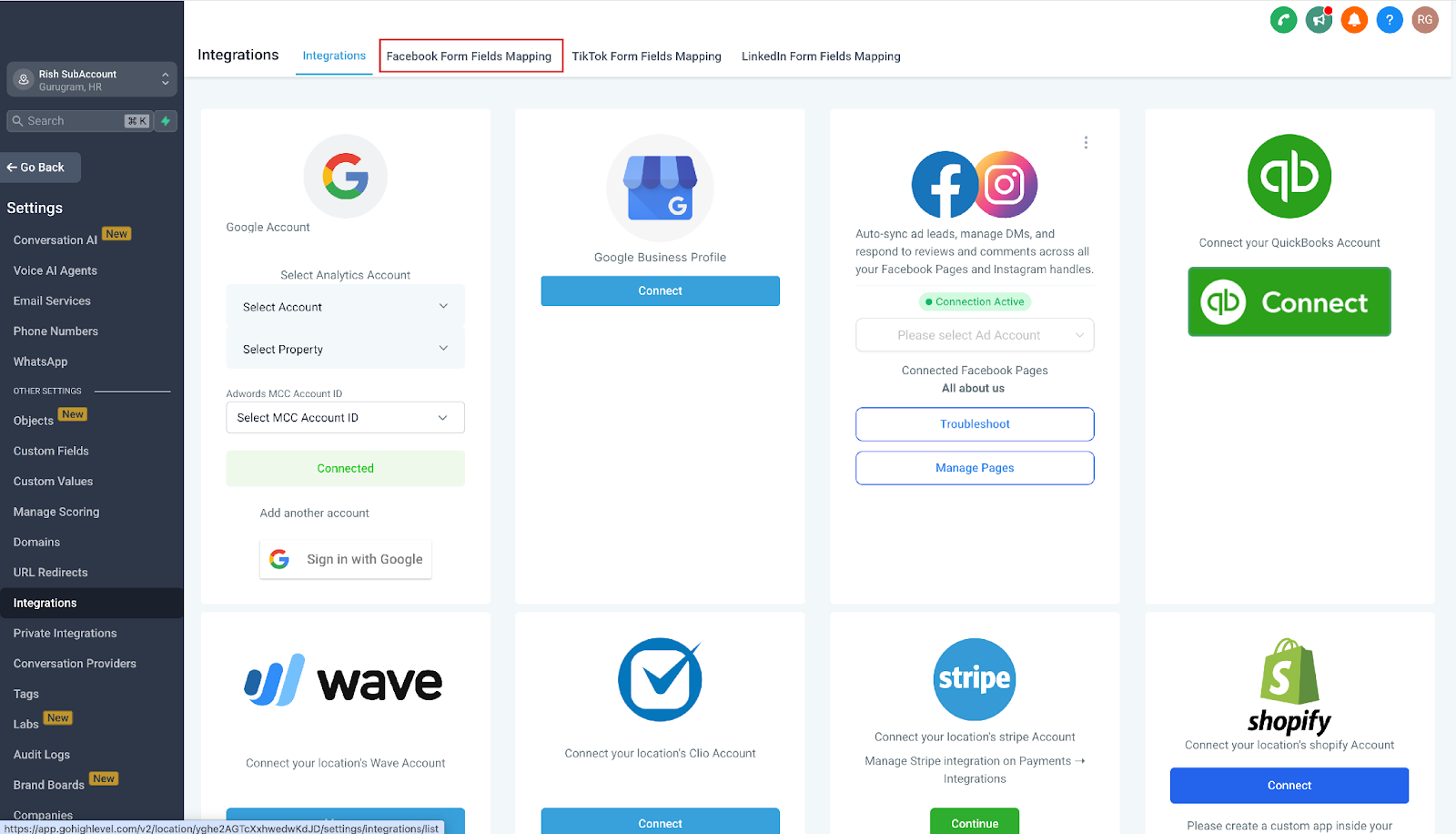
- Click on disconnect.!(https://assets.patientcopilot.ai/d3fed9ec494f880a.png) ### To Manage Facebook pages: 1. Go to integrations under sub-account: Subaccount >> Settings >> integration 2. Go to facebook, and click on manage pages 3. Select the pages that you want to link and click on update.!(https://assets.patientcopilot.ai/c7030dfd9149a765.png)!(https://assets.patientcopilot.ai/5aad4c11a83960ce.png) ### To perform basic troubleshooting or Sync leads manually: 1. Go to integrations under sub-account: Subaccount >> Settings >> integration 2. Go to facebook, and click on Troubleshoot 3. In the next screen, the user can find out permissions missing and can manually sync leads.!(https://assets.patientcopilot.ai/18804104928d550c.png)!(https://assets.patientcopilot.ai/4fb676b9c13a7747.png) ### To enable or disable facebook/instagram messages: 1. Go to integrations under sub-account: Subaccount >> Settings >> integration 2. Go to facebook, and click on settings from the hamburger menu. 3. In the next screen, enable the fb and ig messenger for the connected page.!(https://assets.patientcopilot.ai/84212ba318d3c15a.png)!(https://assets.patientcopilot.ai/8fa11304124df63c.jpg) ### To manage forms: 1. Go to integrations under sub-account: Subaccount >> Settings >> integration 2. Go to facebook form field mapping at top of screen. 3. Find the form you want to edit, update mapping or deactivate.!(https://assets.patientcopilot.ai/a5d6f03ff9dad29d.png)!(https://assets.patientcopilot.ai/7881f5680f302679.png)!(https://assets.patientcopilot.ai/5dad80b03c772d5a.png)!(https://assets.patientcopilot.ai/d9408ec0788f6e02.png) ## Troubleshoot: In case you are having some issues, please refer to the troubleshooting document for facebook.
!(https://assets.patientcopilot.ai/5aad4c11a83960ce.png)
!(https://assets.patientcopilot.ai/4fb676b9c13a7747.png)
!(https://assets.patientcopilot.ai/8fa11304124df63c.jpg)
!(https://assets.patientcopilot.ai/7881f5680f302679.png)!(https://assets.patientcopilot.ai/5dad80b03c772d5a.png)!(https://assets.patientcopilot.ai/d9408ec0788f6e02.png)