
Email Verification From Mailgun within the CRM
Activate Email Verification to have MailGun verify your new emails automatically inside the CRM. Please note: Activating email verification in the CRM will incur costs from MailGun in your MailGun account. Email verification is a paid service and is charged / email - Check MailGun for pricing. #### Covered in this Article: #### How to enable Email Verification in the CRM: #### How to enable Email re-verification in the CRM: #### FAQ #### How does email verification work? * * * * * * Please Note: If enabled, we will re-verify all emails every 90 days as emails go valid/invalid occasionally. * * * ## How to enable Email Verification in the CRM: 1. Click on Switch to Agency View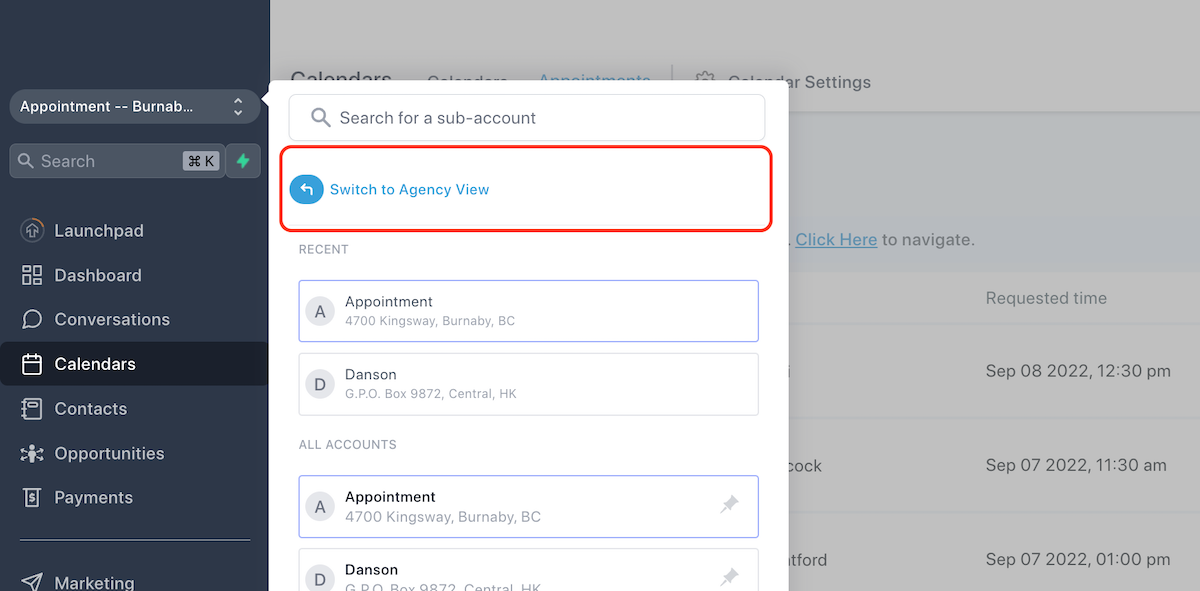 2. Click on Settings
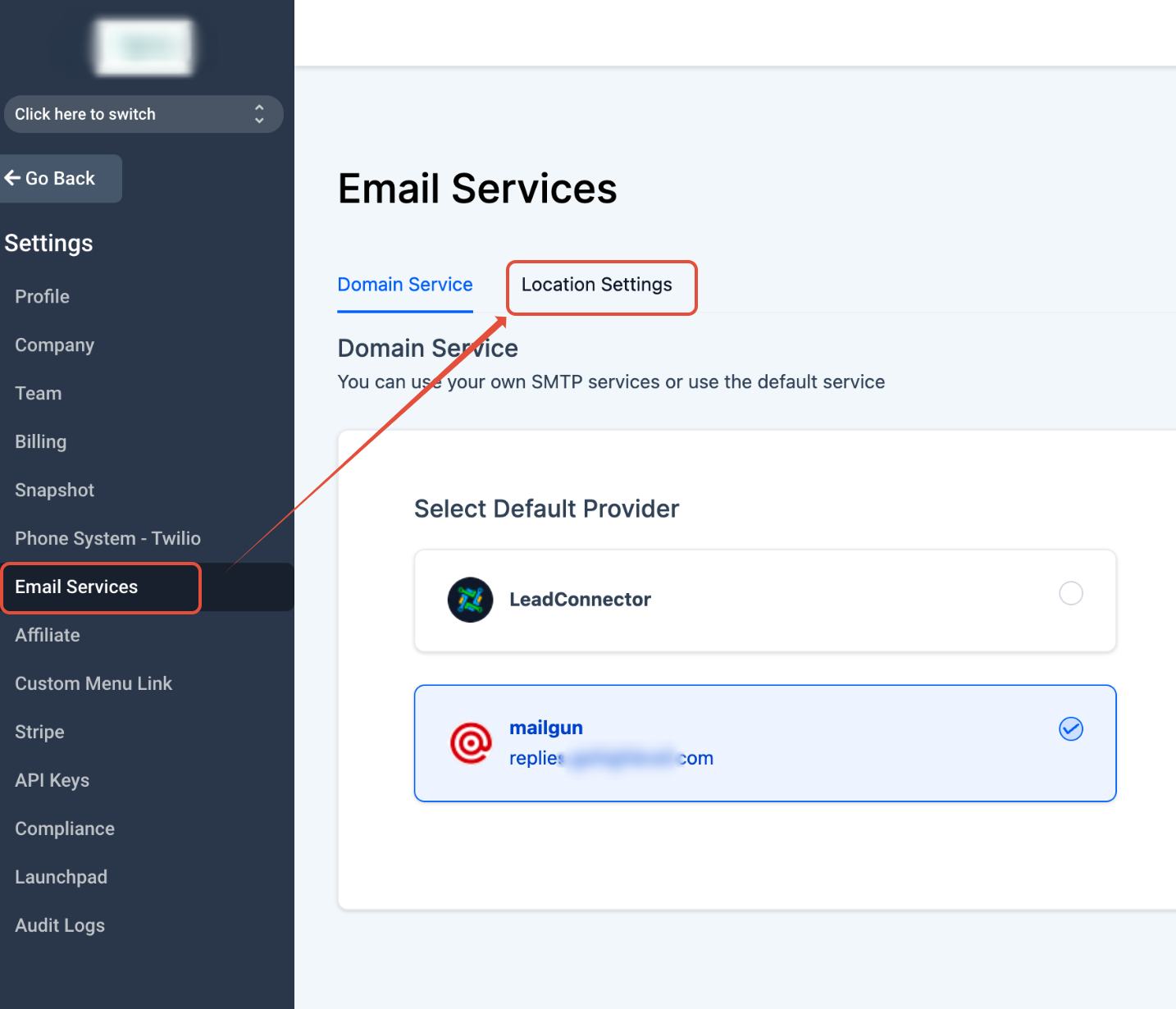
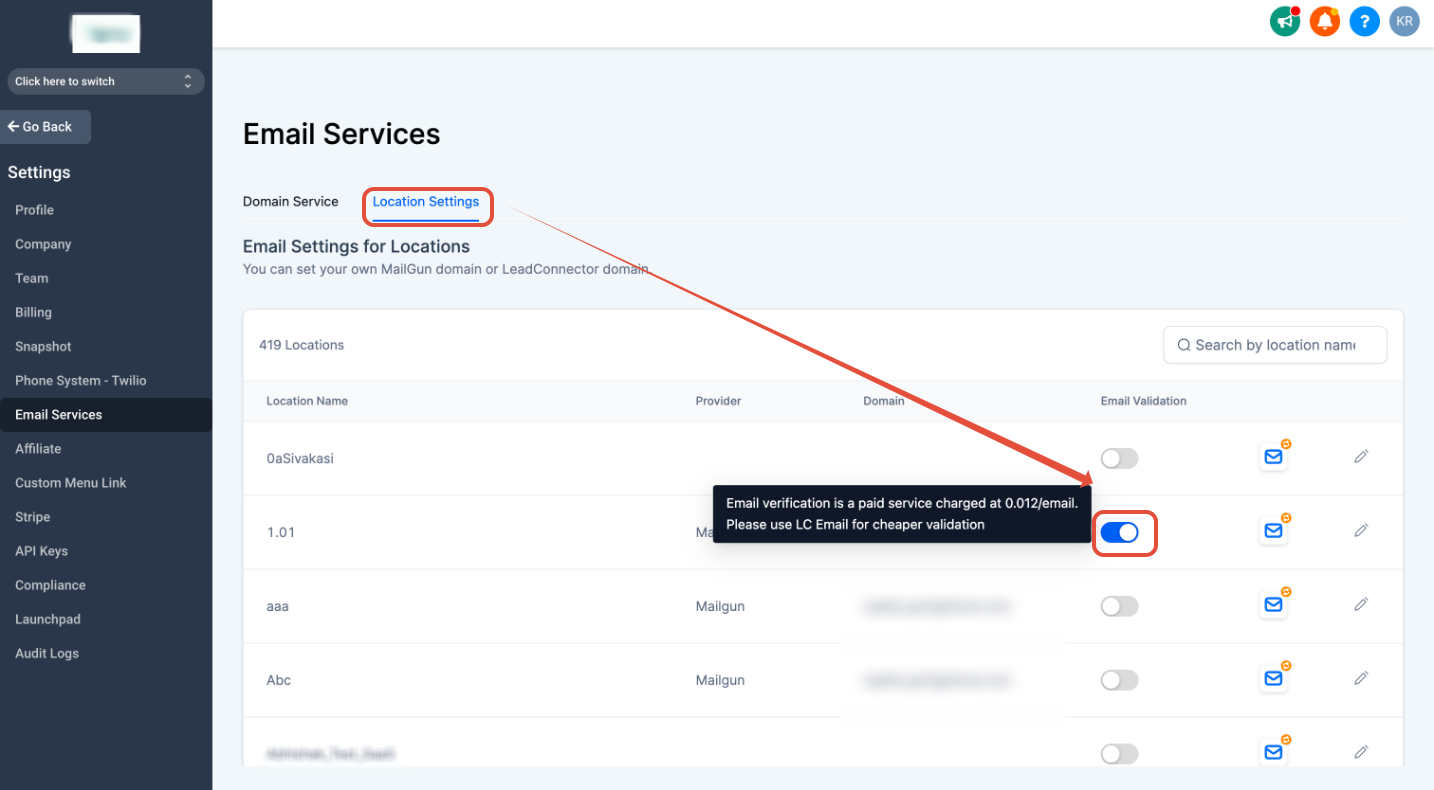
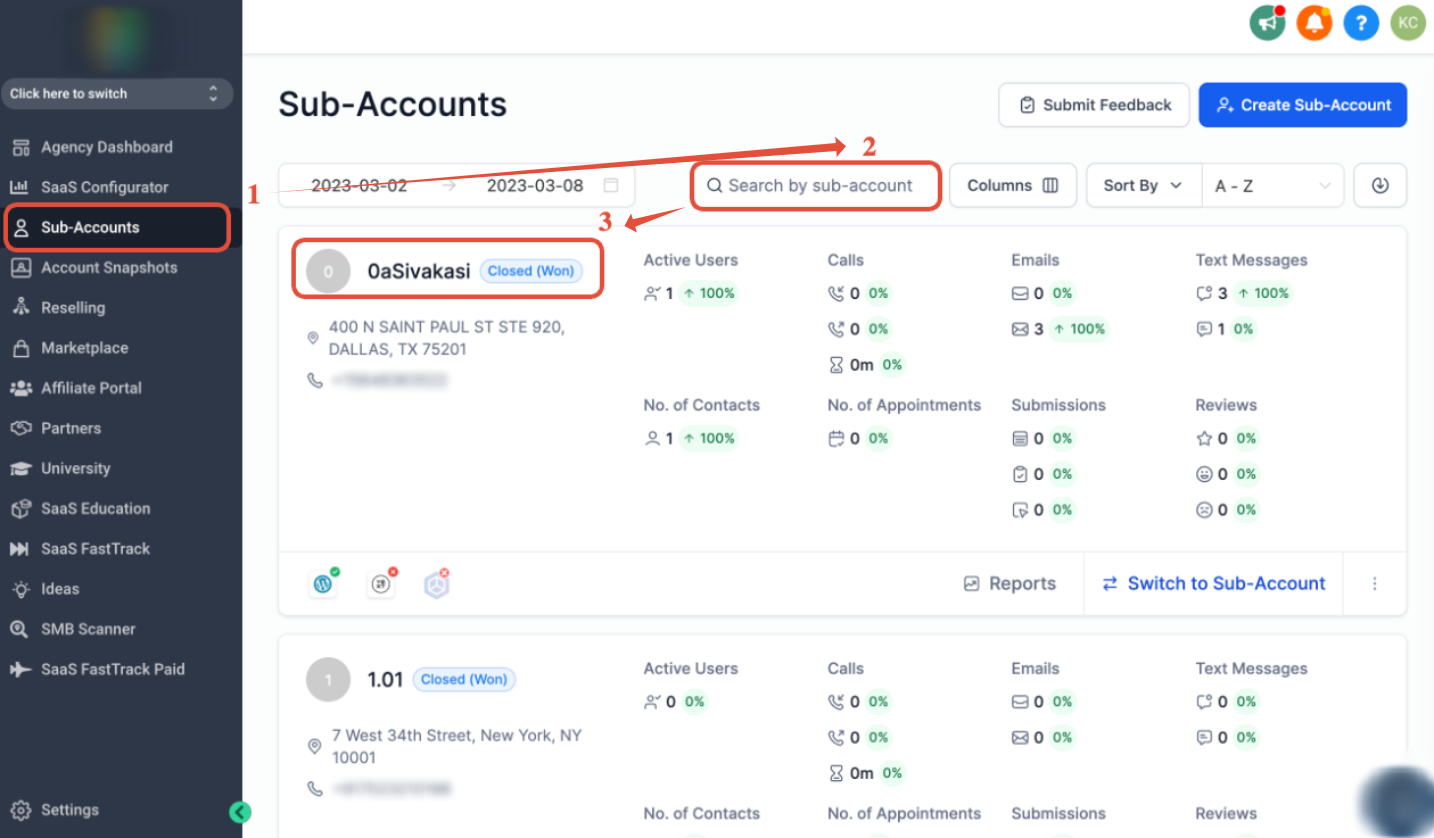
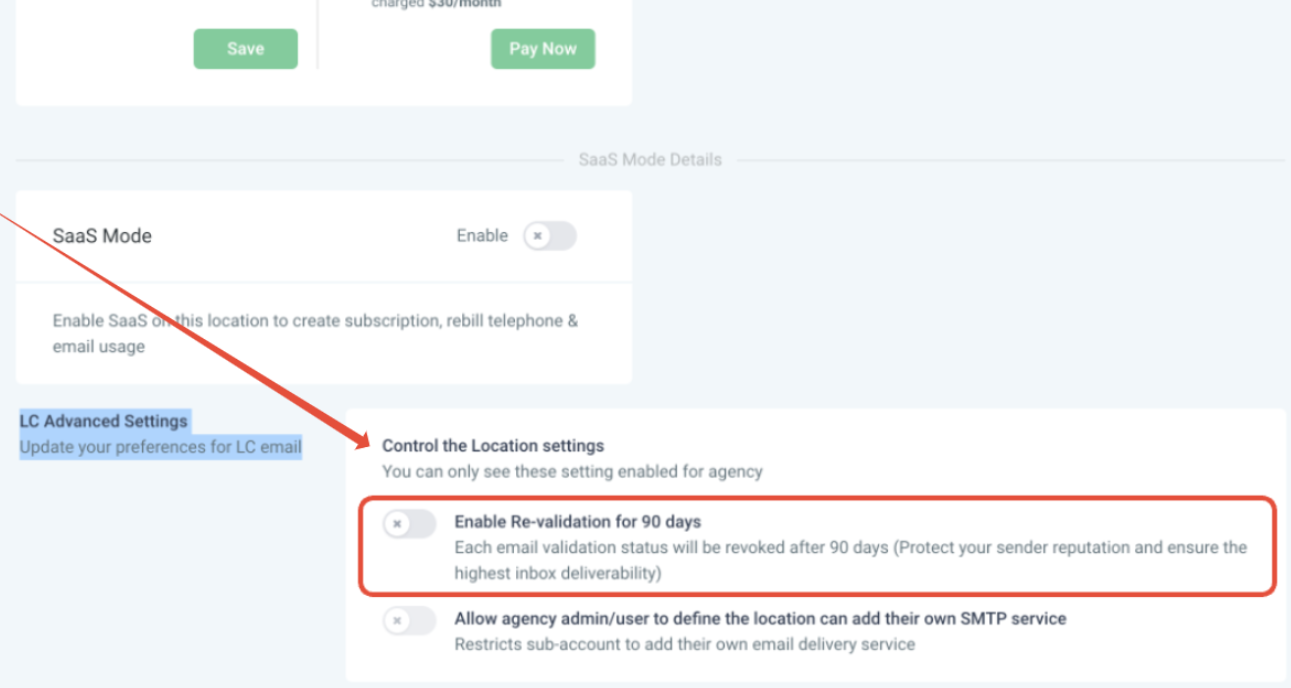
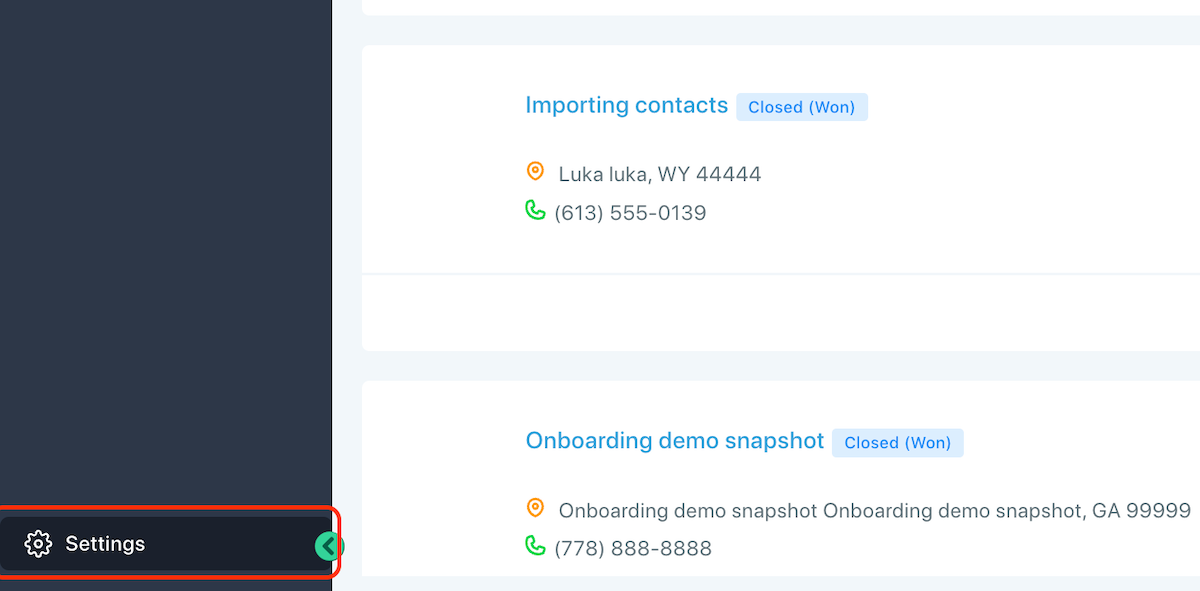 3. Click on Email Services and Navigate to Location Settings!(https://assets.patientcopilot.ai/9259220ad0a1c5cf.png) 4. Enable Email Verification by clicking on the toggle in front of the desired sub-account: Please Note: Email verification is a paid service and is charged / email!(https://assets.patientcopilot.ai/c8f38d3ae30acc0a.png) * * * ## How to enable Email re-verification in the CRM: 1. Once you are in the agency view, click on Sub-Accounts 2. Search by the sub-account name 3. Click on the sub-account name!(https://assets.patientcopilot.ai/c9ad3eda7cc18d60.png) 4. Scroll down to Email Advanced Settings > Enable Re-verification for 90 days revalidated!(https://assets.patientcopilot.ai/96516e232fa5693a.png) * * * ## FAQ ### How does email verification work? Email verification checks emails against Mailgun’s records when entering the system for the first time (form, survey, calendars, chat widget) or when sending a new email after enabling email verification**.** And every 90 days if enabled. Head into the contact record >scroll down the right side > click the envelope icon. - Green = Valid
- Red = Invalid, too old, previously bounced, unsubscribed, etc. The error would specify why the Email is invalid.