Using the Workflow Switcher in Patient Copilot
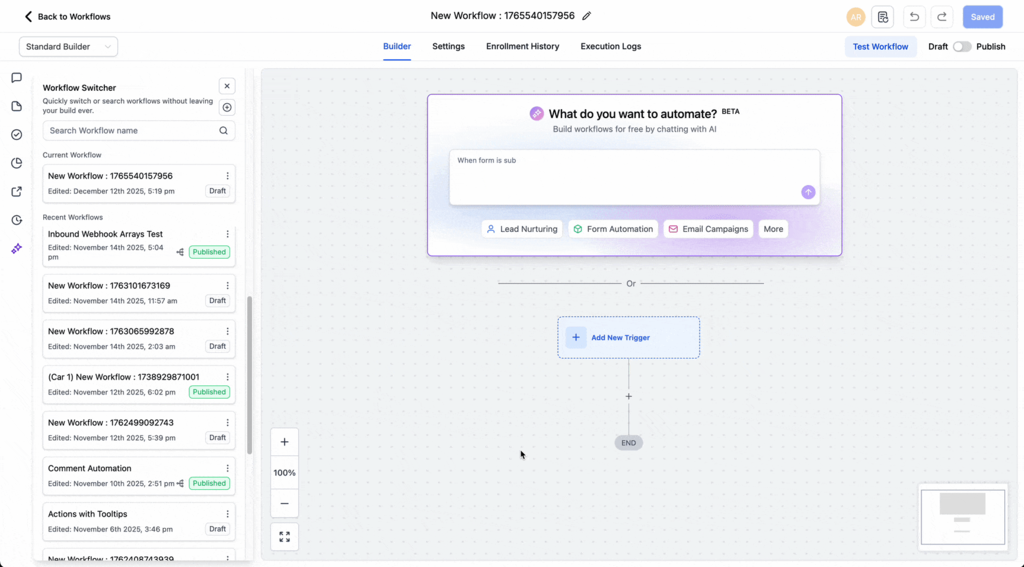
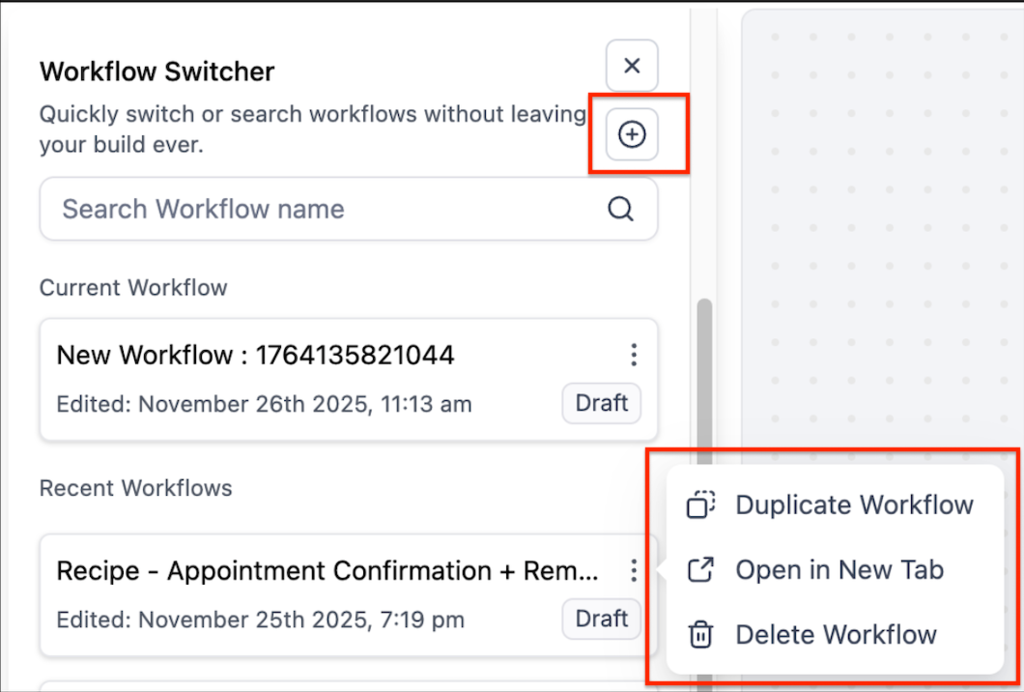
The Workflow Switcher allows you to quickly navigate between workflows without leaving the builder. You can search, open, create, duplicate, and delete workflows directly from the switcher panel, helping you stay focused while managing automations. * * * ## What’s New The Workflow Switcher now includes: - Same-tab workflow switching to reduce tab clutter - Faster loading and smoother navigation - Infinite scroll to browse all workflows - In-panel actions to create, duplicate, and delete workflows - Availability in both Advanced and Standard Workflow Builders * * * ## How to Open the Workflow Switcher 1. Go to Automations → Workflows 3. Click the Workflow Switcher in the left sidebar - Or press Shift + W * * * ## Workflow Switcher Interface Below is an overview of the Workflow Switcher inside the builder: !(https://assets.patientcopilot.ai/c4dda54c9c20e5bd.png) This panel allows you to: - Switch between workflows without leaving the builder * * * !(https://assets.patientcopilot.ai/5f9dfcae3b3c7519.png) From this panel, you can: - Duplicate an existing workflow - Open a workflow in a new tab - Delete workflows * * * ## How to Switch Between Workflows 1. Open the Workflow Switcher 2. Use the search bar or scroll to find a workflow 3. Click the workflow name The selected workflow will open in the same tab. * * * ## Manage Workflows from the Switcher Inside the switcher, you can: - Create a new workflow using the + icon - Duplicate workflows from the options menu - Delete workflows you no longer need These actions are available directly within the panel, so you don’t need to leave the builder. * * * ## Navigation Improvements - Same-tab switching keeps your workspace focused - Infinite scroll allows browsing large workflow lists without pagination - Improved performance speeds up loading and switching between workflows * * * ## Keyboard Shortcut Press Shift + W to open or close the Workflow Switcher. * * * ## Frequently Asked Questions Can I open a workflow in a new tab? Yes. Use the options menu or right-click a workflow and select Open in new tab. Will I lose unsaved changes when switching workflows? No. You will be prompted to save or discard changes before switching. Is the Workflow Switcher available in all builders? Yes. It is available in both Advanced and Standard Workflow Builders. Is there a limit to how many workflows I can view? No. Infinite scroll allows you to browse all workflows without pagination. * * * ## Related Articles - Keyboard Shortcuts in Workflow Builder